
An intuitive application that helps users design 16, 24, 32, or 48-bit icons with alpha channels from BMP and GIF files, quickly and with minimum effort. #Icon creator #Alpha Resampling #Bitmap to icon #Icon #Creator #Create

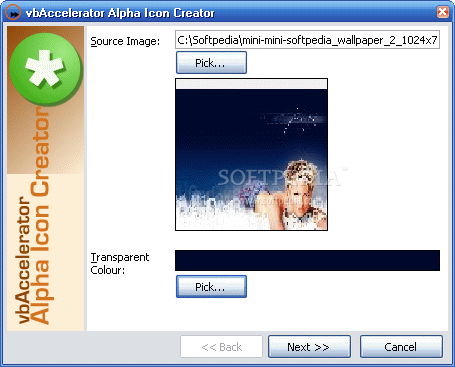
Alpha Icon Creator is a lightweight Windows application whose sole purpose is to create 16, 24, 32, or 48-bit icons from images in just a few steps.
As the name of the tool implies, the app creates icons with alpha channels, which means you are able to customize the transparency of the images.
Since this is a portable program, it is important to mention that it doesn’t leave any traces in the Windows Registry. You can copy it on any USB flash drive or other devices, and take it with you whenever you to need to create icons on the fly.
Alpha Icon Creator sports a clean and straightforward interface that allows users to add files by using the built-in browse function, so you cannot rely on the “drag and drop” support.
The application offers support for BMP and GIF file formats, and lets you select the color to be used as a transparent layer.
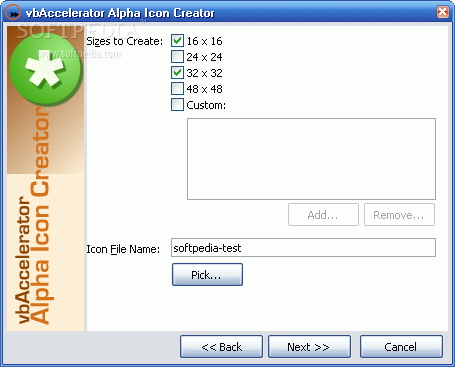
What’s more, the utility offers users the possibility to select the icon size from a predefined list or add a custom value to the list, and specify the icon name and saving directory.
Since there aren’t any configuration settings even less experienced users can master the entire process with minimum effort.
During our testing we have noticed that the tool carries out a task very quickly and without errors throughout the entire process. It manages to remain light on the system resources, so it doesn’t affect the overall performance of the computer, nor interfere with other programs’ functionality.
To sum it up, Alpha Icon Creator offers a simple software solution when it comes to designing icons on the fly.
Alpha Icon Creator 1.0
add to watchlist add to download basket send us an update REPORT- runs on:
- Windows All
- file size:
- 186 KB
- filename:
- VB5_Alpha_Icon_Creator.zip
- main category:
- Desktop Enhancements
- developer:
- visit homepage
Zoom Client
ShareX
calibre
4k Video Downloader
IrfanView
paint.net
Windows Sandbox Launcher
Microsoft Teams
Bitdefender Antivirus Free
7-Zip
- Microsoft Teams
- Bitdefender Antivirus Free
- 7-Zip
- Zoom Client
- ShareX
- calibre
- 4k Video Downloader
- IrfanView
- paint.net
- Windows Sandbox Launcher