|
|
|
|
Mikogo 4.3.110804
|
|
|
|
|
|
User Rating: Rated by: |
Good (3.5/5) 42 user(s) |
|
|
|
Mikogo description
|
A desktop sharing tool for web conferencing with up to 10 people
Looking for desktop sharing software without paying through the teeth? Look no further. Mikogo is a free remote desktop app full of features to assist you in conducting the perfect web conference, online meeting, or remote support session.
Share any screen content or application in true color quality across the world with up to 10 participants simultaneously, while still sitting at your desk. Mikogo can be employed for many professional, academic, or personal uses, including web conferencing, online meetings, sales demos, web presentations, remote support, group collaboration, and more. Provide online technical support via remote control.
Conduct product demos for business customers. Use Mikogo to discuss and edit a current team project. Or on a personal level, share your recent holiday photos with friends.
Note: You need to create an account in order to start using all the program's features. Here are some key features of "Mikogo":
Desktop Sharing:
· Mikogo provides high quality desktop sharing so you can share your computer screen with participants on both PCs and Mac computers, live over the Internet.
Multiple Meeting Participants:
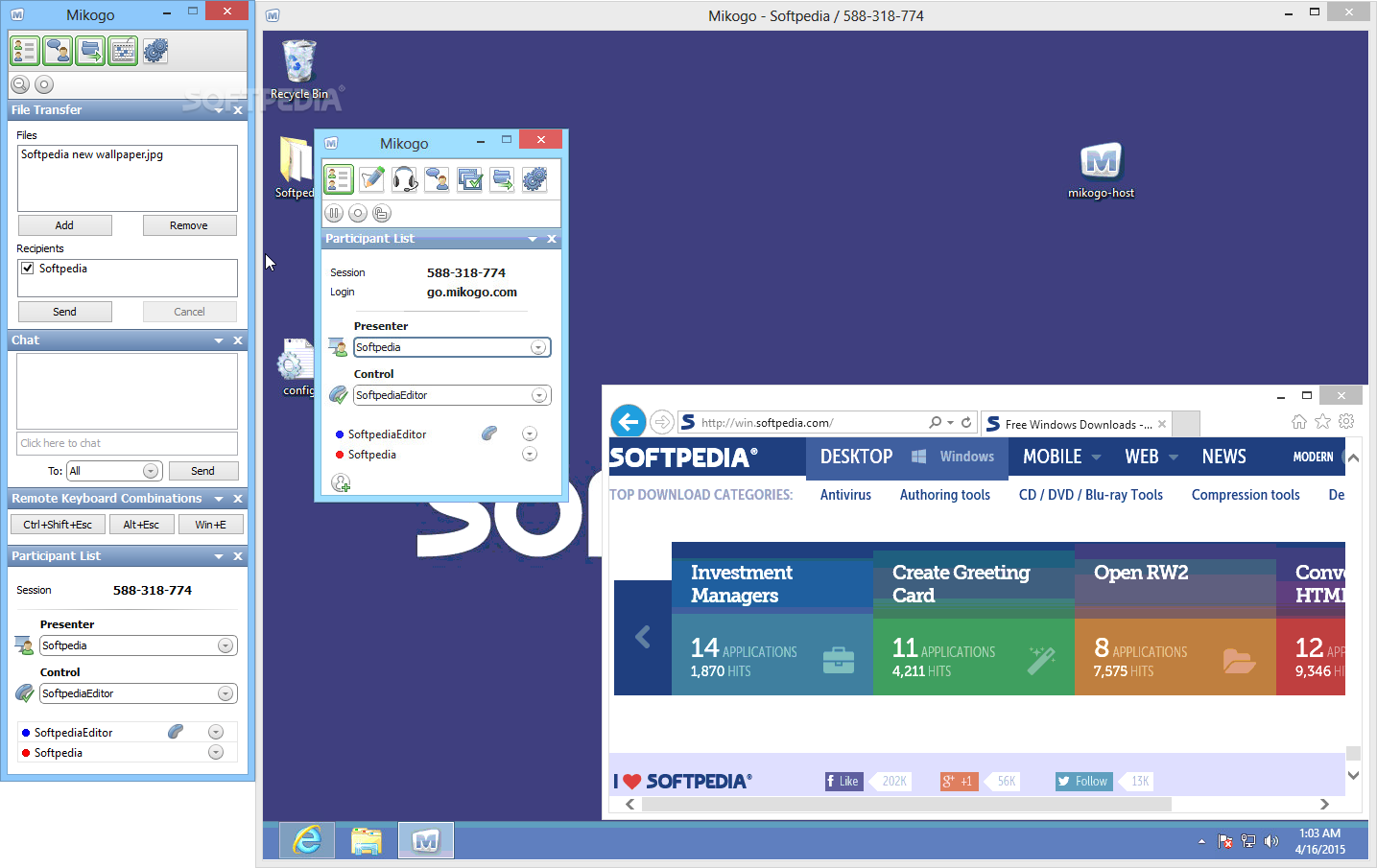
· Up to 10 participants can join your session and view your screen in real-time. Your participants will be able to view your screen through a viewer window, which appears on their screen as soon as they join your session. No installations or registrations required for participants.
Switch Presenter:
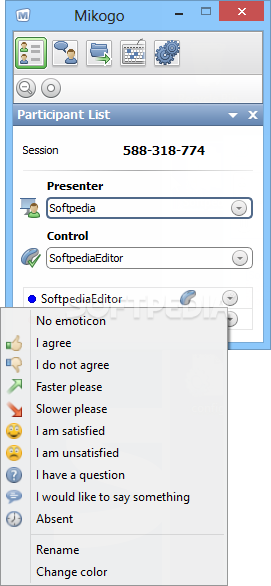
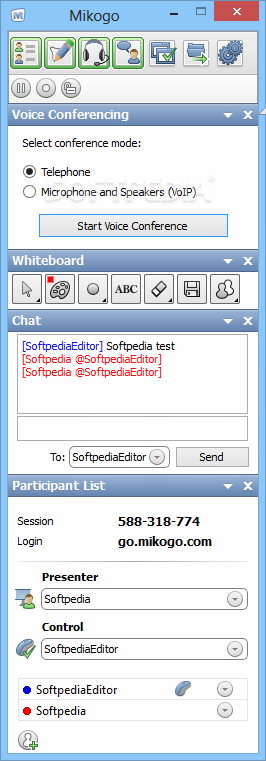
· At any point during your free desktop sharing session, you are able to send an invitation to a session participant offering them to take the role of presenter. Upon acceptance the viewing direction will switch, enabling the participant to become the presenter and share their screen. Naturally, you may switch between different presenters as often as required.
Remote Keyboard and Mouse Control:
· While sharing your screen, you may assign remote control to a session participant. Such a feature encourages the participants to actively engage in the web conference and contribute to the online discussion, as well as providing an ideal solution for remote support.
Initial Viewing Direction and Remote Control Settings:
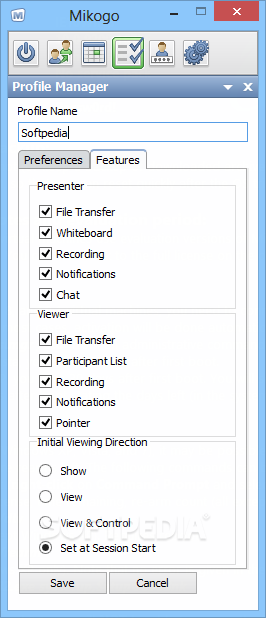
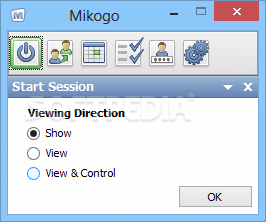
· This is an ideal feature for remote support session organizers. With it, you can start a session, invite a participant, and have the participant instantly become the presenter and show their screen to you. You can even obtain initial remote control of your participant’s keyboard & mouse. Of course explicit consent is required by the participant for security.
Session Scheduler:
· Plan multiple sessions ahead of time and keep track of them within the scheduler. Each session receives a unique ID and can be used repeatedly on future occasions. You can also store several session IDs in your scheduler and use them at any time you wish. Session details can be quickly sent to the invited participants.
Session Recording and Playback:
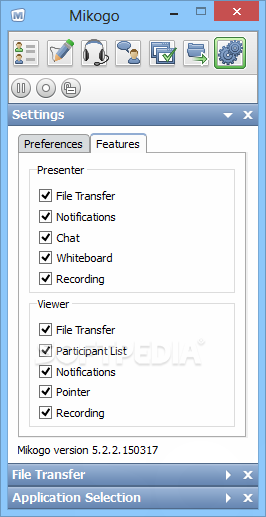
· Both the presenter and participants can record the session to keep as a record for later playback. The session player can also be downloaded for free.
Whiteboard:
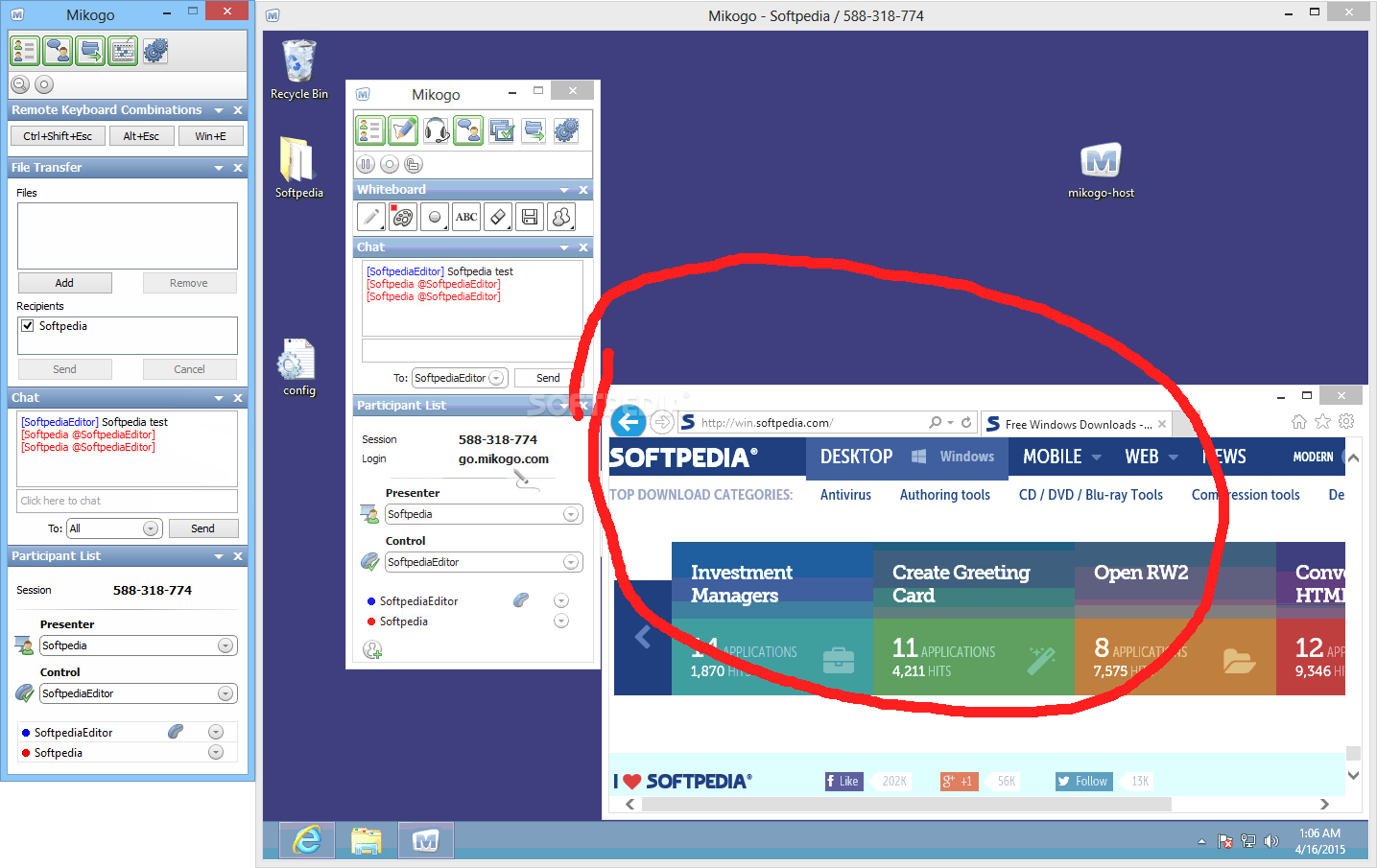
· Enable the whiteboard toolbar to illustrate and highlight areas on your screen for others to see when viewing your screen.
Transfer Files:
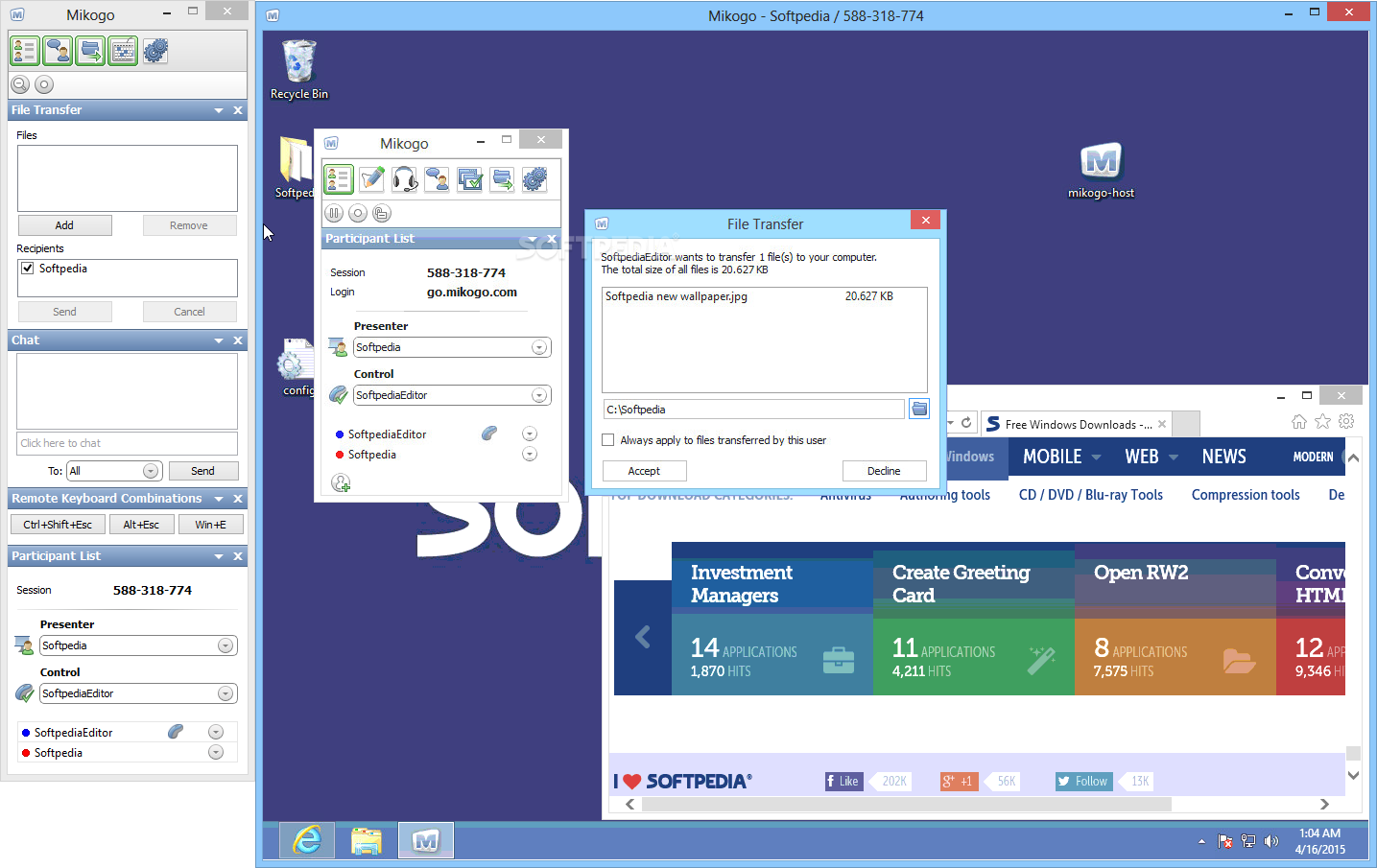
· Ever had problems sending files which are too large for email attachments? With Mikogo, you can transfer files of up to 200MB in size live over the Internet, whilst in the middle of your web conference.
Application Selection:
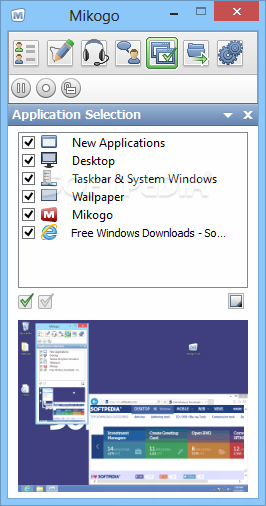
· During a Mikogo session, you may not wish to share your entire desktop, but rather keep some open applications hidden from view e.g. your email client. Mikogo allows you to select which applications you wish to share during the session, and which ones you would prefer to keep hidden.
Back Monitor:
· This small box provides you with a view of exactly what the participants can see on your screen during a desktop sharing session.
Participant Pointer:
· Participants can click in their viewer window at any time, which will display a large colored arrow on the current presenter’s screen. This aids discussion and demonstrations, as participants can quickly draw the attention of the presenter and other participants to a certain area on the presenter’s screen.
· On some occasions, you may not require the use of the participant pointer. Consequently you may switch it off at any time during a Mikogo session under the Preferences Tab in the Mikogo Session Information window.
Copy/Paste/Email Meeting Info:
· A quick easy way to notify your participants of the Mikogo session details.
Pause Transmission:
· When the need arises, simply pause screen transmission and place the session on hold while you access private files or applications. The screen sharing will momentarily cease, and your session participants are unable to see any action you make on your computer. When ready you may continue your free online meeting and the screen sharing between you and your participants will instantly resume.
Adjust Speed/Quality Settings:
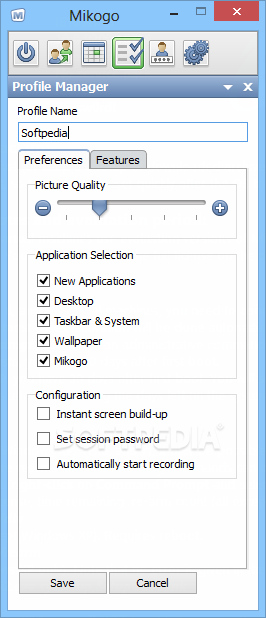
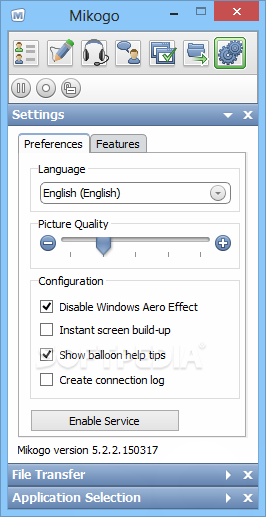
· With this feature, you can adjust speed/quality settings to correspond to the purpose of your Mikogo session. If you’re using Mikogo for remote support, you may like to select the “max speed” setting whereas those hosting web conferences and web presentations will prefer the “high quality” setting to provide an even clearer screen sharing experience for their session participants.
Requirements:
· Internet Connection
|
|
 | | Softpedia guarantees that Mikogo 4.3.110804 is 100% CLEAN, which means it does not contain any form of malware, including spyware, viruses, trojans and backdoors. [read more >] |
|
|
|