
Free IDE for C++, Java, PHP, JavaScript and other languages, featuring syntax highlights, compiler profiles, macros, environment manager, and rich text formatting options. #C++ IDE #Java IDE #Development environment #Development #Enviroment #IDE


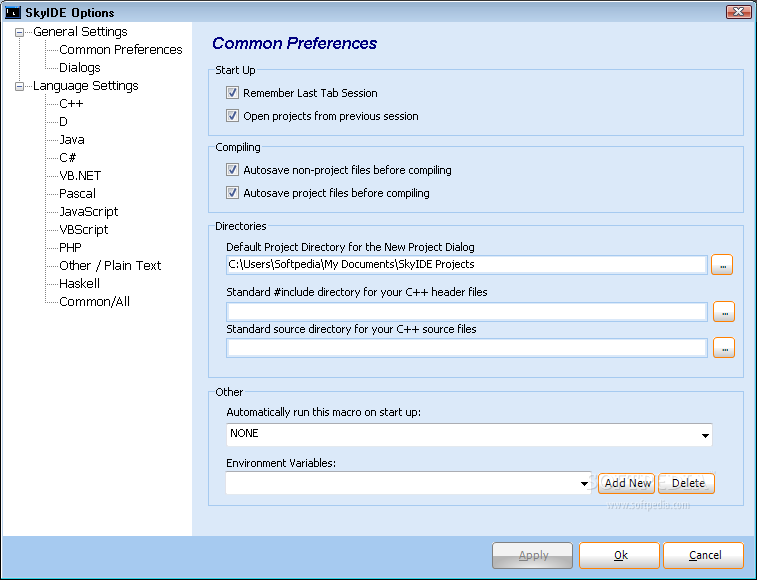
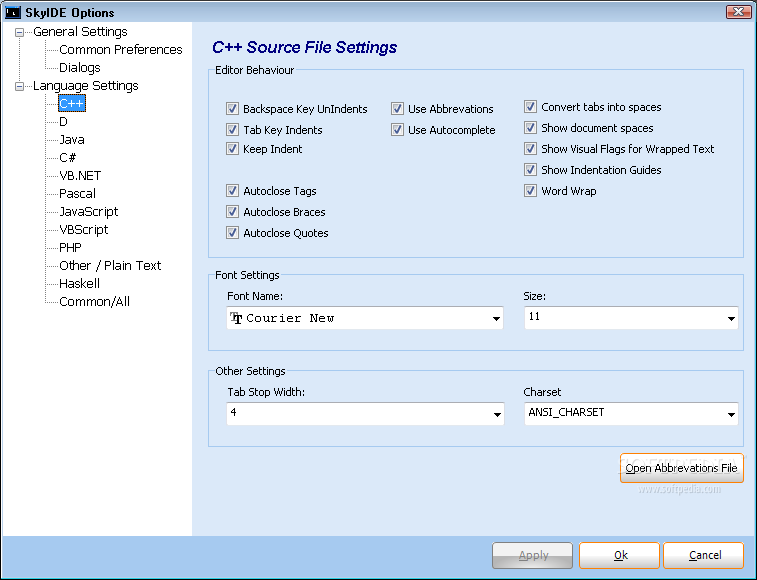
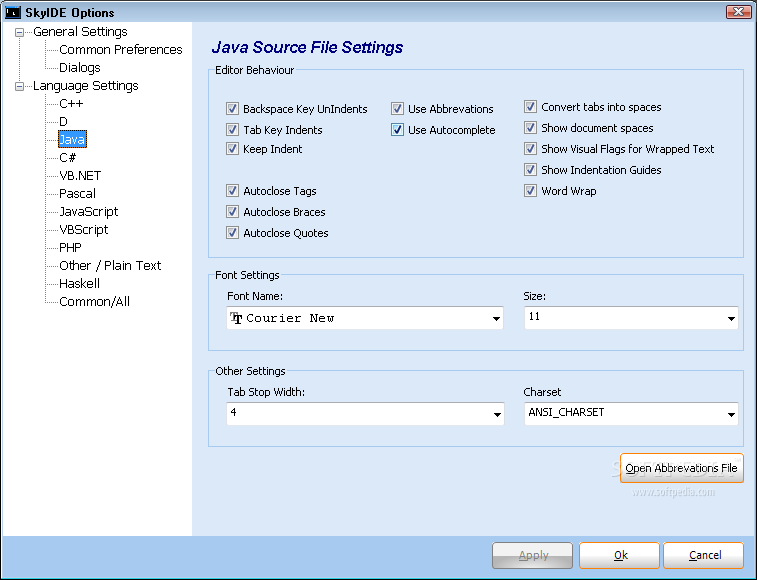
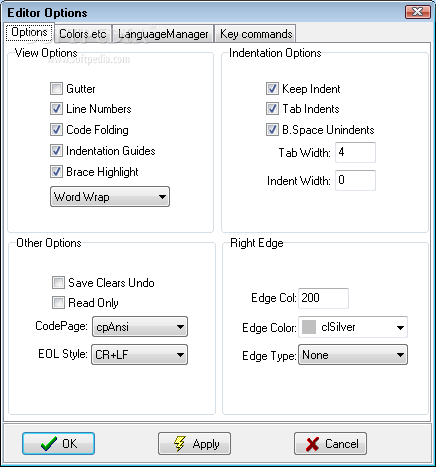
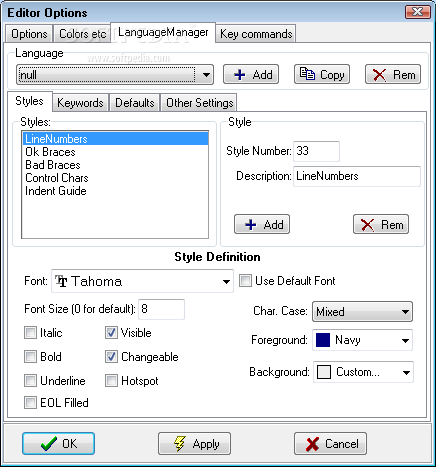
SkyIDE is a free IDE with support for C++, Java, Digital Mars D, C#, VB.NET, Pascal, JavaScript, VBScript, PHP, Haskell, and plain text. The application contains a wide range of features, such as macros, compiler profiles, and an environment manager.
It's not wrapped in an installer, so you can just copy the files on the computer or a removable storage unit, and double-click the .exe to launch the tool. No modifications are made to the Windows registry.
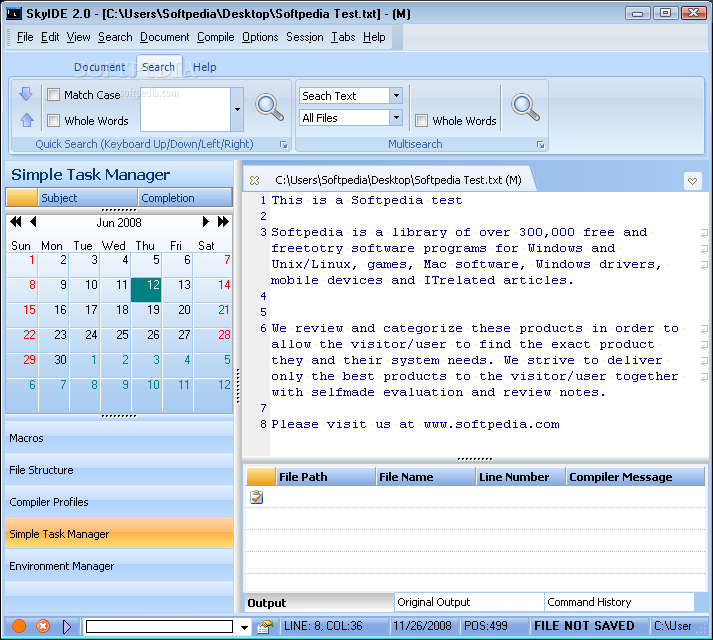
The main window has a professional layout and supports syntax highlights. You can create projects with multiple source files, set bookmarks, reload the current file, record and play macros for repetitive tasks, control the file structure with functions and classes, as well as create compiler profiles.
A simple task manager can be filled with basic notes to monitor the evolution of tasks. Meanwhile, the environment manager lets you add new project files and external documents before compiling the project. Data can be exported to HTML format, while a search-and-replace function can be executed with advanced options (e.g. selected text only, regular expression mode, case sensitivity).
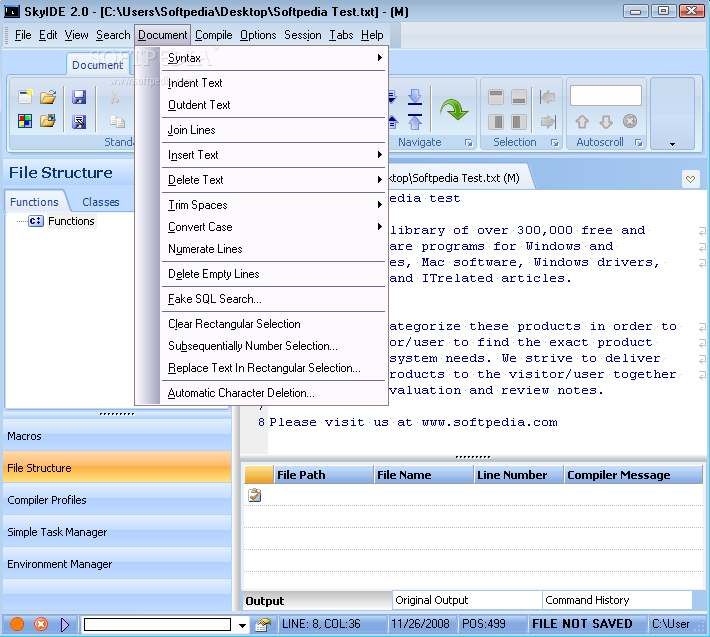
When it comes to document formatting, it's possible to indent and outdent text, merge multiple lines into one, insert or delete text from the start or end of each line, trim spaces from left or right, convert text to uppercase or lowercase, add numbers to selected lines, delete empty lines, as well as to perform a search using conditions similar to SQL queries.
It didn't put a strain on the machine's performance in our tests, running on low CPU and RAM. No error dialogs popped up and the tool didn't freeze or crash. Too bad that it hasn't been updated for a long time. Otherwise, SkyIDE comes equipped with practical options for writing and compiling code in various languages.
What's new in SkyIDE 2.0 Alpha 5b:
- Fixed bugs with Haskell support (crashing) which also impacted other sections
- Added some default values when creating new projects
- Re-arranged some menu items to make more sense
- Fixed default coloring values with Haskell
SkyIDE 2.0 Alpha 5b
add to watchlist add to download basket send us an update REPORT- runs on:
-
Windows 2003
Windows Vista
Windows XP - file size:
- 2.1 MB
- filename:
- SkyIDE2.x.zip

- main category:
- Programming
- developer:
- visit homepage
calibre
Zoom Client

Bitdefender Antivirus Free

IrfanView
Microsoft Teams

4k Video Downloader

ShareX
7-Zip
Windows Sandbox Launcher

Context Menu Manager
- 7-Zip
- Windows Sandbox Launcher
- Context Menu Manager
- calibre
- Zoom Client
- Bitdefender Antivirus Free
- IrfanView
- Microsoft Teams
- 4k Video Downloader
- ShareX