
Contig is a single-file defragmenter which attempts to make files contiguous on disk in order to improve the access speed when using large files. #File defragmenter #Analyze fragmentation #Defragment disk #Defragment #Defragmenter #Defragmentation
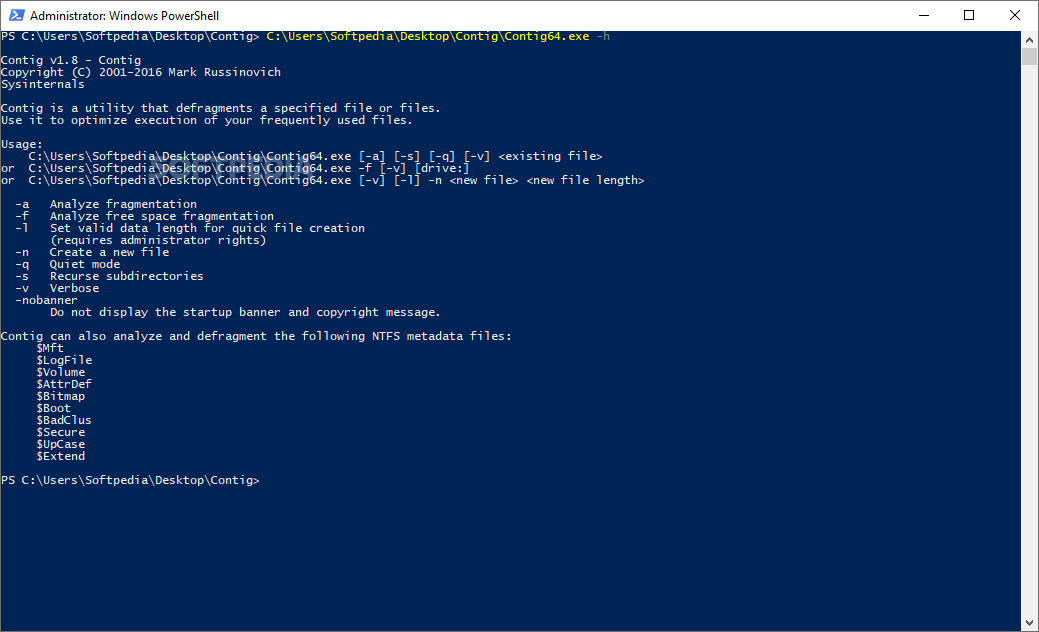
Contig is a lightweight utility designed to help you defragment certain files from your hard drive. The program can be used in command line mode in order to specify the item that you want to analyze or defragment.
The access time of each file from the hard drive depends on its fragmentation since the drive needs to retrieve all the sectors used for storing the data. A proven method of improving the speed of your system is to regularly defragment the hard disk.
However, defragmenting an entire hard drive can take a lot of time and sometimes can improve the performance only for a short time. This program aims to help you when you only need to defragment a reduced number of files.
Before running the program on of of your files, you should take a look at the command line arguments. This tool allows you to analyze the file and provides you with a brief report in order to decide if it needs defragmentation.
You can use the verbose mode and run the application silently in order to defragment the files with a single click. Since it is a command line tool, repeated actions can be automated by creating batch scripts.
Additional commands enable you to analyze the free space from the hard drive and recurse the directories when defragmenting files.
If you are looking for a simple tool for defragmenting individual files, Contig is a reliable solution that can help you avoid defragmenting the entire partition.
Contig 1.83
add to watchlist add to download basket send us an update REPORT- PRICE: Free
- runs on:
-
Windows 11
Windows Server 2019
Windows Server 2016
Windows 10 32/64 bit
Windows Server 2012
Windows 2008 32/64 bit
Windows 8 32/64 bit
Windows 7 32/64 bit
Windows Vista 32/64 bit - file size:
- 366 KB
- filename:
- Contig.zip
- main category:
- System
- developer:
- visit homepage
4k Video Downloader

Bitdefender Antivirus Free
7-Zip
Zoom Client
ShareX
calibre
IrfanView
Microsoft Teams
Windows Sandbox Launcher
Context Menu Manager
- Microsoft Teams
- Windows Sandbox Launcher
- Context Menu Manager
- 4k Video Downloader
- Bitdefender Antivirus Free
- 7-Zip
- Zoom Client
- ShareX
- calibre
- IrfanView