
A small, yet powerful and reliable application that will allow you to easily calculate the MD5 and SHA1 hashes of the selected files. #Calculate MD5 #SHA1 hash #View hash #Hash #SHA1 #MD5

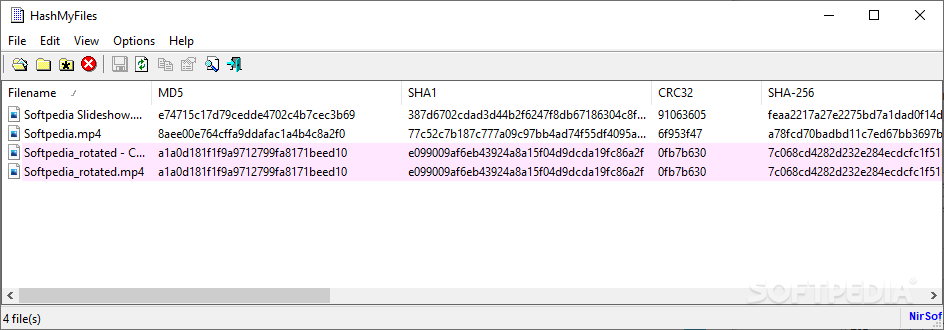
HashMyFiles is a lightweight application which enables you to find out hash information on your files. These details can help you calculate the integrity of a file.
This is a portable app, so installing HashMyFiles is not necessary. It means that you can store the tool on a USB flash drive, save it to any computer and directly run its executable file. No leftover items can be found after program removal.
The tool is wrapped in a user-friendly interface where you can import files by using either the file browser, folder view or 'drag and drop' method.
You can also import currently running processes and add entries by writing their full path. Working with multiple items simultaneously is possible.
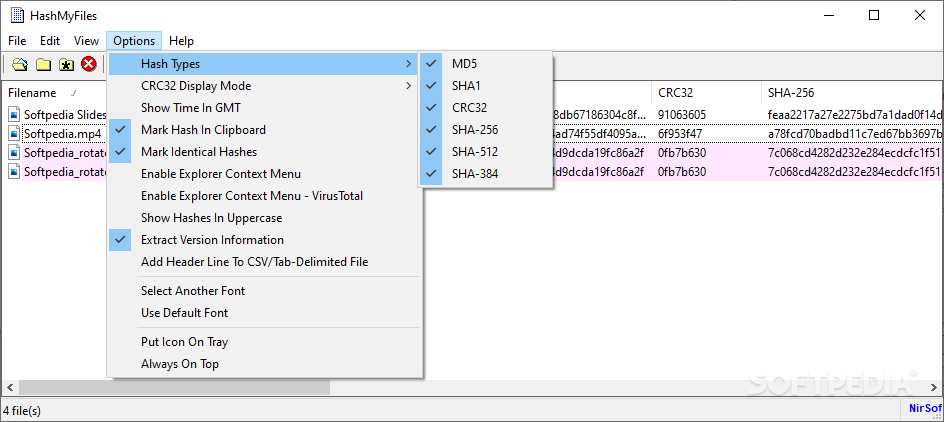
The file queue displays the name, MD5, SHA1, CRC32, SHA-256, SHA-512 and SHA-384 hash of each item, along with the full path, date of creation and modification, size, file and product version, identity status, extension and attribute.
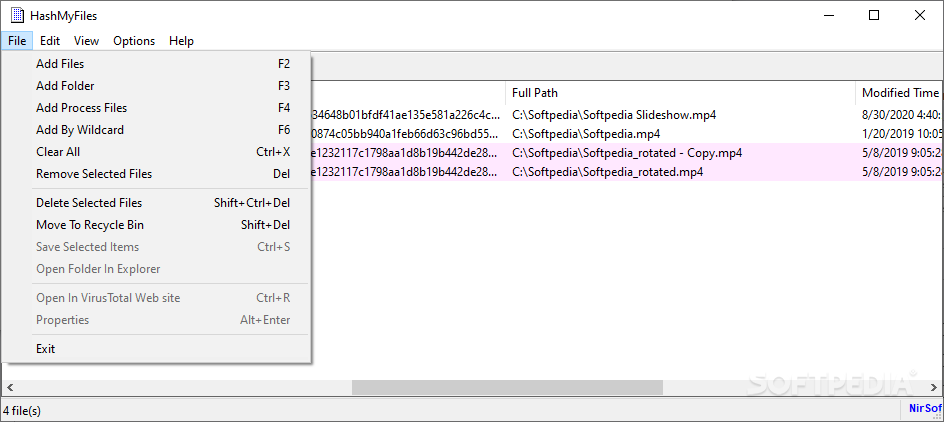
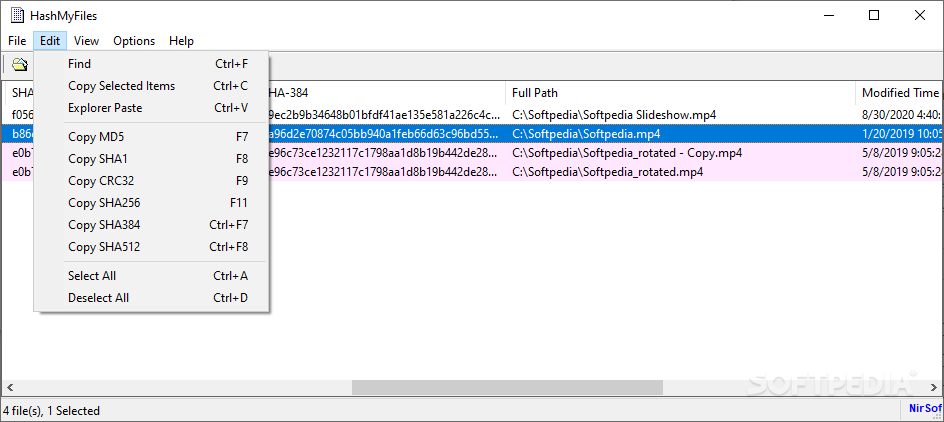
You can save selected items to an external file (TXT, HTML, XML, CSV) or move them to the Recycle Bin, view the aforementioned file properties in a window, use a search function and copy the MD5, SHA1 or CRC32 data.
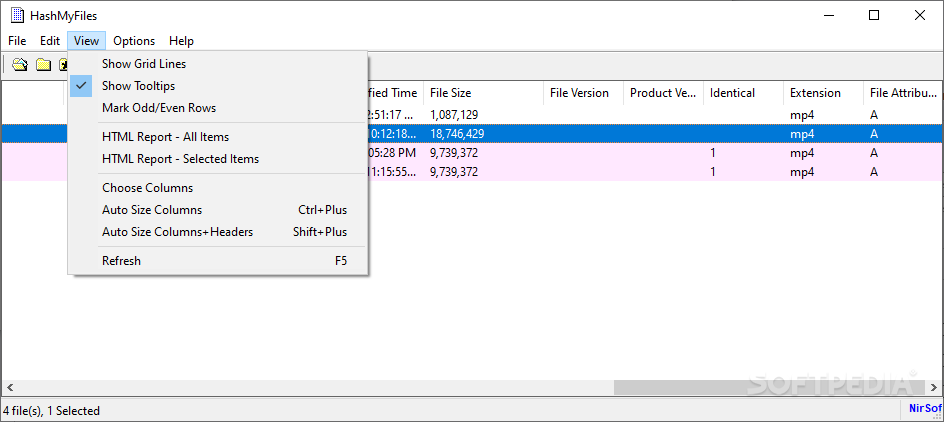
But you can also show grid lines, create an HTML report from the items, customize the columns, change the CRC32 display mode (decimal or hexadecimal), as well as integrate HashMyFiles into the Explorer context menu, minimize it to the system tray or make it stay on top of other applications.
The program requires a low amount of system resources and has a good response time. We have not come across any difficulties in our tests; HashMyFiles did not freeze, crash or pop up error dialogs. Unfortunately, there is no help file available and the interface needs some improvements from the visual point of view.
What's new in HashMyFiles 2.44:
- You can now send the hash data to stdout by specifying an empty string as the filename.
HashMyFiles 2.44
add to watchlist add to download basket send us an update REPORT- runs on:
-
Windows 10 32/64 bit
Windows 2003
Windows 8 32/64 bit
Windows 7 32/64 bit
Windows Vista 32/64 bit
Windows XP 32/64 bit
Windows 2K - file size:
- 69 KB
- filename:
- hashmyfiles.zip
- main category:
- System
- developer:
- visit homepage
Windows Sandbox Launcher
Zoom Client

calibre
4k Video Downloader

Microsoft Teams
ShareX
IrfanView
paint.net
7-Zip
Bitdefender Antivirus Free
- paint.net
- 7-Zip
- Bitdefender Antivirus Free
- Windows Sandbox Launcher
- Zoom Client
- calibre
- 4k Video Downloader
- Microsoft Teams
- ShareX
- IrfanView