
A replacement to add brand new features to help you switch tasks faster and more efficiently than ever before. #Alt-tab utility #Task switcher #Alt-tab customizer #Switcher #Alt-tab #Minimizer

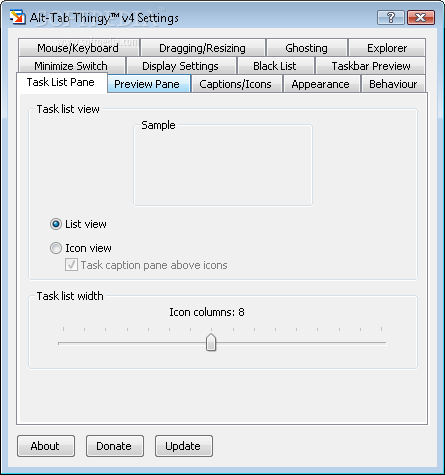
Alt-Tab Thingy is a tiny application that can replace the standard "Alt + Tab" command on your computer, aiming to offer you more control.
Once you install the program, it will store itself in the system tray. You can open the context menu to access the "Settings" menu.
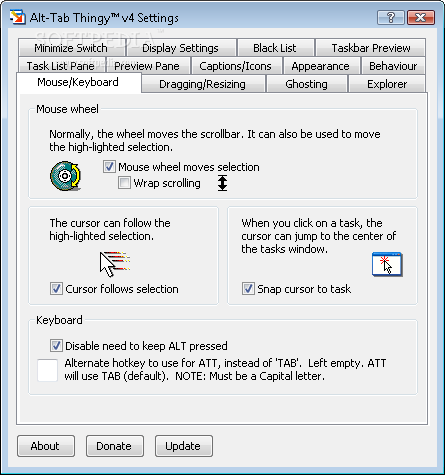
Here you can enable “mouse wheel moves selection” and wrap scrolling, “cursor follows selection” and cursor snapping to task, as well as disable the need to keep the "Alt" button pressed.
But you can also enable dragging (by pressing Ctrl + Left double-click) - to keep within the boundaries of the screen and to snap to the center of the screen, as well as enable resizing (by pressing Ctrl + Shift + Left double-click).
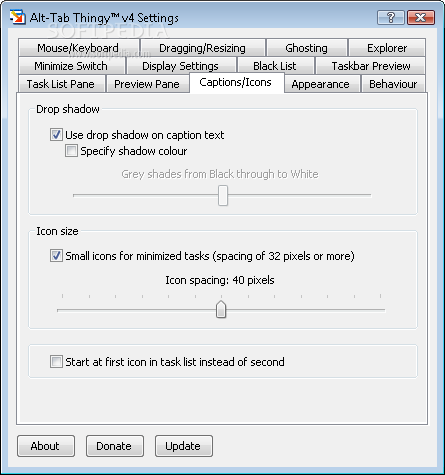
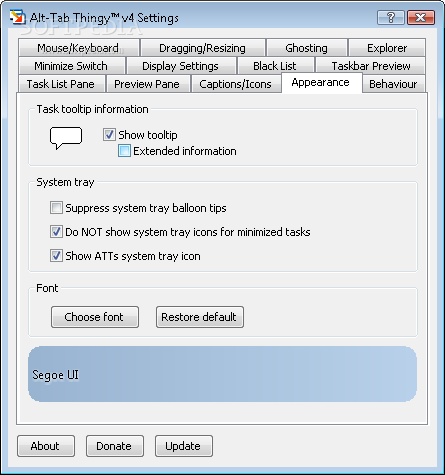
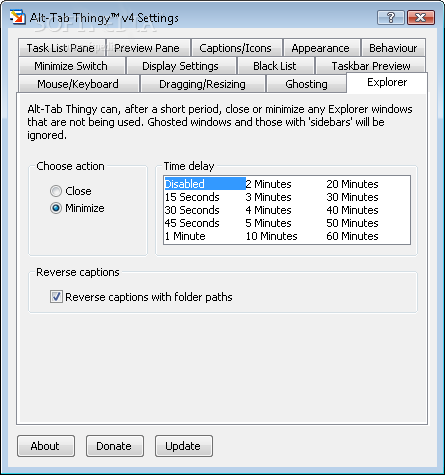
You can adjust the ghost opacity level, list width and preview width, set Alt-Tab Thingy to close or minimize inactive Explorer windows after a specific time interval, use drop shadow on caption text (and optionally specify the shadow color), use small icons for minimized tasks, view tooltips, and more.
The program uses a very low amount of system CPU and memory, offers some welcomed features when it comes to navigating seamlessly within your operating system, and we haven't experienced any kind of difficulties during our tests.
However, Alt-Tab Thingy does not include a help file, so first-time users would probably have a hard drive learning to work with the program. The bottom line is that you should definitely test till software for yourself.
What's new in Alt-Tab Thingy 4.0.4:
- Completely re-written in C++ v7.1
- Now works with all versions of XP & Vista.
Alt-Tab Thingy 4.0.4
add to watchlist add to download basket send us an update REPORT- runs on:
-
Windows 7
Windows Vista
Windows XP - file size:
- 404 KB
- filename:
- ATTv4.0.4.exe
- main category:
- System
- developer:
- visit homepage
7-Zip
Zoom Client
Microsoft Teams
paint.net
IrfanView
4k Video Downloader

ShareX
Bitdefender Antivirus Free
Windows Sandbox Launcher
calibre
- Bitdefender Antivirus Free
- Windows Sandbox Launcher
- calibre
- 7-Zip
- Zoom Client
- Microsoft Teams
- paint.net
- IrfanView
- 4k Video Downloader
- ShareX