
Eliminate repetitive tasks by replacing abbreviations for commonly used phrases and choosing the triggering method, quickly and with minimum effort. #Text substitution #Text replacer #Text replacement #Substitute #Replace #Replacer

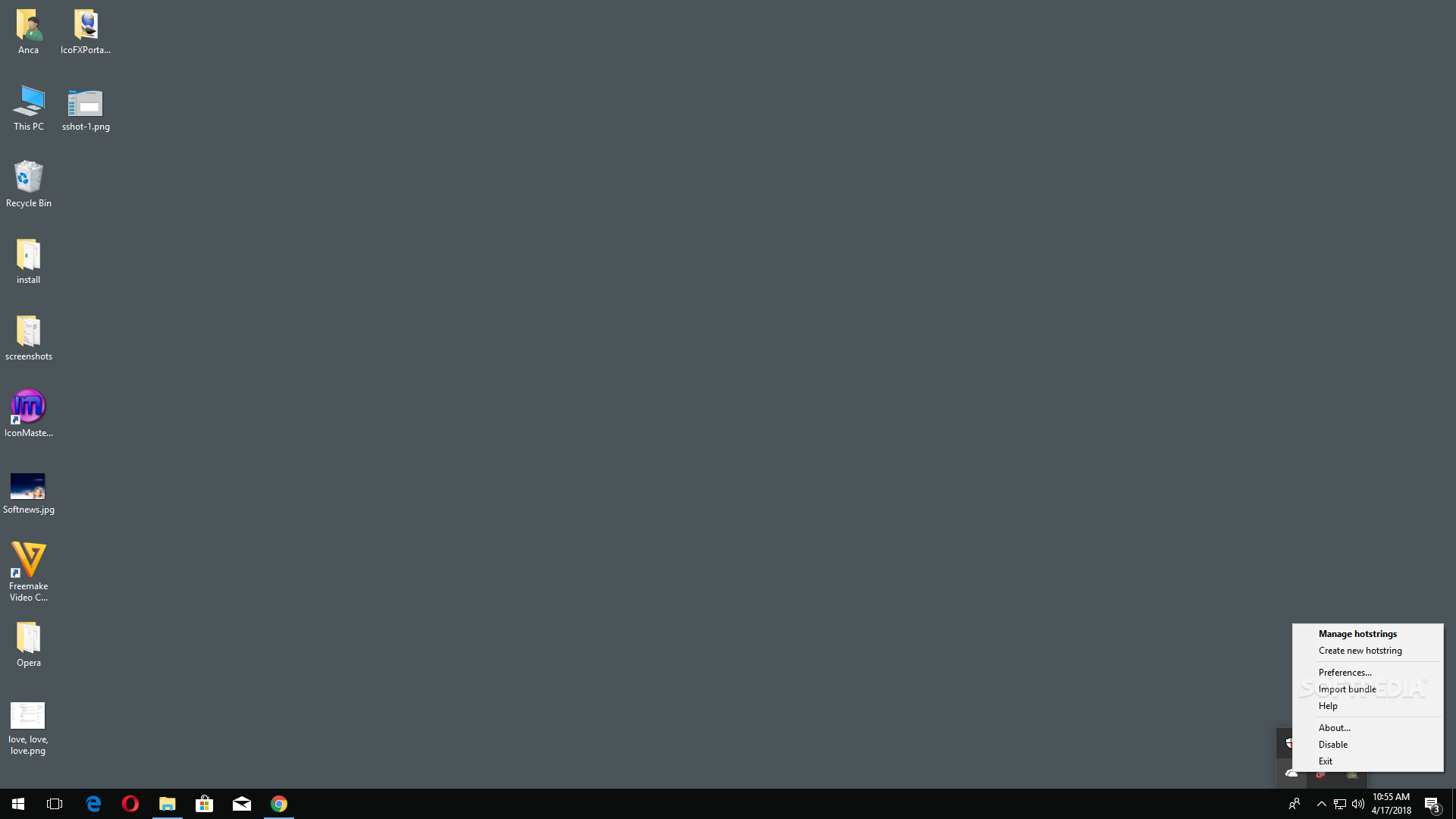
Texter is a small cross-platform utility built specifically for helping you change abbreviations for phrases that you constantly use.
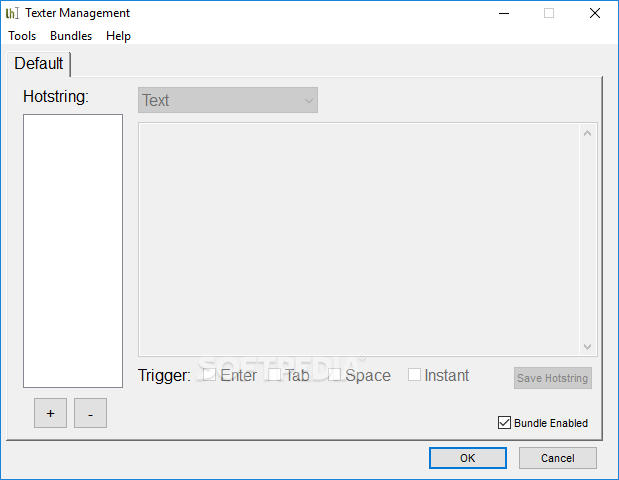
It sports a simple and clean interface that allows users to set up the text replacement process with just a few clicks.
The application gives users the possibility to add a new hotstring to the list by typing it in, inserting the text message and picking the triggering key (“Enter,” “Tab” or “Space”).
Texter lists all the hotstrings that you have defined in the primary panel of the application, and you can delete the selected ones.
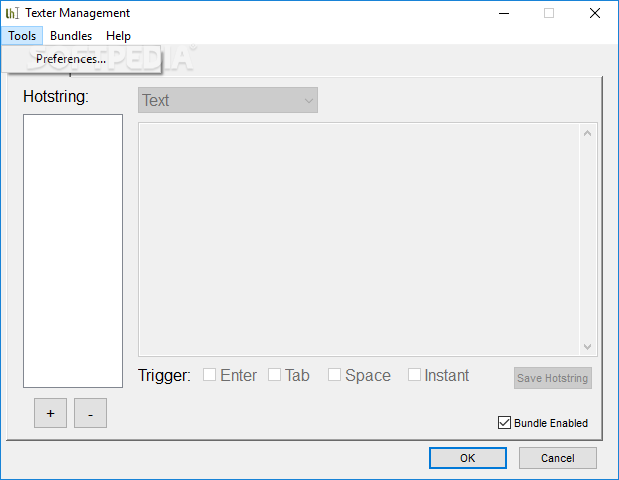
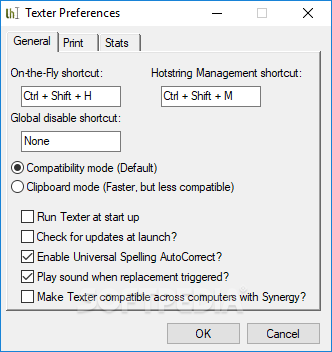
It is important to mention that hotkeys are also available for adding a new hotstring and opening the settings dialog. Plus, for a better control over the entire process, you can reassign them.
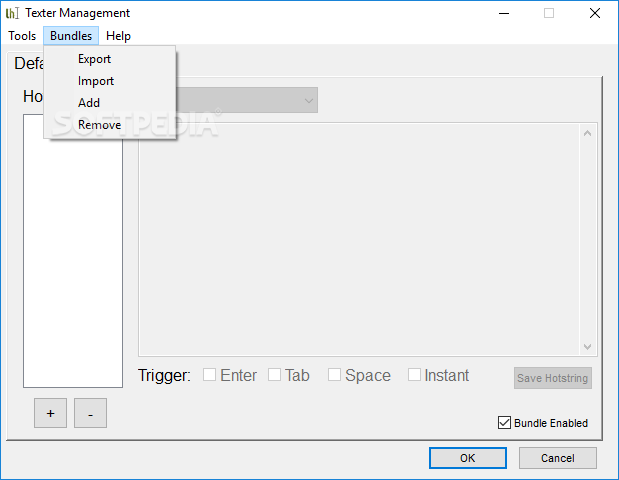
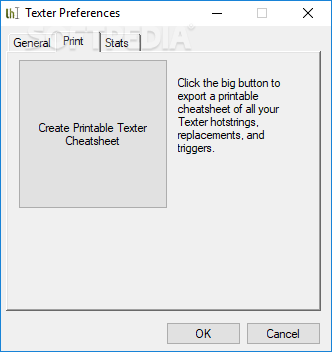
The program is able to perform text replacement operations with the Clipboard information, and you can make it run at Windows startup, play sound notifications when it triggers replacements, and generate HTML pages with the inserted hotstrings.
Another important feature worth mentioning enables users to extend the program’s functionality by synchronizing it with Synergy, a tool designed to help users share their mouse and keyboard between multiple computers.
All things considered, Texter is a simple application that packs a clean layout and only a few options for performing text replacements. Although it cannot compete with other powerful tools from its category, it’s easy to work with and can be mastered even by less experienced users. Plus, it carries out a task very quickly and remains light on the system performance.
What's new in Texter 0.6:
- Lots of redesigned code, can now rename existing hotstrings, universal autocorrect, instant replacements added and more
Texter 0.6
add to watchlist add to download basket send us an update REPORT- portable version
- Portable Texter
- runs on:
- Windows All
- file size:
- 590 KB
- filename:
- Texter-Installer-0.6.exe
- main category:
- System
- developer:
- visit homepage
IrfanView
7-Zip
Microsoft Teams
Windows Sandbox Launcher
ShareX
Zoom Client
Bitdefender Antivirus Free

4k Video Downloader

paint.net
calibre
- 4k Video Downloader
- paint.net
- calibre
- IrfanView
- 7-Zip
- Microsoft Teams
- Windows Sandbox Launcher
- ShareX
- Zoom Client
- Bitdefender Antivirus Free