
Run several operating systems simultaneously on the same computer without any conflict by creating virtual machines or importing external images. #Create virtual machine #VMware manager #Run virtual machine #Virtual machine #VMware #Sandbox

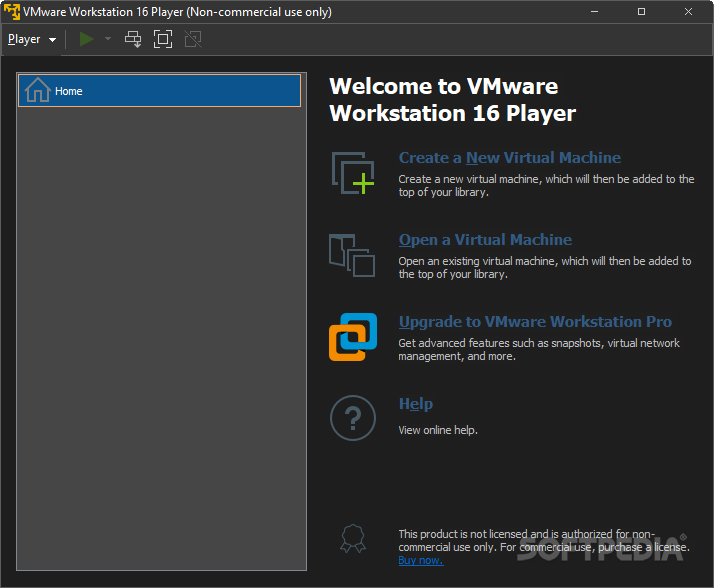
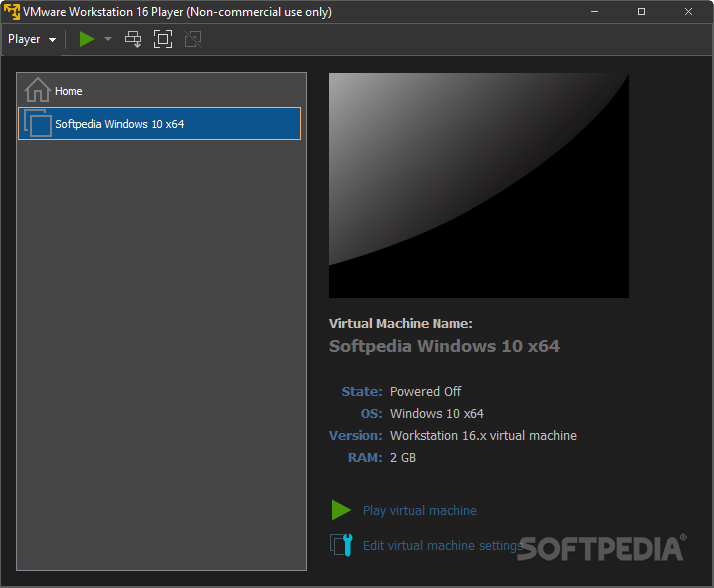
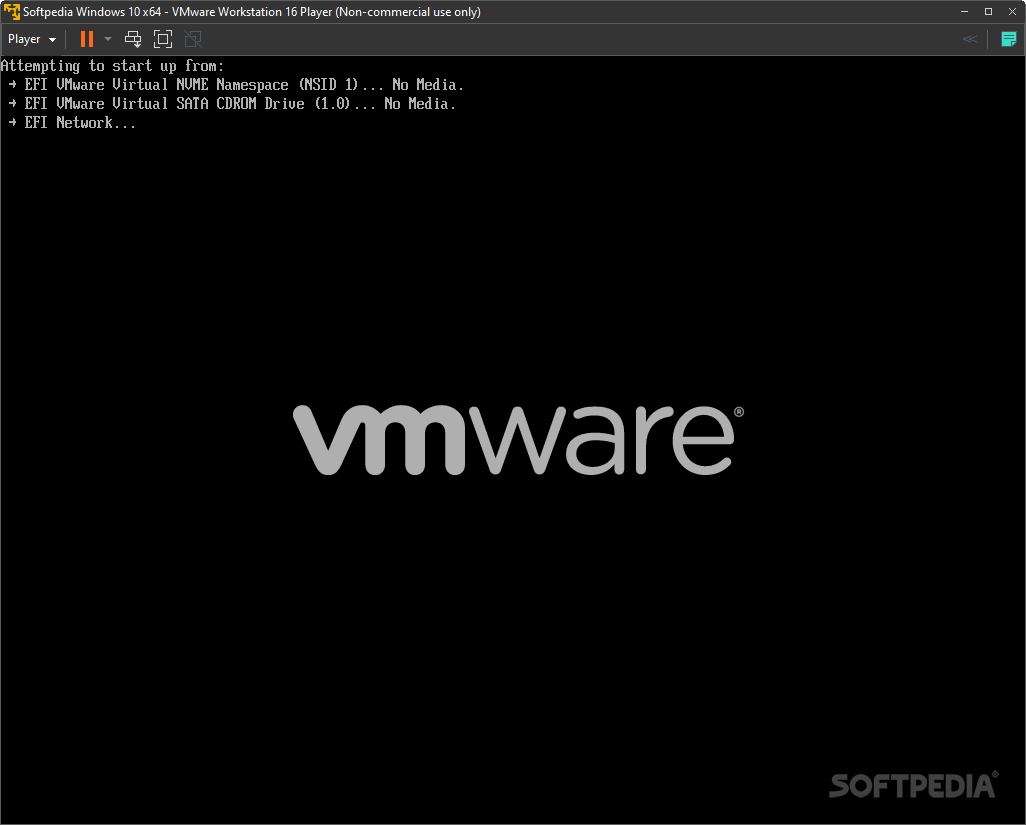
VMware Player is a program which allows you to run multiple virtual machines on your operating system and easily juggle them. For example, you can have Windows XP installed on top of your Windows 7.
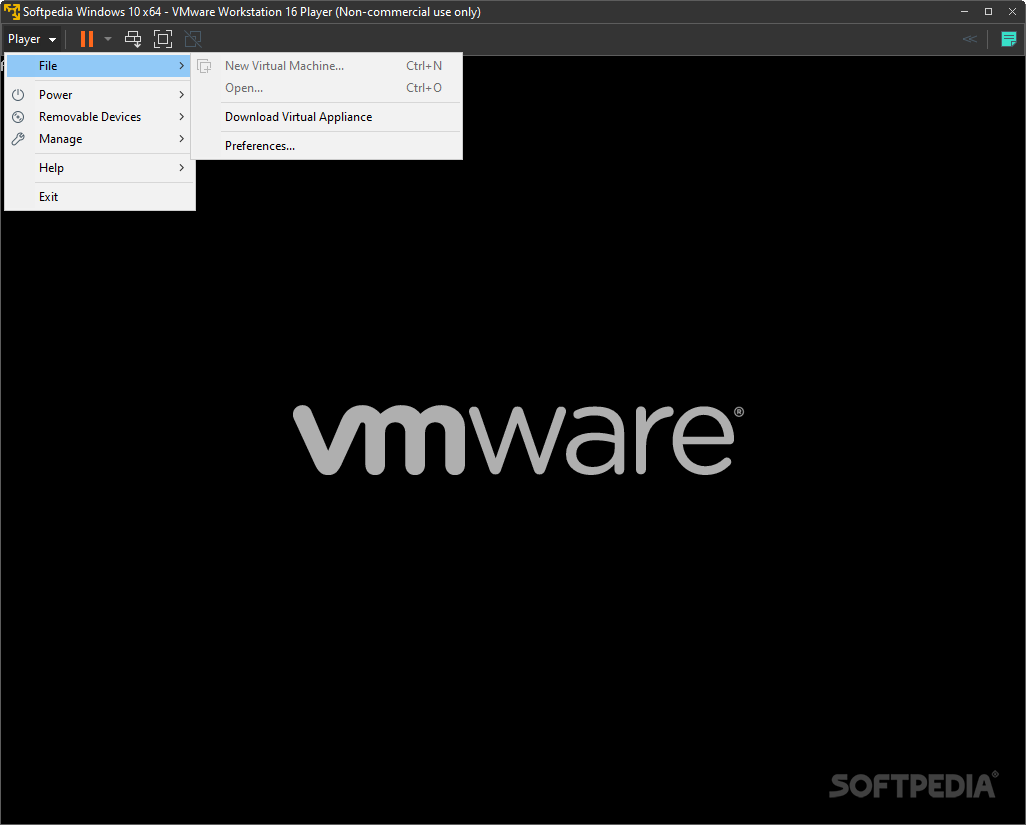
The user interface of the application is standard. You can create a new virtual machine, which is added at the top of your library. Rookies may take advantage of the built-in wizard and follow the steps for creating a virtual machine.
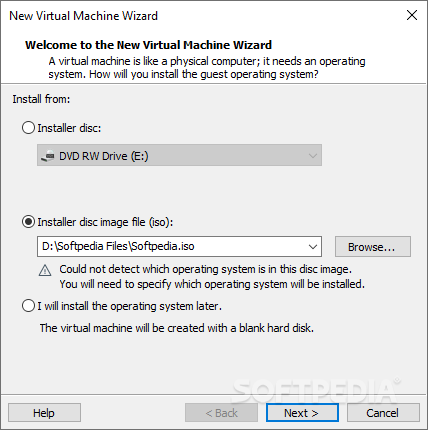
The first step requires you specify the source file. You can install from a disc or from a disc image file (ISO file format). Otherwise, you can opt to install the respective virtual machine later.
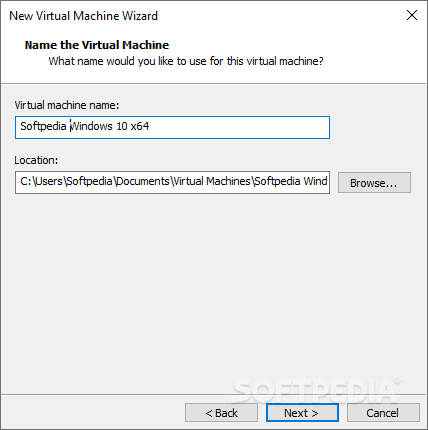
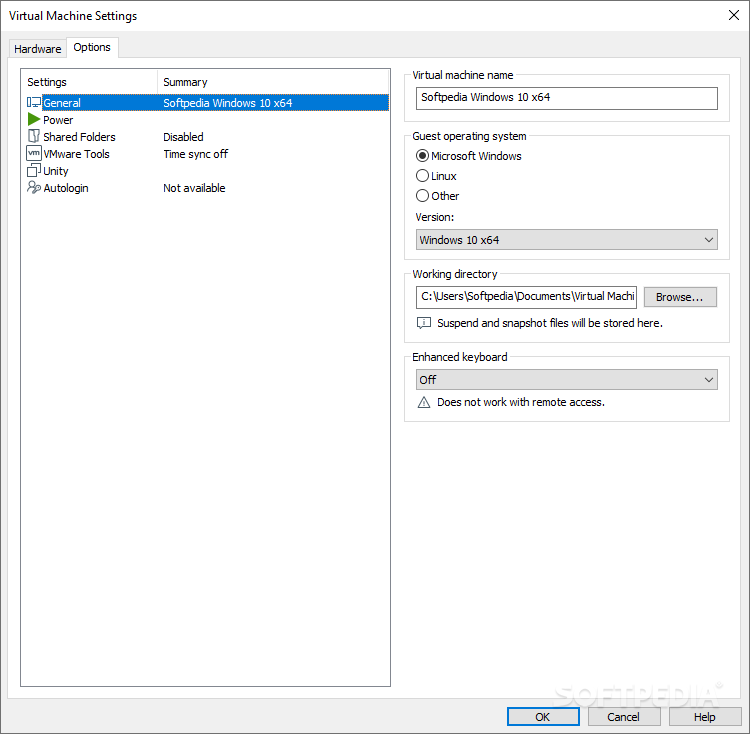
You can select the guest operating system, which can be Microsoft Windows, Linux, Novell NetWare, Sun Solaris or other, as well as select the version (e.g. Windows XP Professional). Now you can give your new virtual machine a name and specify its output directory, as well as allocate its maximum disk size (in GB).
You can store the virtual disk as a single file or split it into multiple ones. The latter option simplifies the process of moving the virtual machine to another computer but it could reduce performance on very large disks.
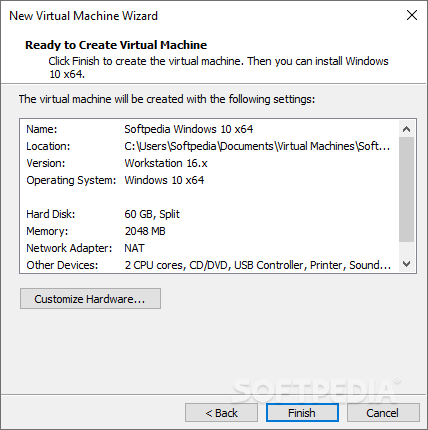
Right before finishing the process, you can view the name, location, version, operating system, hard disk, memory, network adapter and other devices corresponded to your new virtual machine.
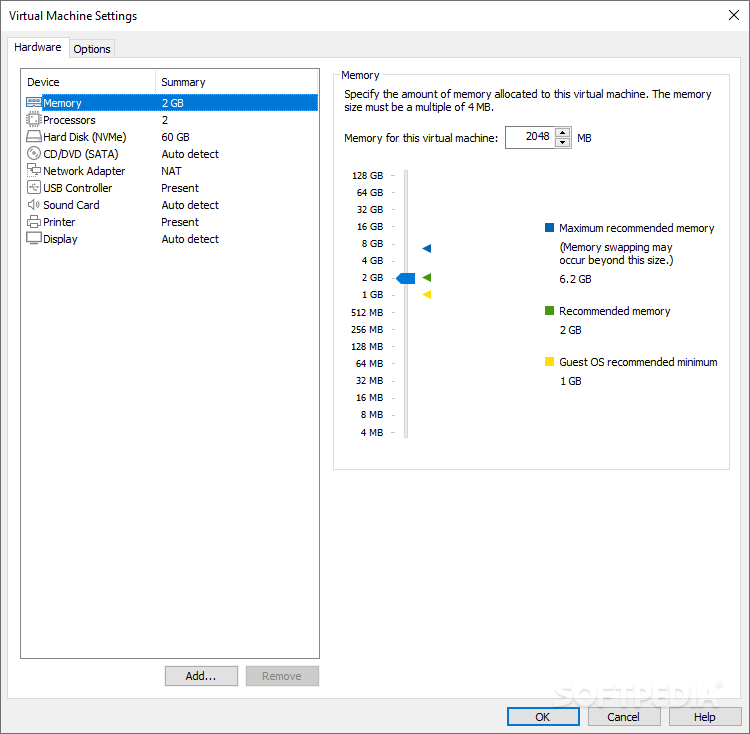
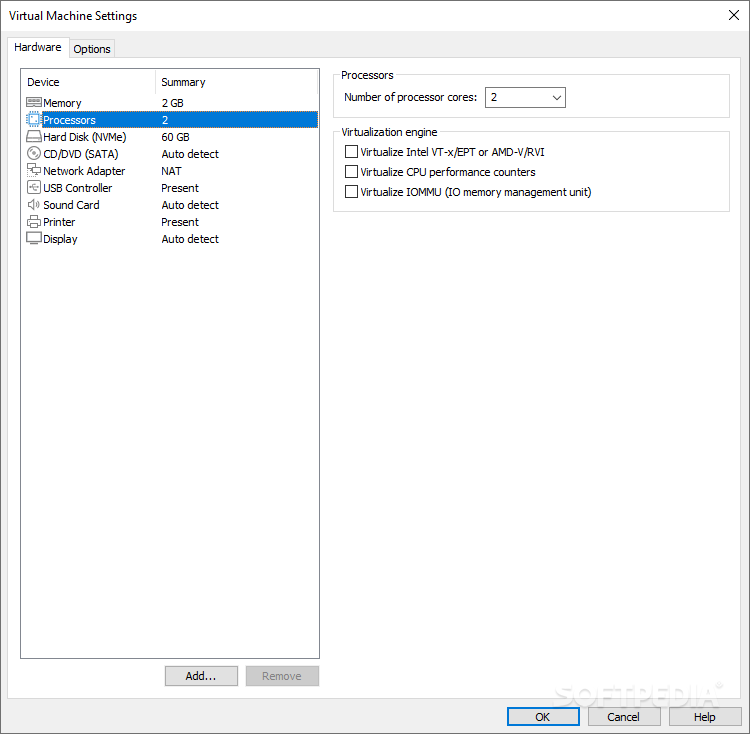
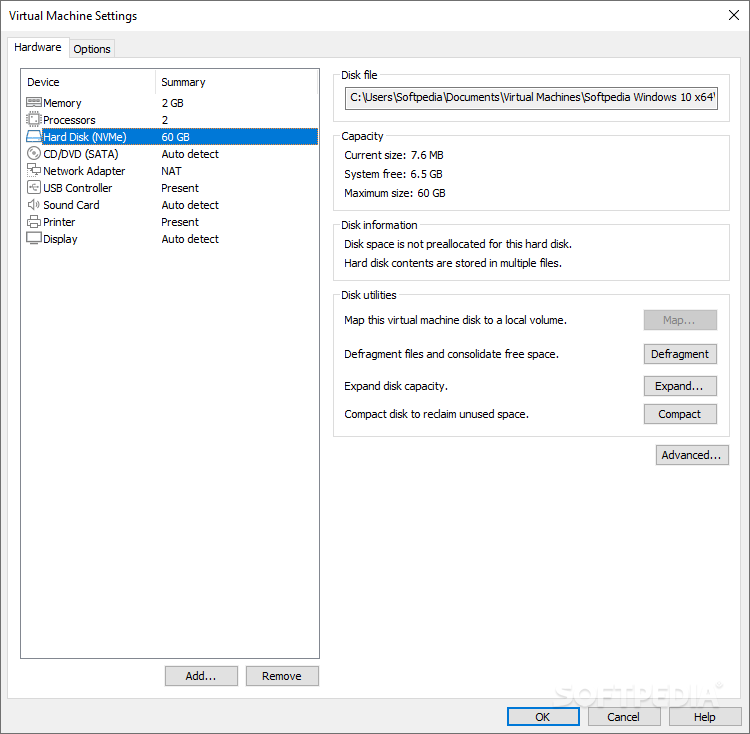
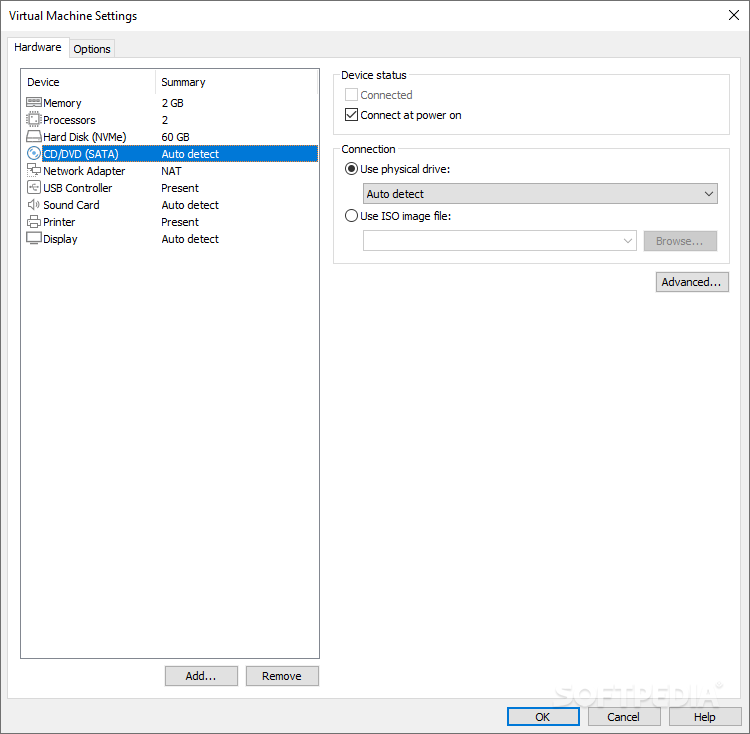
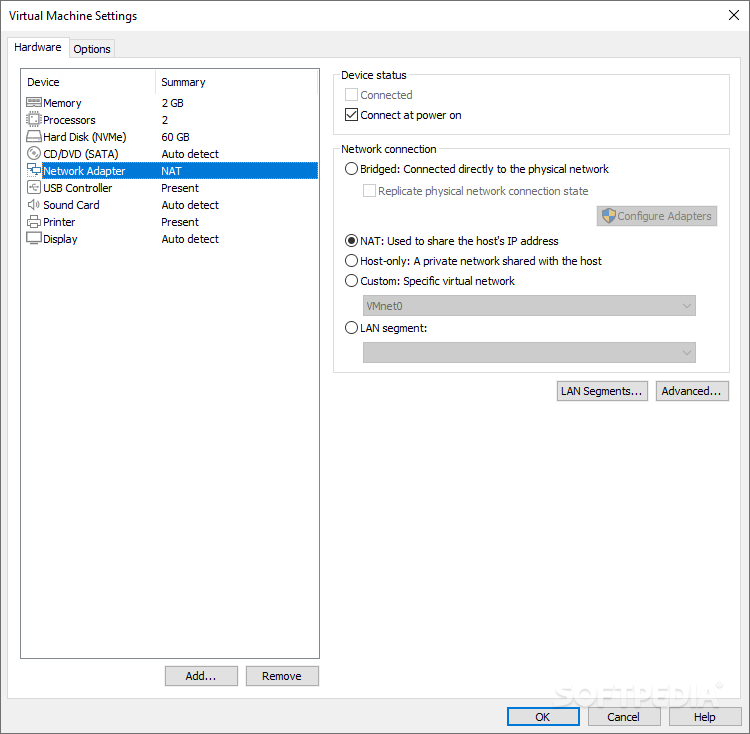
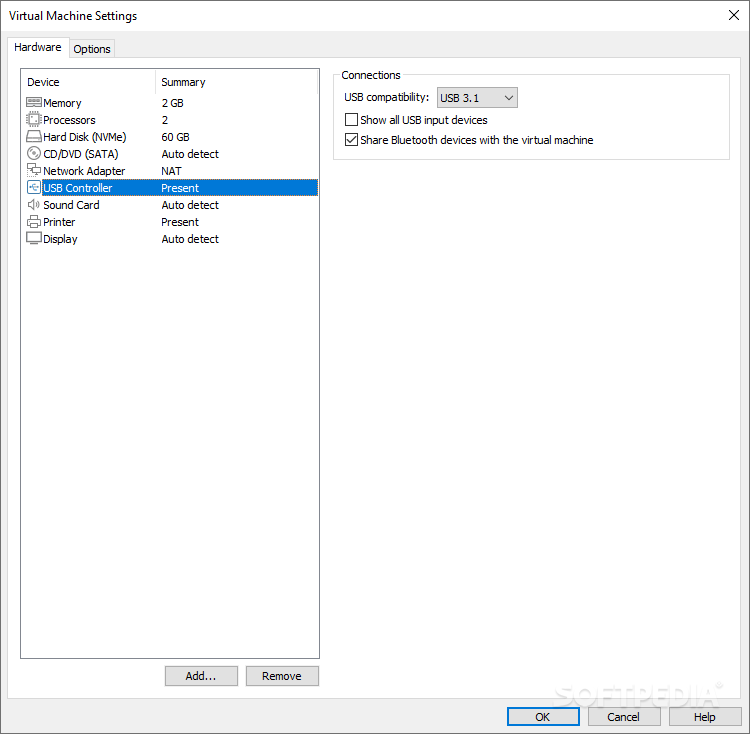
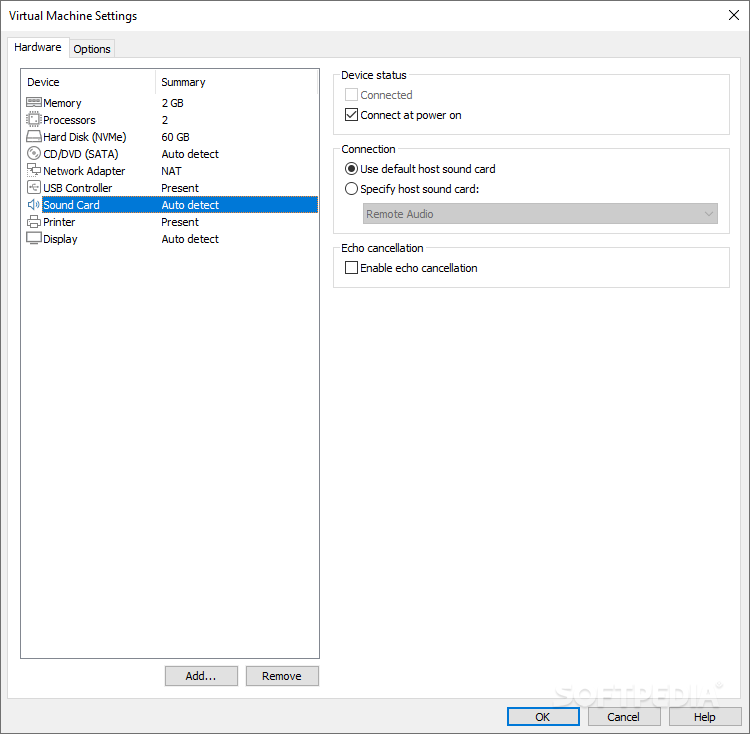
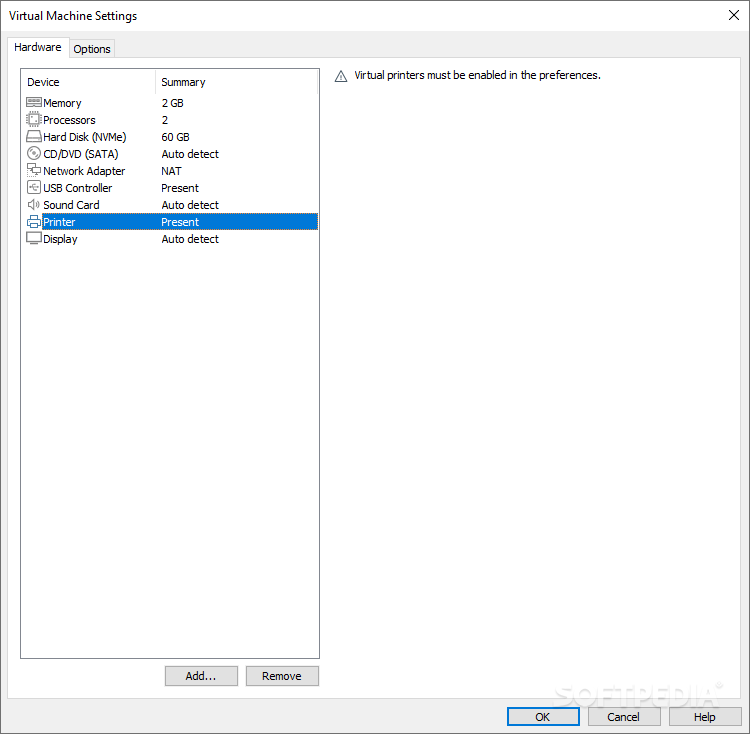
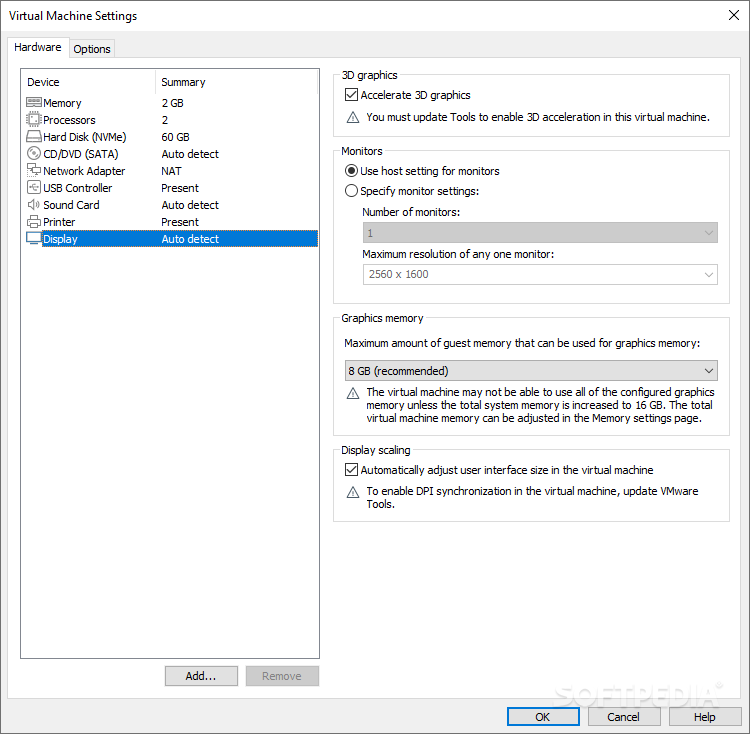
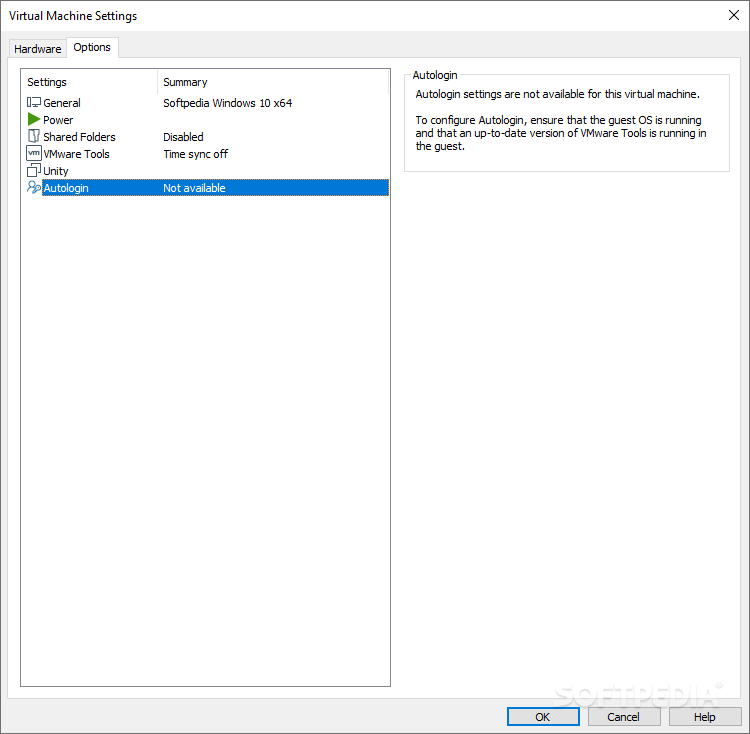
Moreover, you can customize its hardware when it comes to memory, processors, new CD or DVD, floppy, network adapter, USB controller, sound card, printer and display. Data can be imported from VMX, VMC, OVF or OVA file format.
VMware Workstation Player takes up a moderate amount of system resources and contains a well-drawn help file. We haven't come across any problems during our tests and strongly recommend VMware Player to all users.
NOTE: Free for non-commercial uses only.
What's new in VMware Workstation Player 17.5.1 Build 23298084:
- This release resolves CVE-2024-22251. For more information on this vulnerability and its impact on VMware products, see VMSA-2024-0005.
VMware Workstation Player 17.5.1 Build 23298084
add to watchlist add to download basket send us an update REPORT- runs on:
-
Windows 11
Windows Server 2022
Windows Server 2019
Windows Server 2016
Windows 10 64 bit
Windows Server 2012
Windows 8 64 bit - file size:
- 541 MB
- filename:
- VMware-player-full-17.5.1-23298084.exe
- main category:
- System
- developer:
- visit homepage
4k Video Downloader

Microsoft Teams
ShareX
Windows Sandbox Launcher
calibre
Zoom Client
IrfanView
Context Menu Manager
Bitdefender Antivirus Free

7-Zip
- Context Menu Manager
- Bitdefender Antivirus Free
- 7-Zip
- 4k Video Downloader
- Microsoft Teams
- ShareX
- Windows Sandbox Launcher
- calibre
- Zoom Client
- IrfanView
