14 DAY TRIAL //
 Aesthetically speaking, improving Windows 7 could be quite a challenge, but this does not mean that third parties will cease to create and provide tools to modify the way the operating system looks. Windows 7 Boot Updater lets you change the default load screen with any picture you want.
The customization abilities of this application go beyond simply personalizing the boot screen in Windows, and include the possibility to change the text displayed, too.
Windows 7 Boot Updater is a simple application that can get on your system in less than a minute. The freebie is still under beta stage development and we noticed this plentifully during our testing, with glitches showing up straight from launch moment.
In our case, we witnessed two errors the moment we started the app. One warned us that “winload.exe” path in BCD is either invalid or momentarily unsupported while the other alerted us of the same issues with “winresume.exe”. OK-ing them both got us to the interface, though.
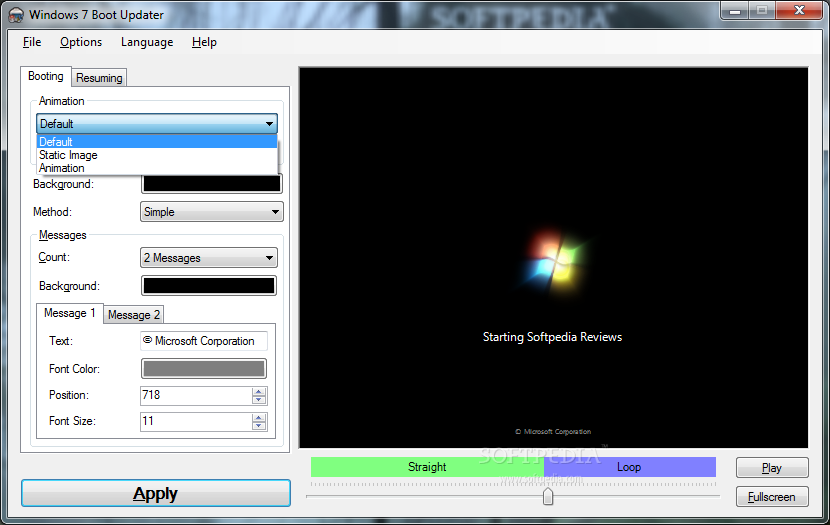
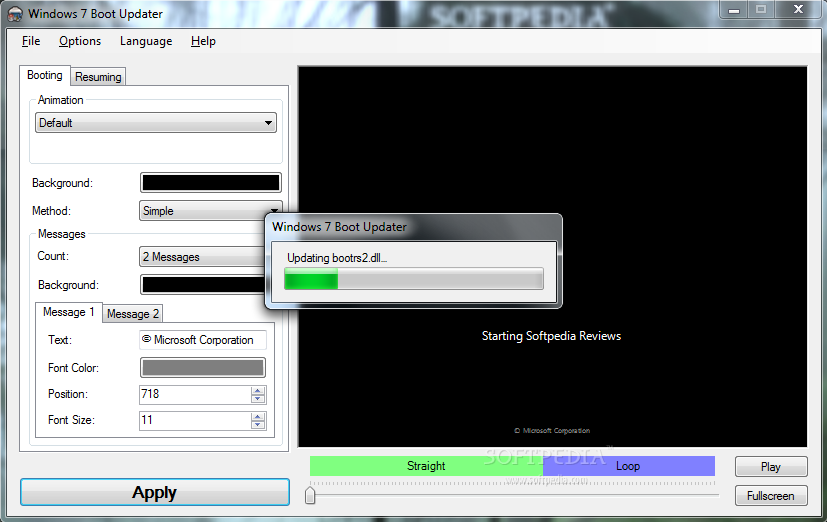
The interface is pretty easy to navigate, with intuitive functions and options. A preview area of the current boot screen takes the most part of its frame; if animated, and the default one is, you can play it and see how it looks.
Starting the animation would also show that the product is in early stage of development, since the currently playing frame would follow the mouse cursor not only everywhere inside the application screen, but anywhere on the desktop. It would stick to it like gum on a shoe.
Windows 7 Boot Updater capabilities let you make amends to the boot screen, but also to the resuming window. And if the default configuration of the two implies only a change in the message displayed, with this app you can change them entirely, by replacing the background image as well.
The boot image can be anything from a picture that fits the screen to a fancy bundle of 105 BMP frames, of course. The Internet can be a good provider, but if you do not manage to get them yourself, here are a two places to get them: one with the famous betta fish and one with a custom Windows background image. Just load the boot skins in Windows 7 Boot Updater and you’ll see how they fit and move in the preview area.
You can start from these and customize the messages on the screen. Besides modifying the text displayed, there is also the possibility to alter its position. Again, the preview will give you a heads up of the changes before applying them.
Windows 7 Boot Updater is not versatile enough to allow changing the font type of the message, but it can hide the text on the screen and leave a clean view of the image and boot logo.
In the case of Resume screen the options are exactly the same. However, we were not able to apply different animations to the two windows. Instead, we managed to set different static images.
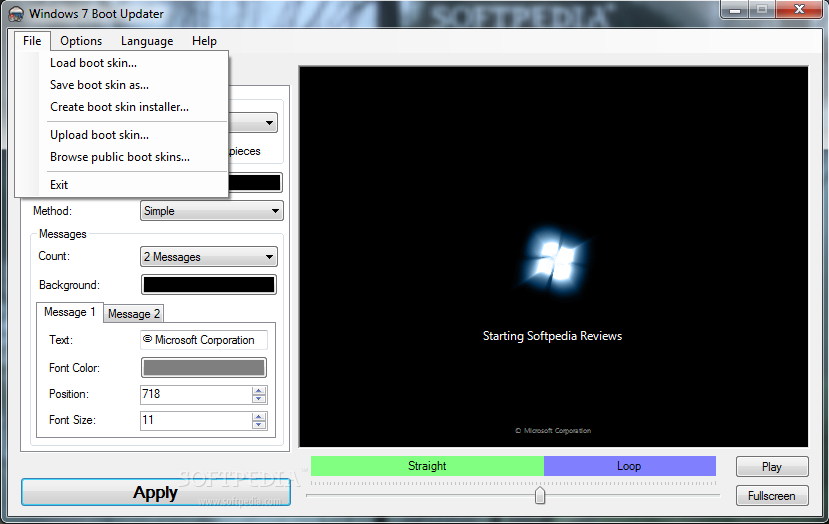
The application comes with the option to create a boot skin. But given the beta stage of development this feature is not complete yet. During our testing we experienced crashes of the application the moment we tried to create a new skin.
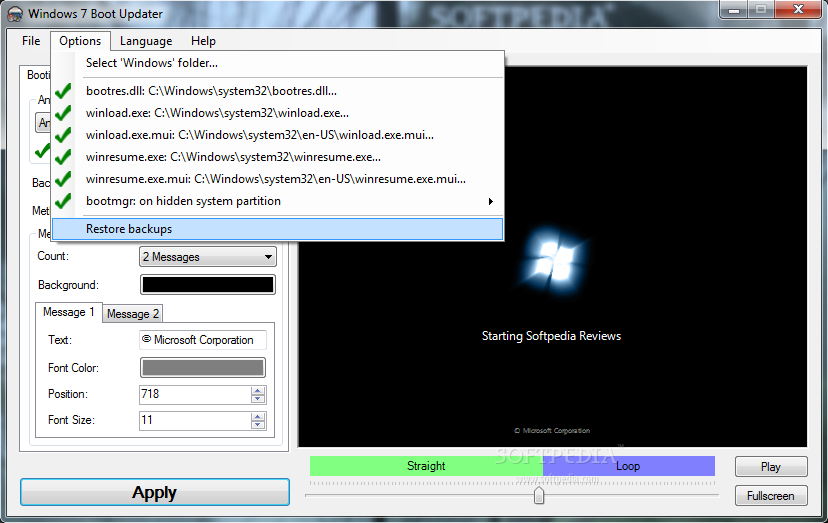
Probably the best feature in Windows 7 Boot Updater is the possibility to revert all the changes to the original configuration intended by Microsoft. When you get bored with the custom layouts you can easily turn back to the first looks by restoring the original view.
You can find the function under Options menu along with the paths to winlaod and winresume executables. Simply choose “restore backups” and everything is restored to the initial configuration. You can check the modification in the preview area, or witness it at the next computer restart.
Although filled with bugs and errors, Windows 7 Boot Updater is quite stable as far modification the two screens is concerned. During our tests we had no trouble customizing the boot/resume view. However, the biggest downside is that it does not come with a set of boot skins. Instead it sends the user to locations filled with such files; the only problem is that not all of them are supported by the application and you will have to check this information yourself.
The preview window lets you see the modification before applying it. You can customize the entire boot/resume screen and set an image background or replace the text originally provided by Microsoft. However, there are many of loose ends to be tied up and the development if far from complete. Although we did not experience instability of the operating system after using the program, as a precaution, we recommend backing up your data before making the changes. For customization of the startup sound you can use Startup Sound Changer. NOTE: Windows 7 Boot Updater is still in beta stage of development and, as such, we award it with our default 3-star rating.
The Good
The Bad
The Truth