14 DAY TRIAL //
 Everest Dictionary is a free utility from Free-Soft that has a database of 37 dictionaries. The installation kit is worth 79MB due to the databases it incorporates.
The installation of the software is easy and has three options: typical, custom and minimal. The custom installation mode allows the user to install what dictionaries he/she thinks is going to need. The minimal mode will install only the main application and the English dictionaries. Typical mode will install all the files (main application, dictionaries, glossaries, two files for speech agent and three pronunciation agents).
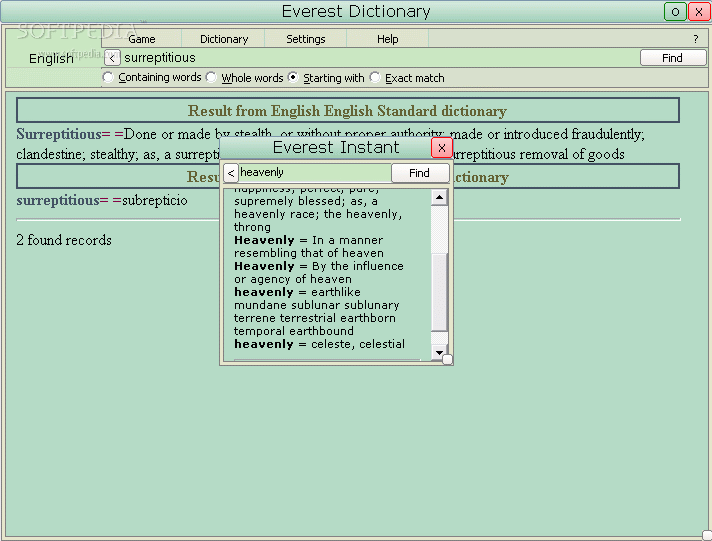
I have tested the typical installation mode. The interface is pretty simple and very easy to use. The main application window is the dictionaries one. Here you can load the dictionaries you want in order to find the meaning of the looked up word.
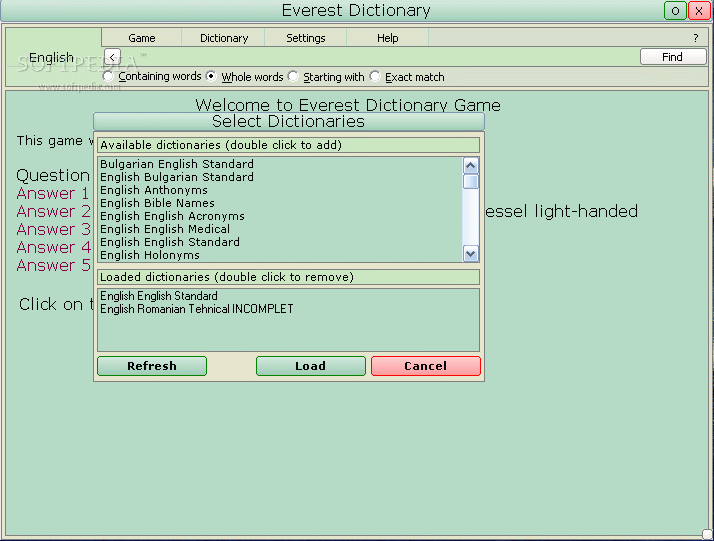
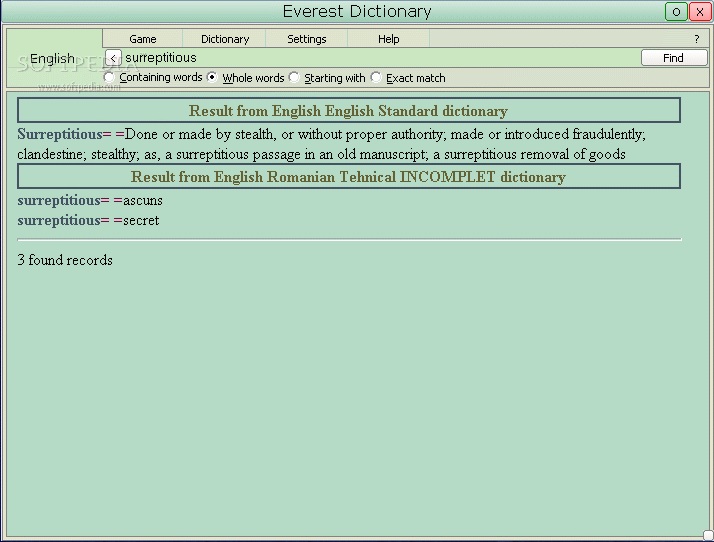
You simply type the word in the Find bar and press enter. The results will be according to the dictionaries that you have loaded. How do you load a dictionary? Very simple: go to the Dictionary tab and the Select Dictionaries window will pop-up. All you have to do here is double click on the dictionaries you need and press "load".
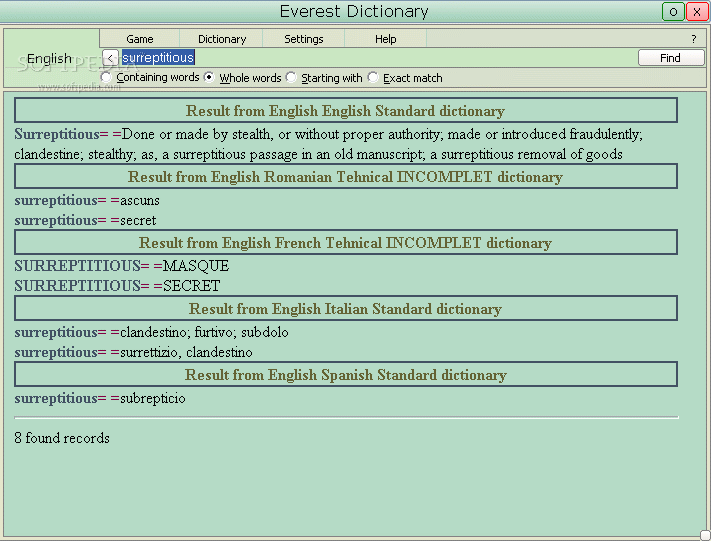
Now, if you have chosen more than one bilingual dictionary, every time you look up a word the displayed results will be from all the loaded dictionaries. The Settings menu has four available sub menus: General, Agent, Font and Learning.
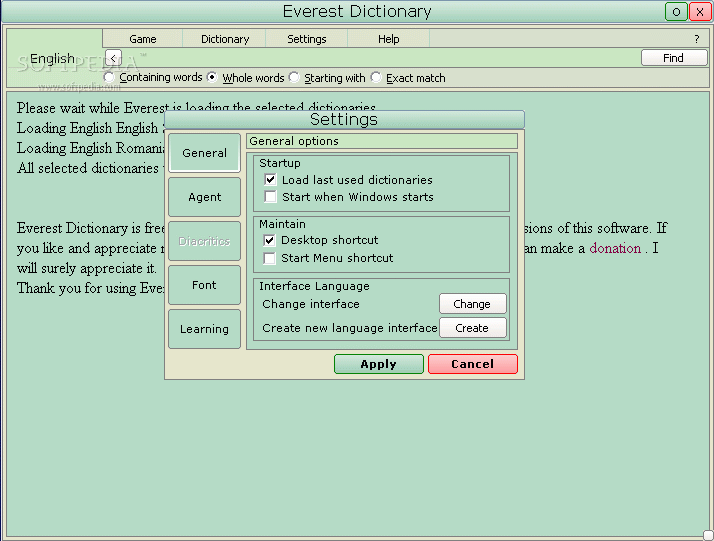
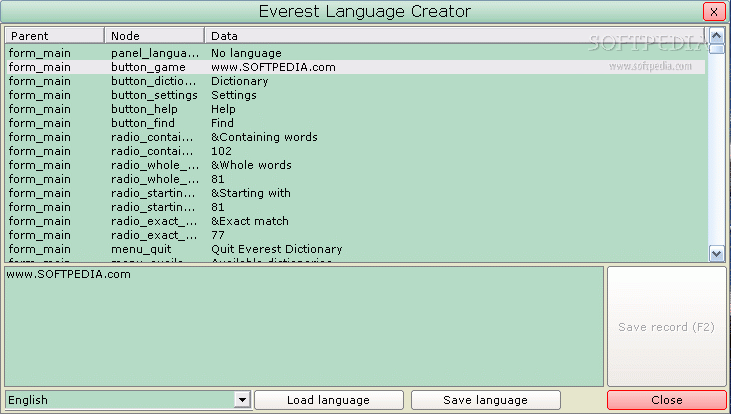
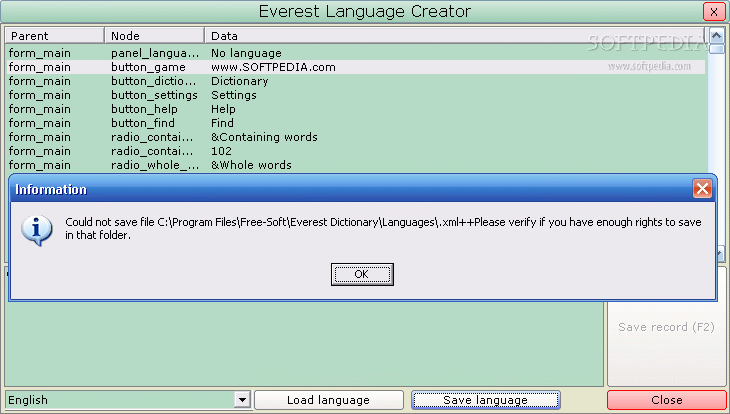
In the General sub-menu, the user can set Everest to start when the OS starts, to load the last used dictionaries, create a Desktop or Start Menu shortcut to the software or change the interface language (into English, German, Spanish, French or Romanian). A most interesting option is creating a new interface language. Here you can create other languages for the interface or even change the existing interface languages. I have tried to do that but unfortunately I couldn't save the modifications (last two screenshots).
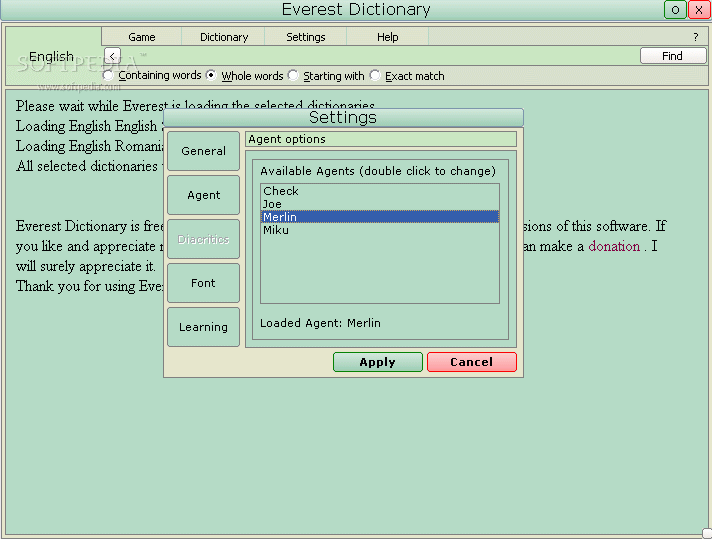
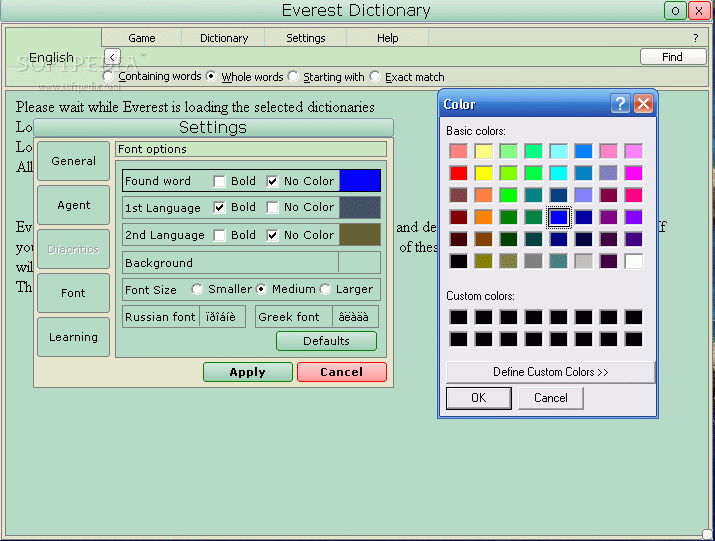
The Agent sub menu allows you to change the speech agents of the software. In the Font sub menu the user can set the font for the found results and the color. This section is pretty poor in options as you can only change the color of the font, bold it or change the size (smaller, medium and large).
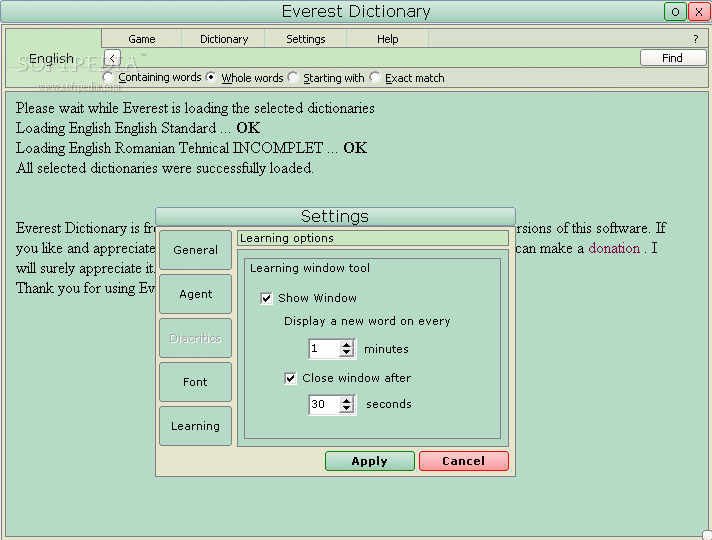
The Learning sub menu permits the user to make visible the learning bar. You can set this bar to display a new word at a fixed time interval (minimum is one minute) and the time interval to show that word (minimum is five seconds). The thing with the learning bar is that it cannot be resized, you can only move it across the desktop and it will appear on top of most applications.
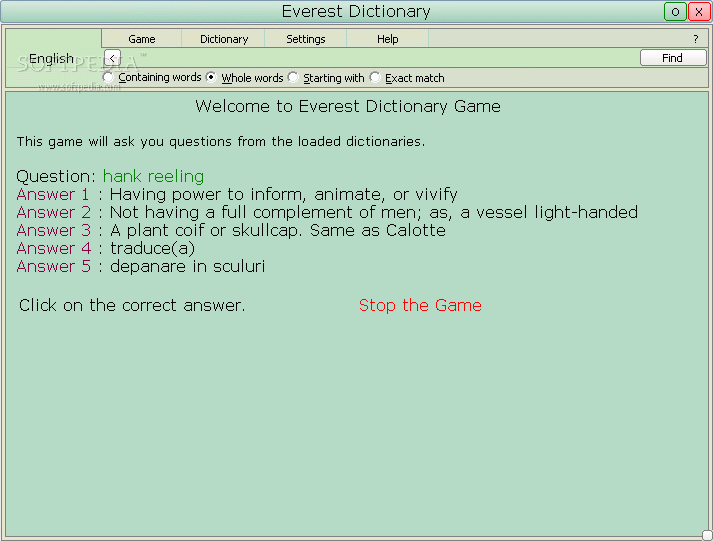
The Game menu is very educational (as the learning bar). You have to guess (or choose) the meaning of a word in the Question (multiple choice type). The good part is that the answers (definitions of the word in the question) depend on the loaded dictionaries. Let me give you an example: if you load the English-Portuguese, German-French and the Romanian-Spanish dictionaries, then the answers (and question) will contain words and definitions in all these languages (English, Spanish, German, French, Portuguese and Romanian).
Everest Instant is a tool designed to help you translate instantly a word from an application you are in. For example, if you have a .pdf file opened in Acrobat Reader, you have to select the word with "Text Select Tool", press RightCtrl and Right-Click. Everest Instant translator should give you the result in a snap.
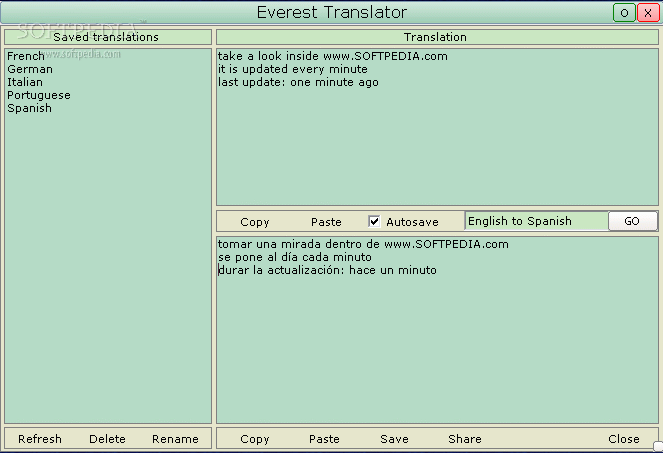
Everest translator basically translates the text you type in the upper field. The options to translate are limited to English, French, German, Italian, Portuguese and Spanish. For increased performance, the software provides the copy/paste option. You have the option of saving the translation on your hard drive but I couldn't make use of it because the same error message appeared as when I tried to create a new interface language.
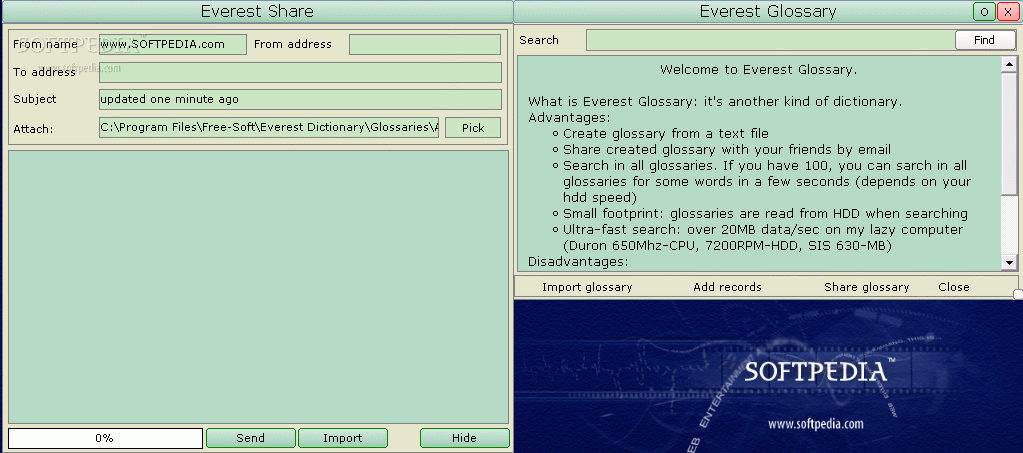
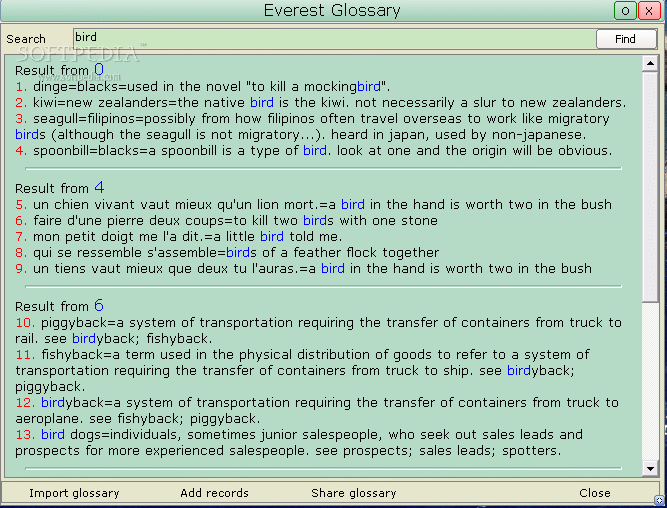
The Glossary option is another kind of dictionary. The advantages of this option are that you can enrich the application by creating your own glossaries. The glossary file has to be a text file. The "Add records option" is not available yet. The glossaries can be shared via e-mail. Just press share in the Everest Glossary window and the Everest share will pop. Complete the fields with the e-mail addresses (sender and receiver), attach the glossary file and there it goes.
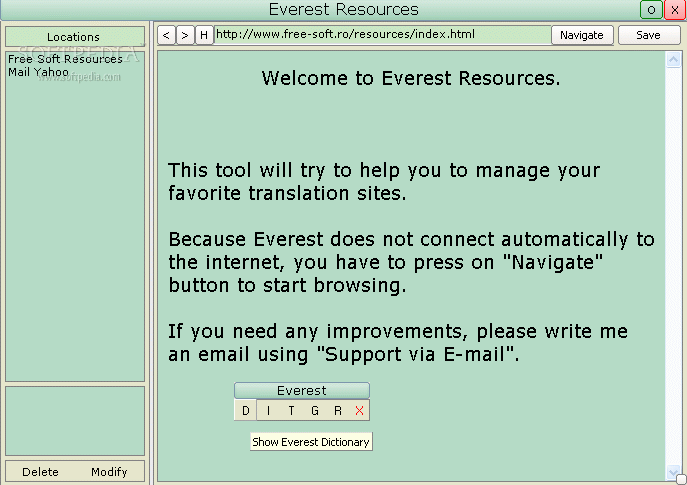
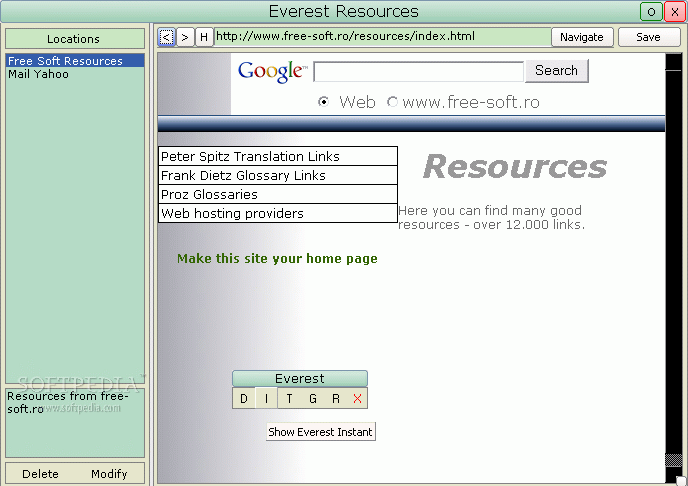
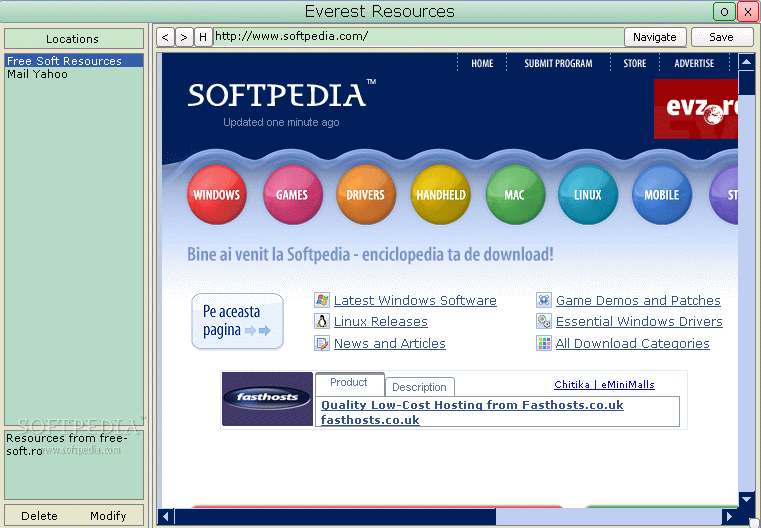
The Resources window allows the user to find resources on the Internet. This feature will help you manage the favorite translation sites. The options you have here are: Peter Spitz Translation Links, Frank Dietz Glossary Links and Proz Glossaries. In order to browse the pages you have to press navigate.
The Good
The software is freeware and is really helpful. It contains both standard bilingual and technical dictionaries (including medical). The total number of entries is 2.975.040.
The Bad
It's a pity that not all the features are available. The Translator does a poor job (I expected that, as I have never seen a translator that actually did a good job).
You have to create your own shortcut to the desktop as the installation shortcut does not work
The saving option for the Glossary and the "create new interface language" feature could really use some improvement.
The Truth
Although the software is not complete it is a really helpful tool.
Here are some snapshots of the application in action: