14 DAY TRIAL //
 Ever since Microsoft released the new Windows, we’ve seen a few solutions to bring the Start Button back into the lower left hand side corner of the desktop. StartW8 is yet another alternative that could take over the sweet spot in Windows 8.
Like most apps taking over the responsibility of the orb in Windows 7, StartW8 is free of charge and does not attempt to push additional software on your system. Installation went smooth in our case and no restart was required in order to complete the operation.
Although StartW8 looks very much like the original menu, a regular user accustomed to Windows 7 should be able to spot this is a replacement fairly easy.
On the other hand, users are interested in its functionality rather than its looks, and StartW8 is slightly different than what we’ve seen until now.
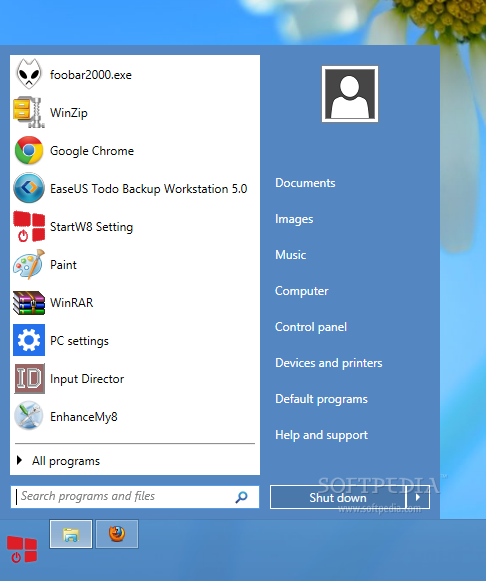
As soon as installed, StartW8 places its custom button in the lower left corner of the desktop. Clicking on it reveals a familiar view, with search bar, program list, power button and the side menu.
You can switch the list of frequently used programs to show all the applications installed on the system, although the change does not occur automatically just by hovering the mouse over.
Given the position of the button, one would expect it to completely eliminate the original functionality of that corner in Windows 8; but StartW8 preserves its purpose so users can easily switch to the modern UI Start Screen with the mouse instead of keyboard shortcuts, as possible in other programs sharing the same purpose.
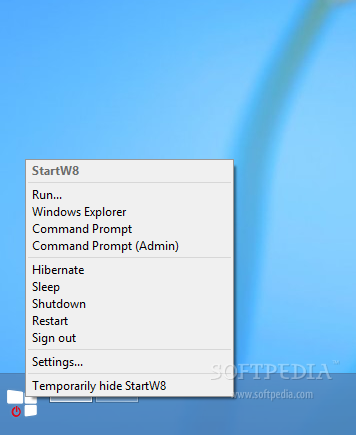
The context menu for StartW8 does not resume to giving access to the configuration panel of the application and includes a few useful shortcuts as well (Run, Windows Explorer, Command Prompt (with admin elevation, too) and power options: Hibernate, Sleep, Shutdown, Restart, Sign Out, Switch User and Lock.
Worth mentioning is that not all these power options are present in programs of the same category. In some cases, the hibernate button is missing.
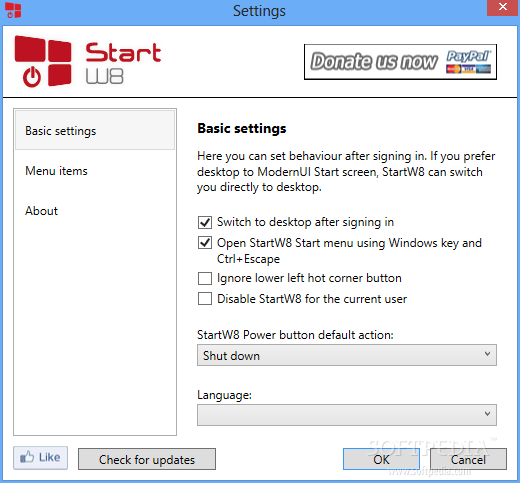
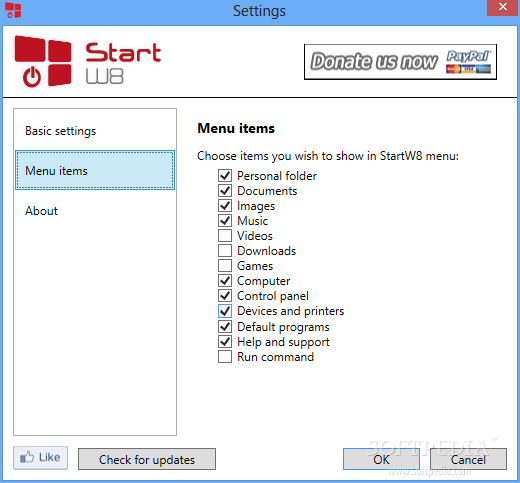
The configuration panel is extremely simple and it comes already set up to suit most users’ needs. It is split into two sections that allow you to define the behavior of the OS after signing in, the default action triggered by the power button and to customize the side menu.
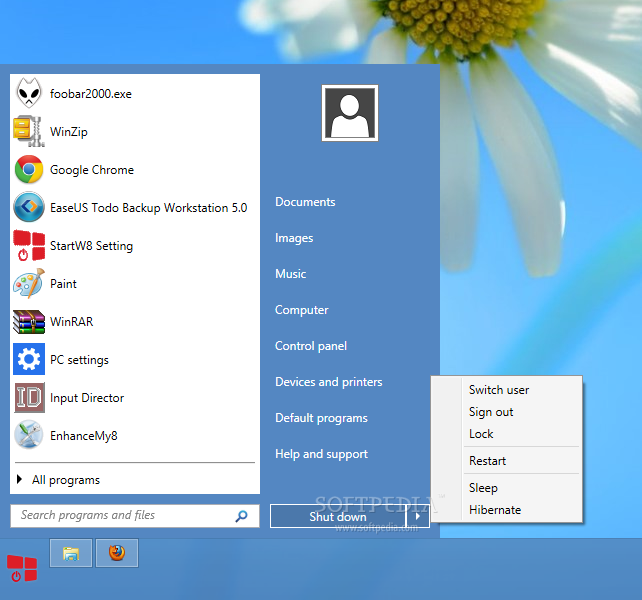
The default action for the power button can be any of the power options available in the Start menu (Hibernate, Sleep, Shutdown, Restart, Sign Out, Switch User and Lock).
Out of the box configuration makes the application switch to the classic desktop environment instead of the modern Start Screen. This can be easily changed under the “Basic Settings” panel. Here’s also the place to enable hotkeys (Win or Ctrl+Esc) for launching StartW8’s menu.
Furthermore, you can disable the bottom left hot corner button. This feature has been freshly added in this version of the program.
In the case of the side menu, the options include links to personal folders (Documents, Music, Images, Music, Videos, etc.) as well as system areas, such as Control Panel, Devices and Printers or the list of default programs.
There is also the possibility to add the Run command to the menu, though advanced users can easily call it through the traditional Win+R hotkey.
StartW8 is pretty far from mimicking the functionality of the original orb in Windows 7 and further proof is the fact that new entries are not highlighted. On the same note, the list of frequently used programs is not dynamic, so it will not change as you launch the same entry over and over again; not even after a computer restart.
Once that space fills up, you can start deleting old entries in order to make room for new ones. The application does not offer the possibility to pin items to the start menu.
During our tests, StartW8 seemed to respond to our commands slower than applications of the same kind.
Also on the downside, there is no automatic update mechanism available or the possibility to receive alerts about a new version being available. As such, users have to check for new updates manually from the “Settings” panel.
The computer requires a restart after installing a fresh update for all the changes to take effect.