14 DAY TRIAL //
 File copying or moving from one location to another is such a trivial activity that nobody talks about it. You just do it and that is it. Of course that sometimes we spend more time waiting for a large file to copy, but is there anything we can do about it? Generally, no, there is nothing we can do except wait.
File managers come with their own file copying system that sometimes really counts in the process. But most of us are using Windows Explorer and if you haven't updated Vista with the latest Microsoft files in this sense, then you are definitely in for a long wait. It takes a while for Explorer to calculate the size of the file you want to copy, be it one of only a couple of KB.
If old Windows Explorer is not good enough for you, maybe you'll consider trying Code Sector's Tera Copy, a software designed to increase file copying and moving speeds. There is a free version for this one as well as a commercial one. But let's stick to the freeware first in order to get an idea on how the commercial one works, especially if it is also Vista compatible.
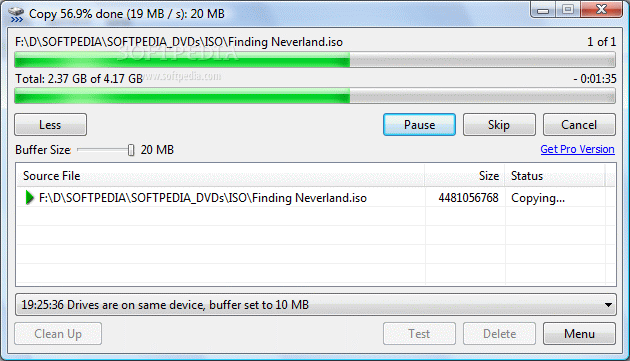
The interface is as simple as it gets and you'll have no trouble handling the application with ease. It can be used in two visual modes: with more or with less options available. In both cases, it behaves the same.
Tera Copy's expanded mode allows you to change the buffer size for a faster operation and also gives you information about the handled files. The first issue I bumped into while using the application was adding the files to be copied and moved. It proved that it was just a simple matter of drag and drop.
A handier way to do this is using the context menu option in any file manager you might have. Right click the file you want to move/copy and choose Tera Copy. The application will pop up out of nowhere and include the selected file in the list. Or you can simply Copy/Paste the file/folder as Tera Copy automatically enables itself as the default copy handler.
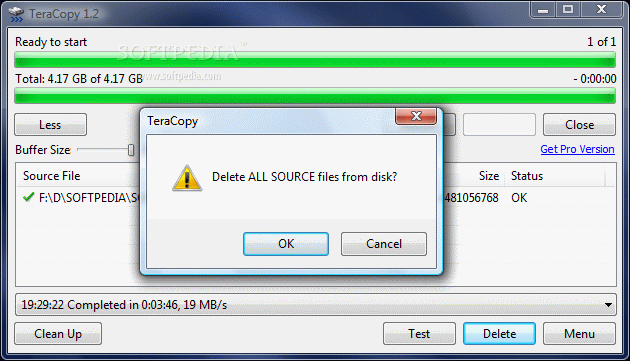
But what if you change your mind and decide to abort the operation and use another file instead? Well, the only way to add another file is to close the application and repeat the procedure (with the right file this time, pay a little attention). That is because "Clean up" button works only if the copy/move or test task is completed. Don't rush to the Delete button as it will erase the file from the disk as well.
The file information window displays the size and status of the file. I specifically selected a large file for our testing as small ones are usually handled with absolutely no issue. Status will show if the file is corrupt or not, and that is indeed of big help. Unlike other file copying utilities on the market, Tera Copy has the amazing ability to skip corrupted files and continue the transfer. At the end, it'll display the bad files, giving you the chance of fixing them.
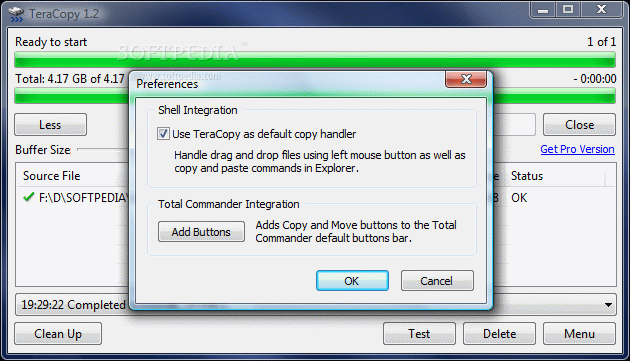
Preferences menu is brought down to a minimum of options, allowing you only to set Tera Copy as the default copy handler and integrating "Copy" and "Move" buttons into Total Commander. These will integrate in the toolbar of the application. If TC is not opened the moment you act on adding the buttons, Tera Copy will launch it for you.
During testing, a very interesting thing happened. I proceeded to moving a folder containing three files, out of which one was a little over 4GB in size. Tera Copy placed an error tag on all the files in the folder. However, when moving them one by one the application had absolutely no objection to the job at hand. This happened various times when dropping entire folders in the application window.
But copying and moving files and folders from one location to another is all about speed and this is exactly what Tera Copy promises. To test the application's speed I checked first with what Total Commander had to offer. The result was satisfying: 3'48'' for copying a file of over 4GB from one location to another, on the same hard disk. Next I tested Vista's Windows Explorer which, surprisingly enough, scored better with 3'36''. The last in action was Tera Copy which brought huge disappointment as it came after TC with 3'49''. Now mind that the tests with Windows Explorer and Total Commander leave no trace of Tera Copy on the computer.
The differences between the three evolutions consisted in speed consistency. It is true that Tera Copy reached the most amazing speeds, but it was irregular. TC and Windows Explorer limited themselves to lower but more constant transfer rates.
A second round of tests resulted in the same ranking. I have to mention that the tests were made with absolutely no previous preparation of the hard disks. So I proceeded to a third and fourth round of tests, this time defragmenting the disk after each file copying activity. This time the results turned in Tera Copy's favor.
A folder of 7.71GB was used during the last set of tests and the results were quite different. XP's Windows Explorer took 8'26'' and 8'27'' respectively to complete the transfer while Tera Copy moved a bit faster with 6'28'' and 6'19'' respectively.
On Vista, the difference between the two was not as similar as on XP. Windows Explorer finished the task in 5'49'' the first time and then in 5'43'' (pretty close timings). Tera Copy on the other hand completed the job in 6'08'' the first time and then in 6'11''.
But, no matter how slow Tera Copy is, it will continue the transfer even if some of the files are corrupted in some way and will not leave you waiting for the copy handler to label them as such.
The Good
Interface is very easy to handle and integrates perfectly in Windows Shell. The application will not interrupt the copying/moving process if it bumps into corrupted files, it will simply not deal with them, leaving you a chance to fix them.
The Bad
It stays on top of all the other windows which is kind of uncomfortable (but at least it minimizes in taskbar).
Clean up option does not work, neither on Vista nor on XP, unless the task is completed. It does not handle folders too well as it displays all the files as having errors (dropping only the files results in absolutely no problem at all).
The Truth
It will not copy the files faster, but it will complete the transfer by skipping any corrupted files. The application integrates perfectly in Explorer's shell and behaves as if it were a part of Windows.
The final conclusions show that Tera Copy is a lot faster than Windows Explorer on XP is, but only with proper defragmentation. On Vista, it moves a tad slower even if defragmentation of the disk has been performed.
Here are some snapshots of the application in action: