|
|
|
|
TMPGEnc Authoring Works 5.1.1.55
|
|
|
|
|
|
User Rating: Rated by: |
Very Good (4.1/5) 94 user(s) |
|
|
|
|
Softpedia Editor's Review for TMPGEnc Authoring Works
|
Your All-In-One Media Authoring Solution
Written by Alexandru Pintilie on June 4th, 2012
DVD and Blu-ray authoring refers to the process of creating 100% working video disc content for DVD and Blu-ray players. In the big picture, this operation comes after the actual creation of the movie and before the burning procedure. The top software selection of this particular category includes Adobe Encore, Roxio Creator, DVD Flick, DeVeDe, DVDAuthorGUI, DVDStyler, AVStoDVD or CyberLink Media Suite.
TMPGEnc Authoring Works sits in the same class as the applications mentioned above, lending a friendly helping hand whenever a DVD, Blu-ray or AVCHD creation process occurs. The developers also add the fact that this `should be fun, not confusing`. By the looks of it, the program may just do that by bringing an intuitive yet modular interface alongside its professional yet colorful touch.
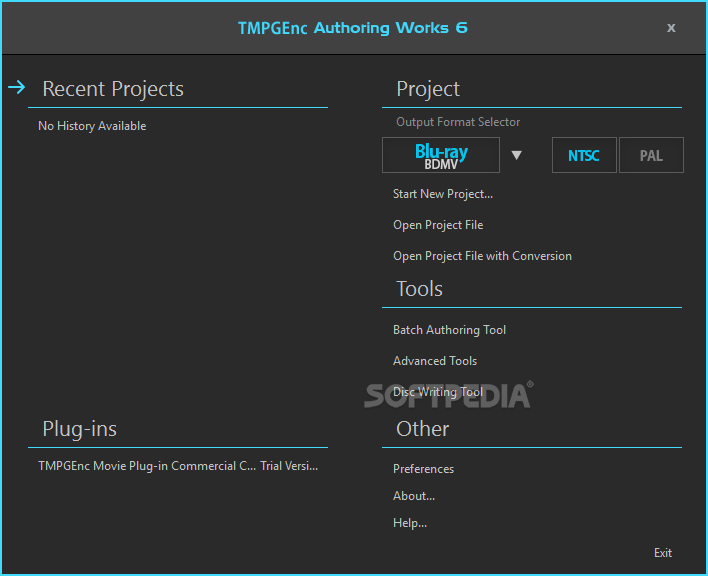
The welcome screen of the application lays out everything you need to start working on your disc authoring. You can easily select your desired format from `DVD Video`, `Blu-ray BDMV` or `AVCHD for DVD / Progressive / HDD / Memory` as well as the color encoding system (PAL / NTSC). TMPGEnc Authoring Works also provides a `Disc Writing Tool` to burn your disc-ready material.
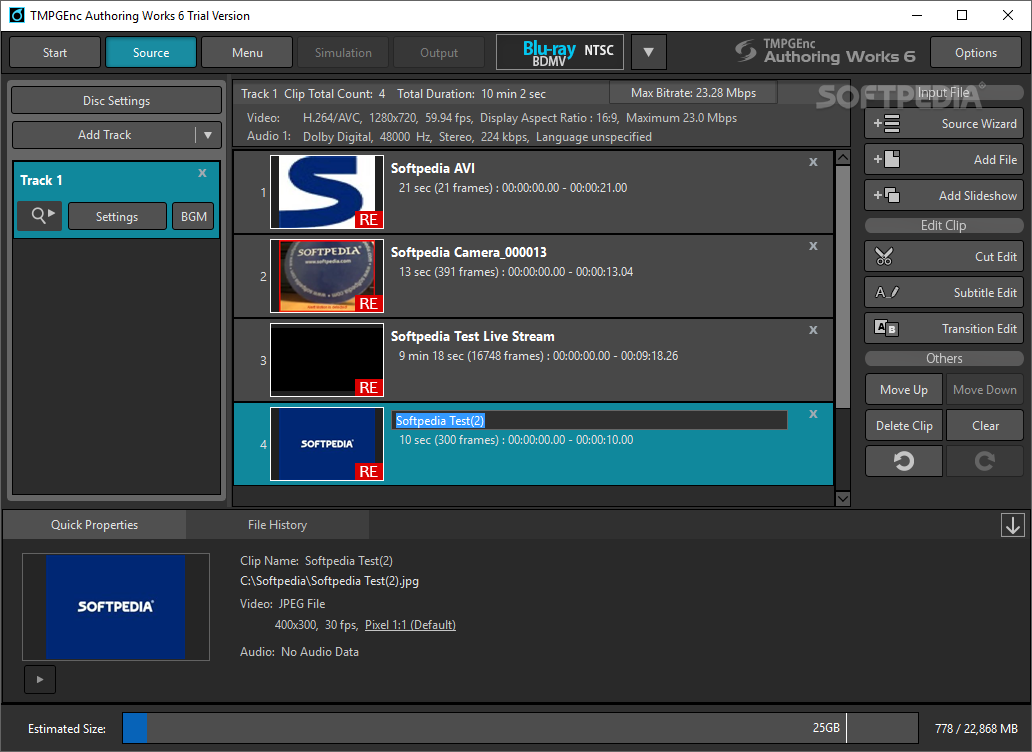
Once you customize your project settings and proceed by clicking on the `New Project` button, the `Source Wizard` window will pop on the screen, allowing you to choose the method to add clips to your project – files stored locally or from various mediums such as DVD, BD, DV / HDV capture or pictures. You can select the clip addition method in the next step and opt for the `Clip editor` and multiple tracks.
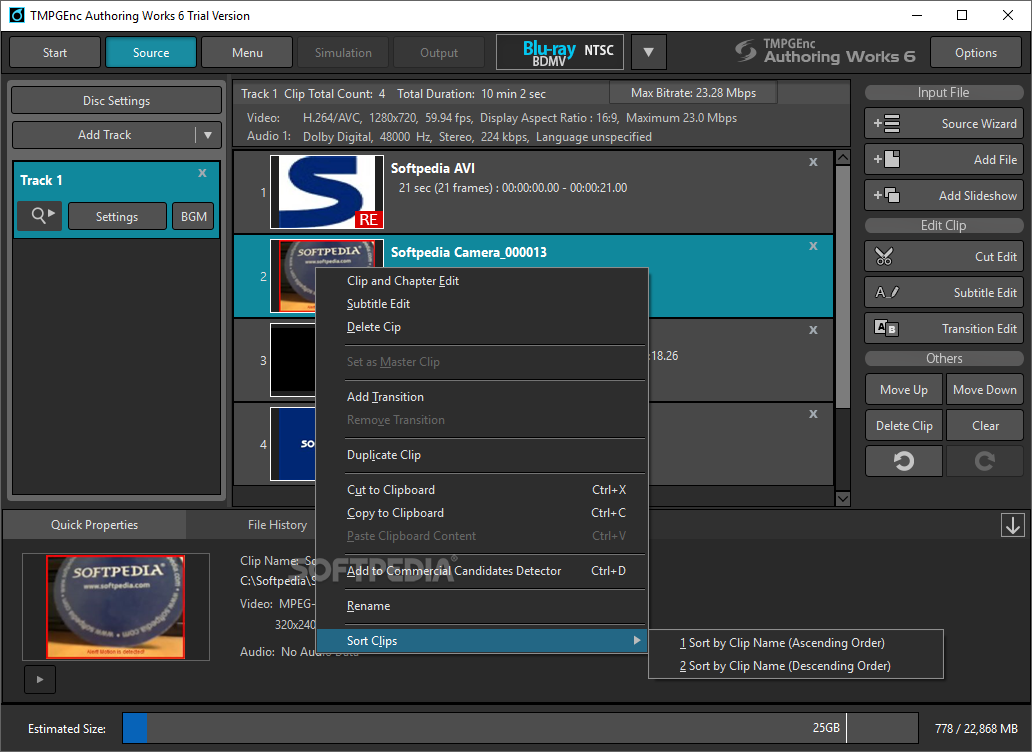
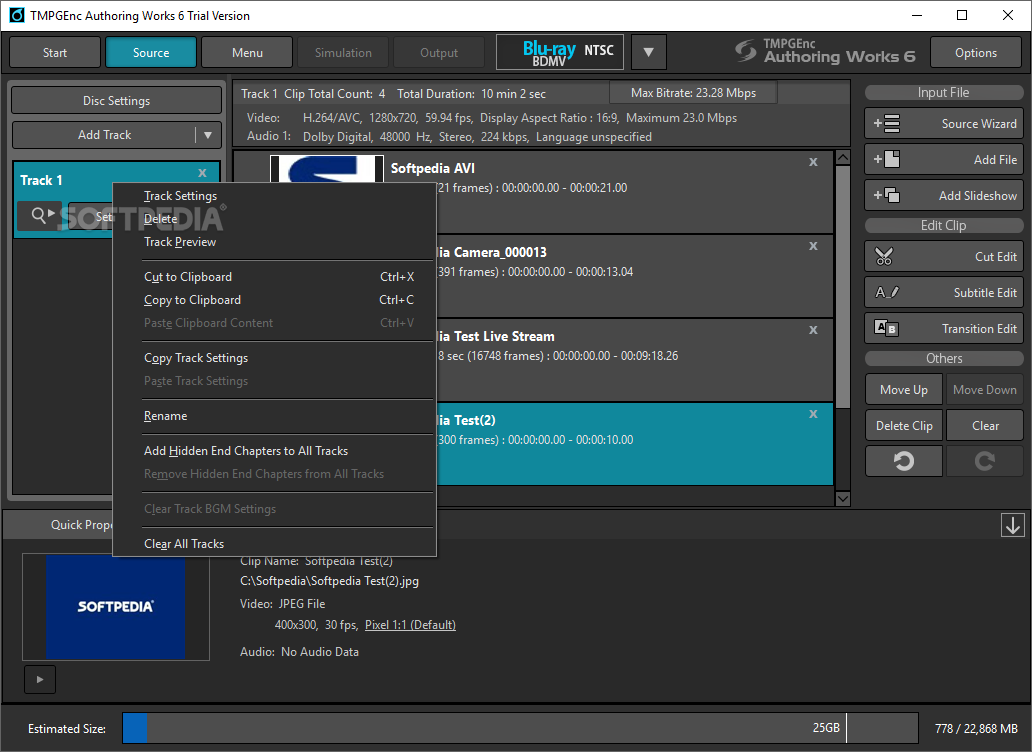
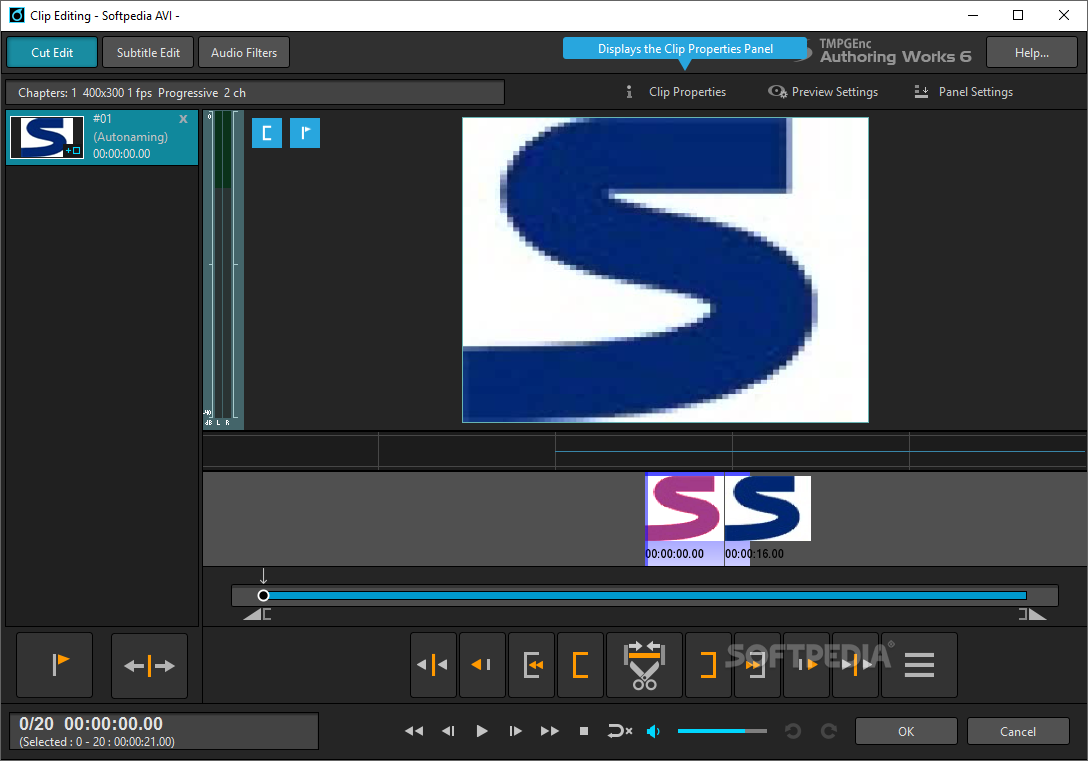
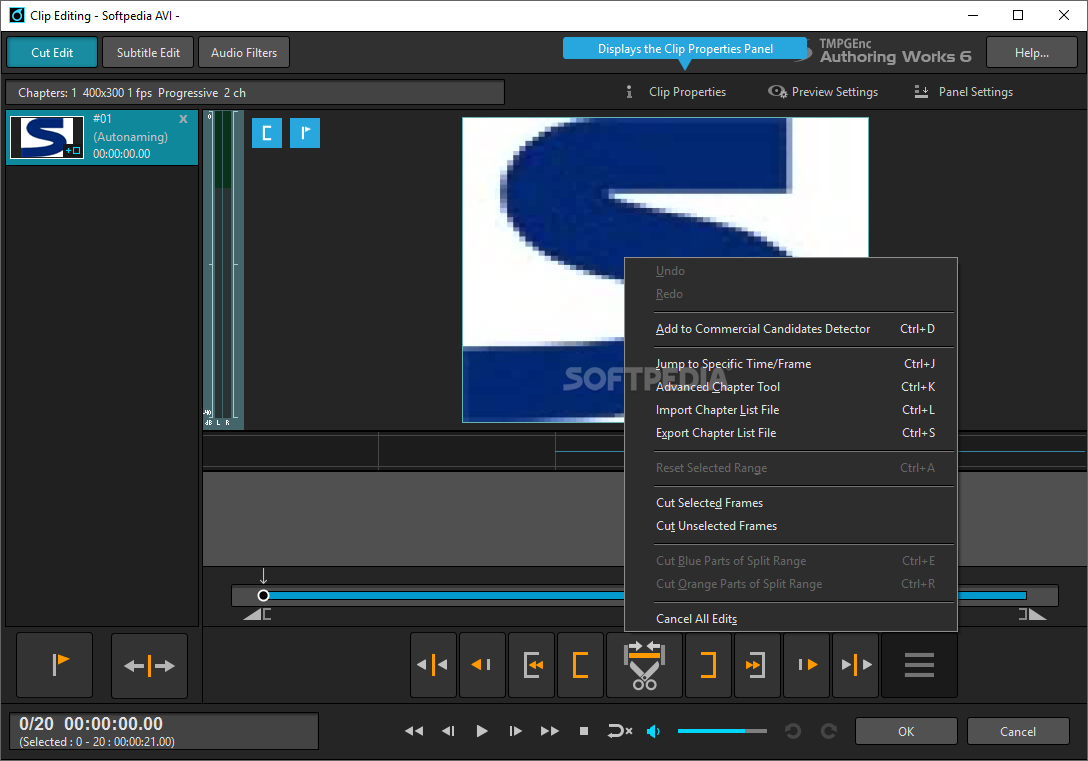
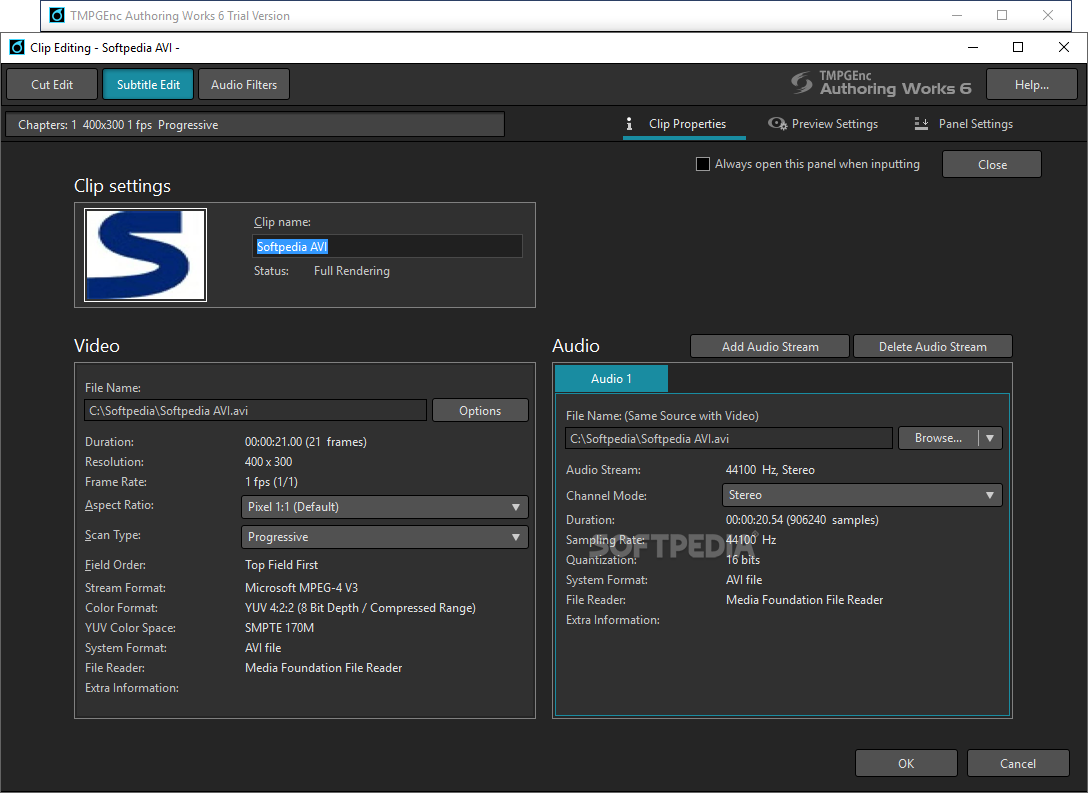
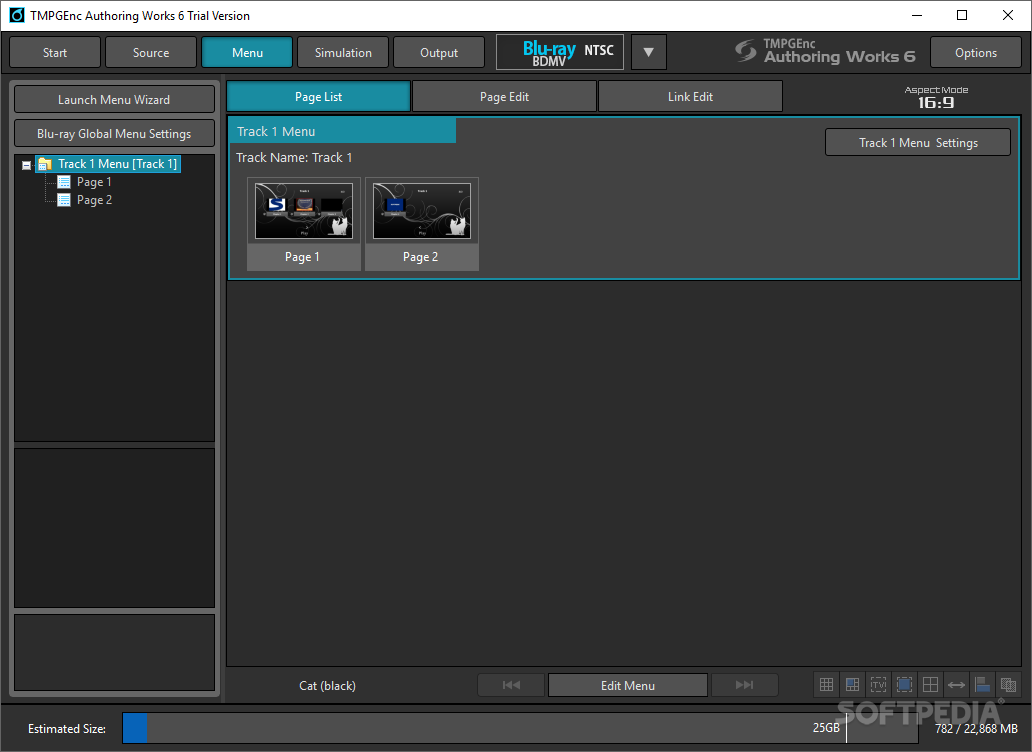
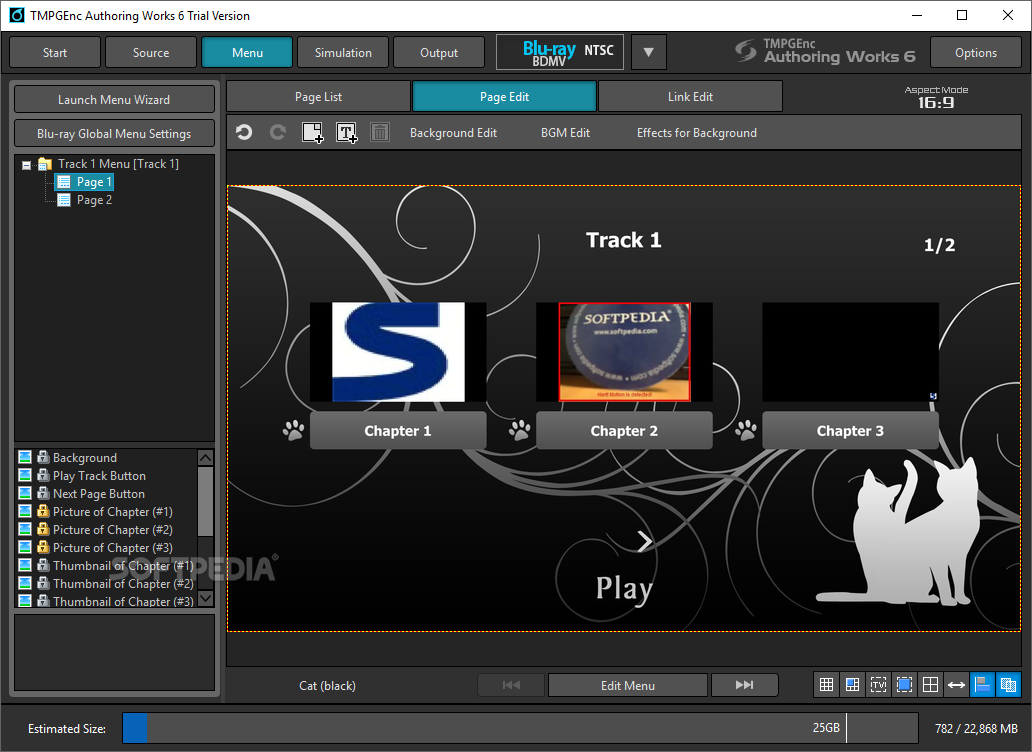
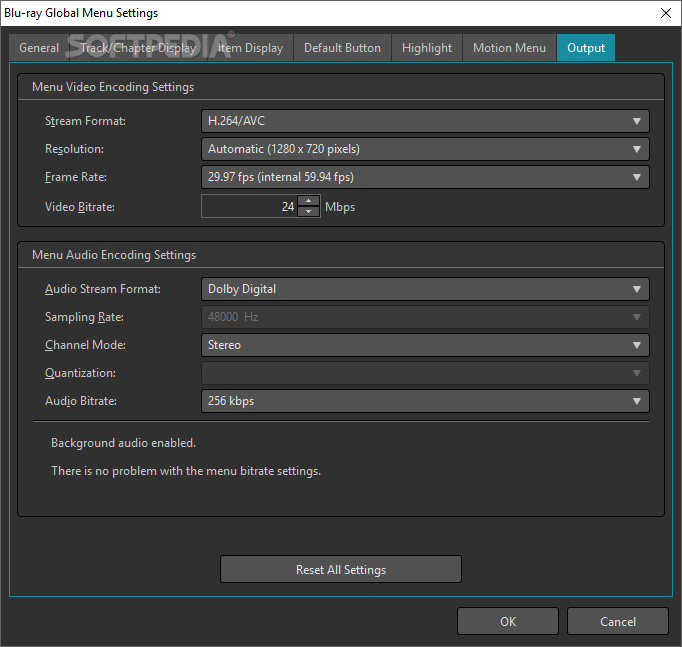
The Source area of the program delivers great editing features like `Clip & Chapter / Subtitle or Transition edit` as well as fine audio / video track customization capabilities. You can add a menu to your project by setting its aspect ratio, resolution and template. In order to preview your current project, the application offers a simulation dedicated section for testing purposes. Finally, the `Output` zone is where you decide on the target media and the burning parameters.
TMPGEnc Authoring Works features the latest technologies such as AVCHD, Dolby Digital Plus, Dolby Digital 5.1 Creator or NVIDIA CUDA as means to supply the demands of both beginners and advanced users. The synergy between its powerful engine and the sleek looks makes this authoring application easy and fun to use while producing high-definition burn-ready media content.
|
TMPGEnc Authoring Works description
|
Here are some key features of "TMPGEnc Authoring Works":
Intuitive step-by-step process:
· Each TMPGEnc Authoring Works 4 project is divided into 5 stages: Start, Source, Menu, Simulation, and Output. Simply complete each stage in order and you'll have a custom DVD or Blu-ray Disc movie in no time. You can even go back to previous stages to make changes, or skip certain stages depending on your needs. Various wizards are included to help guide you through more complicated tasks, such as menu creation and file importing.
Extensive input formats:
· Convert to DVD and Blu-ray Disc compliant video.
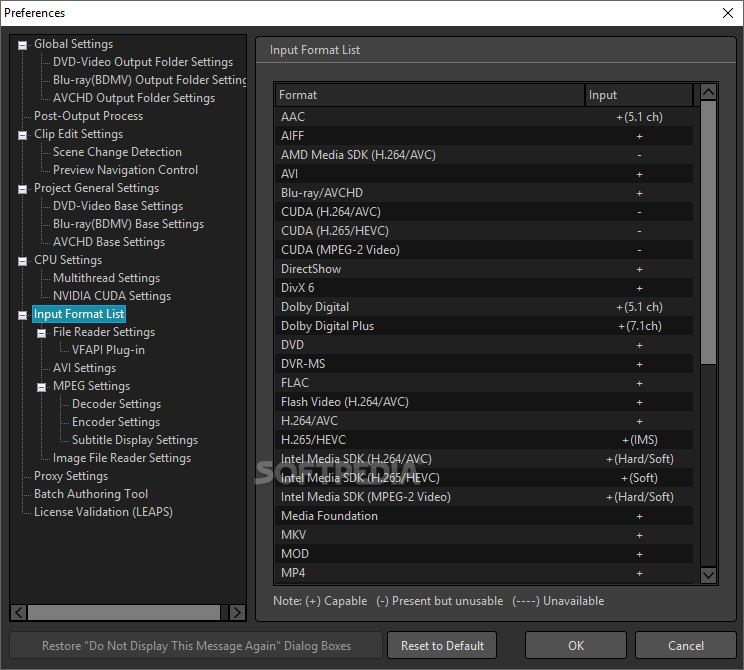
· TMPGEnc Authoring Works 4 will automatically convert a vast array of video file formats to DVD, Blu-ray Disc, or DivX formats. You can even convert your AVCHD videos and keep them in full-HD (1920 × 1080) when you output to Blu-ray Disc.
Create high quality DivX video with advanced features:
· With DivX® Ultra authoring, your DivX projects can have advanced features such as DVD-like menus and navigation! DivX projects created with TMPGEnc Authoring Works 4 are the ultimate combination of DVD-like presentation with DivX technology. Play your DivX Ultra projects with DivX Player software on your PC or any DivX Ultra Certified DVD player in the comfort of your livingroom.
· Officially licensed DivX® video software product
· Creates high-quality DivX® video
Find scene changes with a single click:
· It can be tedious to look for all of the scene changes in your video clips, especially when you've got hours of footage. This is where Smart Scene Search comes in. While editing, all you have to do is click your middle mouse button to the right or the left of the playhead in the thumbnail preview to automatically find the next or previous scene change. This makes it easy to set key frames, find a good place to cut scenes, or split your clip.
Read what they're saying:
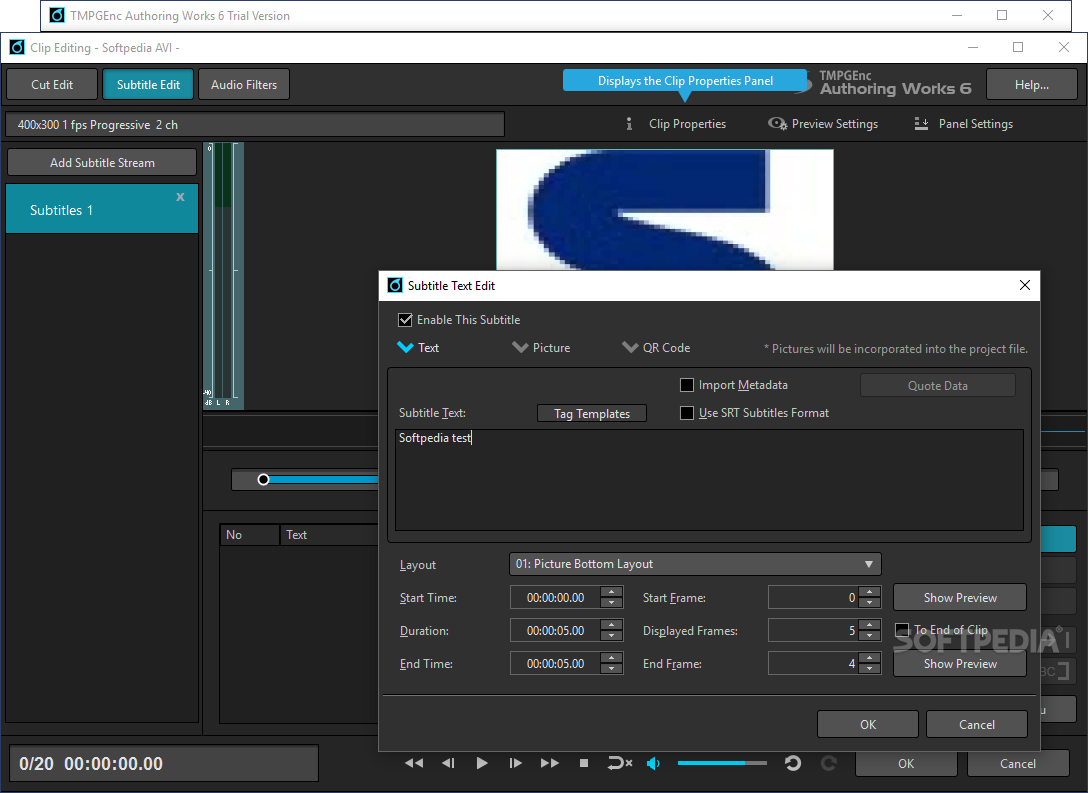
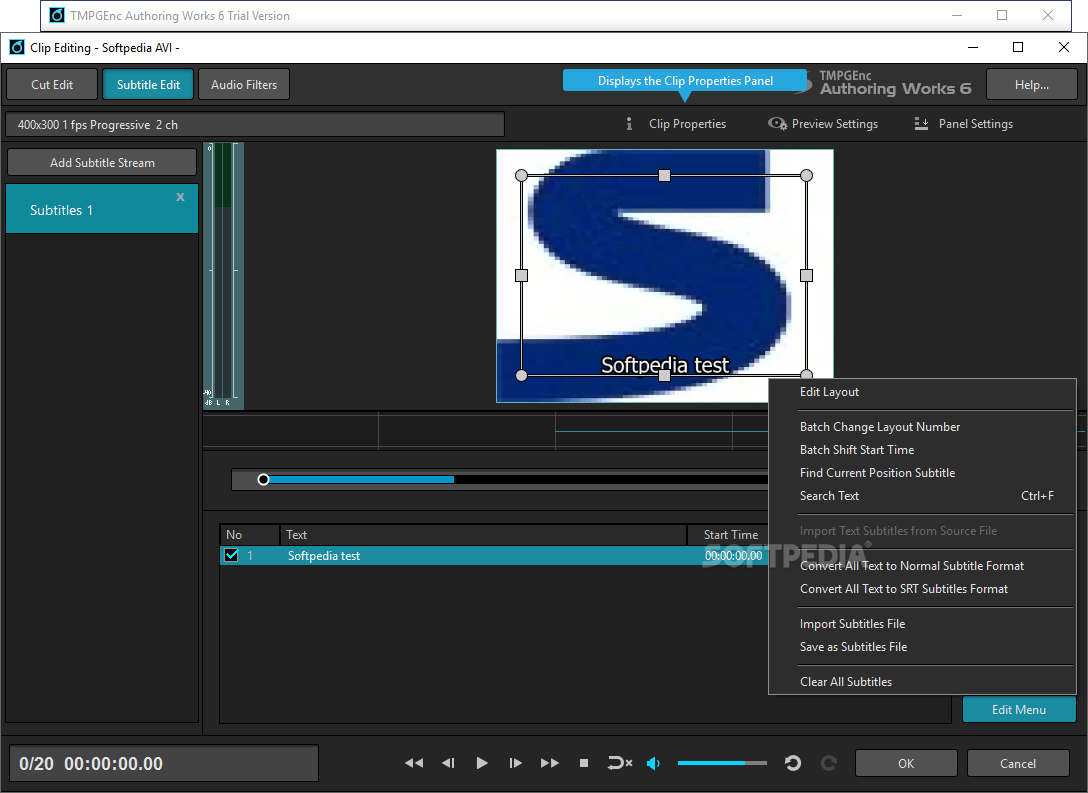
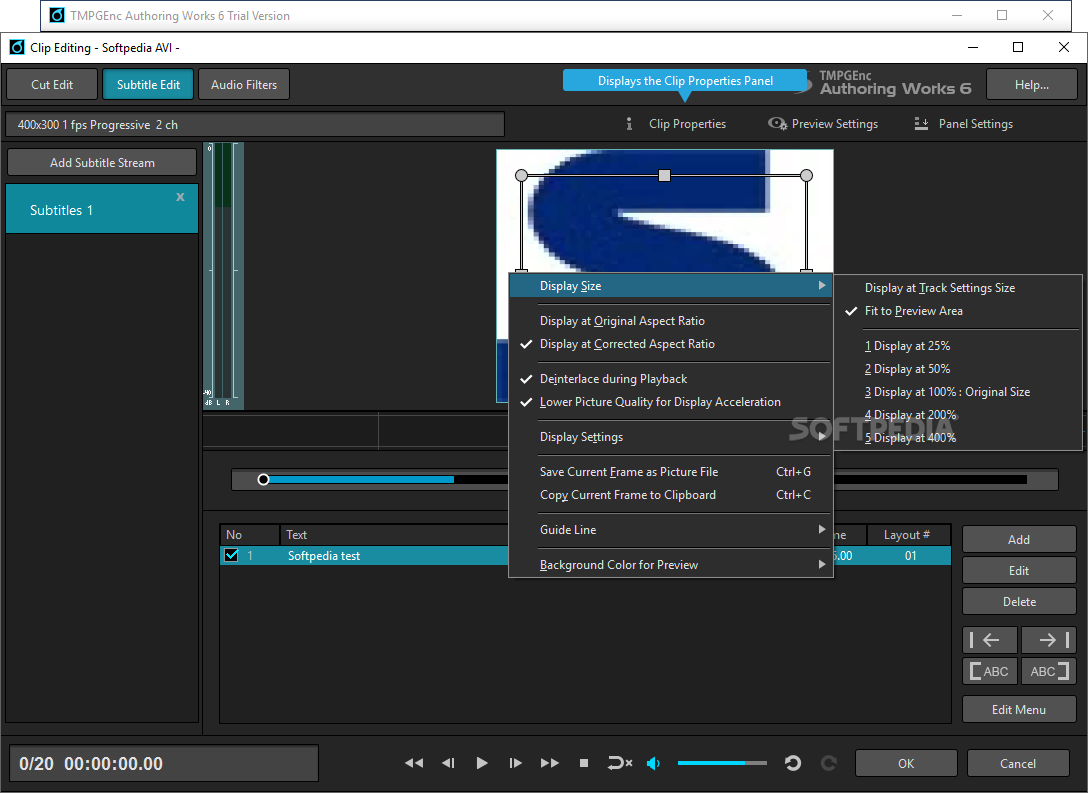
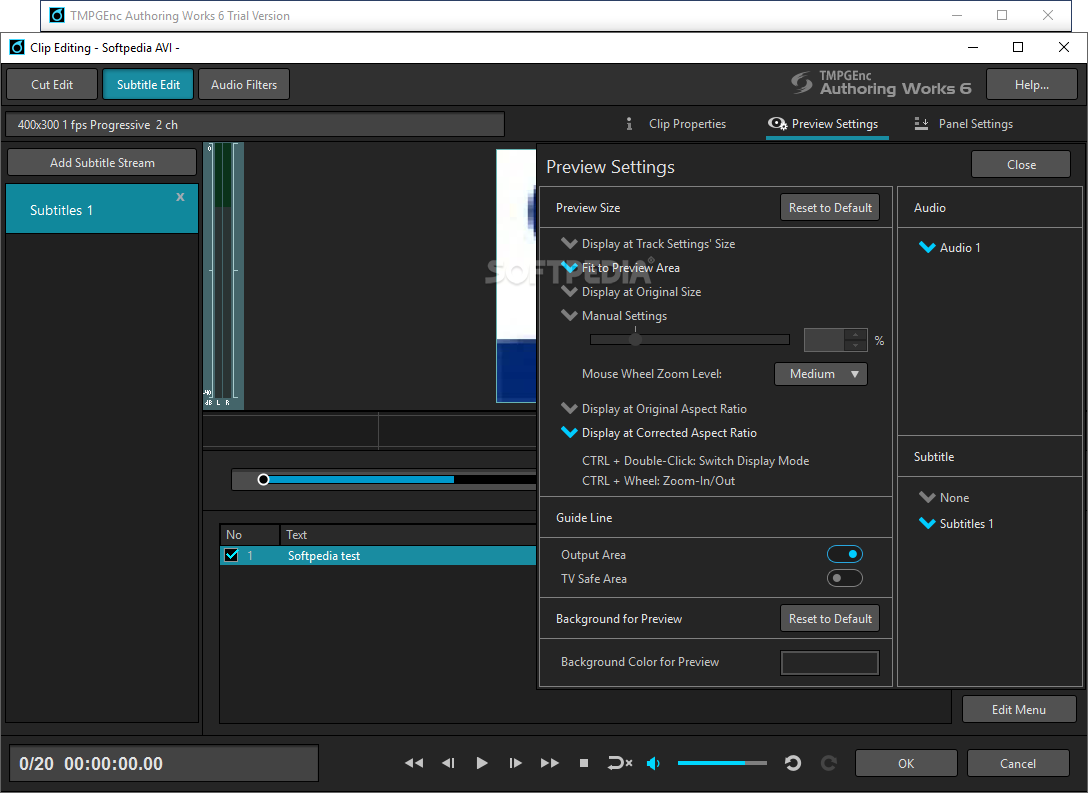
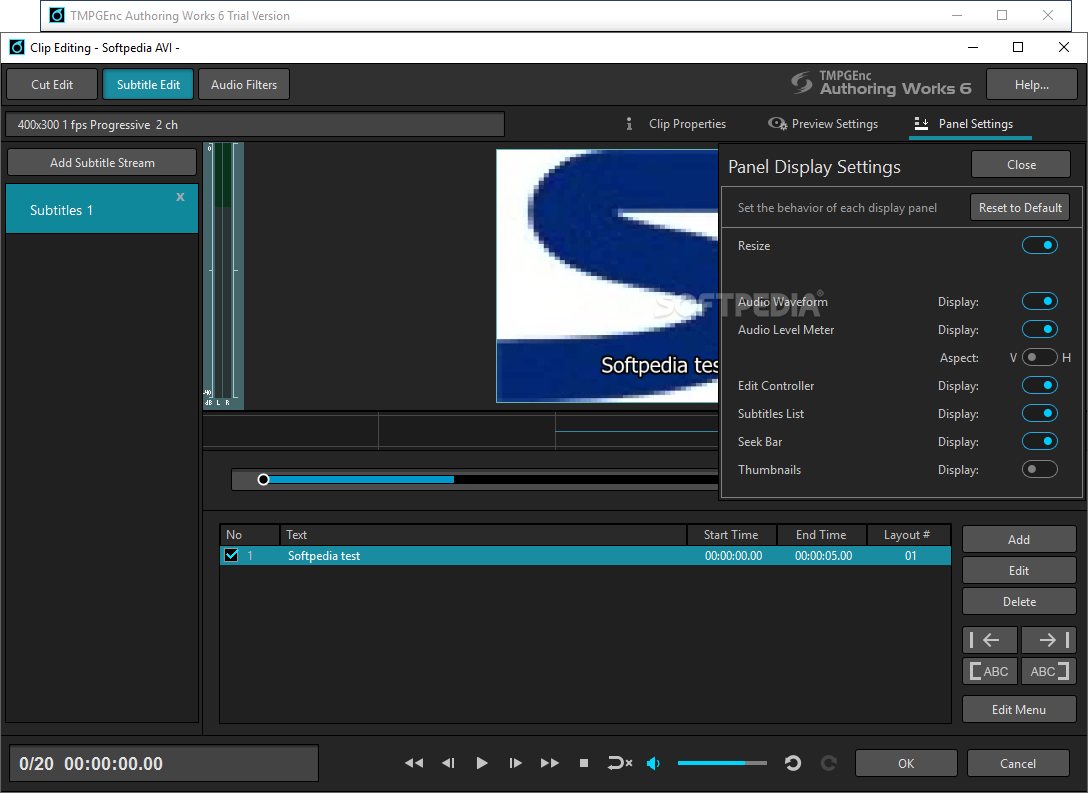
· Add up to two subtitle streams to your videos with the subtitle editor. Import subtitles from a DVD or create your own with tools for positioning, timing, font styles and more. Create multi-language subtitles or use it for the hearing impared. Subtitles also work great as captions for slideshows too.
Use templates or customize them yourself:
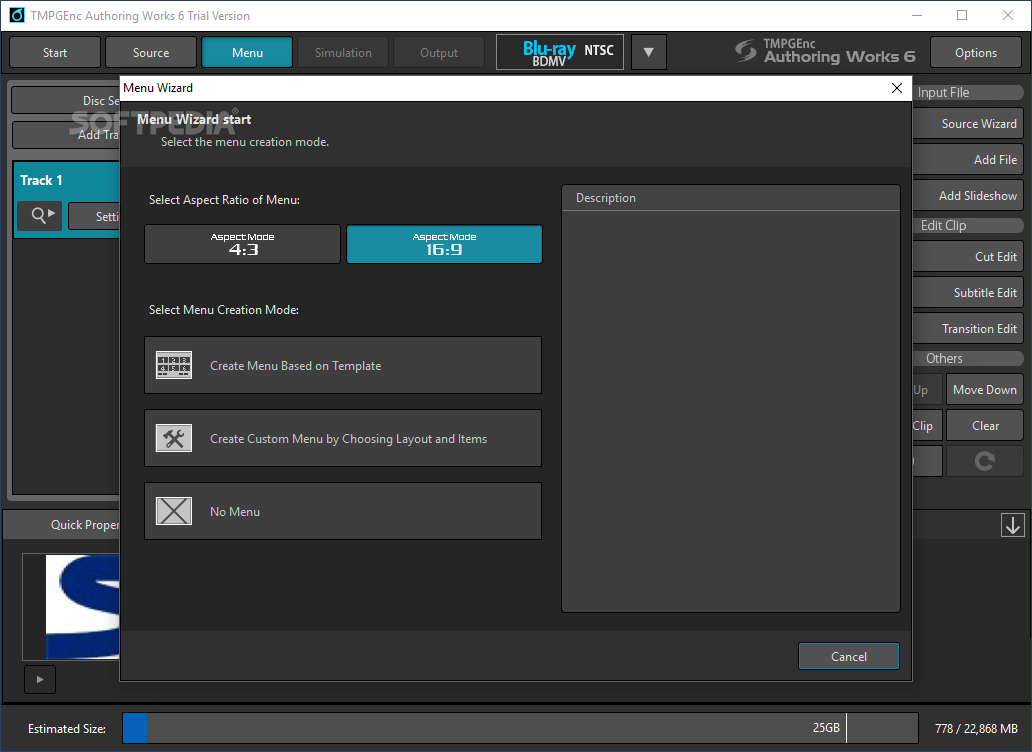
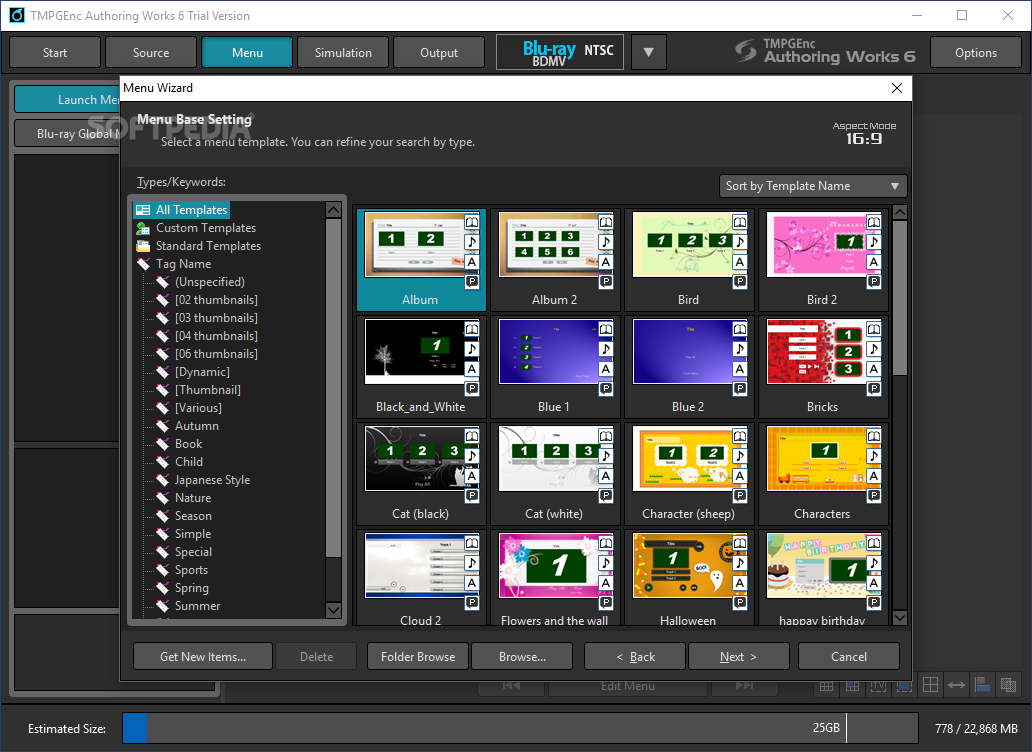
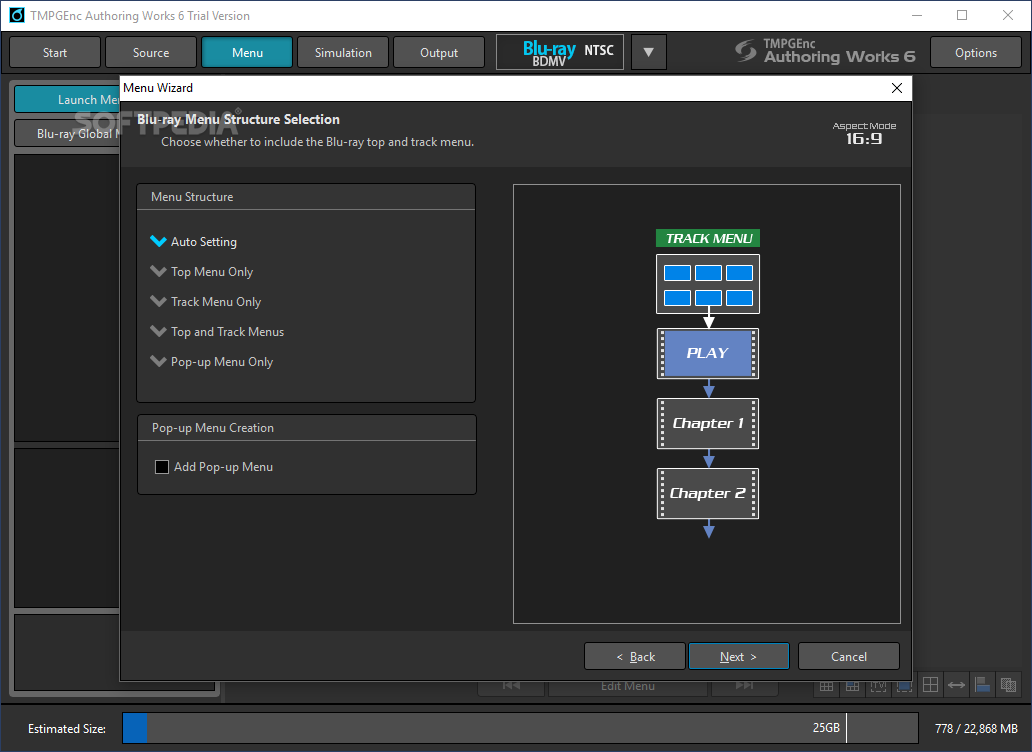
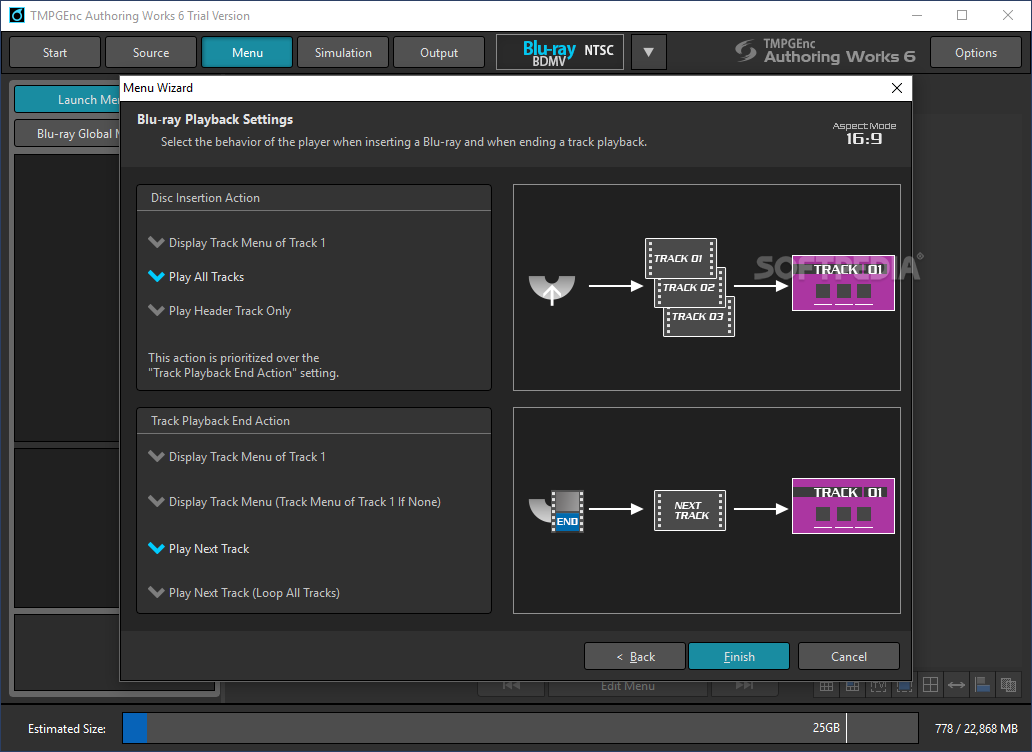
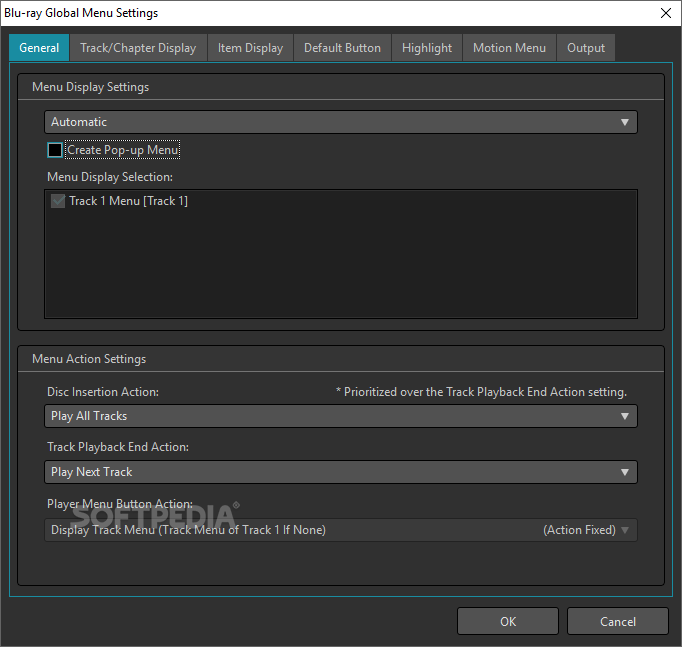
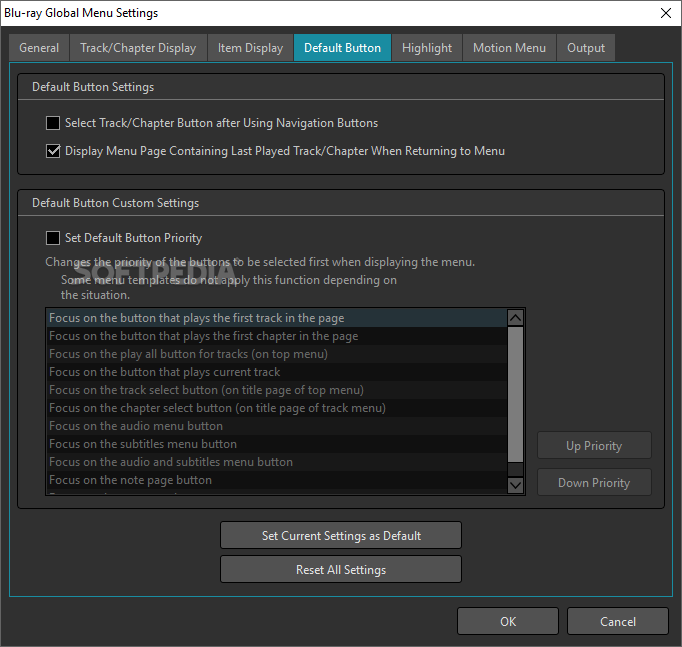
· What's a DVD, Blu-ray, or DivX ULTRA disc without a nice menu? The menu wizard will guide you through the menu-making process, allowing you to create menus in standard and high definition with aspect ratios of 4:3 or 16:9. You can even create pop-up menus with your Blu-ray Disc projects. Of course, you can choose not to create a menu at all as well.
Menu Templates:
· If you're not a creative-type or you're short on time, use one of 23 pre-installed menu templates to create a menu with just a few clicks. With a wide variety of different themes, you're sure to find a menu template to match your video. Check out a preview of all 23 included menu templates by clicking here. You can even download additional menu templates free of charge!
Custom Menus:
· Want to make something truly unique? Then choose to create a custom menu where you can alter practically everything about your menu. Change the background to a personal photo, make your own navigation buttons, add graphical effects to your chapter thumbnails, alter page titles, and more. When you're all done, you can even save your menu as a template so you can use it over and over again.
Add a note page:
· Add note pages to your menus that can contain actor bios, production notes, trivia, history, extra images, or whatever else your imagination can come up with. (Not available for DivX ULTRA menus.)
Highlight editor:
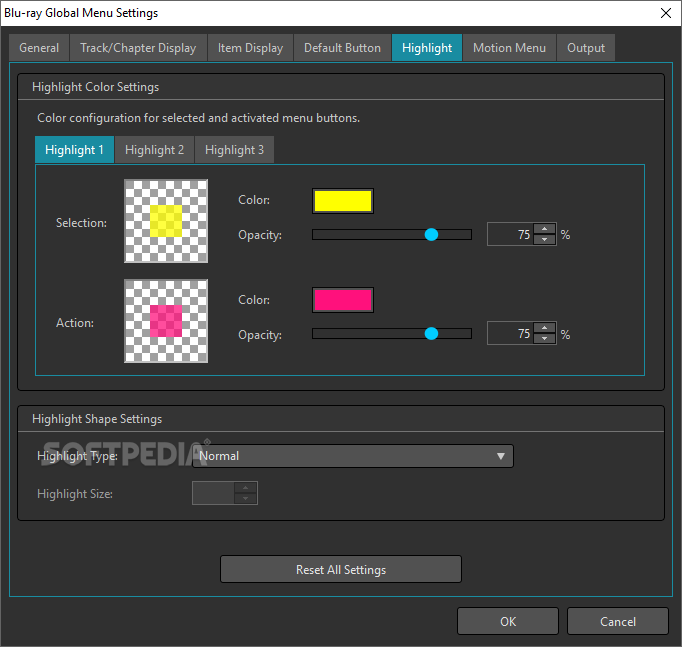
· Change the way menu items are highlighted with the highlight editor. Maybe you want the play button to be outlined, or maybe you want the whole button to be highlighted when you select it. You can also change the highlight colors.
Menu item effects:
· With custom menus, you can add effects to each menu item (buttons, thumbnails, title text, etc.). Add a drop shadow to all of your text, change the color of your chapter thumbnails to a sepia tone, rotate your buttons, change the opacity of your menu title, and much, much more.
· Click here to view an enlarged version and more examples!
Animate menus with motion menu settings:
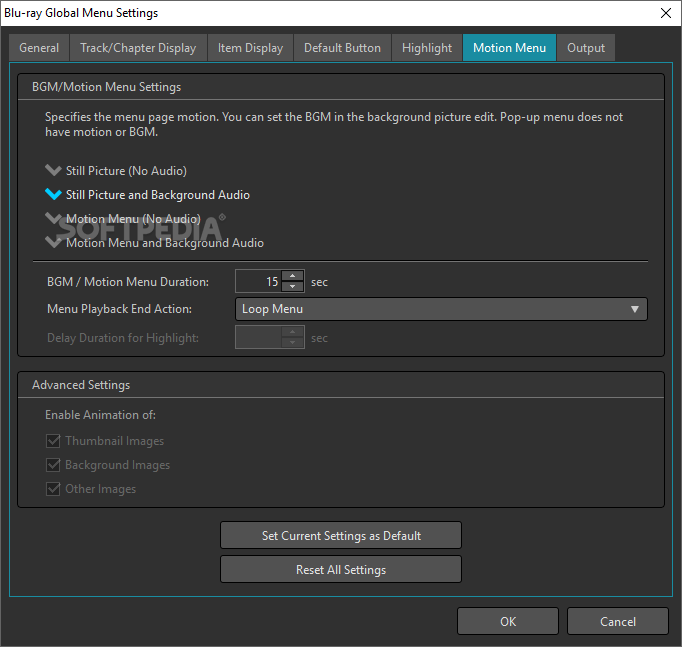
· Breath new life into your menu when you activate the motion menu settings! You can use a video in place of menu items such as backgrounds and buttons, and animate your track and chapter thumbnails to give your menus that extra professional touch. You can even add background music to create a complete audio/visual menu experience!
Edit and output in a flash:
· Smart Rendering allows you to output DivX, DVD or Blu-ray Disc compliant video without having to re-encode the entire movie file. This makes output extremely quick, and when you cut out a scene, only the video frames before and after the cut section will be re-encoded, saving you a ton of time and keeping the same quality as the original source file. Applicable clips will have a Smart Rendering icon in the Source stage of the program.
Test your creation before you output:
· See what your Blu-ray/DVD/DivX project looks like before you output it with the Simulation feature. This will reproduce what your project will look like when you put it in a real DVD/Blu-ray player. Test out your menus, audio tracks, subtitles, and menu item effects that you've applied. We've even included controls that mimic a DVD remote so you can see what it would be like to navigate through your menus. Don't like what you see? Go back and make changes, then test it again.
Never worry about running out of space:
· Sometimes you might have so much content that you can't fit it on the DVD. What do you do? You can get rid of some clips, or you can use the transcode feature which can automatically adjust the bitrate of your movie so that it will fit on your target media. Simply set your target media (DVD, Blu-ray Disc) or set a custom output size and TMPGEnc Authoring Works 4 will do the rest.
Up to 99 tracks per project:
· Got a lot of footage? Add up to 99 video tracks to your project. That's 99 episodes, 99 home videos, 99 slideshows, 99 tracks of whatever video you've got! So go ahead and an extra track or two...or three...or four...
Add an intro video or logo:
· The firstplay track will play once you insert your DVD or Blu-ray Disc into your player. Use it to include an introduction video, corporate logos, sponsorship logos, or whatever you can think of.
Make adjustments with audio filters:
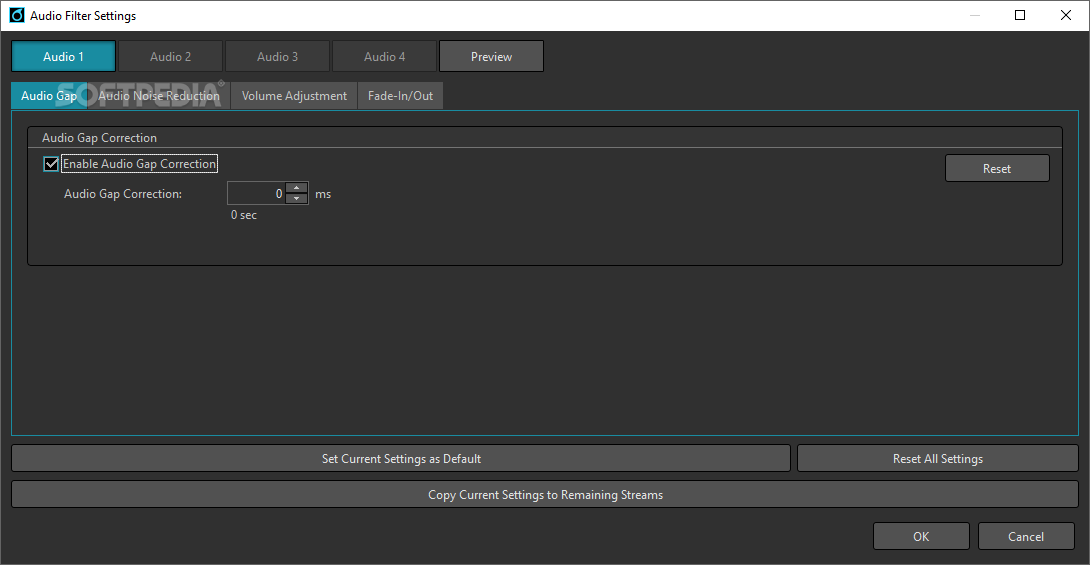
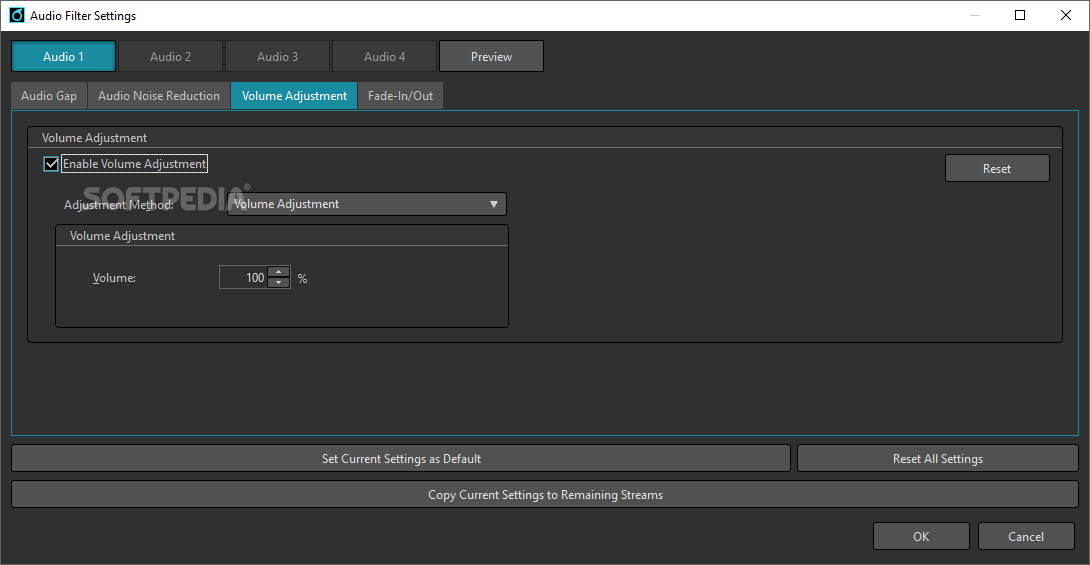
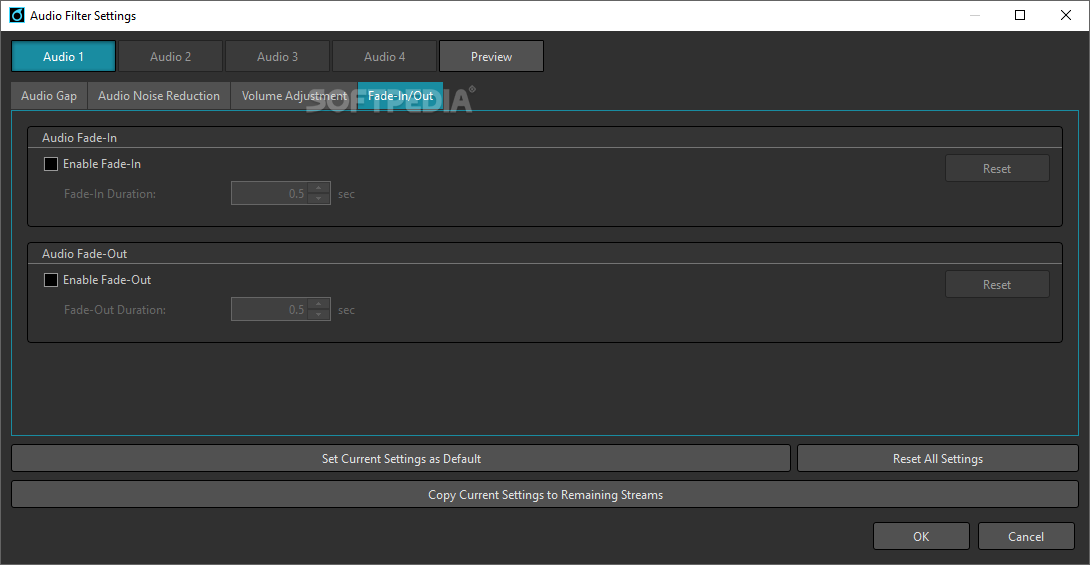
· Is your audio track a little out of sync? Use the audio gap correction to fix it. You can also adjust the volume levels, add fade in/out effects, and apply noise and signal reduction filters.
Requirements:
· Intel Pentium III 1.0GHz, AMD® Athlon MP, Athlon XP or higher.
· RAM 512MB or more
· HDD space 300MB for the program plus enough space for the input / output files
· Screen resolution 1024 × 768 or more
· HDD format NTFS recommended
· CD/DVD/BD drive with writing capabilities. Click HERE for compatible drive list.
· Windows Media Player 9 or later.
· DirectX 9c compliant video card or later.
· QuickTime Player 7 or later.
· Internet connection required for periodic license validation and updates.
· Windows XP requires .NET Framework 3.0 (SP1) or later
Limitations:
· 14-day trial
· Project files cannot be saved or opened
· The bacth authoring tool is not available
· A watermark appears on menus What's New in This Release: [ read full changelog ]
New:
· The "Clip format checker" is now available in the source stage. The Clip format checker window will appear by clicking the FR (Full-rendering) icon on the thumbnail of a clip, which provides the reason why the clip has been determined as FR in the current track.
· Now compatible with TMPGEnc Status Messenger.
· Supports FLAC audio file import.
· Supports loading and applying the rotation flag of MP4/MKV containers and pictures with EXIF data.
· The "Open with Conversion" button is available on the Start window which is capable of converting the saved project's output format to another format. For more details, please refer to the HELP file.
· *This function is not available for the Trial version.
· The Menu item creator is now available in the Advanced tools. It provides you to easily create your own original menu parts by using your pictures, PSD files or other files. For more details, please refer to the HELP file.
· Supports Blu-ray (BDMV) /AVCHD output from GoPro HERO3 recording files.
· *D...
|
|
 | | Softpedia guarantees that TMPGEnc Authoring Works 5.1.1.55 is 100% CLEAN, which means it does not contain any form of malware, including spyware, viruses, trojans and backdoors. [read more >] |
|
| Go to top |
|