
Easily organize the Windows desktop via extended window manipulation capability, allowing users to customize their application buttons. #Window resizer #Minimize window #Align window #Minimize #Rollup #Hotkey

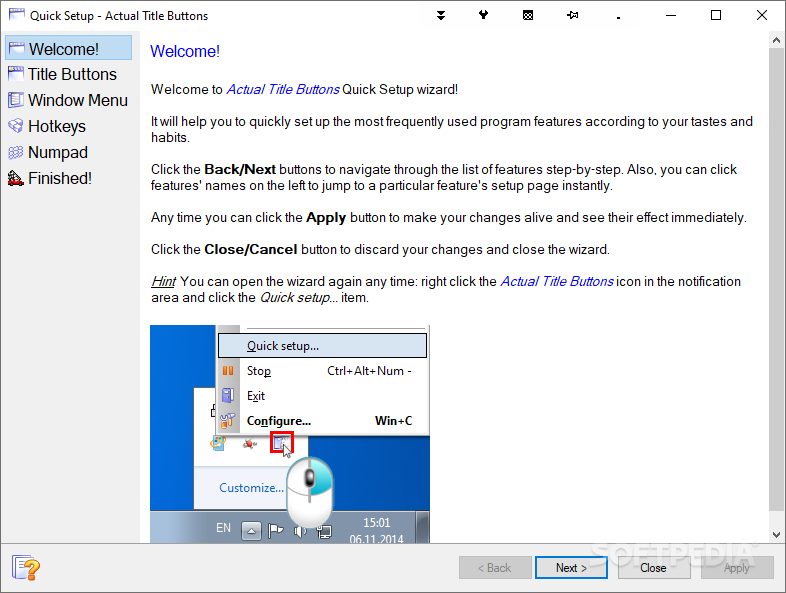
Actual Title Buttons is a software program that provides a simple means of changing the behavior of certain windows, as well as customize hotkeys and mouse actions.
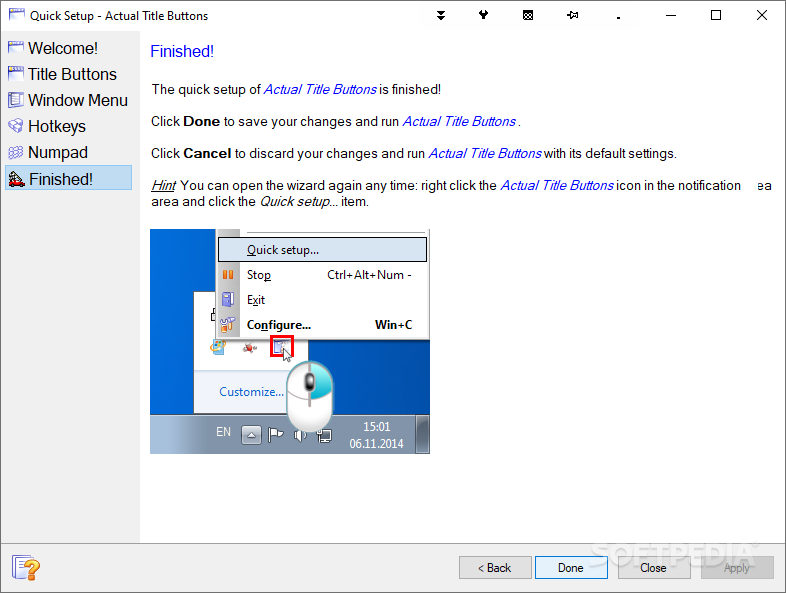
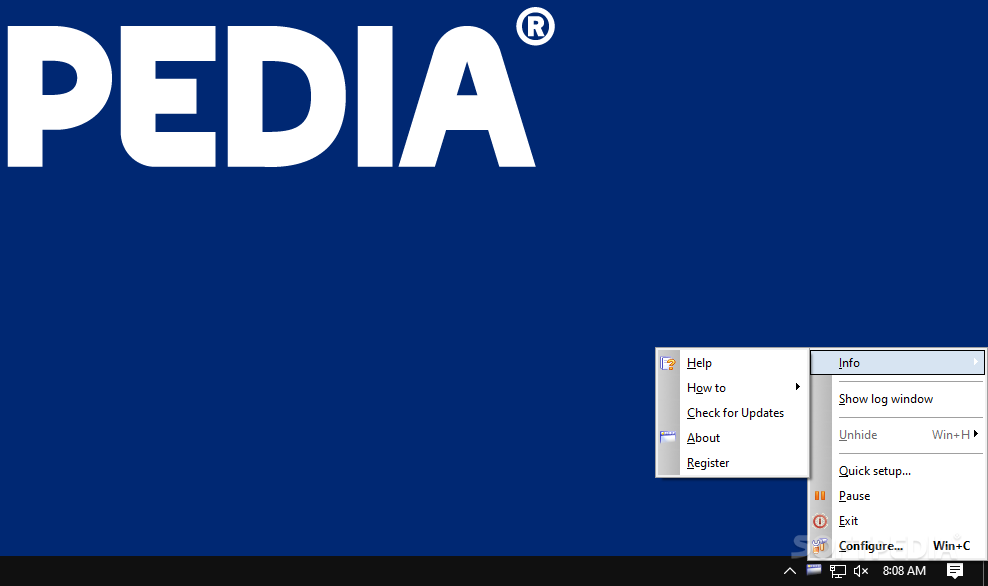
The installation process you are required to go through does not offer to download any third-party products, and it is over in a few seconds. The main window encloses a navigation panel, a few buttons and a pane to display details.
It becomes quite clear that all user categories can find their way around it, including the ones with no or little previous experience, as the comprehensive Help contents ensure this.
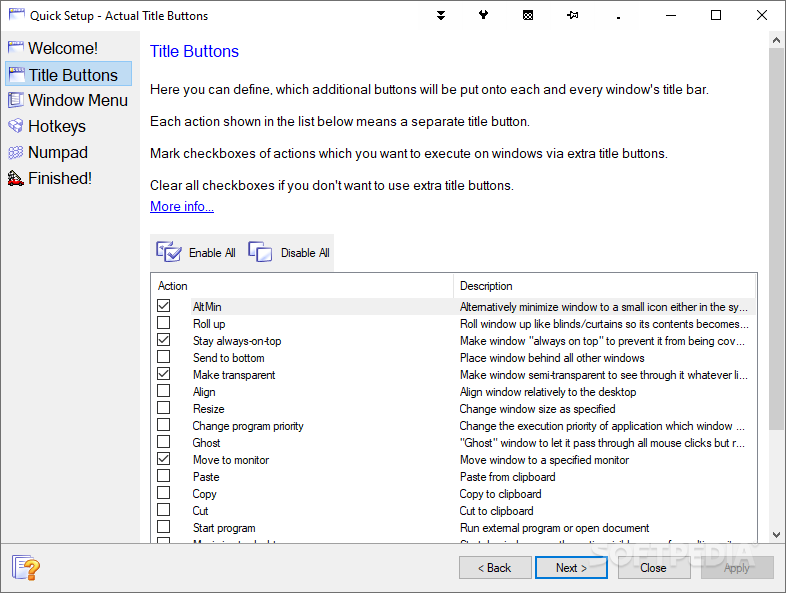
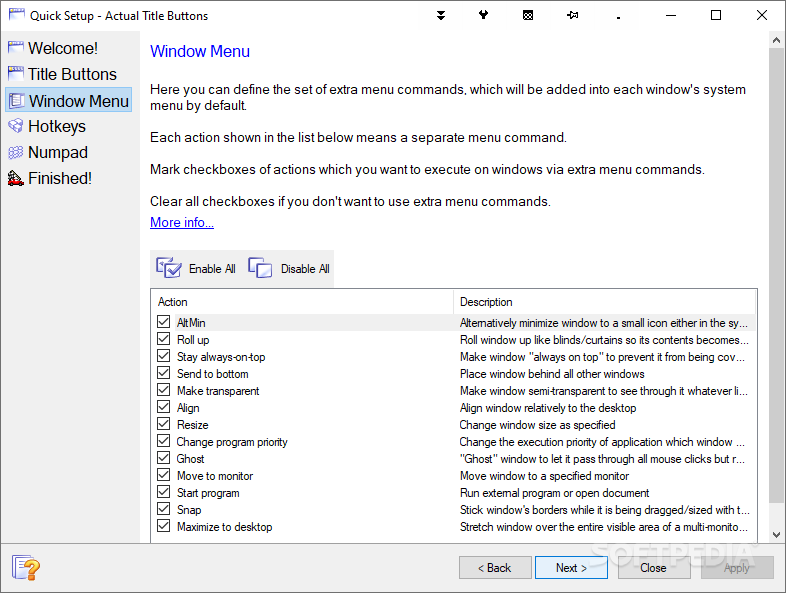
First and foremost, you can adjust options regarding the window, such as minimizing it to system tray, always keeping it on top of other launched apps, adjusting its transparency level, resizing it according to your preferences, moving it to another monitor in a multi-screen environment while also keeping the aspect ratio.
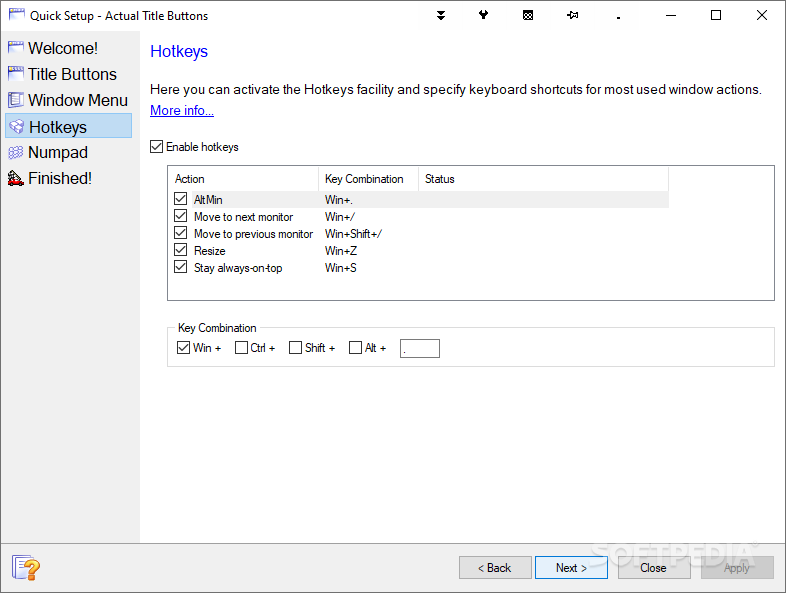
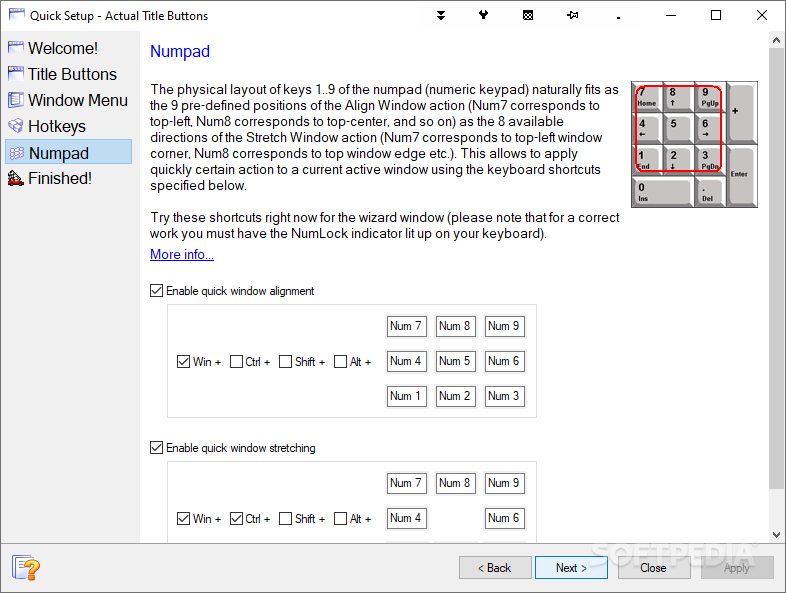
Keyboard shortcuts and mouse actions are provided for almost all actions available, yet you should know they can be customized with just a few clicks. To be more precise, you can snap a selected window to the left half of your screen, roll it up, minimize and force it to always stay on top.
You should know it is possible to backup and restore the entire data stored in this software utility with great ease, so as to prevent sudden data loss, while you can also launch it at Windows startup, and stop it at any point, with just a click of the button.
Actual Title Buttons is a pretty handy piece of software, for people interested in improving their work efficiency. The computer’s performance is not going to be hampered and our tests did not reveal any errors or crashes. The interface is minimal, the response time is good and there are sufficient options to keep you busy for quite a while.
What's new in Actual Title Buttons 8.15.0:
- Security: Now all Actual Tools runtime executables natively support the Data Execution Prevention (DEP) and Address Space Layout Randomization (ASLR) security technologies provided by the system. That hardens the overall system security by preventing various exploit attacks.
- Title Buttons: Numerous fixes and improvements in Chromium-based apps:
- Glyphs on extra buttons did not change their color when toggling an app's window active/inactive automatic gradual compact mode did not work in Opera and Vivaldi (so the extra buttons covered the browser tabs and the "New tab" button)
Actual Title Buttons 8.15.0
add to watchlist add to download basket send us an update REPORT- runs on:
- Windows All
- file size:
- 8.3 MB
- filename:
- atbsetup.exe
- main category:
- Desktop Enhancements
- developer:
- visit homepage
Microsoft Teams
7-Zip
ShareX
Zoom Client
4k Video Downloader
Context Menu Manager
Bitdefender Antivirus Free
calibre
Windows Sandbox Launcher
IrfanView
- calibre
- Windows Sandbox Launcher
- IrfanView
- Microsoft Teams
- 7-Zip
- ShareX
- Zoom Client
- 4k Video Downloader
- Context Menu Manager
- Bitdefender Antivirus Free