
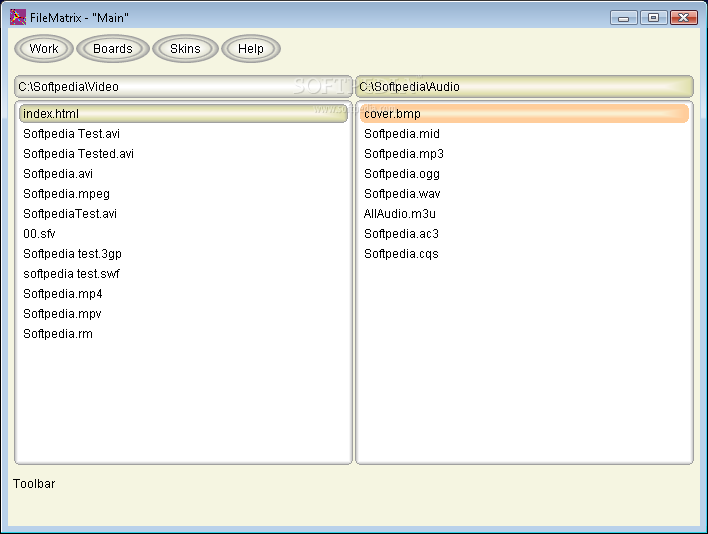
Windows keeps basic management options simple, and this includes file and folder management. The file explorer component is responsible for this task, but some might find it inconvenient for specific types of activities. Luckily, you can use third-party alternatives like FileMatrix for advanced file management options.
What makes up most of the practicality is portability, giving you the ability to store it on a USB flash drive to use on other computers as well. Doing this doesn’t affect the integrity of the target PC whatsoever, especially because registries don’t need to be modified for things to work as planned.
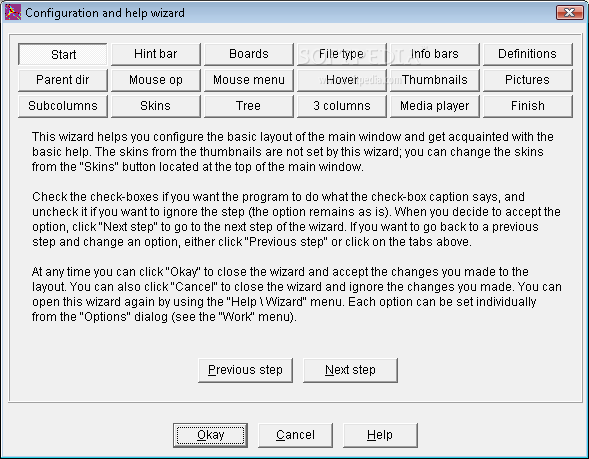
The initial launch brings up a configuration wizard, so you can take the time to get to know general features. It’s advisable to go through, because almost all areas are covered, and the application provides ample descriptions for each, just to make sure you don’t get stuck along the way.
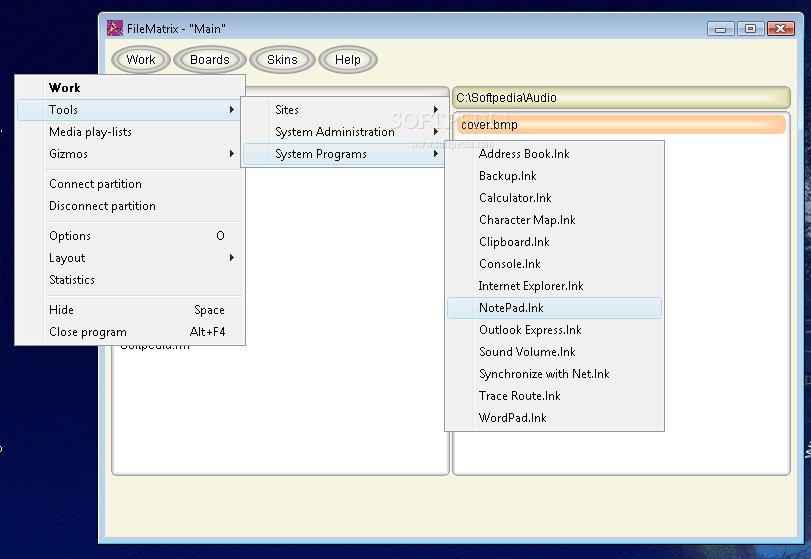
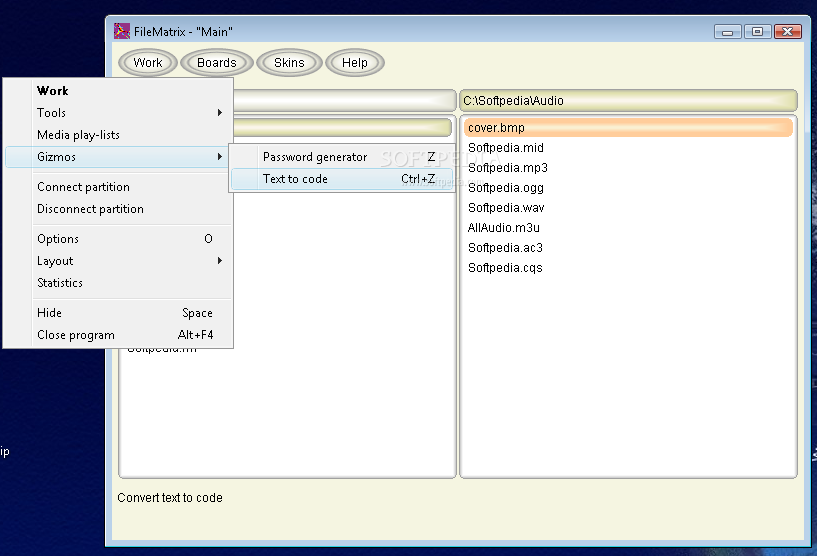
By default, the main window is split into two explorer panes, each showing a different location on your hard disk drive. You can easily navigate to a new one, or even use the upper toolbar to access several important areas of your computer. A neat thing is that each of the preset areas modifies the navigation layout for more comfort.
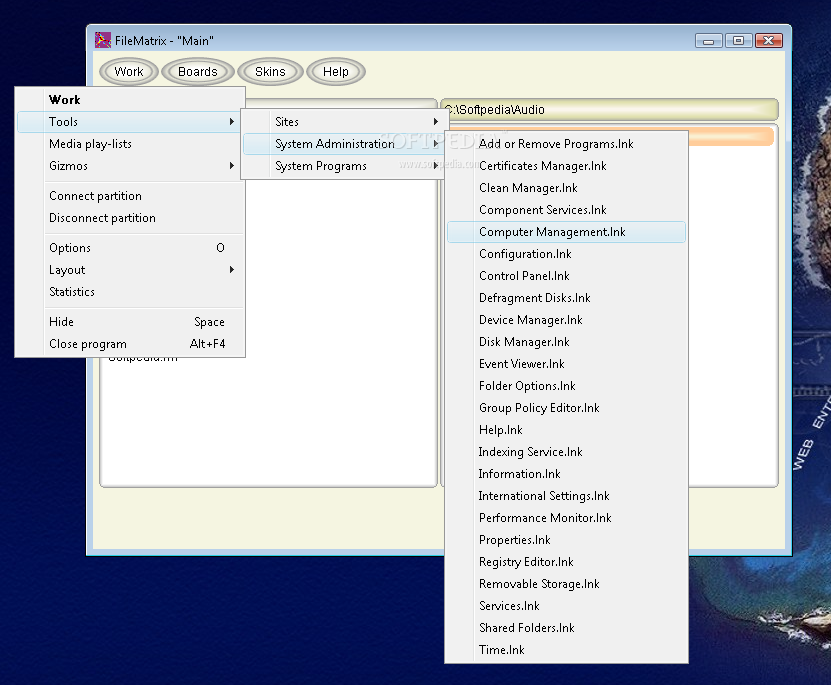
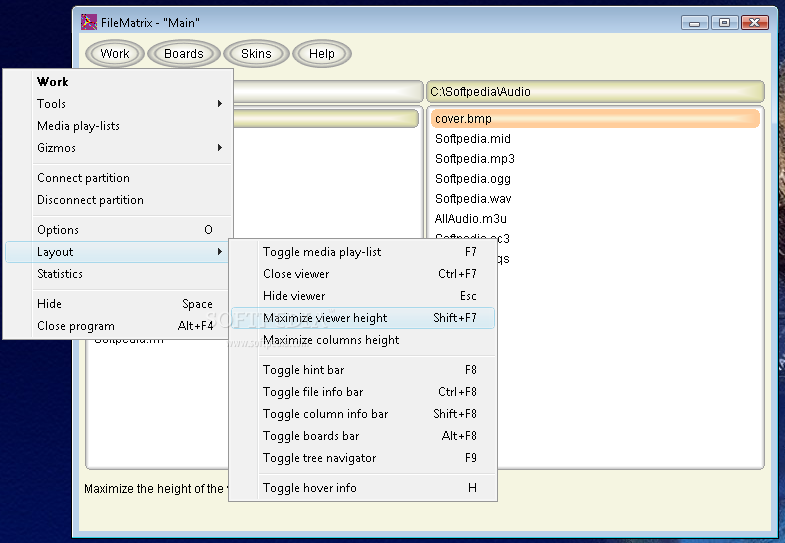
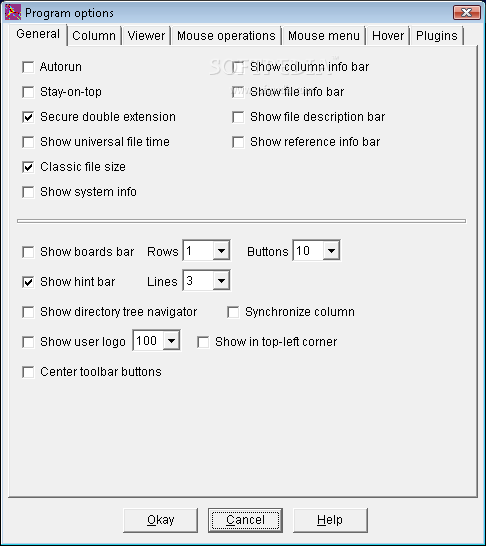
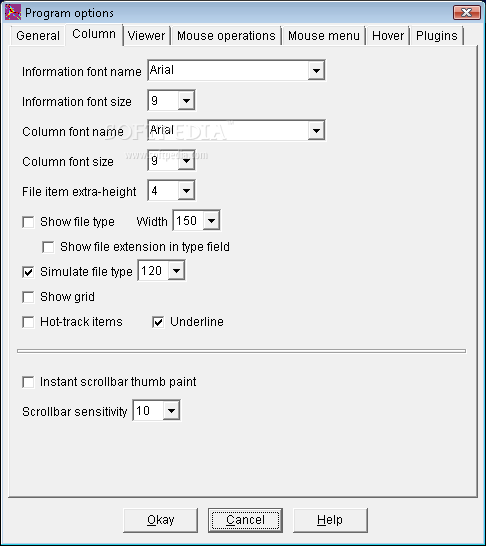
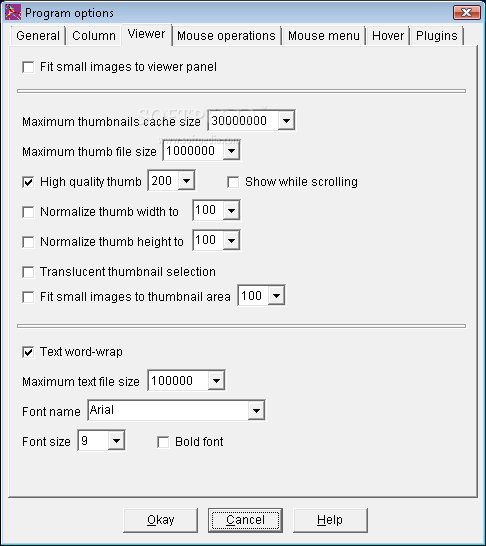
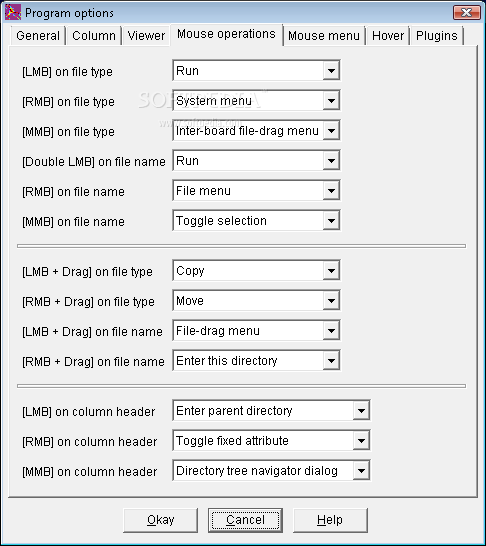
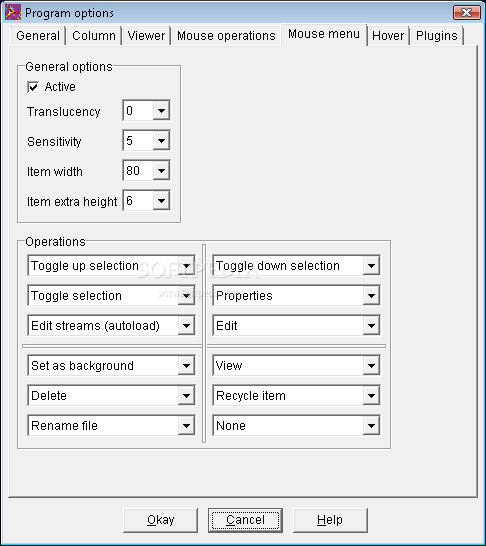
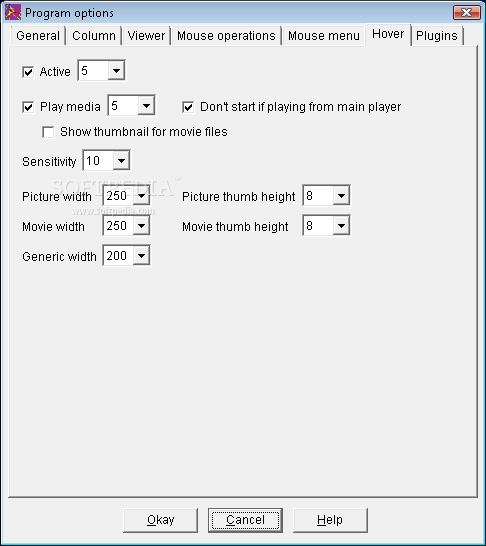
Needless to say that this means you can also customize the navigation view. This can be done beginning with the visual design and colors, to the way files are shown, and the number of simultaneous navigation panes, which can be as many as 10. You get to work with the context menu quite often, since it holds options for attributes, navigation, view, search, select, and a lot more.
All things considered, we come to the conclusion that FileMatrix is a trustworthy replacement for File Explorer. However, you might want to take some time to get to know all of its features, after which more time can be invested in visual customization. The amount and variety of options at your disposal is stunning, deserving at least a try overall.
Filed under
- Latest version:
FileMatrix 8.0.7
- runs on:
- Windows All
- file size:
- 1.2 MB
- filename:
- filematrix.zip
- main category:
- File managers
- developer:
- visit homepage
4k Video Downloader

Bitdefender Antivirus Free

calibre
Zoom Client
IrfanView
Windows Sandbox Launcher
Context Menu Manager
7-Zip
ShareX
Microsoft Teams
- 7-Zip
- ShareX
- Microsoft Teams
- 4k Video Downloader
- Bitdefender Antivirus Free
- calibre
- Zoom Client
- IrfanView
- Windows Sandbox Launcher
- Context Menu Manager