
A comprehensive remote access solution designed for administrators, allowing technical support and comfortable computer administration #Remote Support #Remote Connection #Remote Access #Remote #Connection #Configure

iTivity delivers a reliable and secure method to connect to remote servers and workstations, allowing distance access to other PCs.
It allows secure remote access to host servers, workstations and desktop computers. Your remote access connections are protected by a TLS-SSL encrypted tunnel from your desktop to the destination system. Since both your desktop and the destination computer may be located across the Internet from the central iServer, remote access is truly global.
iTivity uses standard enterprise authentication and authentication like active directory domains and PAM to verify access permission. iTivity provides PCI-DSS, HIPAA and SOX compliant remote desktop support. Each connection is automatically logged to the central iServer. All access is authenticated at the central iServer. To better meet your needs, iTivity remote access comes in two flavors: on demand and always on.
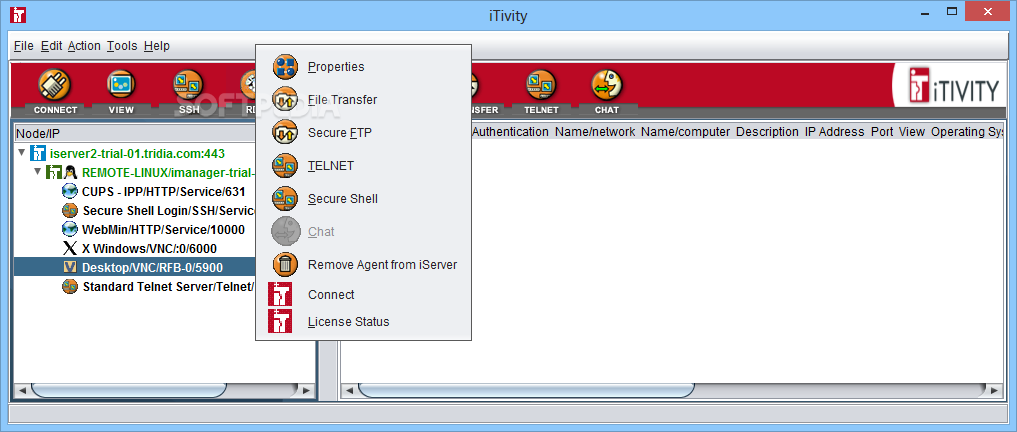
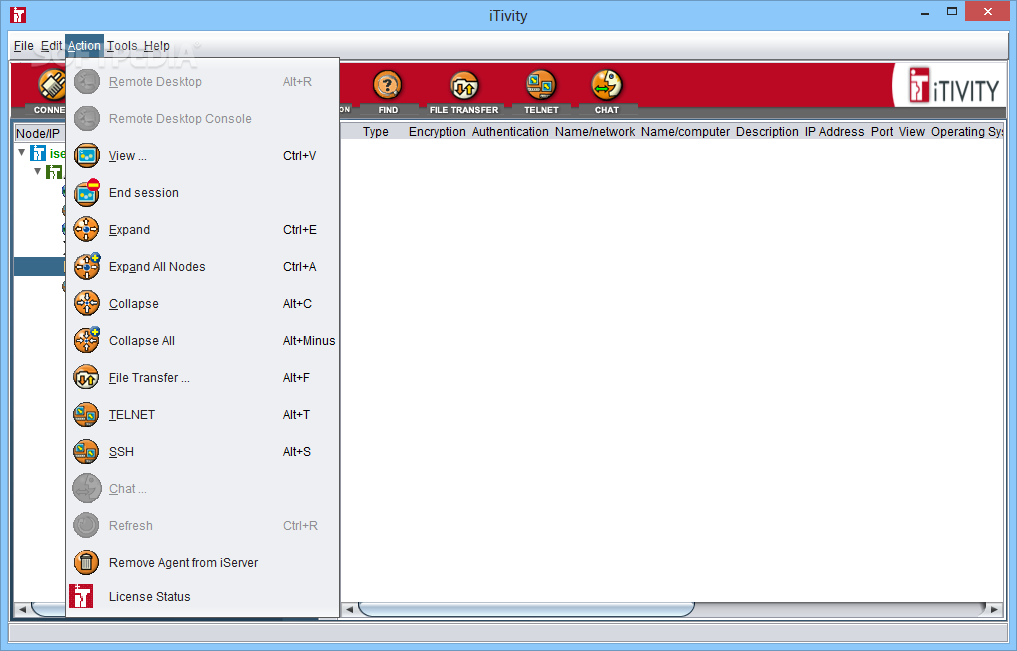
The live support iAgent provides on demand access for remote user technical support and training. The admin iAgent gives you always on remote access to critical applications, databases and servers. iTivity enables secure application access, remote desktop access, remote control, remote monitoring and secure file transfer. These features are implemented via port forwarding for standard remote administration and support tools such as RDP, FTP, VNC and telnet.
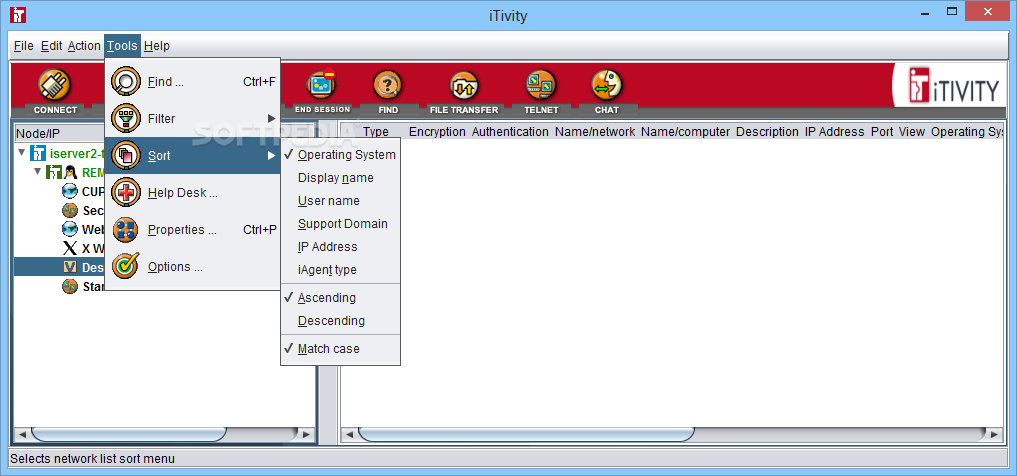
The iTivity manager automatically configures, launches and monitors remote access sessions to systems on your iServer. With iTivity, there is no need to manually configure SSH nor open dangerous pinhole ports on the firewall. Few technologies improve productivity and customer satisfaction like remote support solutions. None go as far as iTivity to help you support and manage complex environments.
With iTivity you host the server so you control the data. Out-of-the-box integration with NTLM, LDAP and PAM authentication servers makes access hassle-free and worry-free.
System requirements
- TCP Network
- Internet access
Limitations in the unregistered version
- 30 days trial
What's new in iTivity 6.0.10:
- iTivity iManager 6.0.10:
- iTivity iManager 6.0.10 expands the ability to access most iAgent services from a command line invocation. If you specify both the iServer and iAgent for a command line invocation, then you can also specify which service to access on that iAgent. The following command line flags are now supported. You should only specify one service flag on any given command line launch.
- When connecting to Windows Vista, Windows 7, Windows 8, 2008 Server, 2012 Server and later systems consoles' via VNC, the iManager 6.0.10 can support automatic reconnection after the screen connection drops due to login or logout. The behavior is controlled by setting the upper limit on the number of reconnections that are allowed for any specific iAgent access. If the set the limit to zero, then no VNC reconnections will take place. You can control the VNC reconnection using this new setting.
- When running on a Windows desktop, the iTivity iManager 6.0.10 supports automatic forwarding of the iAgent credentials to the RDP client (or Remote Desktop Connection) for immediate login over the RDP connection. While this behavior is enabled by default, you can disable it by setting the following flag to zero. This would be useful if you need to provide iTivity authentication to the iAgent with a different username from the desired RDP login username.
iTivity 6.0.10
add to watchlist add to download basket send us an update REPORT- runs on:
-
Windows NT
Windows 2003
Windows 8
Windows 7
Windows Vista
Windows XP
Windows 2K - file size:
- 44 MB


- main category:
- Internet
- developer:
- visit homepage
4k Video Downloader

Zoom Client
calibre
Microsoft Teams
Context Menu Manager
Windows Sandbox Launcher
7-Zip
IrfanView

Bitdefender Antivirus Free
ShareX
- IrfanView
- Bitdefender Antivirus Free
- ShareX
- 4k Video Downloader
- Zoom Client
- calibre
- Microsoft Teams
- Context Menu Manager
- Windows Sandbox Launcher
- 7-Zip