
A server utility that helps you gather multimedia content from an entire network and broadcasts it across multiple devices in a simple way. #Multimedia server #Media server #Multimedia management #Server #Multimedia #Management
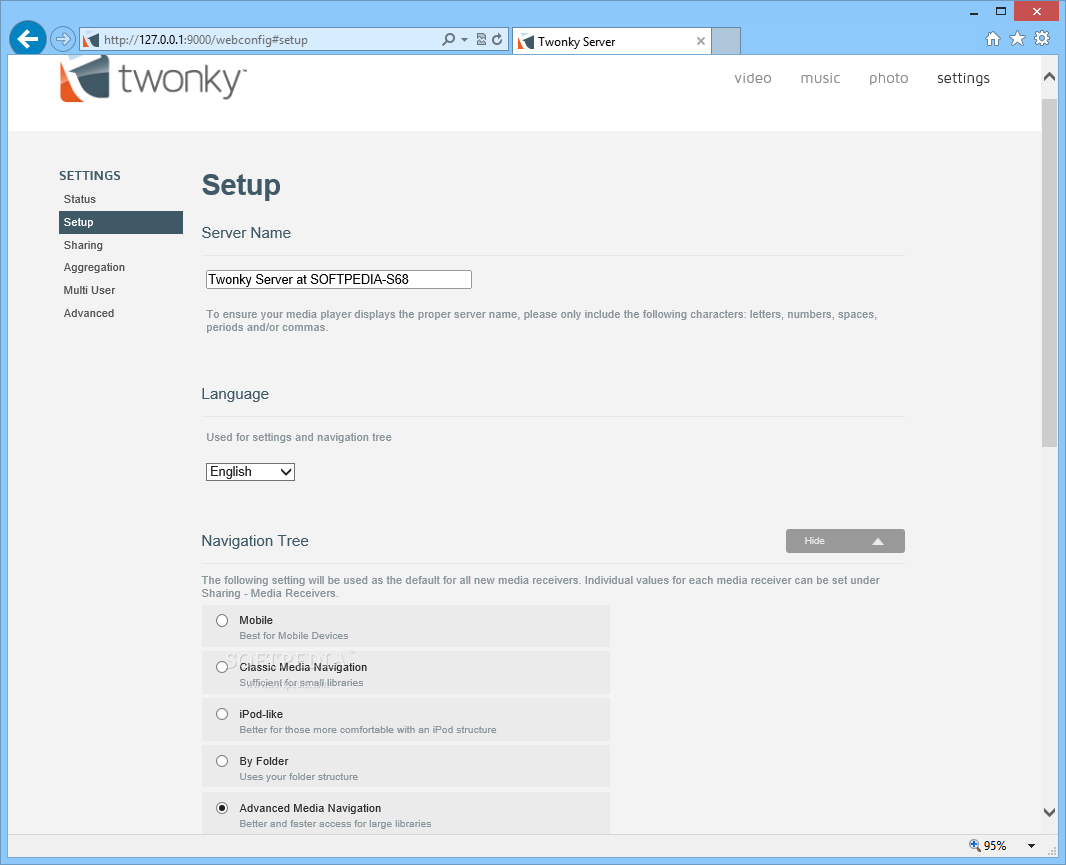
TwonkyMedia server (TMS) is an application that you can easily use to stream multimedia content over a home or small business network. It’s compatible with PCs, as well as with embedded and mobile platforms.
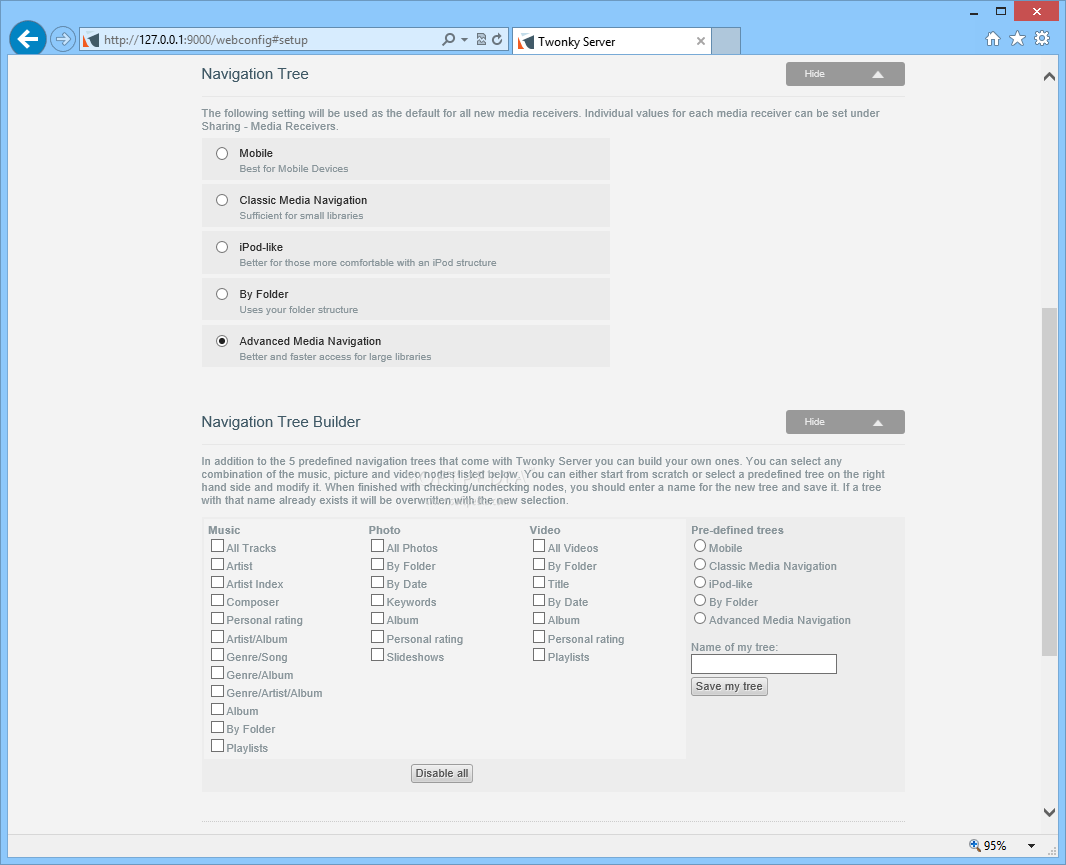
You can use it to aggregate multimedia files from other servers and make them available from one central source. With Twonky Server you can create a large collection of music, photos and movies that you can share and view from anywhere there is a device connected to the server. And since it’s a DLNA compliant Digital Media Server it can bridge a connection between hundreds of devices.
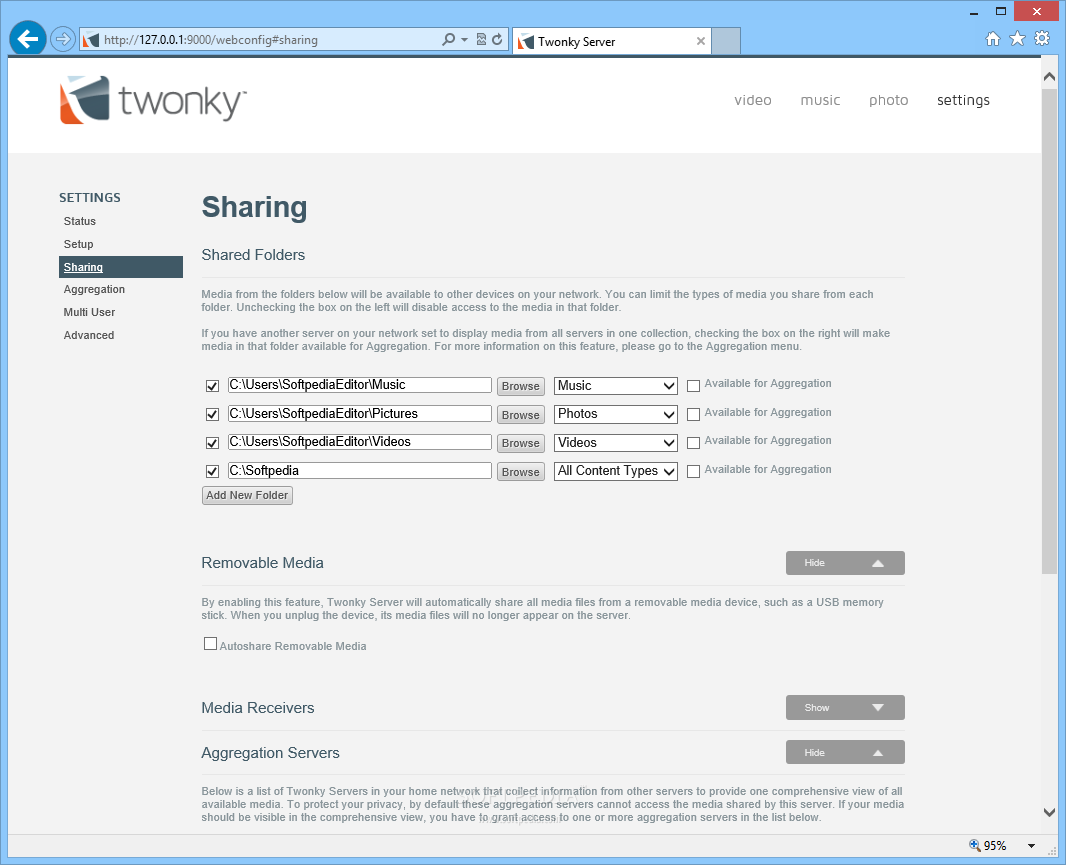
Configuring the server takes you no time as it is ready to launch immediately after it is installed. By default, it places as your ‘Music’, ‘Photos’ and ‘Videos’ folders as the primary sources for media files but you can easily change these and make them available for aggregation. You can also add new folders from your computer even if they are found on removable drives.
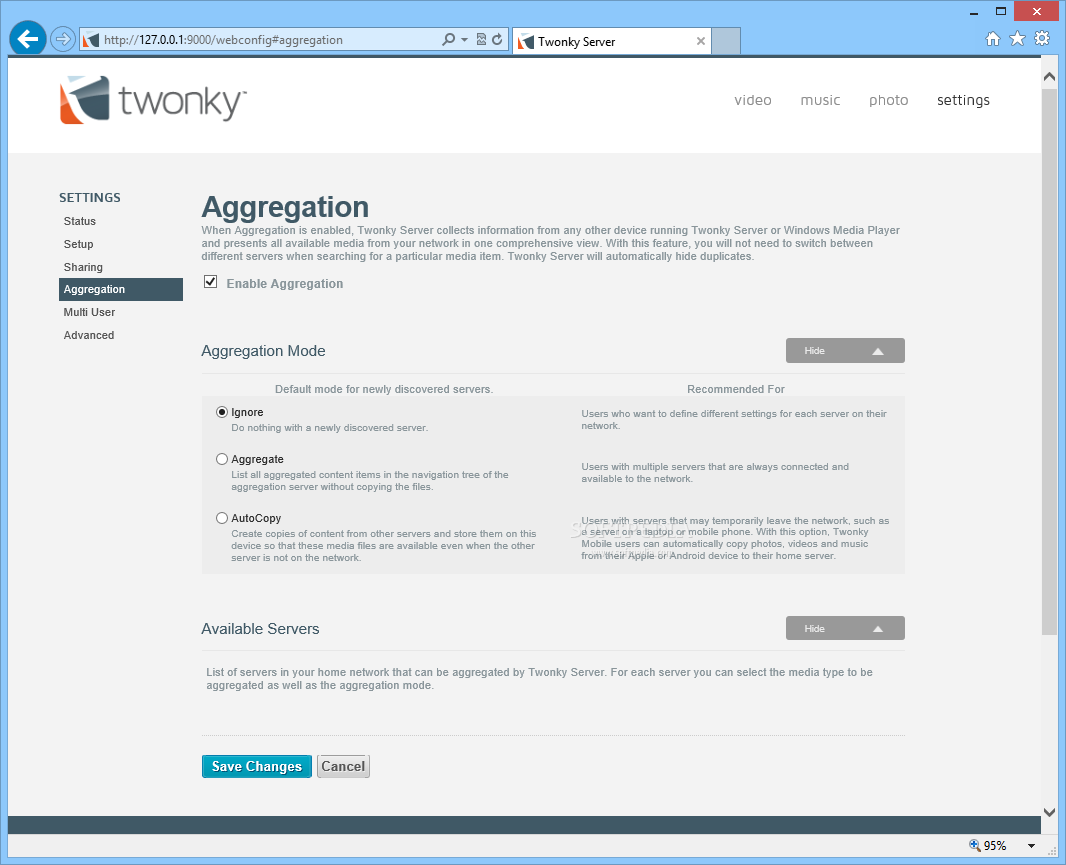
With the ‘Aggregation’ feature switched on, you can have the computer that is running Twonky Server do one of three things. You can tell it to ignore all newly found media, list all the items in the navigation tree of the aggregation server or copy them to the main server. With all the files indexed, you can preview them from your browser to make sure nothing inappropriate leaks out.
Twonky Server supports a very large number of formats for all the three media categories it uses. This makes it a very practical solution for environments where people tend to use more than the typical files.
Twonky Server is, by all means, a handy, comprehensive and practical solution for all those who want to be able to centralize all their media content into one place and stream it from there across their entire network.
Twonky Media Server 8.5.1
add to watchlist add to download basket send us an update REPORT- runs on:
-
Windows 10 32/64 bit
Windows 8 32/64 bit
Windows 7 32/64 bit
Windows Vista
Windows XP - file size:
- 4.6 MB
- filename:
- TwonkyServer-8.5.1.exe
- main category:
- Internet
- developer:
- visit homepage
7-Zip
Bitdefender Antivirus Free
Zoom Client
Context Menu Manager
calibre
IrfanView
4k Video Downloader
ShareX
Microsoft Teams
Windows Sandbox Launcher
- ShareX
- Microsoft Teams
- Windows Sandbox Launcher
- 7-Zip
- Bitdefender Antivirus Free
- Zoom Client
- Context Menu Manager
- calibre
- IrfanView
- 4k Video Downloader