Softpedia
 

WINDOWS CATEGORIES:


GLOBAL PAGES >>
SOFTPEDIA REVIEWS >>
MEET THE EDITORS >>
WEEK'S BEST
  • Sticky Password FR...
  • Parallels Workstat...
  • ESET NOD32 Antivir...
  • BitDefender Total ...
  • WinPatrol 24.6.201...
  • PerfectDisk Free D...
  • Adobe Photoshop CS...
  • PerfectDisk Profes...
  • Windows 8 Consumer...
  • Atlantis Word Proc...
  • Home > Windows > Science / CAD
     Report malware

    Advanced Trigonometry Calculator 1.6.2

    download button

    Downloads: 3,933  Tell us about an update
    User Rating:
    Rated by:
    Very Good (4.5/5)
    18 user(s)
    Developer:

    License / Price:

    Size / OS:

    Last Updated:

    Category:

    Freeware / $0
    1 MB / Windows XP / Vista / 7 / 7 x64
    [view history]
    C: \ Science / CAD

     Read user reviews (0)  Send to friend   Follow (2 users)

    Advanced Trigonometry Calculator description

    A tool to help you with trigonometry calculations

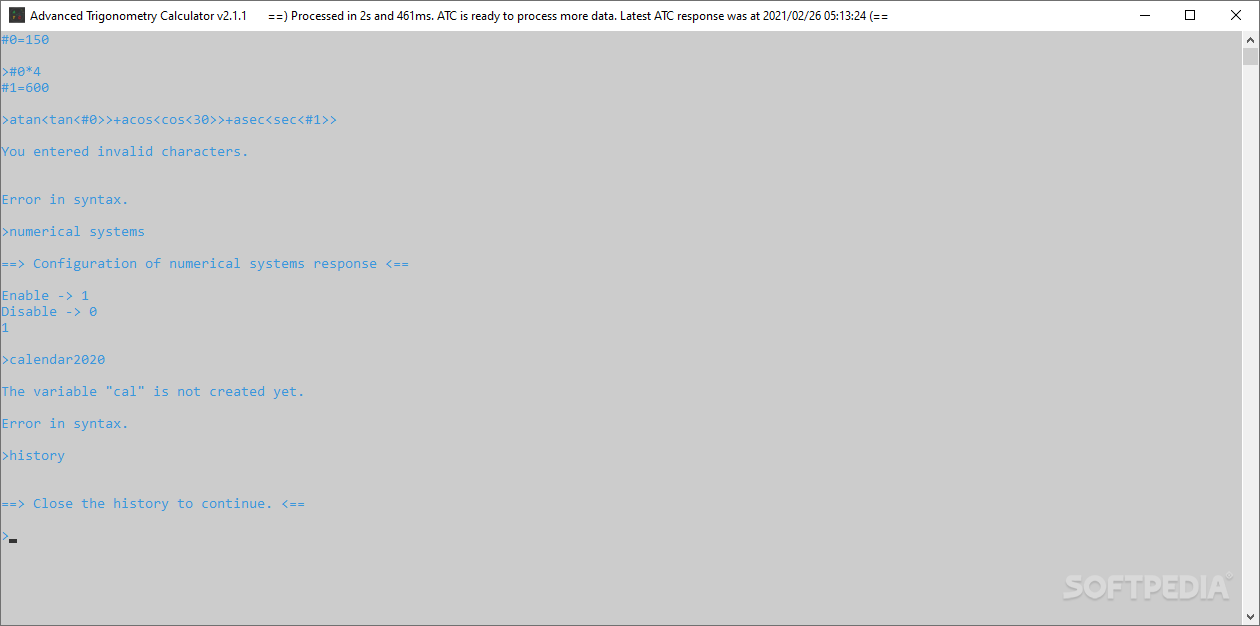
    Advanced Trigonometry Calculator is a small, simple, command prompt application specially designed to help you with your trigonometry.

    Advanced Trigonometry Calculator is an application that will help you solve advanced calculations with scientific notation and amplitudes in positive and negative arguments. It is possible to calculate 1.5123E-30sin (123456) which equals-6.15108E-31!

    It provides users with a full quality calculator and results with decimal or scientific notation.

    Enabled trigonometry functions:
    cos(x),acos(y),sin(x),asin(y),tan(x),atan(y),sec(x),cosec(x),cotan(x)

    Enabled logarithmic functions:
    log(x),ln(x)

    Enabled hyperbolic functions:
    cosh(y),sinh(x),tanh(x),sech(x),cosech(x),cotanh(x),asinh(x),acosh(x),atanh(x),acotanh(x),asech(x),acosech(x)

    Enabled telecommunication functions:
    sinc(x)

    Notes:
    · 'a' represents arc, 'h' represents hyperbolic, and unities of x is degrees or radians.
    · You can use amplitude in the form 5.123*10^-1, for example.
    · Calculations mode:
    a) If you in beginning of the expression put rad the application will know that the calculations must be done in radians.
    b) If you in beginning of the expression put deg the application will know that the calculations must be done in degrees.
    c) All functions are in degrees by default until you configure the mode of calculations for the first time.
    · Scientific notation can be wrote in many ways, like 5.123x10^-6 or 5.123*10^-6 or 5.123E-6
    · In the argument can be processed arithmetic calculations like sin(30)(=)sin(10+20)(=)sin(100/10+400/20)(=)radsin(PI/18+PI/9)
    · You can use scientific notation in the argument in the forms, for example (15E12)*sin(3E1)=7.5E12
    · The application process correctly calculations of amplitude and of argument. For example (5E1+10E1)*sin(1.5E1+3E1)=106.066
    · The application process correctly operations with functions and constant value mixed. For example (3E2)*radsin(PI/6)*cosec(30)=300, (3E2) is the constant, (PI/6) is a angle in radians and (30) is a angle in degrees
    · To make easy entering parentheses. You can choose '(' with ')' or '[' with ']' or '{' with '}'.
    · You need parentheses to make complex calculations.
    · Writing square root: Example square root of 2, enter "2^(1/2)".
    · To use exponents you need to enter '^'.
    · Exponents are enabled for "pi" (ratio of perimeter with diameter (2*pi*r/2*r)) and "e" (Napier's constant).
    · The Calculation of exponents is enabled, for example 8^(1/3)=2
    · You can solve complex expressions like "asin((sen(30))^2+(cos(30))^2)" so this "=90" (degrees).
    · The design is made to seem more like a "trigonometry command prompt".
    · You maybe need to clean the environment of calculations by entering "clean" or in Portuguese "limpar", and use the previous answer by entering "ans" or in Portuguese "res", and also close the application by entering "exit" or in Portuguese "sair".
    · You can use "ans" or in Portuguese "res" in the exponents.
    · You can see information about application when entering "about" or in Portuguese "sobre".
    · If you want to make an arithmetic operation with the previous answer and a expression, use "+,_,*,/,^" before to enter it.
    · The file with the history of the application is in the folder containing the application, the file name is "history.txt".
    · The function "cleanhistory" or in Portuguese "limparhistorico" clears the history of the application, the file "history.txt".
    · When you are in the environment-resolution calculations you can drag a text file (".txt"), that you have saved and closed to the environment-resolution calculations. Then if you click in the window of the environment-resolution calculations and press the button "Enter" the application will process the file, it gives the solution for each expression. The application edits the file that is dragged to the environment-resolution calculations formatting it and saving it. Note that the application separates the processing of expressions by looking for paragraphs. This feature allows a resolution of expressions very fast and very practical.
    · You can make configuration of text colors and background colors entering "colors" or in Portuguese "cores".
    · You can make configuration of dimensions (number of lines and number of columns) of environment-resolution calculations's window entering "dimensions" or in Portuguese "dimensoes".
    · You can make configuration of window (position (X-axis, Y-axis, width and height) entering "window" or in Portuguese "janela".
    · You can erase your configurations of colors, dimensions and window. You just need close the application and delete "colors.txt", "dimensions.txt" and "window.txt" of the folder that contains the executable of application in use.
    · You can use all functions in Portuguese form or in English form in both versions of the application (Portuguese version and English version).
    · You can choose how many decimal places you want, to this, take a example, "dp10dpcos(30)", do you see the "10", if you wrote "dp10dp" in the begining of a expression the answer is given with ten (10) decimal places.
    · You can choose the calculations mode (radian/degree) by enter "mode" or in Portuguese "modo".

    cos(x) -> cosine of x radians or x degrees.
    acos(y) -> arc cosine of y ratio.
    Acos(x) -> amplitude multiplying by cosine of x radians or x degrees.
    Aacos(y) -> amplitude multiplying by arc cosine of y ratio.
    cosh(x) -> hyperbolic cosine of x value.
    Acosh(x) -> amplitude multiplying by hyperbolic cosine of x value.

    What's New in This Release: [ read full changelog ]

    · When entering negative values the user need to use the symbol '_'. Now, user can use negative function like '-sin(30)' writing '_sin(30)'.
    · Corrected some source-code errors that gave some execution errors.

     Softpedia guarantees that Advanced Trigonometry Calculator 1.6.2 is 100% CLEAN, which means it does not contain any form of malware, including spyware, viruses, trojans and backdoors. [read more >]


    TAGS:

    solve equation | trigonometric calculator | trigonometry tool | trigonometry | equation | calculator


    HTML code for linking to this page:


    Go to top

    WindowsGamesDriversMacLinuxScriptsMobileHandheldNews

    SUBMIT PROGRAM   |   ADVERTISE   |   GET HELP   |   SEND US FEEDBACK   |   RSS FEEDS   |   UPDATE YOUR SOFTWARE   |   ROMANIAN FORUM