Softpedia
 

WINDOWS CATEGORIES:


GLOBAL PAGES >>
SOFTPEDIA REVIEWS >>
MEET THE EDITORS >>
WEEK'S BEST
  • Sticky Password FR...
  • Parallels Workstat...
  • ESET NOD32 Antivir...
  • BitDefender Total ...
  • WinPatrol 24.6.201...
  • PerfectDisk Free D...
  • Adobe Photoshop CS...
  • PerfectDisk Profes...
  • Windows 8 Consumer...
  • Atlantis Word Proc...
  • 7-DAY TOP DOWNLOAD
    #
    Program
    Sticky Password FREE
    [SOFTPEDIA
    EXCLUSIVE] 6.0.2.323

    116,388 downloads
    Nokia PC Suite
    7.1.180.64

    70,750 downloads
    3DP Chip 12.04
    59,754 downloads
    Adobe Flash Player
    11.3.300.250 Beta 3
    / 11.2.202.235

    44,459 downloads
    Samsung PC Studio
    7.2.24.9

    43,494 downloads
    Nero 9 Free
    9.4.12.3d

    41,567 downloads
    Yahoo! Messenger
    11.5.0.192

    35,027 downloads
    Avira Antivir Virus
    Definition File
    Update May 22, 2012

    33,060 downloads
    Samsung Kies
    2.3.1.12044_18

    32,829 downloads
    Internet Download
    Manager 6.11 Build 7

    32,746 downloads
    Home > Windows > Office tools > Text editors > Taditor > Screenshots

    Taditor Screenshots


    Go back to Taditor

    Screenshot 1 of Taditor

    "This is the main window of Taditor where you will be able to edit or write new documents"
    Taditor screenshot 1 - This is the main window of Taditor where you will be able to edit or write new documents
    Screenshot 2 of Taditor

    "In the Edit tab you can insert a unicode control character, block editing or insert date and time"
    Taditor screenshot 2 - In the Edit tab you can insert a unicode control character, block editing or insert date and time


    Screenshot 3 of Taditor

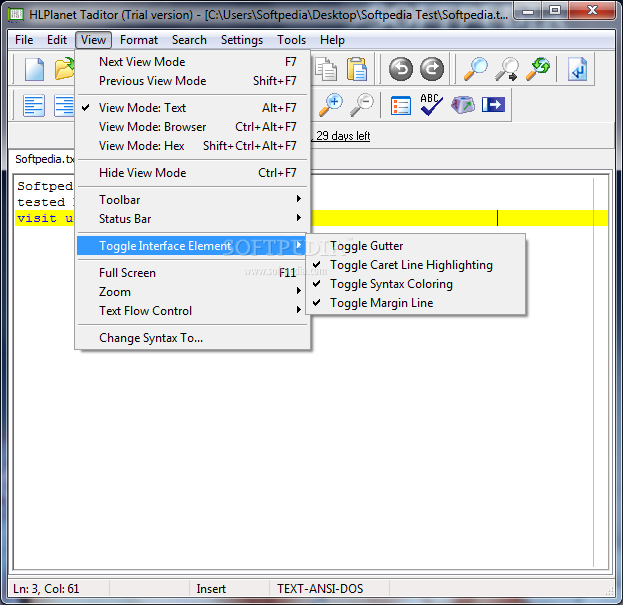
    "By selecting the View tab, you will be able to choose which toolbars you want to add to your interface"
    Taditor screenshot 3 - By selecting the View tab, you will be able to choose which toolbars you want to add to your interface
    Screenshot 4 of Taditor

    "If you select the Format tab, you will be able to align your text or to change its case to upper or lower"
    Taditor screenshot 4 - If you select the Format tab, you will be able to align your text or to change its case to upper or lower
    Screenshot 5 of Taditor

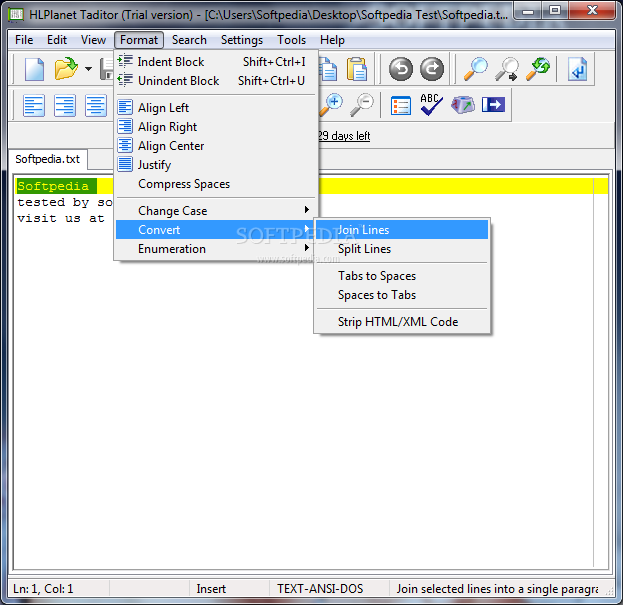
    "In the same tab, Taditor allows users to convert tabs to spaces, spaces to tabs or to strip HTML/XML code"
    Taditor screenshot 5 - In the same tab, Taditor allows users to convert tabs to spaces, spaces to tabs or to strip HTML/XML code
    Screenshot 6 of Taditor

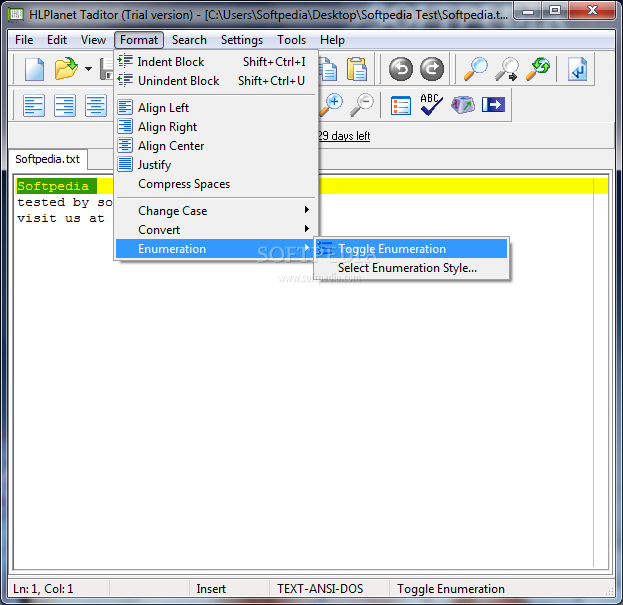
    "You can enumerate some objects, by choosing Enumeration in the Format tab"
    Taditor screenshot 6 - You can enumerate some objects, by choosing Enumeration in the Format tab
    Screenshot 7 of Taditor

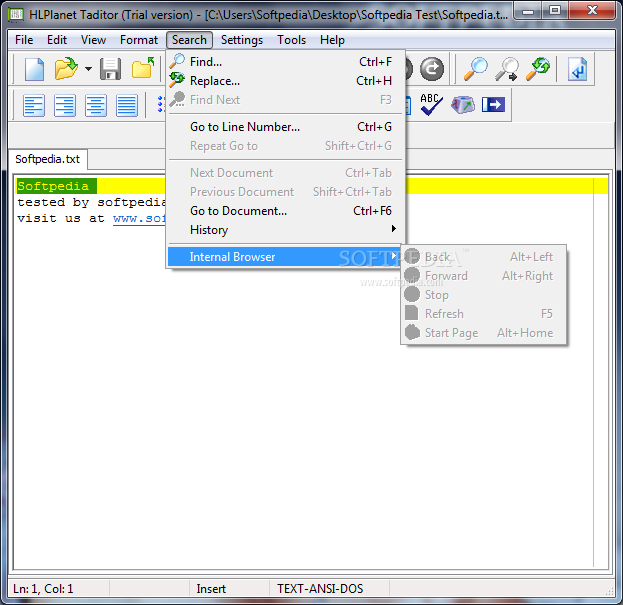
    "In the Search tab, users can find and replace files and also control a internal browser"
    Taditor screenshot 7 - In the Search tab, users can find and replace files and also control a internal browser
    Screenshot 8 of Taditor

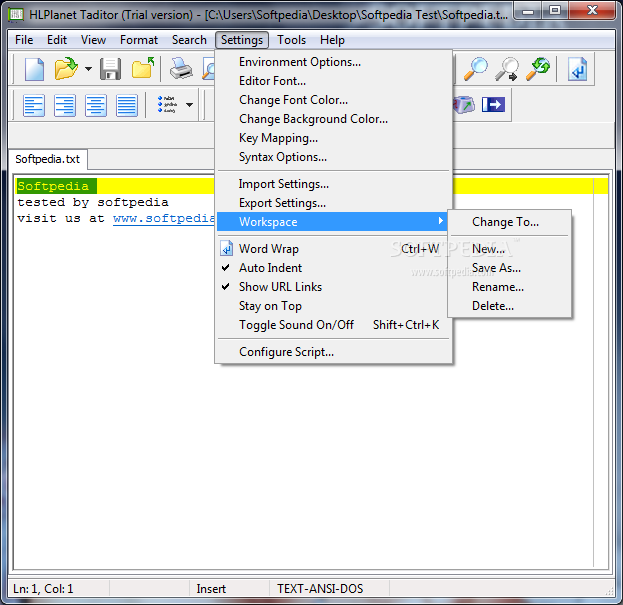
    "This is the settings tab, where you will be able to change the environment options or the font"
    Taditor screenshot 8 - This is the settings tab, where you will be able to change the environment options or the font
    Screenshot 9 of Taditor

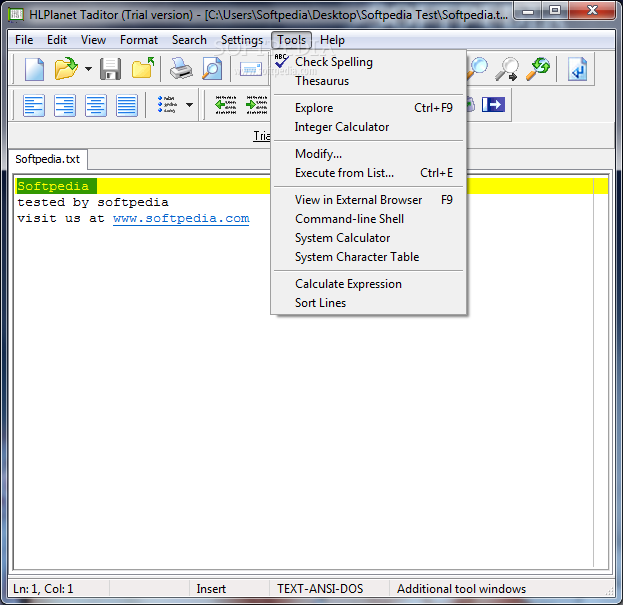
    "If you choose the Tools tab, you will have the oportunity to open an interger calculator that can be found helpful"
    Taditor screenshot 9 - If you choose the Tools tab, you will have the oportunity to open an interger calculator that can be found helpful
    Screenshot 10 of Taditor

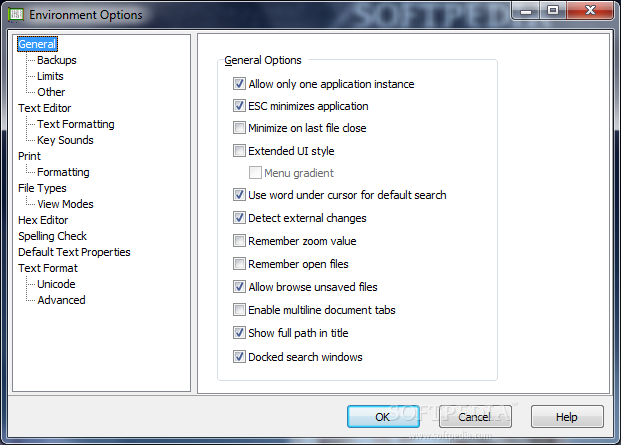
    "By choosing Environment Options, users will have the possibility to set up Taditor how ever they like"
    Taditor screenshot 10 - By choosing Environment Options, users will have the possibility to set up Taditor how ever they like
    Screenshot 11 of Taditor

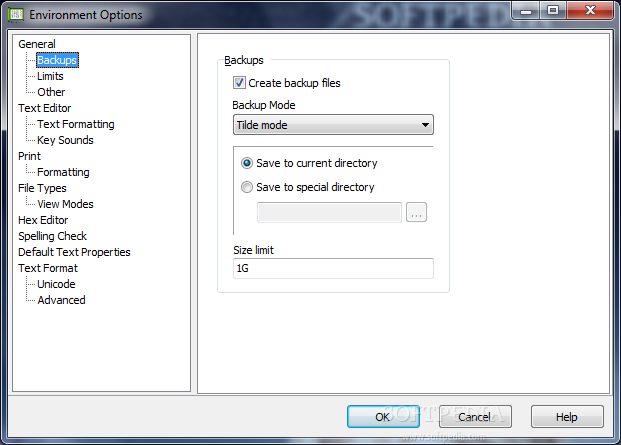
    "In the Backups tab, you will be able to select where they want to save their backup files and input a size limit for them"
    Taditor screenshot 11 - In the Backups tab, you will be able to select where they want to save their backup files and input a size limit for them
    Screenshot 12 of Taditor

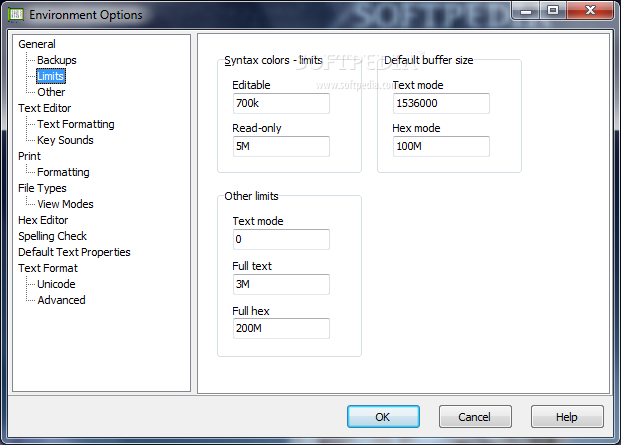
    "If you want to set the max size for full text, full hex or text mode, Limits is the tab you will have to select"
    Taditor screenshot 12 - If you want to set the max size for full text, full hex or text mode, Limits is the tab you will have to select
    Screenshot 13 of Taditor

    "Choosing the Other tab, will allow the users to set a limit for the history of the files, workspaces or other elements"
    Taditor screenshot 13 - Choosing the Other tab, will allow the users to set a limit for the history of the files, workspaces or other elements
    Screenshot 14 of Taditor

    "In the Text Editor tab, you will be able to choose if you want to use smart keys like tab, space, home or end"
    Taditor screenshot 14 - In the Text Editor tab, you will be able to choose if you want to use smart keys like tab, space, home or end
    Screenshot 15 of Taditor

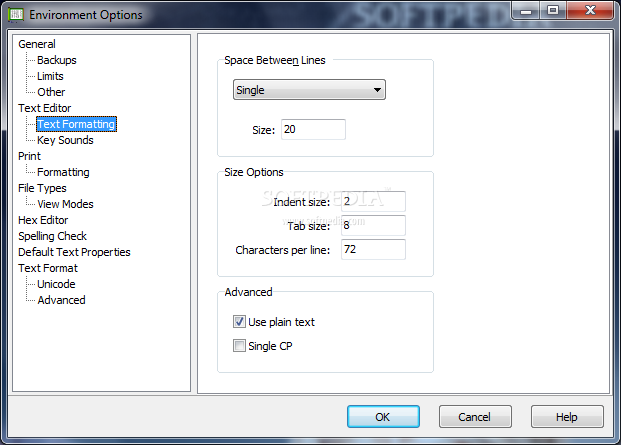
    "By selecting Text Formatting, users will have the oportunity to increase the space between lines"
    Taditor screenshot 15 - By selecting Text Formatting, users will have the oportunity to increase the space between lines
    Screenshot 16 of Taditor

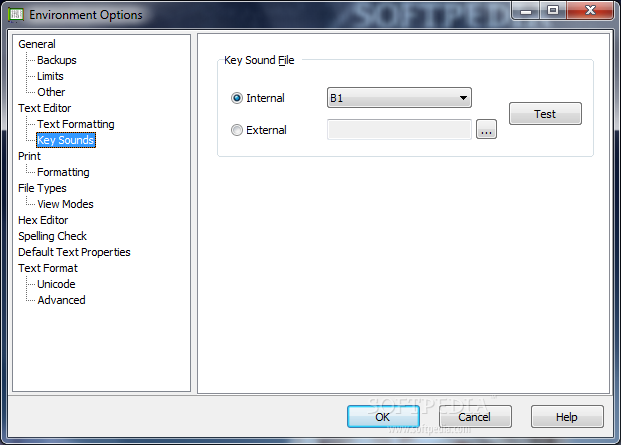
    "If you want to use some key sounds you will have to click on the Key Sounds tab, inside the Options window"
    Taditor screenshot 16 - If you want to use some key sounds you will have to click on the Key Sounds tab, inside the Options window
    Screenshot 17 of Taditor

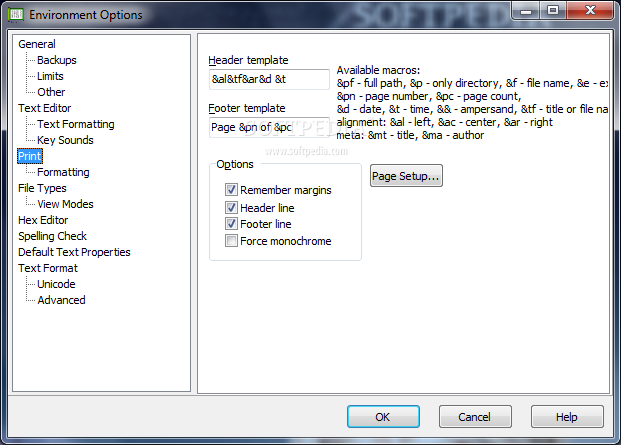
    "Different simple settings regarding to the print job can be made by selecting the Print tab"
    Taditor screenshot 17 - Different simple settings regarding to the print job can be made by selecting the Print tab
    Screenshot 18 of Taditor

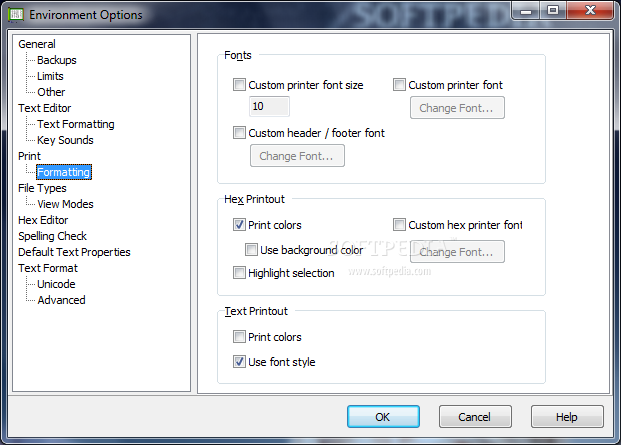
    "If users want to use another font size for printing, they will have to access the Formatting tab"
    Taditor screenshot 18 - If users want to use another font size for printing, they will have to access the Formatting tab
    Screenshot 19 of Taditor

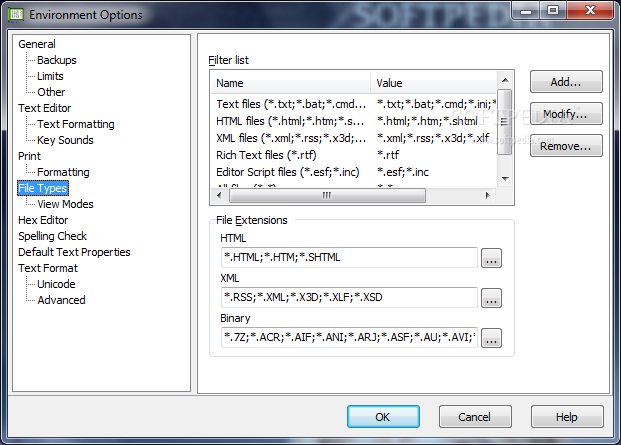
    "Choosing the File Types tab will allow you to select which file types you want to edit with Taditor"
    Taditor screenshot 19 - Choosing the File Types tab will allow you to select which file types you want to edit with Taditor
    Screenshot 20 of Taditor

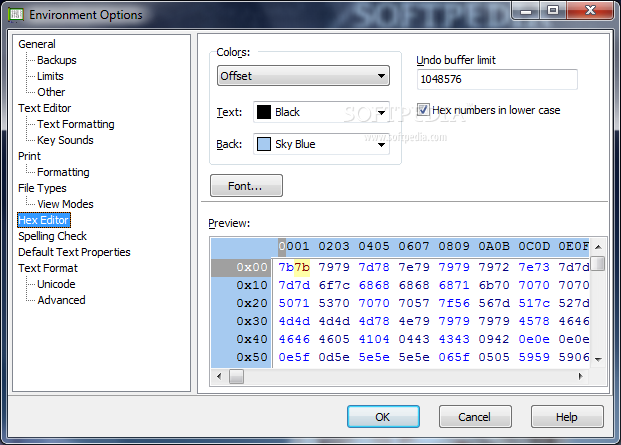
    "In the Hex Editor tab, you can select if you want the hex numbers to be displaied as lower case"
    Taditor screenshot 20 - In the Hex Editor tab, you can select if you want the hex numbers to be displaied as lower case
    Screenshot 21 of Taditor

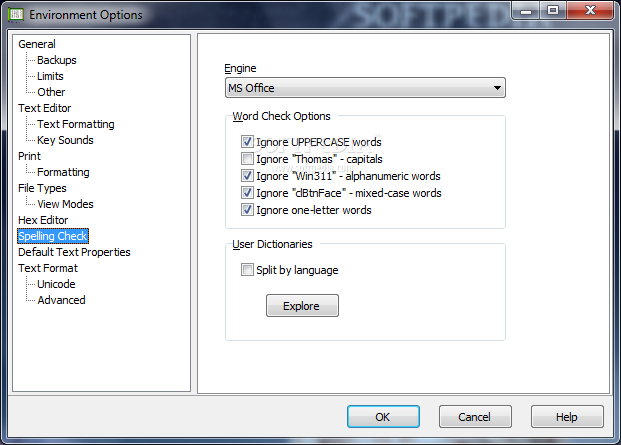
    "If you click Spelling Check, you will find that you can change the Engine of Taditor or some other options"
    Taditor screenshot 21 - If you click Spelling Check, you will find that you can change the Engine of Taditor or some other options
    Screenshot 22 of Taditor

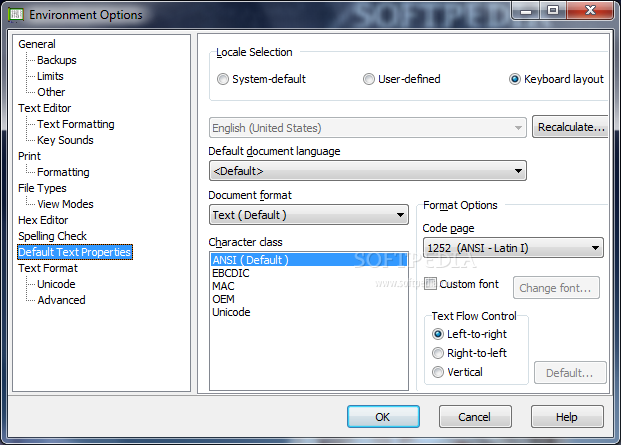
    "Users can select the keyboard layout or the character class in the Default Text Properties"
    Taditor screenshot 22 - Users can select the keyboard layout or the character class in the Default Text Properties
    Screenshot 23 of Taditor

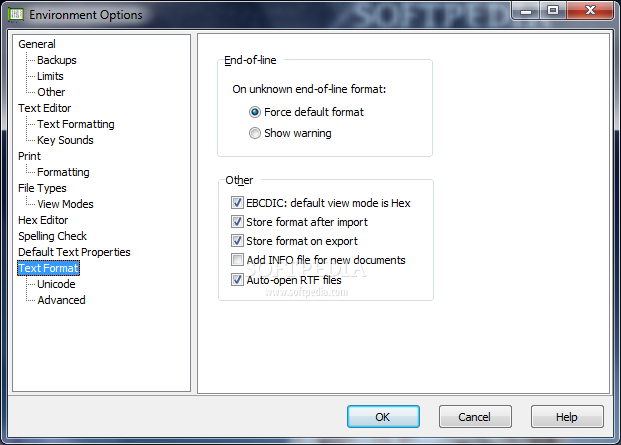
    "By selecting the Text Format tab, you will be able to choose if you want to force the default format on unknown end-of-file format"
    Taditor screenshot 23 - By selecting the Text Format tab, you will be able to choose if you want to force the default format on unknown end-of-file format
    Screenshot 24 of Taditor

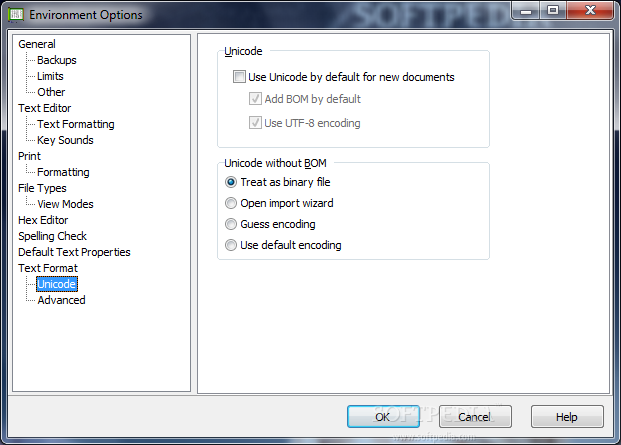
    "In this window you will select if you want to use Unicode by default for the new documents"
    Taditor screenshot 24 - In this window you will select if you want to use Unicode by default for the new documents
    Screenshot 25 of Taditor

    "In the Advanced tab, you can set up Taditor to ignore HTML,XML, MAX or UTF-8 auto-detection"
    Taditor screenshot 25 - In the Advanced tab, you can set up Taditor to ignore HTML,XML, MAX or UTF-8 auto-detection
    Screenshot 26 of Taditor

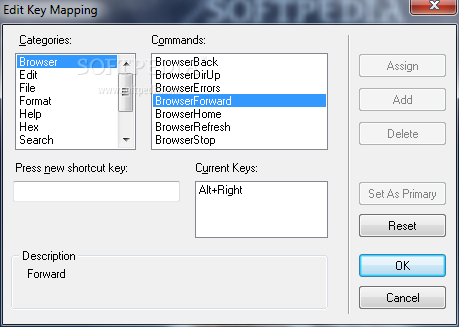
    "If you want to make your work easier, you should access the Edit Key Mapping window and see the list of shortcuts"
    Taditor screenshot 26 - If you want to make your work easier, you should access the Edit Key Mapping window and see the list of shortcuts
    Screenshot 27 of Taditor

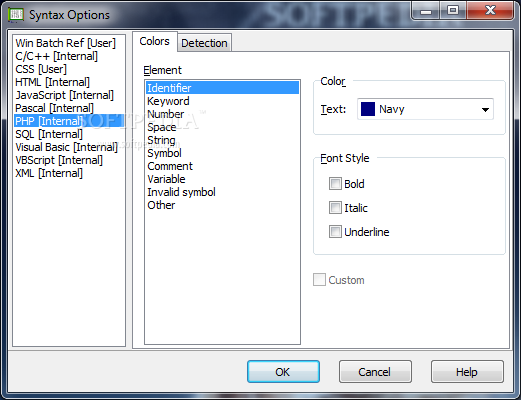
    "Users can change the color of a specific type of text by opening the Syntax Options window"
    Taditor screenshot 27 - Users can change the color of a specific type of text by opening the Syntax Options window
    Screenshot 28 of Taditor

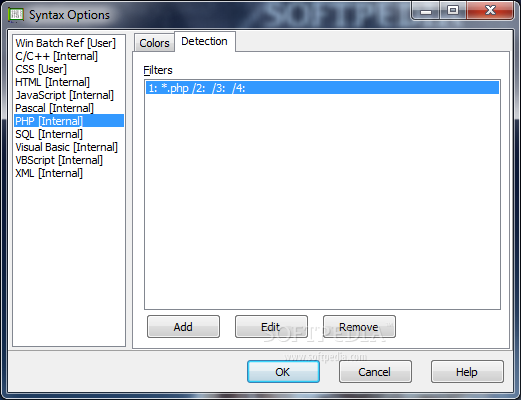
    "You can set up a pattern in this tab if you want Taditor to recognize a language you use"
    Taditor screenshot 28 - You can set up a pattern in this tab if you want Taditor to recognize a language you use

    Images watermarked with the Softpedia logo are screenshots taken by our editors and cannot be reproduced without prior written consent. For more information see our copyright information page.

    WindowsGamesDriversMacLinuxScriptsMobileHandheldNews

    SUBMIT PROGRAM   |   ADVERTISE   |   GET HELP   |   SEND US FEEDBACK   |   RSS FEEDS   |   UPDATE YOUR SOFTWARE   |   ROMANIAN FORUM