14 DAY TRIAL //
 The concept that Linux is only for network administrators and small groups of users is contradicted every day with a handful of software that covers almost any area in the IT industry. I found a lot of good Linux software designed for sound related tasks.
An audio editing solution is Audacity, a cross-platform software which doesn't impress at first sight, but is in fact a complex program, very good at editing sounds. You can also use it for multi track mixing but it doesn't exactly shine at this because it lacks indicators for track levels and record levels. Because of this, proper level strength will have to be established with care using your own ears, and of course, the waveform display.
First Things First ? Configuration
Audacity should run very well out of the box but I still want to take a look at the configuration.
The audio I/O tab allows to set up devices for playback and recording. By default, the program records to only one track, which is good if you intend to record from the microphone, but if you are going to use a stereo source for Line in, it is recommended to set it to use two tracks.
The Quality tab allows setting the sample rate and bit depth of the project. This is a very common feature, but what most of the people don't know is that setting the sample format to 32-bit float takes a great deal of RAM, disk space and processing power. If you have an above average PC you shouldn't worry because it will not be a problem, but for older PCs that don't need CD quality, a 16-bit float setting might be the answer.
In the File Formats tab you can set the uncompressed export format (for this I chose 32 bit float), the OGG Export quality and, if you have the mp3lame library, you can also set how the program exports in mp3. I think it is very cool that it allows exporting in OGG and MP3 formats.
The rest of the tabs are self explanatory and I don't think there is anything there that could create problems. If you will start to use Audacity on a daily basis, the possibility of setting custom shortcuts will definitely help a lot.
The Interface
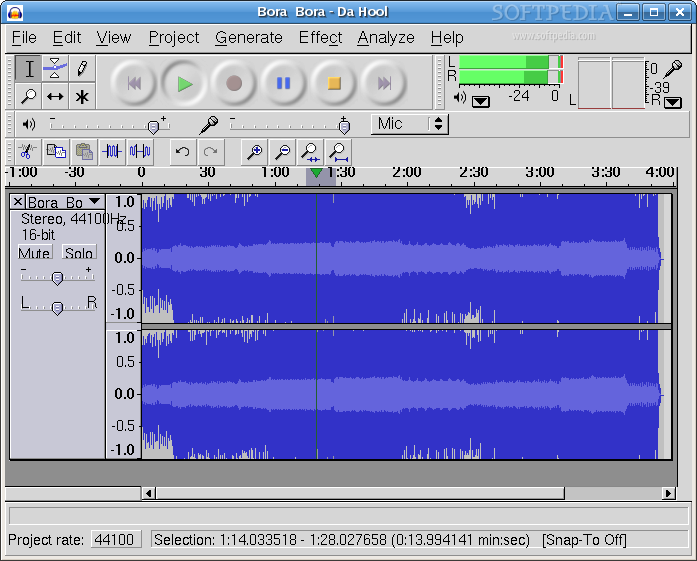
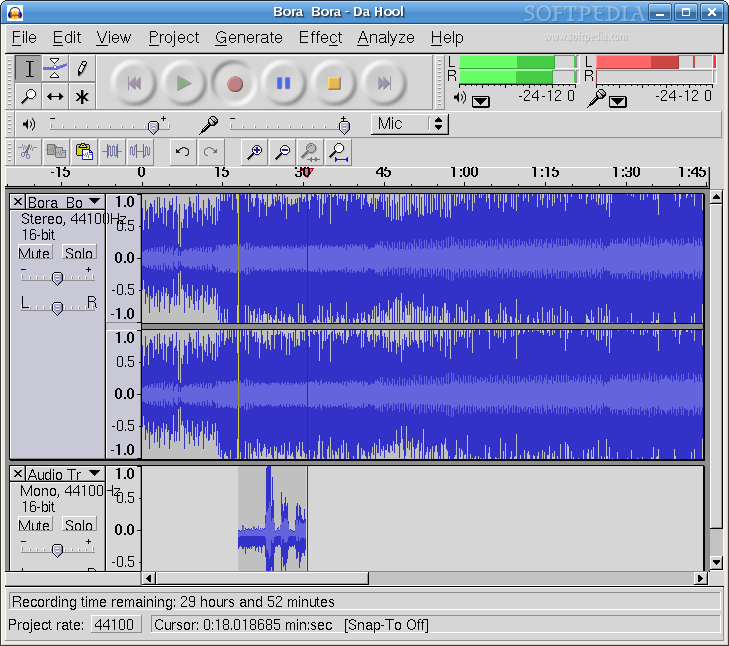
The first thing you notice is that the interface doesn't look very good. It is not ugly, but it looks legacy. You will have to deal with it because this software has a lot to offer and this shouldn't be drawback.
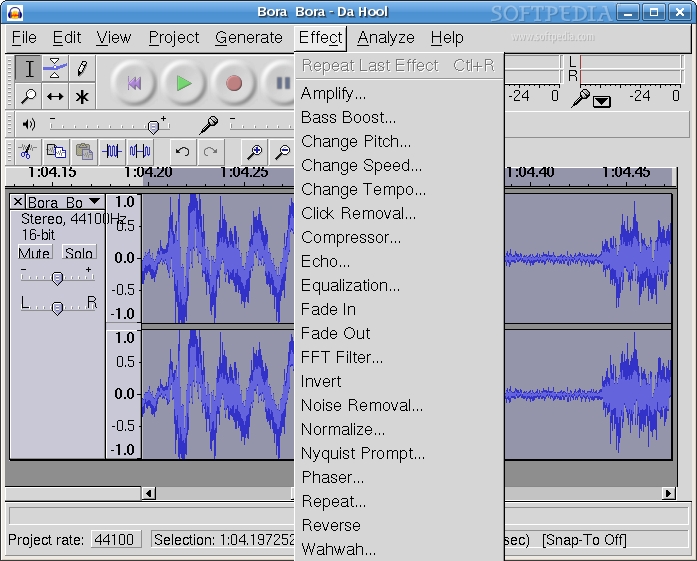
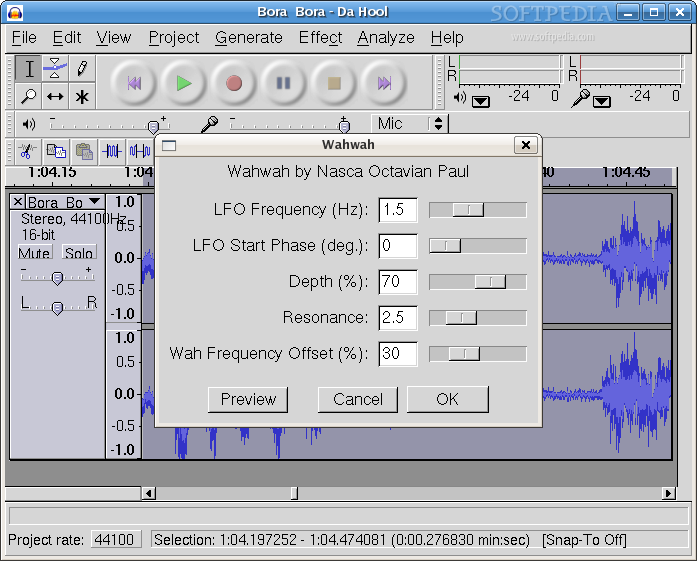
Editing tools are almost standard. The first tool is the selector tool. It allows to ?select? a range of audio to work with it. The edge of the selected area can be grabbed to precisely position the margins. Pressing Shift+Spacebar plays the selected sound in a loop. You can apply a lot of effect on a selected sound and all the effects can be very nice customized to produce the desired effect.
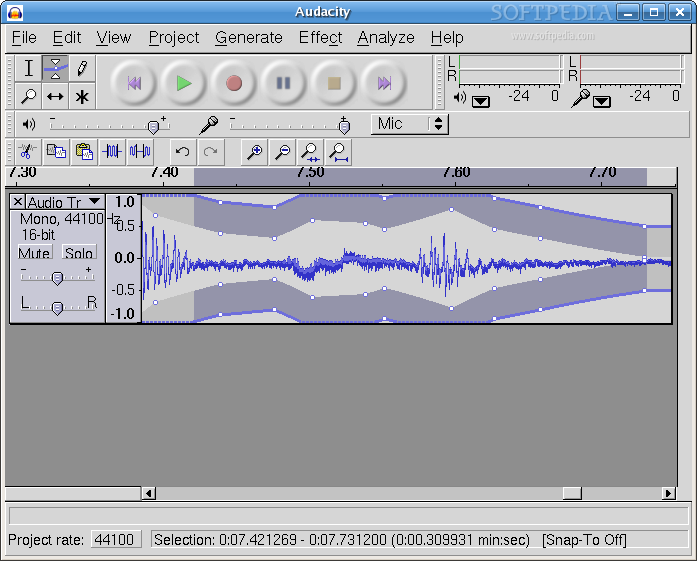
The envelope tool is a very good addition to this software because it helps automate a mix. Clicking in the track area with the envelope tool selected adds nodes that allow adjusting the level. Using the envelope tool in combination with effects produces very good results.
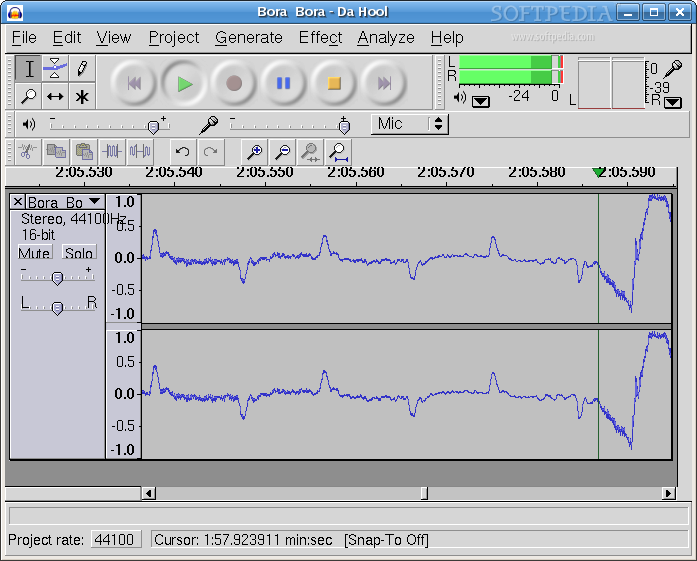
The draw tool allows to redraw the waveform for eliminating distortions. To use this tool you will have to zoom very much in the waveform. It can be pretty painful, because the draw tool is not as smooth as the one in GIMP. It is slow and editing a piece of waveform can take a long time.
The zoom tool has two modes. Clicking it produces an instant zoom but also selects this tool. Dragging the tool over an area zooms that area. You can also configure mouse buttons for zooming. Other buttons useful for zooming are ?Fit selection in window? and ?Fit project in window?
Time shift moves audio clips in the timeline. In other editing software this would have been a hand that can also move sound clips from a track to another. In this software it is done differently.
The multi-tool mode is the most interesting one of all. If you practice a little you will love this one. It is a combination of the tools above that change functions depending on where the cursor is located. This will not replace the functionality of the others but it can help you a lot. Using a shortcut with this one is a very good idea.
More buttons are available for Cut, Copy, Paste, Trim outside selection and Silence selection but I'm not going to explain them because their name says it all.
It is very important to keep in mind that there is an undo history. History can be located in the View menu. The history is not kept after saving and you should think well in what moments you want to save. History is a very good feature because sometimes things might not be what you want them to be and this allows you to see visually which steps you took.
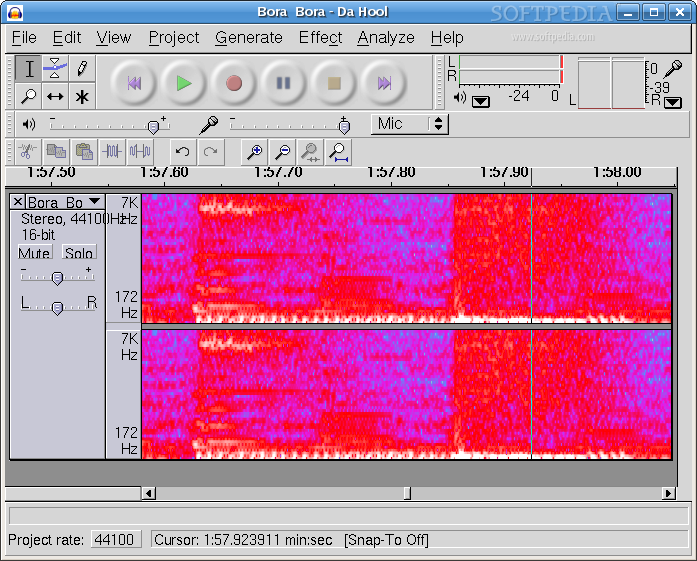
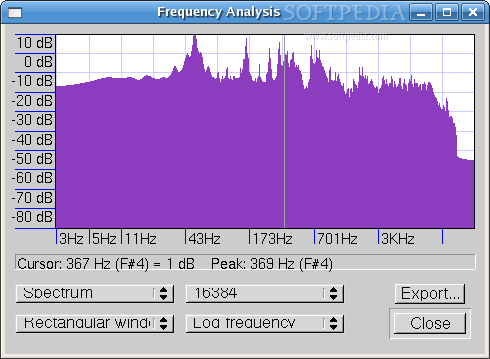
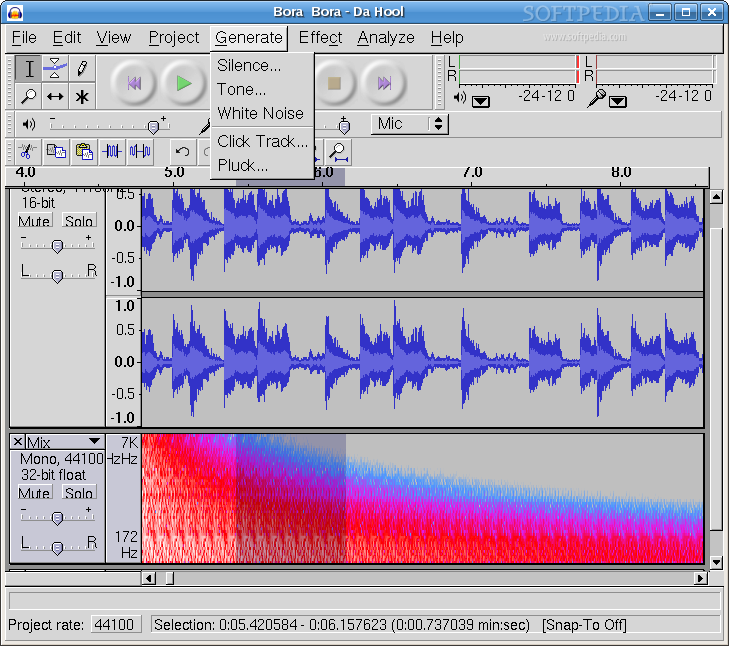
Audacity can display sound clips using two types of waveform a Spectrum and an EAC mode. In fact only the waveform displays are practical. The other two are at most fun to watch.
In the left part of the waveform display is a button that can easily mute a track, another one that can make it play solo and a drop down button that allows to move a track up and down, to change the name, set the sample format, set the rate, and also some other features.
The only way to add a new track is to record something. The track is created automatically and recording starts. You can record from several different sources. When recording from line in or microphone, the track might have noise. Audacity has plugins for noise removal but they aren't really that good.
The Good
The tools are very easy to use. The audio file is loaded fast enough and the waveform zooms in and out almost instantly. If you know what you are doing, good quality sounds can be obtained with Audacity. The envelope tool is a very fast end efficient method for editing the gain.
The Bad
Multi track mixing is not very usable and still needs some features. Some plugins just distort the sound it you are not very careful with them.
The Truth
The task of editing sound clips can be done easily with Audacity. It is a great program that offers just the stuff you need to do simple tasks like cutting a sequence from a sound and also allows you to do semi-professional work to that sound for maximizing the quality. It's not the best program out there but it's free and it's easy to use so it definitely deserves our appreciation.