14 DAY TRIAL //
 Whether you are an enthusiastic photographer, a professional that feels the need to protect his images or just a beginner who wants to personalize all his pictures, Mytoolsoft Watermark will provide you with the necessary tools to watermark all your photos.
Mytoolsoft Watermark is a simple application that will help you protect your images using text and image watermarks. The program comes as a Demo, the only limitation being a transversal red line added to all your processed pictures. If you feel the application is what you need, you can buy it for 19.95$.
Mytoolsoft Watermark will help you add text and image watermarks to your pictures in three easy steps: choose the pictures you want to process, create and adjust the watermark to suit your needs and finally setup the output format, folder and aspect ratio.
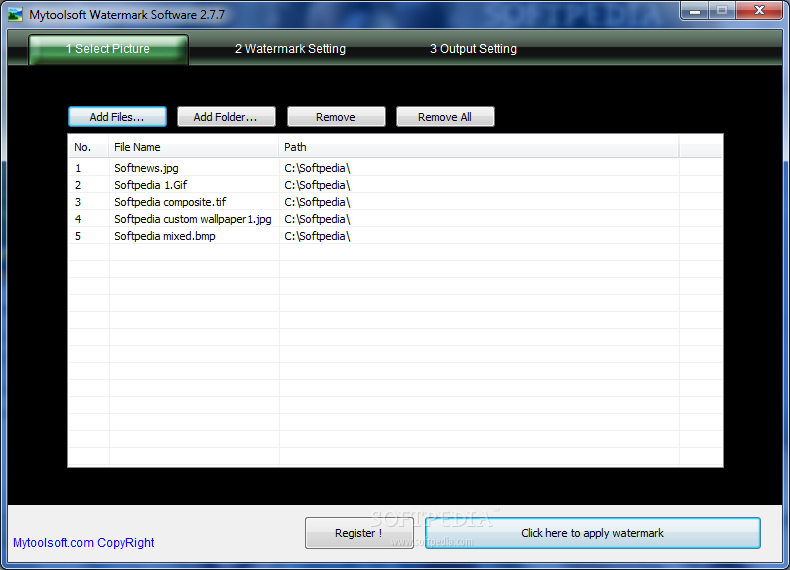
The first action you will need to perform is to browse and select all the pictures you want to watermark. This can be easily done from the Select Picture window using the Add Files/Add Folder buttons.
From this window you will be able to view and manage all your images. Pictures can also be added to this window using the drag and drop feature. Regarding this section, a preview window would come in handy when you want to view which pictures to keep and which to remove.
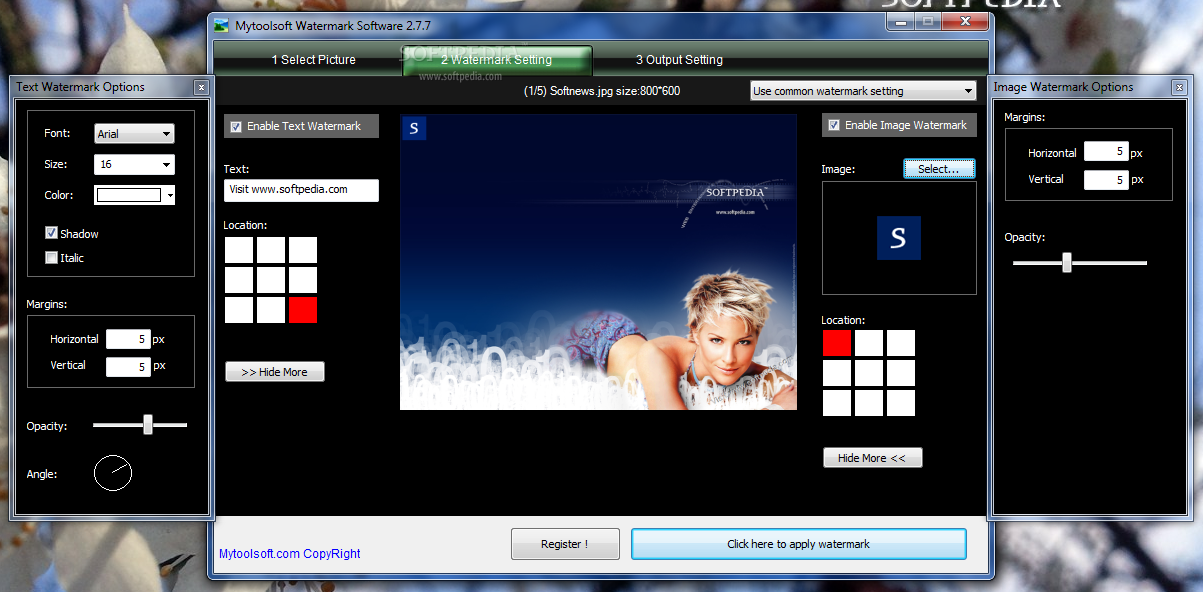
There are two types of watermarks you can apply to your pictures using Mytoolsoft Watermark and you will find them both in the Watermark Setting window. Here is where you can customize the watermarks to suit your needs.
Text watermarks can be used to embed your personal, business name or any other message into your pictures to protect them for unauthorized use. Mytoolsoft Watermark comes with a few options to customize the look and feel of your text watermarks.
After entering the required text, you can choose your watermark location by pressing the corresponding square. This makes watermark placing rather limited, but you can use a little trick to place it right where you want it. By adjusting the vertical and horizontal Margins values you will be able to alter the position of your watermark to a more convenient one.
Font, size and text color can also be adjusted from the Text Watermark Options window. If you want to add a soft shadow or use the Italic text mode, you can check the corresponding checkboxes. More text customization options could be added (border color, inner color and gradient) to further enhance the watermark customizing options.
Opacity is another feature that can be modified using this watermarking method. You can make your text transparent or barely visible, so it won’t alter the image content or message. If you want to change the angle of your watermark, you just need to rotate the designated dial until you are satisfied with the result.
On the right side of the Watermark Setting window you will find the Image Watermark settings. A small preview window will show you the current image that will be used as a watermark. The application supports all common image formats (BMP, PNG, GIF, JPEG and TIF) to be used as watermarks.
As in the case of Text Watermark, the image watermark can be positioned using the 9 squares from the Location option. If you need to place the watermark anywhere else besides these default locations you can use the Margins options. Just enter the horizontal and vertical amount of pixels you want to add in order to move your watermark to the desired location.
Image watermarks can be made transparent thanks to the Opacity slider. You can easily slide it to the left or right depending on the amount of transparency you want to add. The developers should consider adding some rotation, mirror and resize options to give you more control over your image watermarks.
Using the common / individual watermark option, you will be able to assign different watermarks to your images or the same watermark settings to the entire batch.
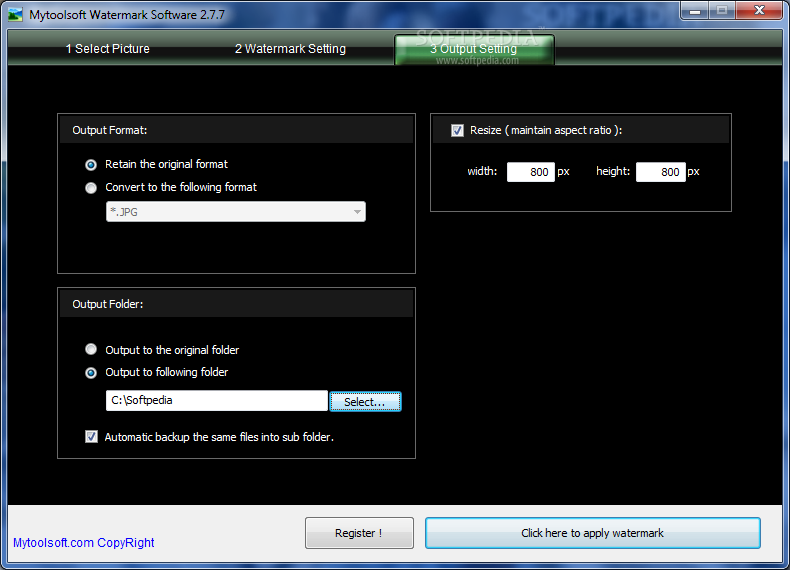
After you have adjusted the watermarks settings you just need to do one more thing: setup the output parameters. First, we will take a look at the Output Format options.
If you are happy with the current image format you just need to select the Retain the original format option. If not, the application gives you the possibility to choose between 11 image formats: BMP, DIB, RLE, JPG, JPEG, JPE, JFIF, GIF, TIF, TIFF and PNG. Unfortunately, besides compression quality of JPEG files, the application doesn't offer any other conversion options.
You can choose to automatically resize all images to any custom size depending on their purpose. When resizing, the program will automatically choose the closest dimensions in order to maintain the aspect ratio of your pictures. At the moment there is no way to constrain the proportions you want.
When you finish setting up all the parameters, all you need is to press the Click here to apply watermark button from the bottom on any window in order to process your images. During our tests the CPU usage peaked at 40% on a batch of 150 images.
The Good
Mytoolsoft Watermark is a simple application that will help you add text and image watermarks to multiple images at the same time in three easy steps.
Watermarks can be adjusted based on font, size, color, margins, opacity and angle. The application also enables you to convert your images between 11 formats as you feel fit.
The Bad
The program lacks the means to preview pictures added in the first step. The only way to view them is from the watermark settings window.
More color options would come in handy giving you more control over your watermarks and, why not, enhance your creative possibilities. Also, image rotation, resize and mirroring could add up to the list of features.
At 19.95$, we can say that it’s a bit too much to pay for some features other programs provide for free.
The Truth
A little rough on the edges, but with the proper adjustments Mytoolsoft Watermark can become the solution to all your watermarking tasks.
Not the greatest, but also not the worst application of its kind, Mytoolsoft Watermark provides its users with the essential features needed to watermark all their images.
Here are some snapshots of the application in action: