14 DAY TRIAL //
 Although NetBeans IDE is mainly a piece of software that only developers have ever heard of and even used occasionally, this article is intended to give the average user a rough approximation of what it can do. The basic features of the application will be discussed, thus shedding some light on this very powerful software development platform.
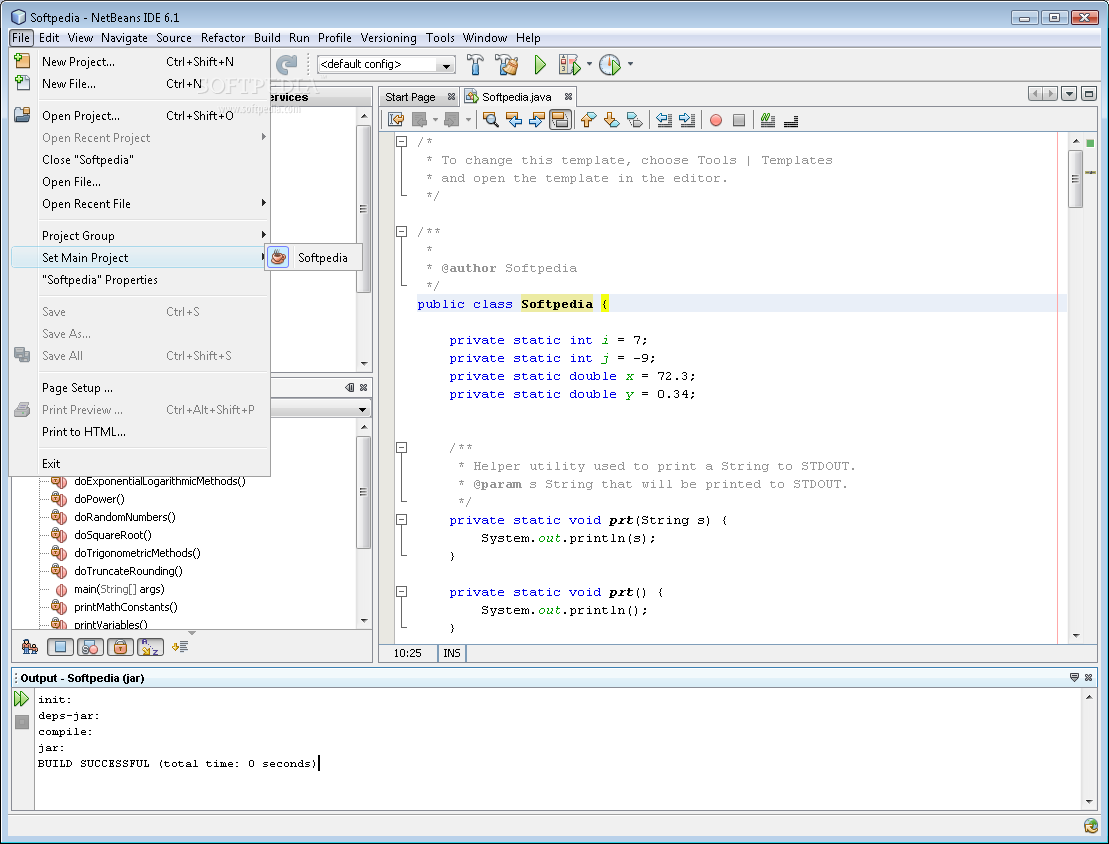
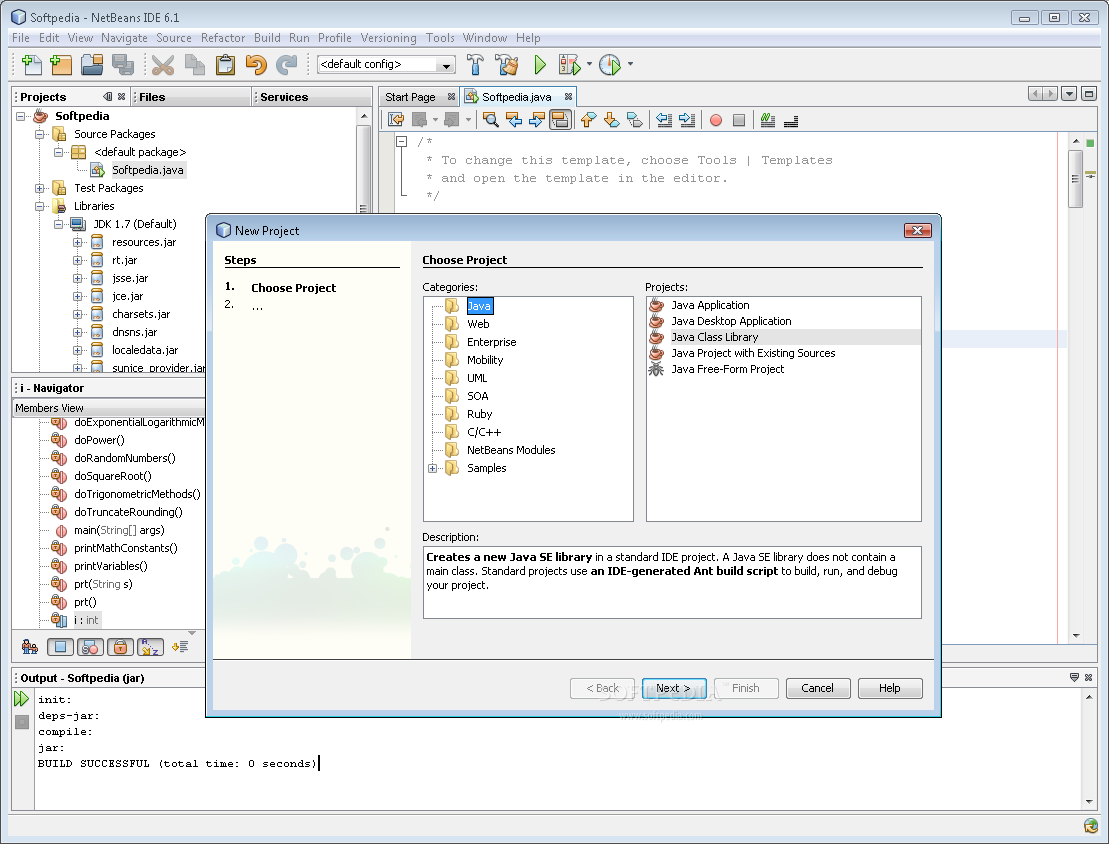
First of all, we are interested in the basic coding languages it accepts. Intended to be a Java development environment, NetBeans IDE can also be used to create and manage different C or C++ projects and applications. This feature is most important because no one likes to switch applications whenever they want to build a C++ or a Java project. With a simple click on the File menu, you can easily choose the type of project you want to create along with the desired files for each project.
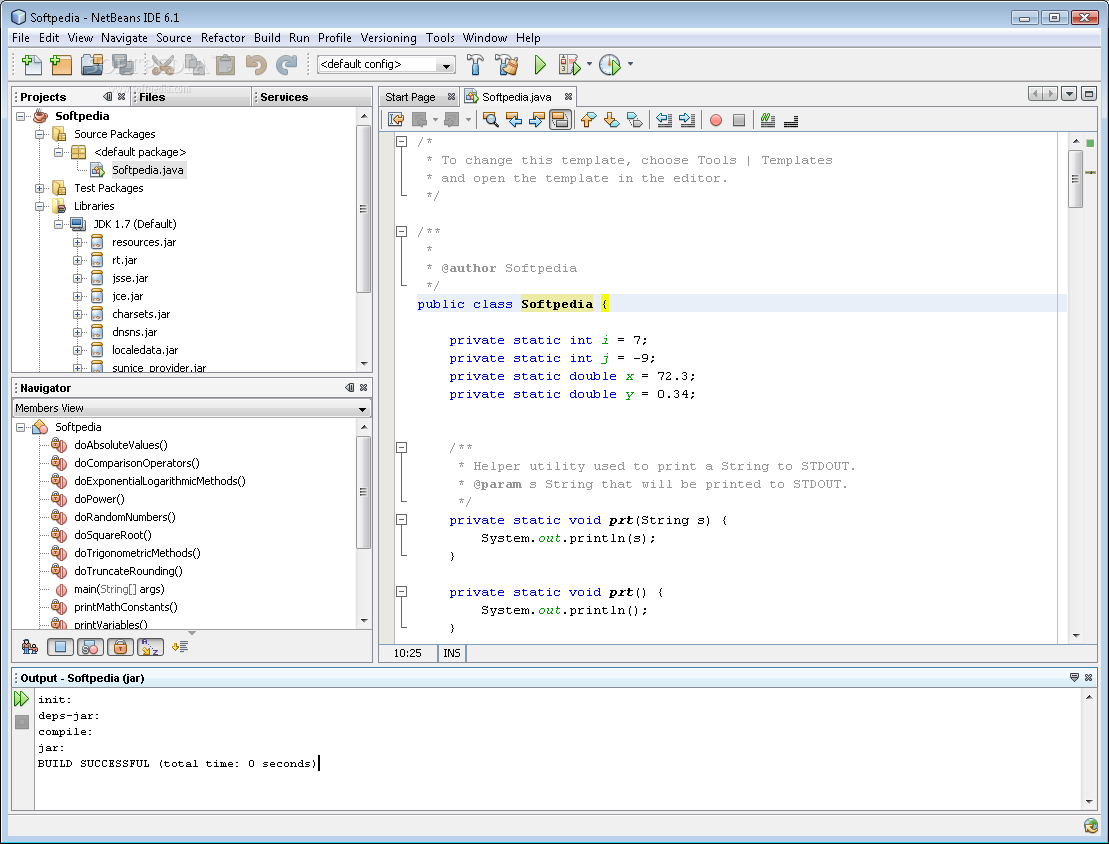
Even applets and mobile phone software can be created and compiled using NetBeans IDE. In fact, you can use it to manage different projects that are not even written with the same code. By browsing through your Projects tab, you will have instant access to all the files from the imported projects and also the ability to change the code and rebuild them at any given moment. Libraries, packages or other resources that you might need to build your software are also supported and easily managed due to the tree view perspective. Services that are used by some applications can be viewed and edited so that they can better operate with your software.
When it comes to Object Oriented Programming (OOP), different types of classes are defined and used so that you can keep an organized coding view and access components managed by specific functions. Class files can be somewhat hard to manage, especially if you use quite a lot of them. NetBeans IDE comes to the rescue and offers you a Navigator window to easily view a list of all the classes defined in the current selected java file. With a click on the class name, you will have instant access to the exact part of your code that defines that class, giving you the opportunity to jump from one class to another without scrolling through your code.
What sets NetBeans IDE apart from any other software development platform is its ability to show in real time if you have any inconsistency in your code. For instance, if you define a function name in an earlier part of your code and later on you want to use it, then you want to type its name, NetBeans IDE will offer to auto complete it with its previous defined name. Software developers are more than thrilled about this because, when handling large chunks of codes, it can be somewhat tedious to keep scrolling through your code whenever you have forgotten the name of a function or variable.
Another innovative feature that can really be of use to software developers is the Garbage Collector. As previously stated, OOP works with a strict class definition process and at the same time with Objects (parts of code that define different data you want to manipulate). Thus, whenever memory is allocated to a desired object, sometimes you forget to deallocate it after having used it. Garbage Collector comes to the rescue and scans the code for any object no longer referenced by the applications and cleans up the heap space occupied. So, Virtual memory will no longer be filled with unnecessary data and your software will perform significantly better.
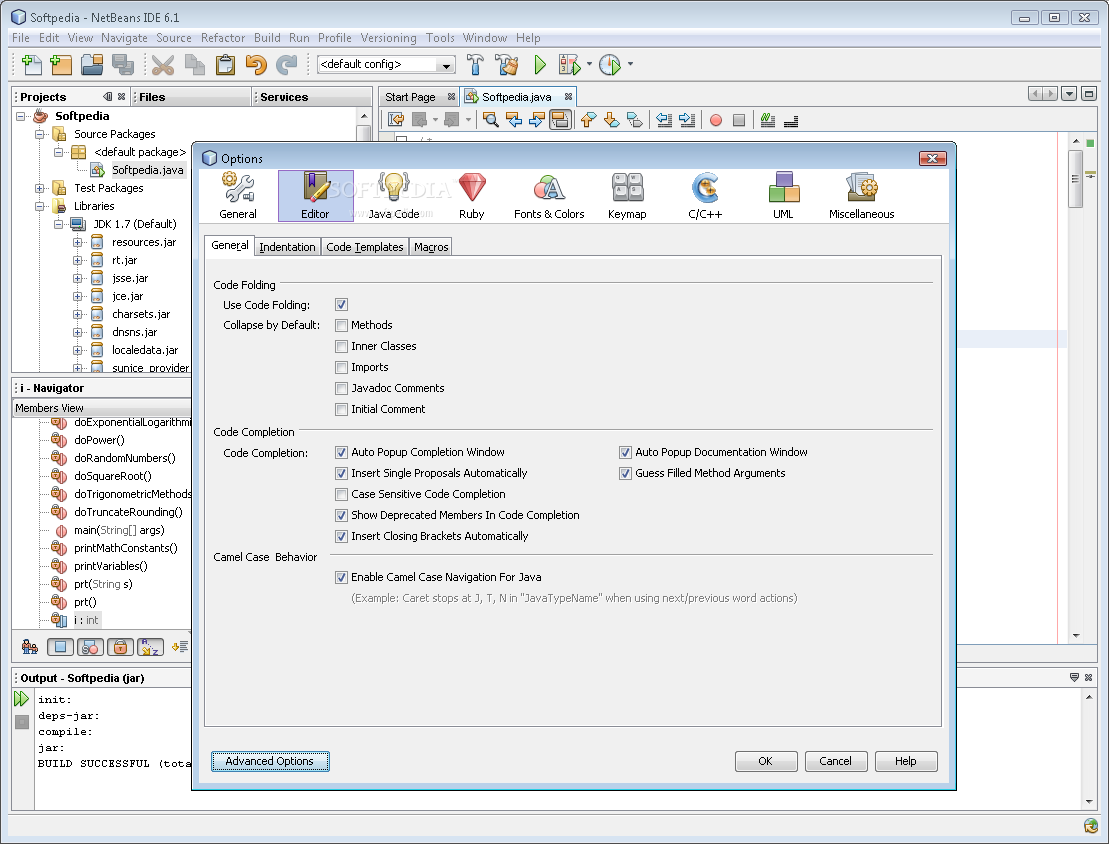
Let’s return to the coding status and explain how the Code Folding feature of NetBeans IDE works. Assume that you have ten thousand lines of code. Browsing through all that information is difficult enough without having to debug it. The Code Folding feature allows you to collapse parts of code that fall under the same function or class name making debugging a lot easier, especially if you know what you are looking for.
In addition to these major features, NetBeans IDE comes with the standard SDK options such as settings breakpoints and viewing different compiling errors as a result of faulty coding. On an overall basis, NetBeans IDE is the perfect software development suite that can greatly improve the quality and efficiency of the software you have created.
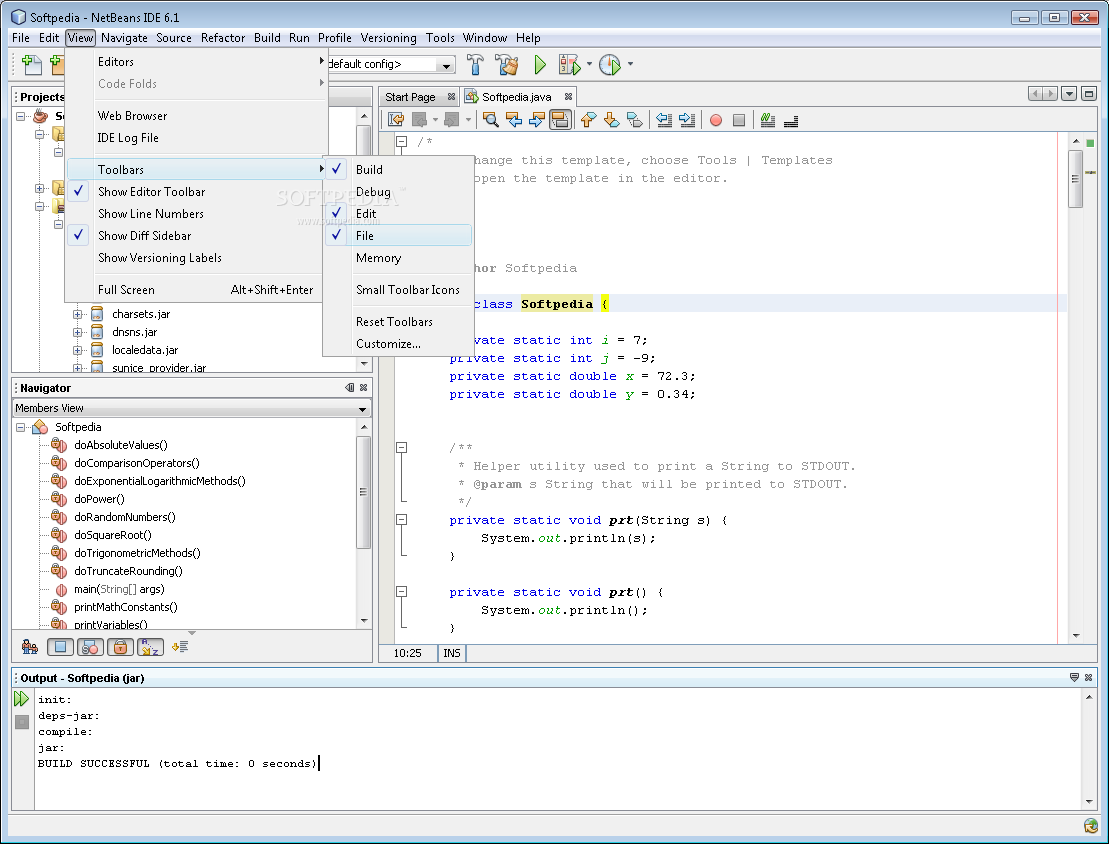
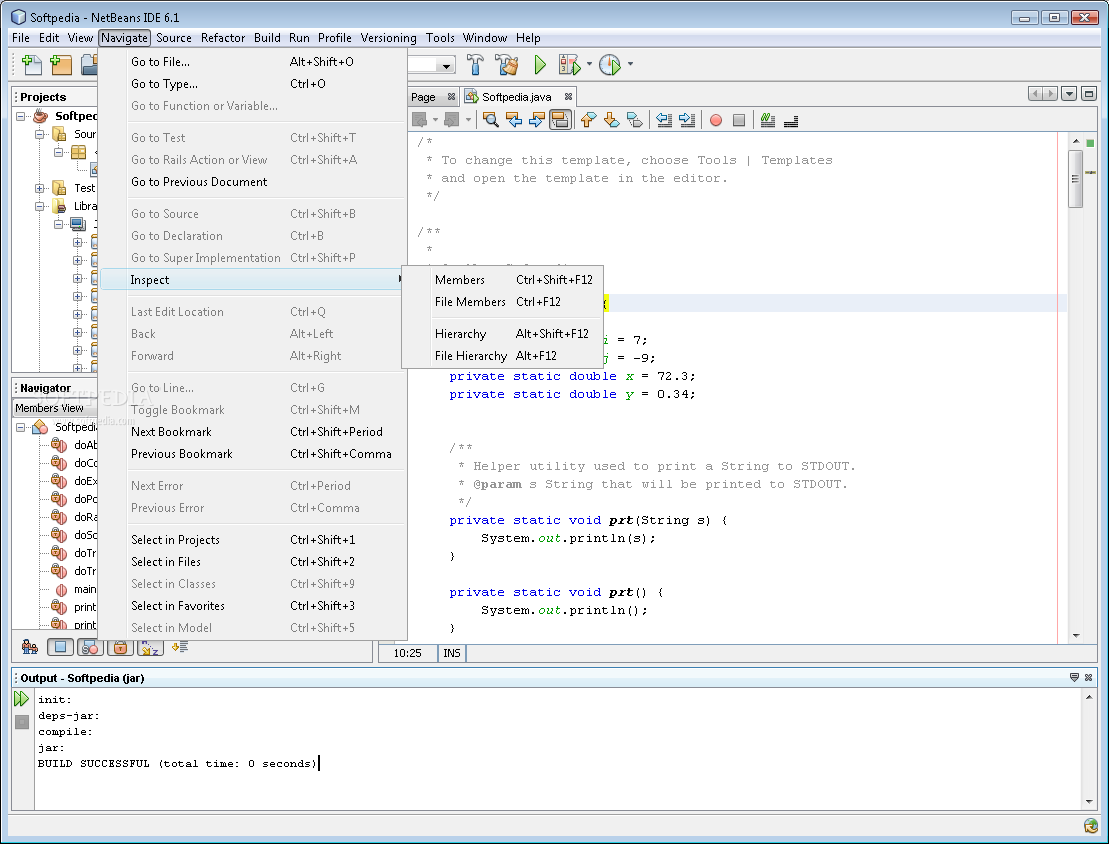
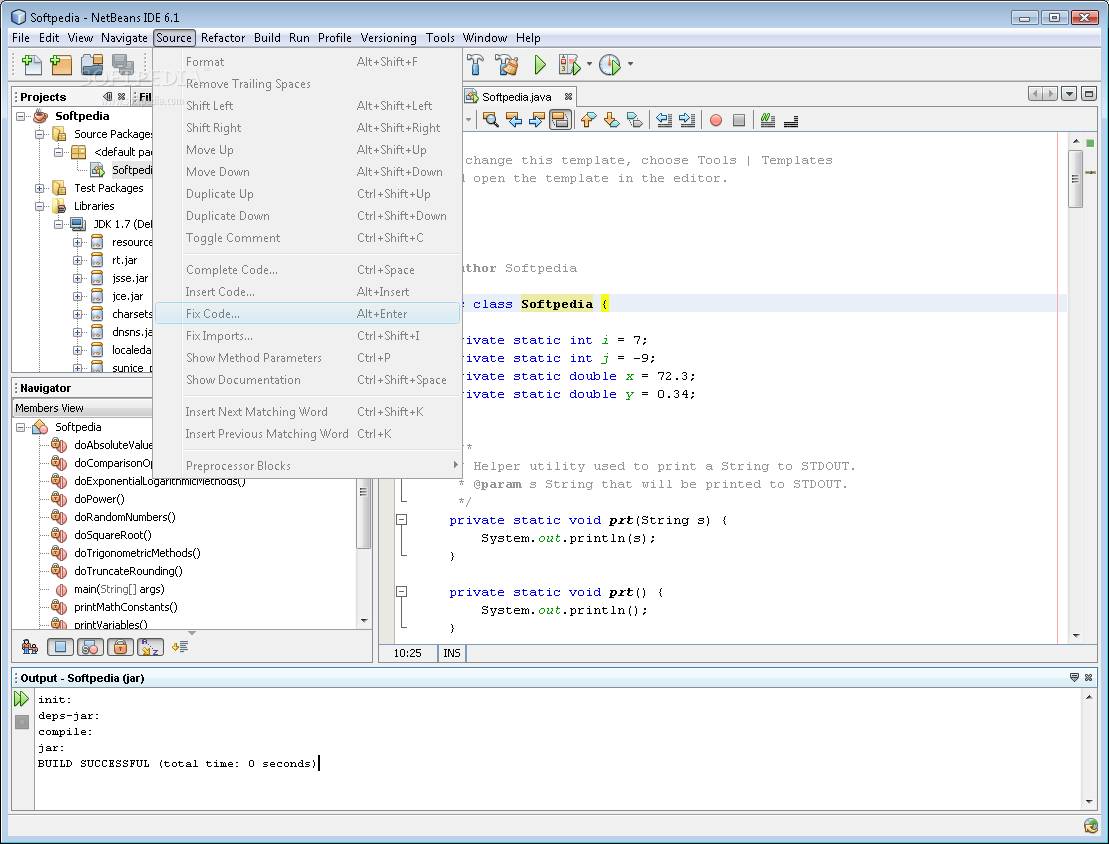
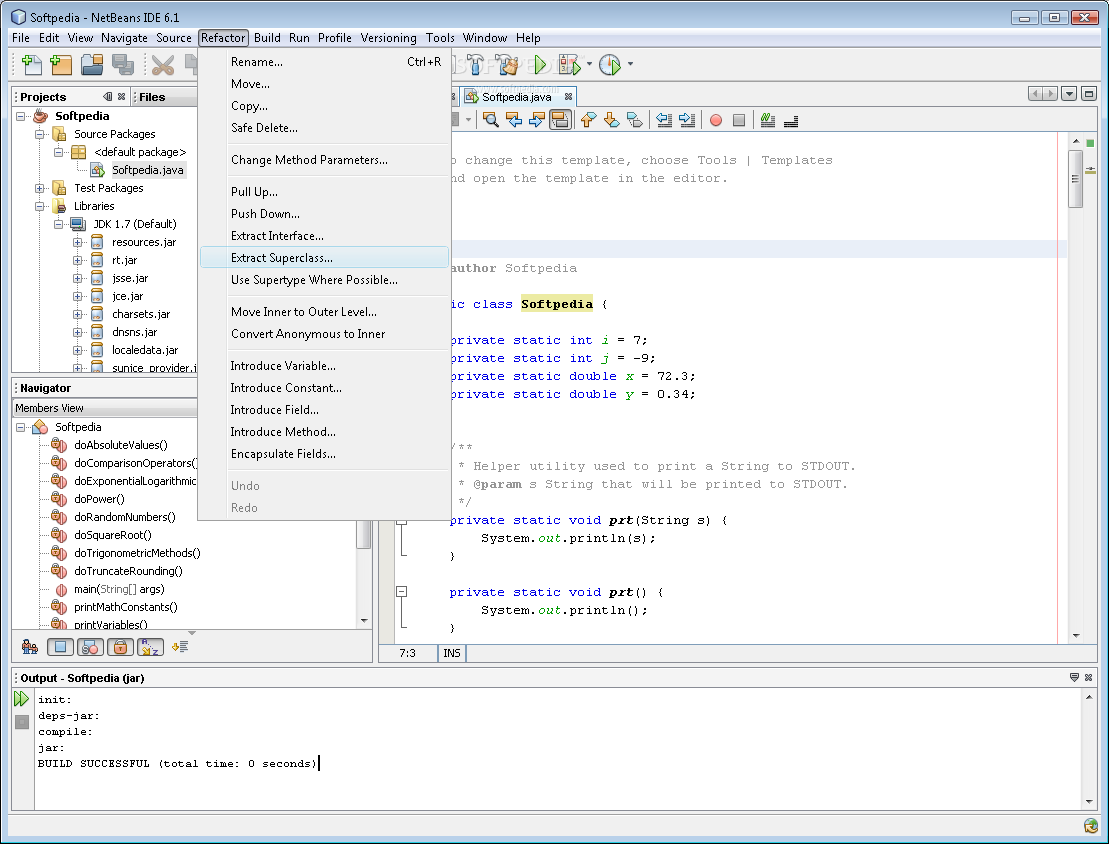
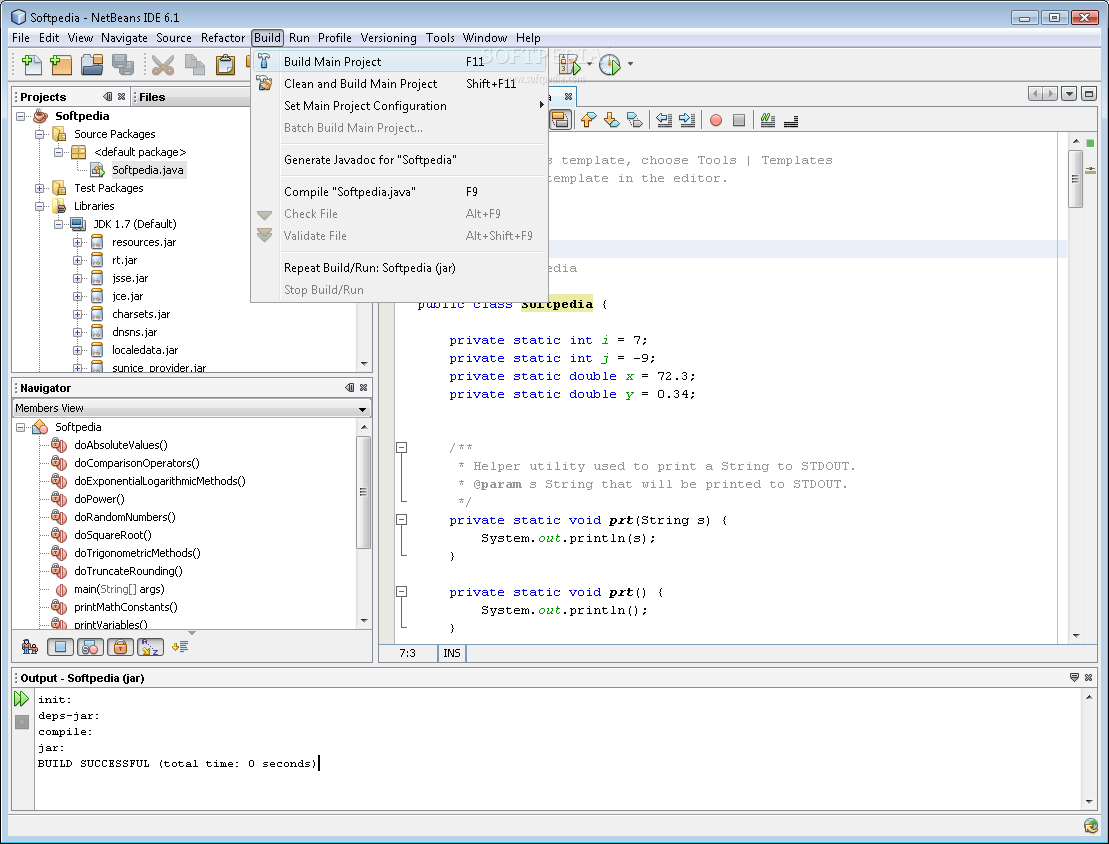
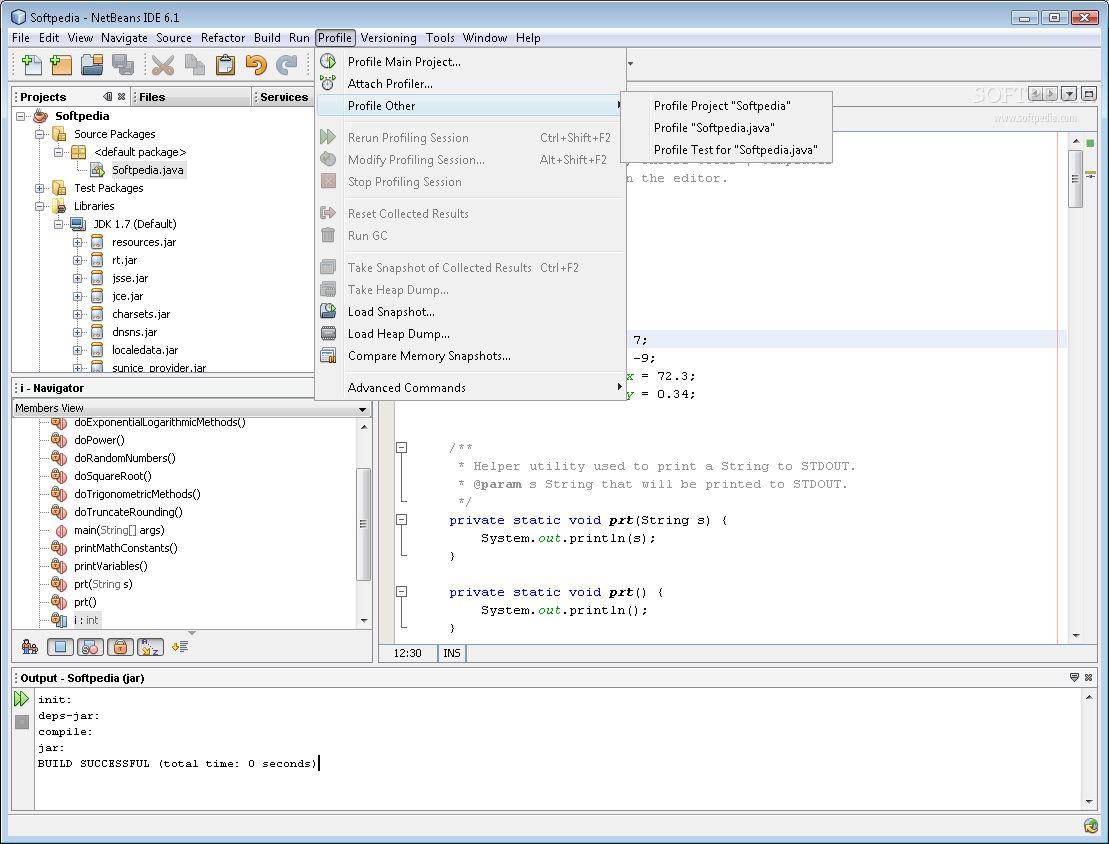
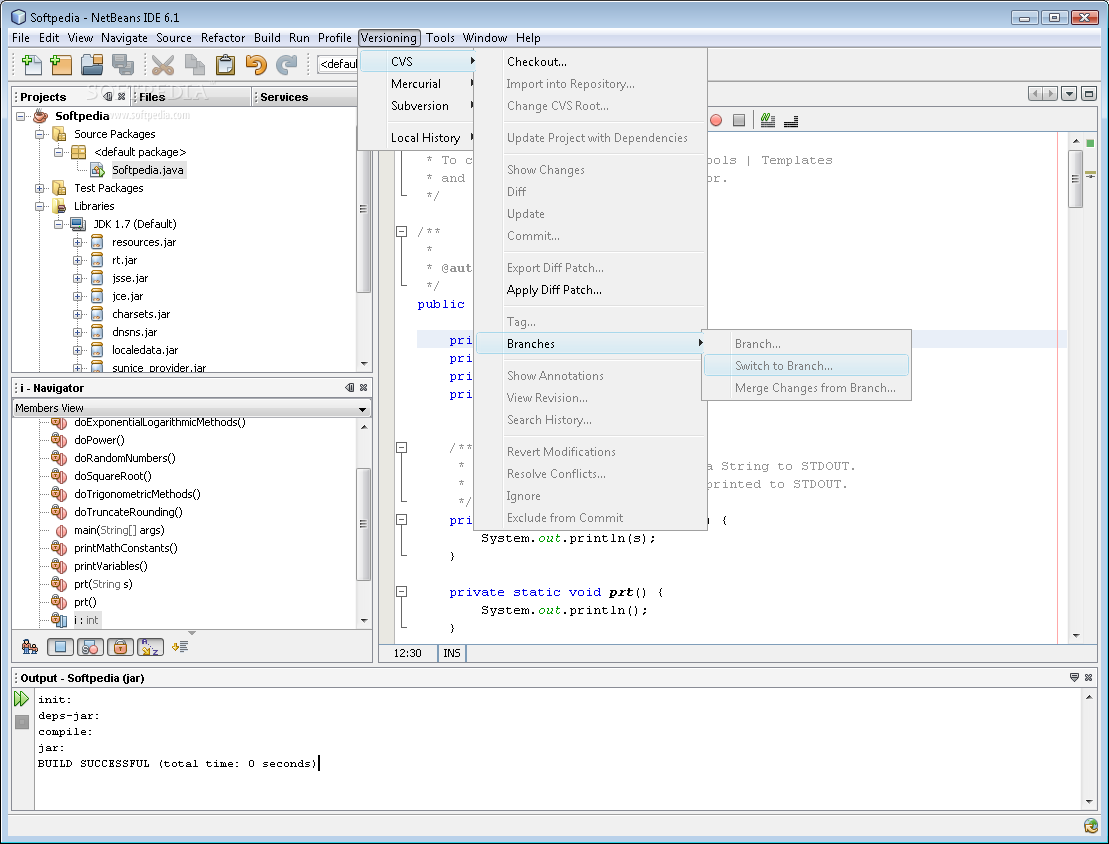
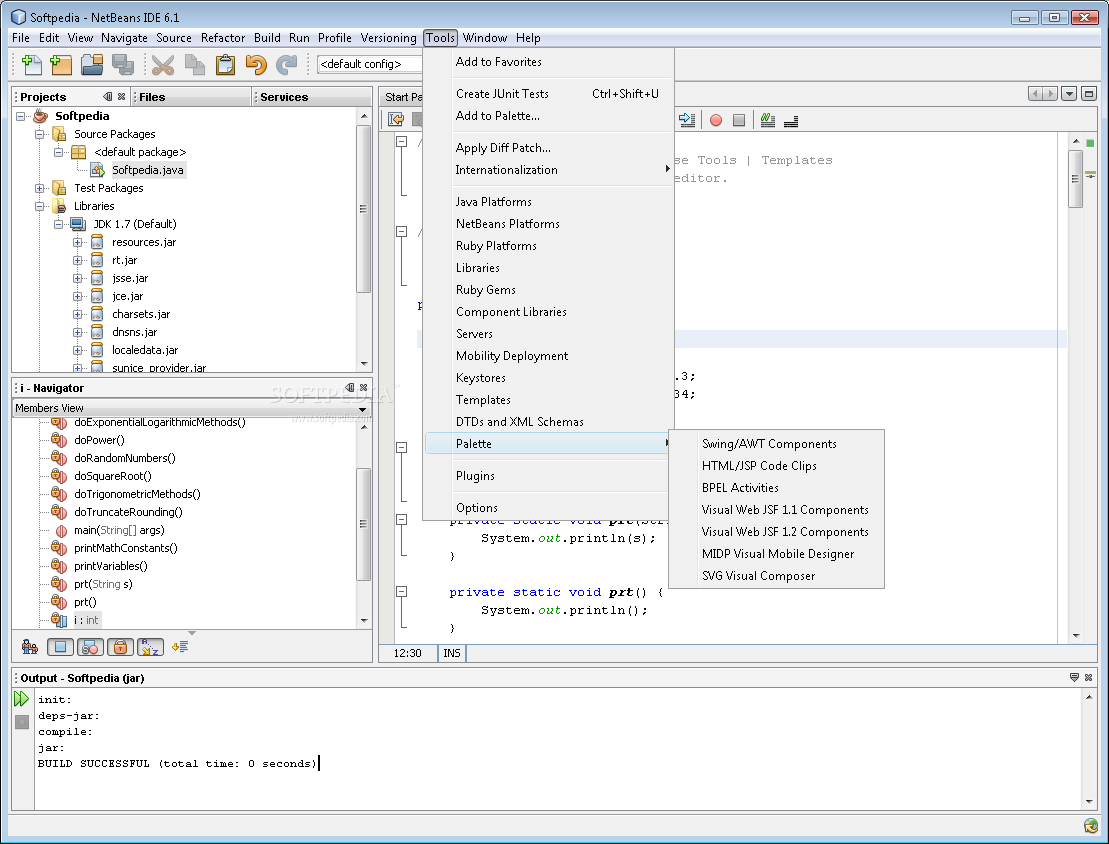
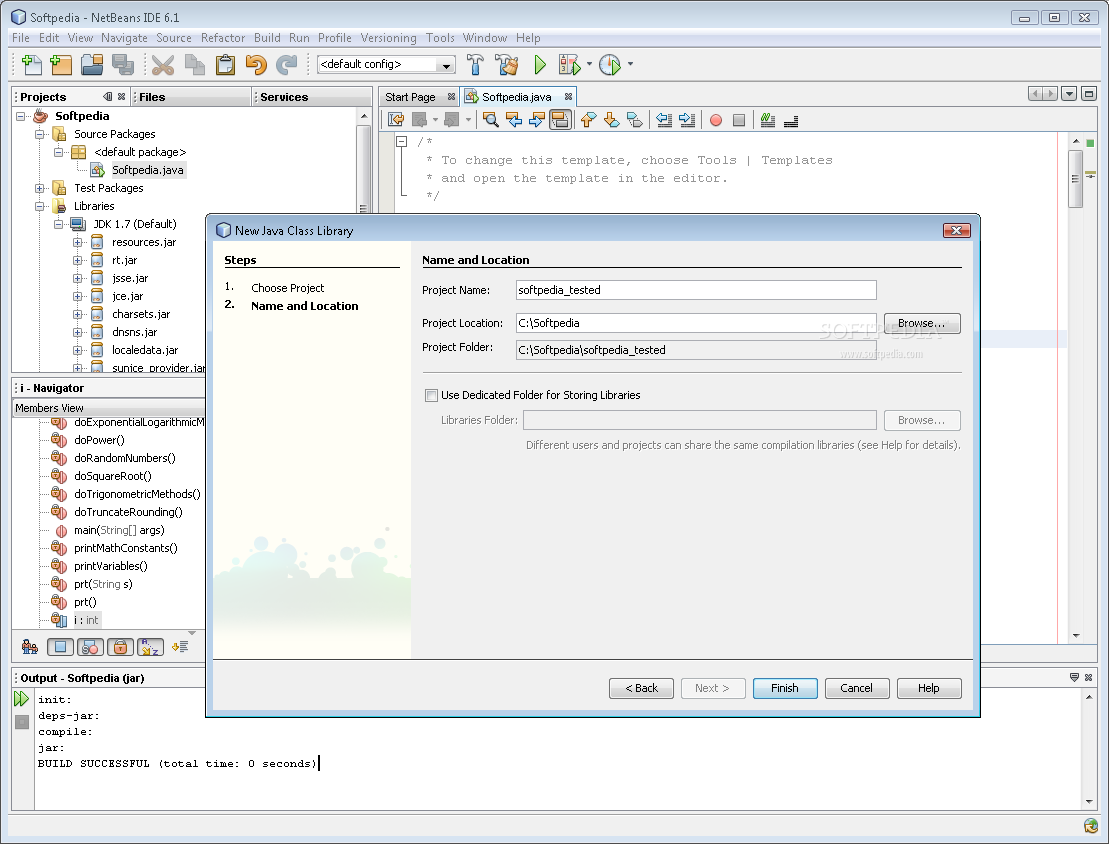
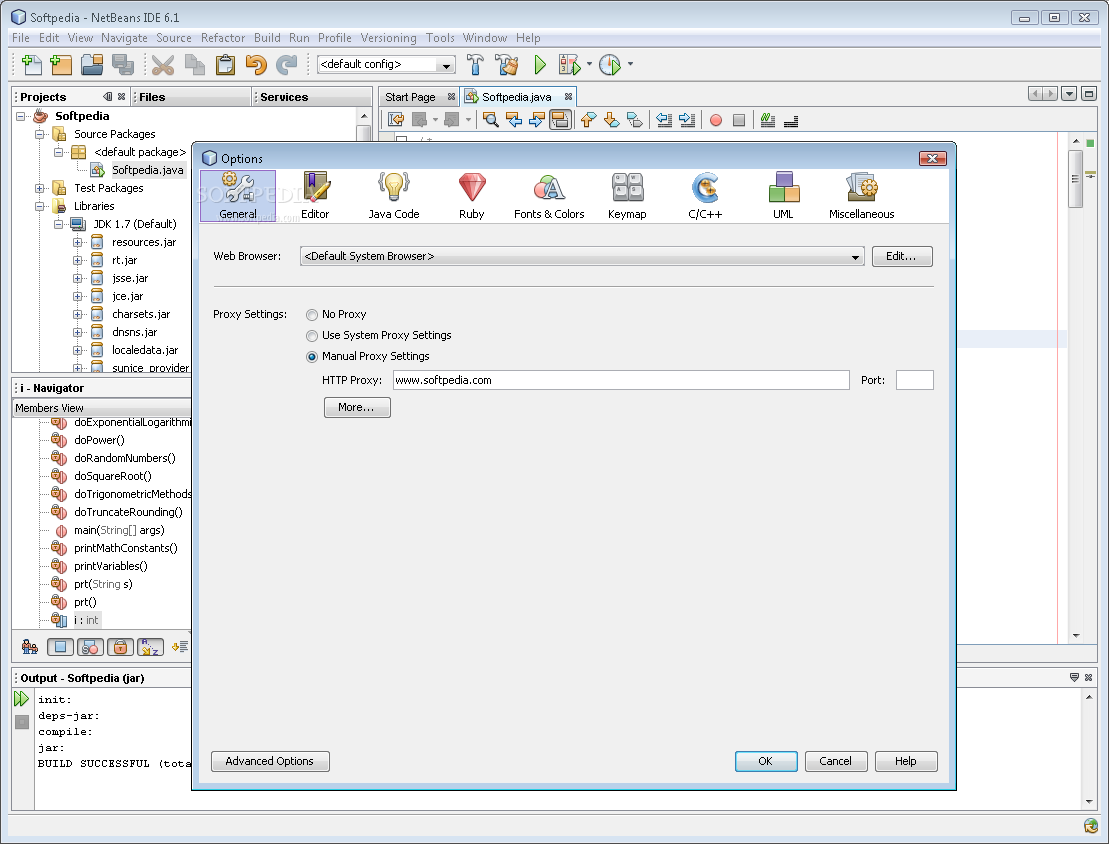
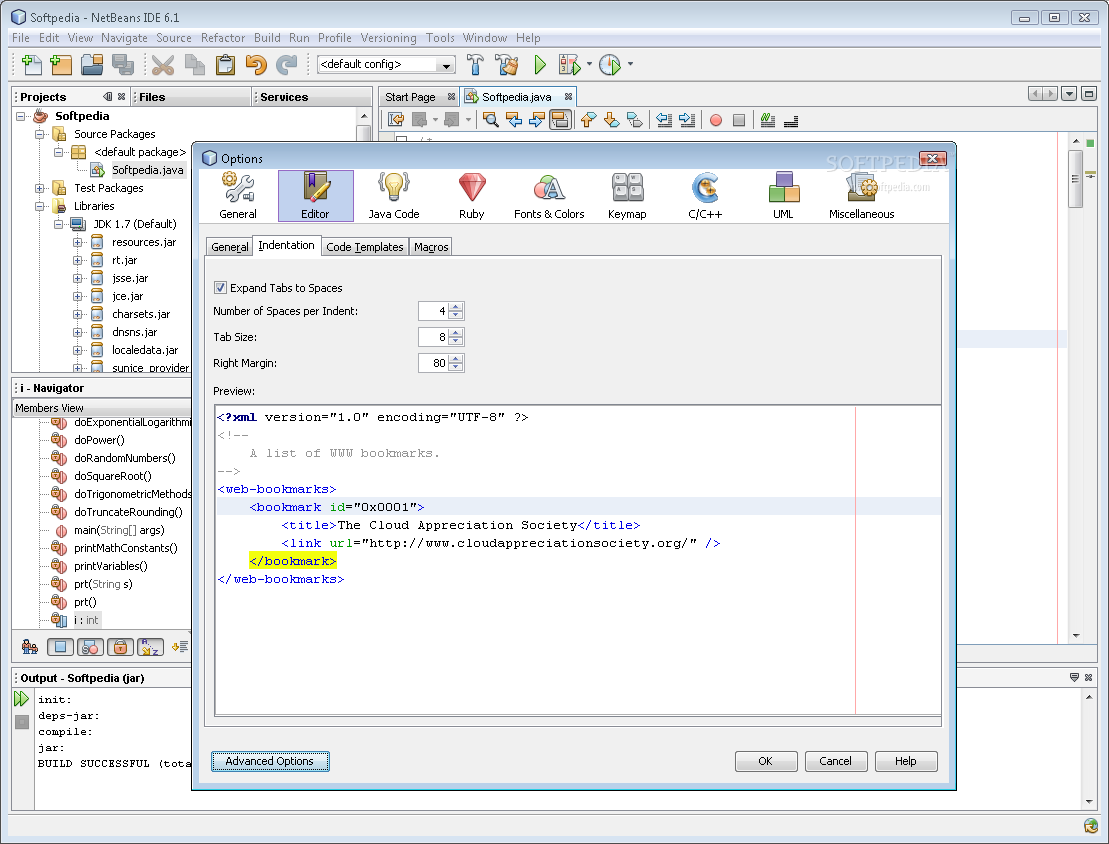
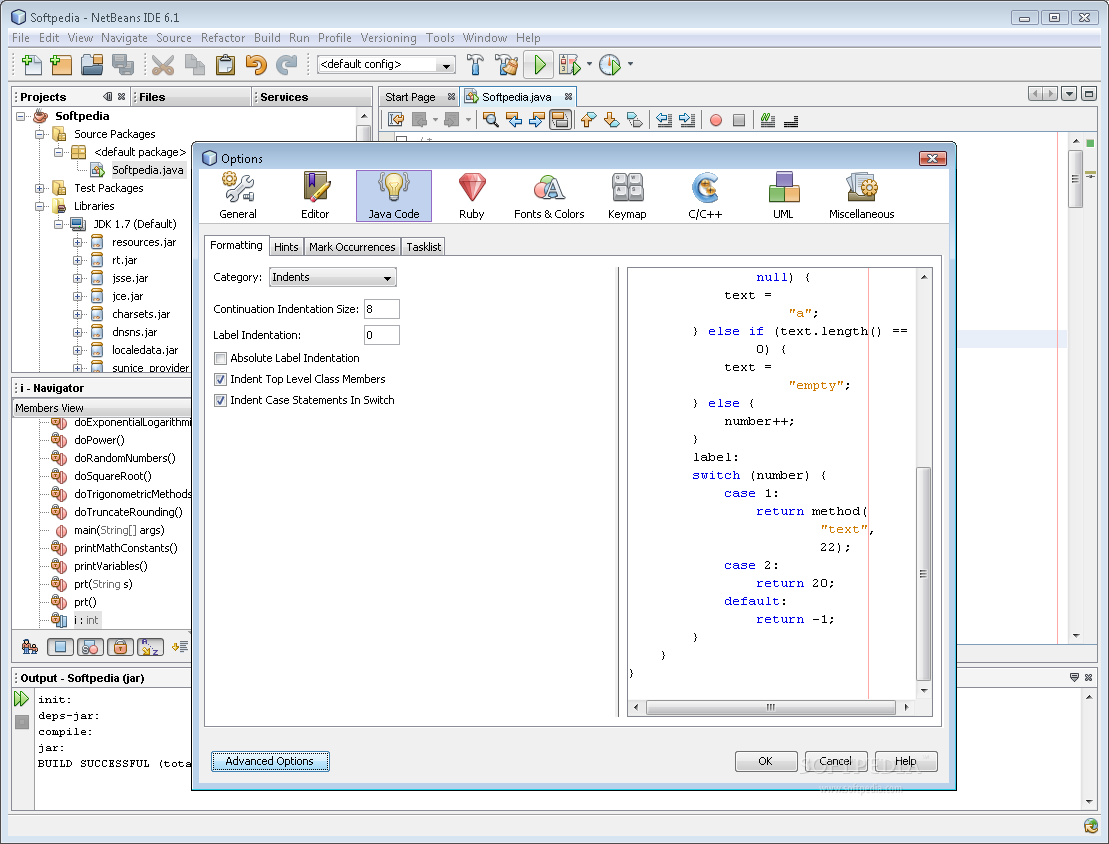
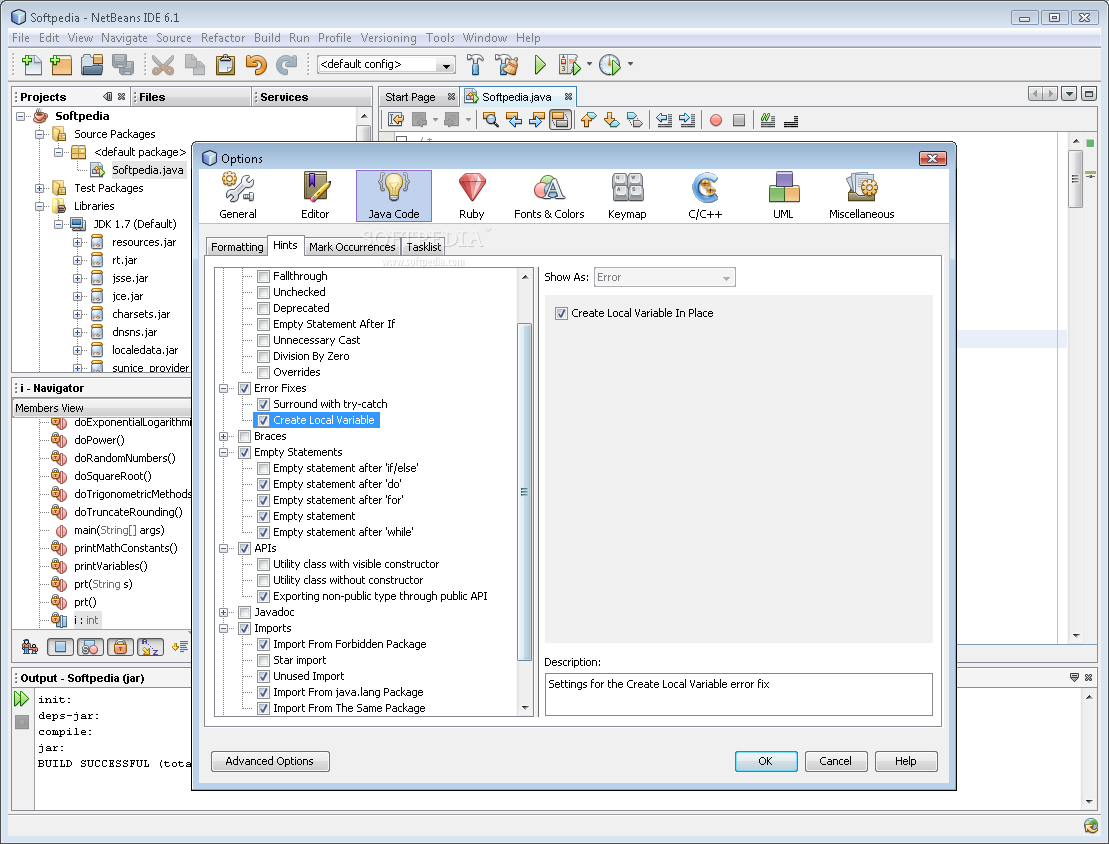
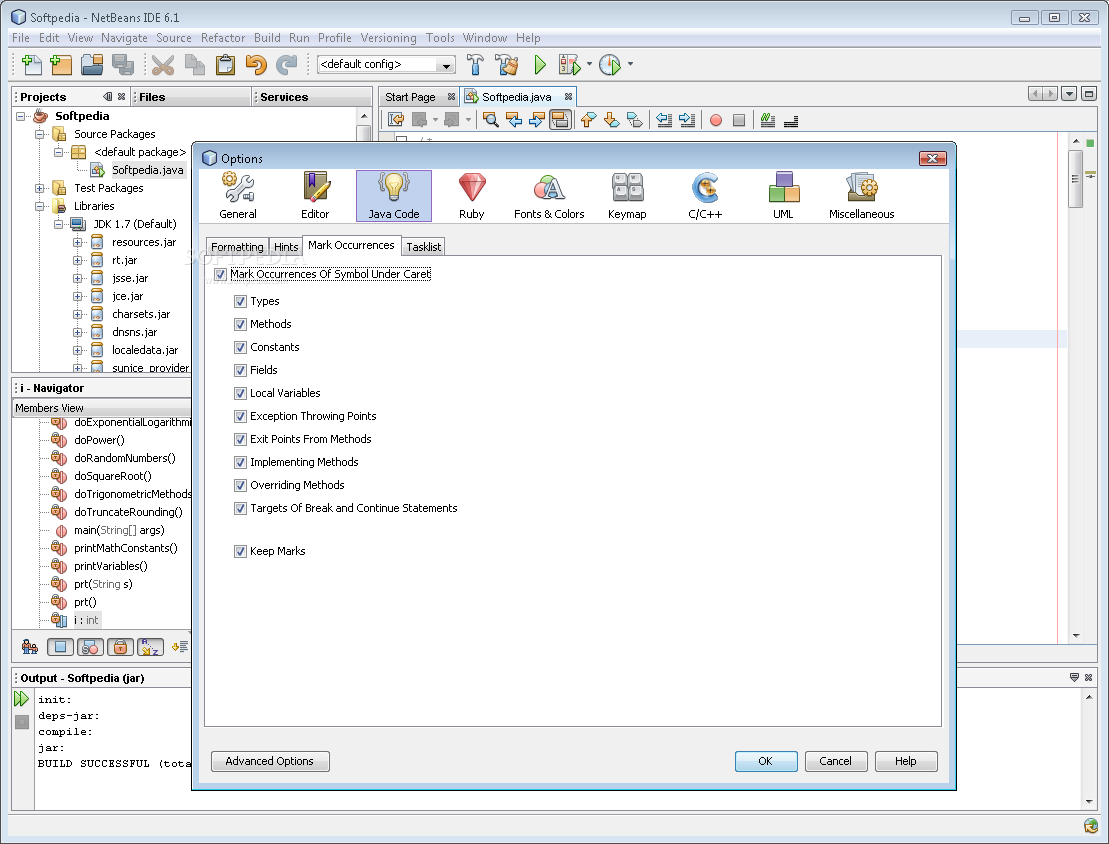
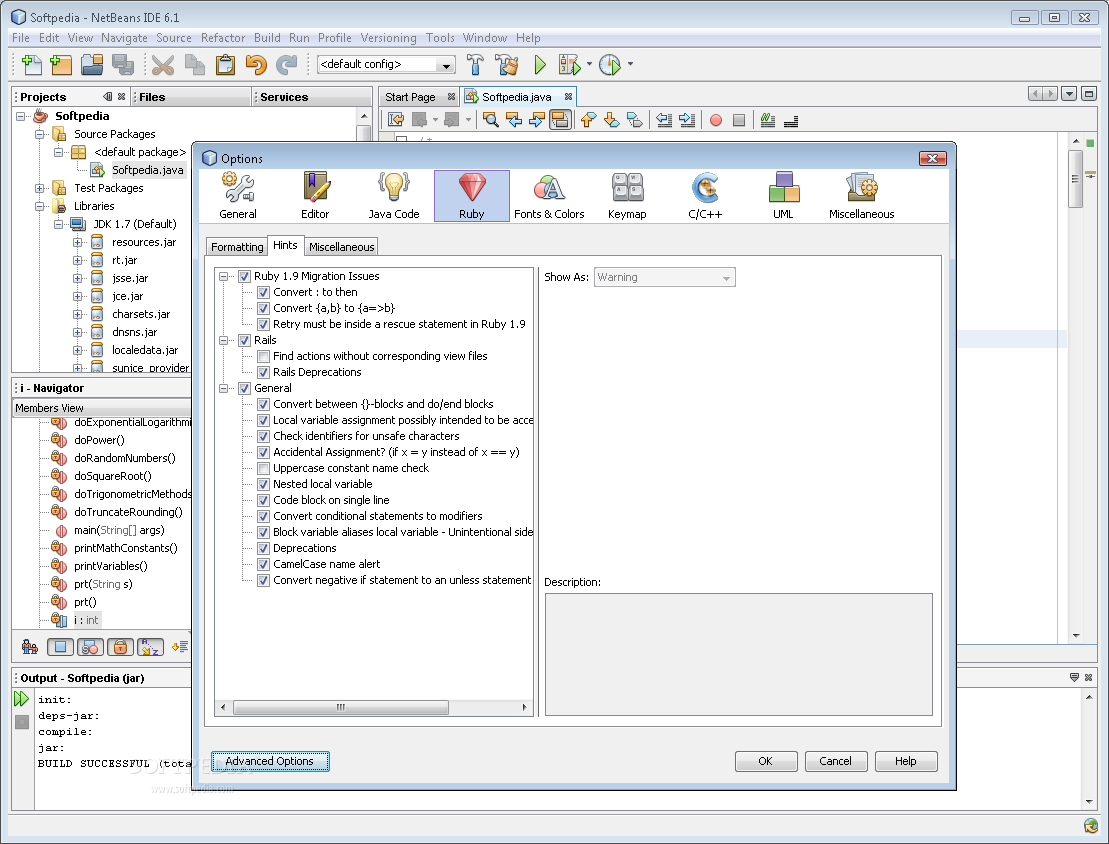
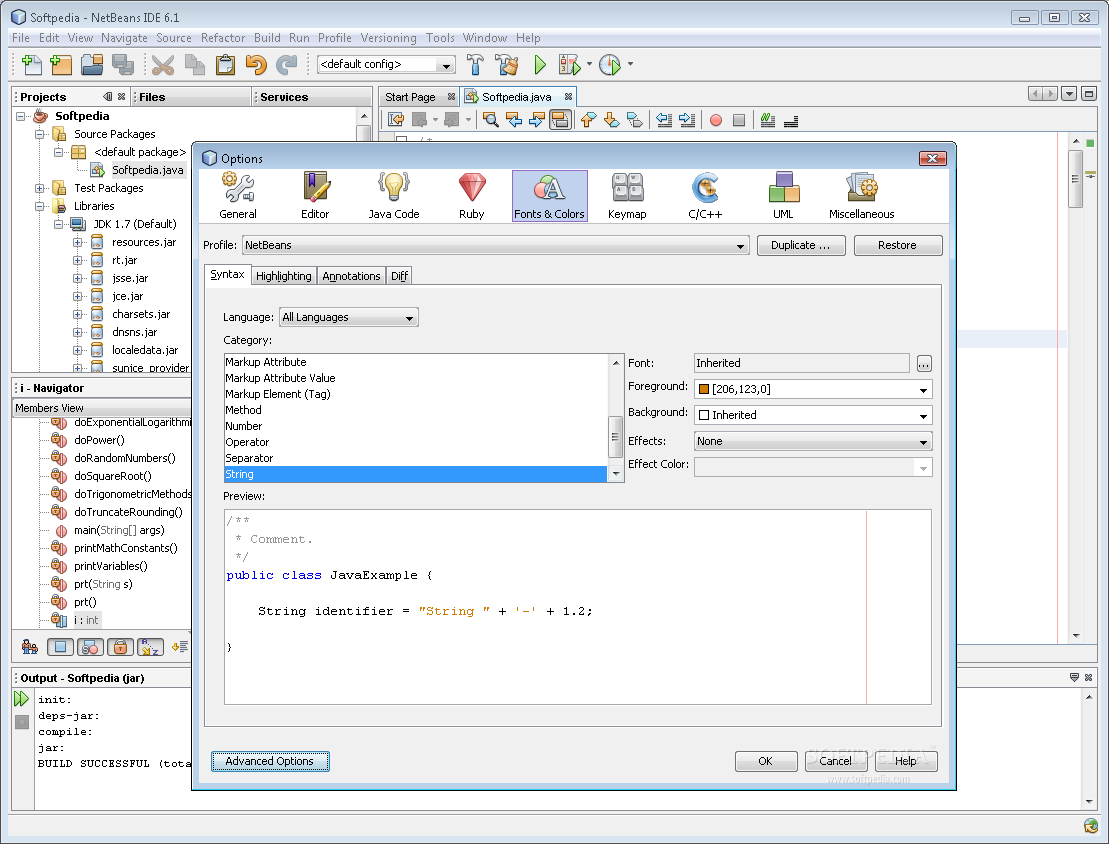
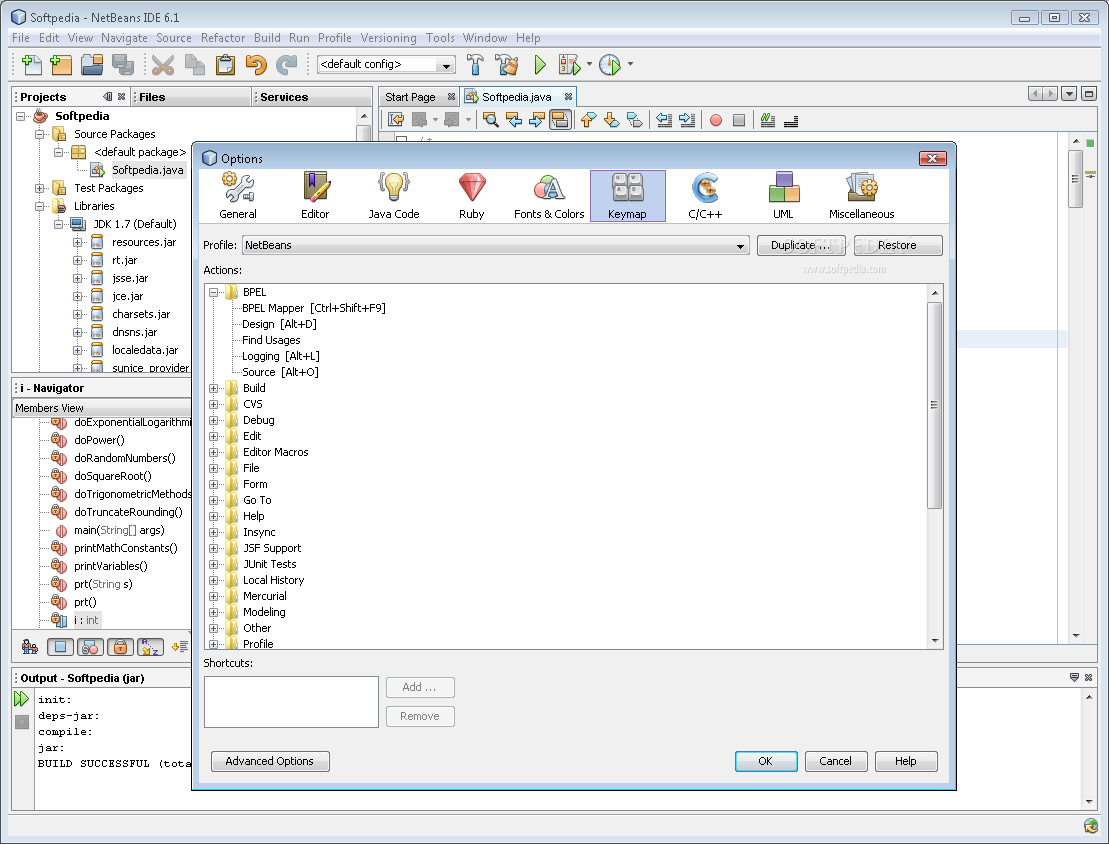
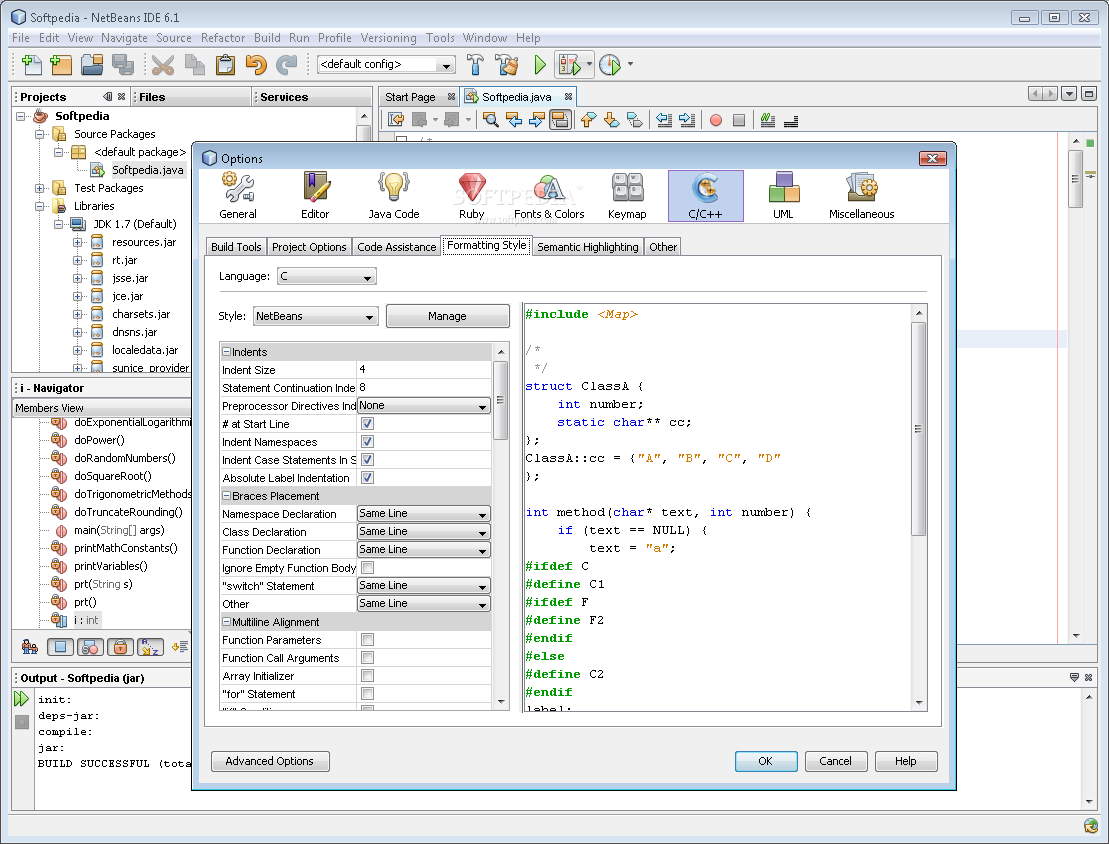
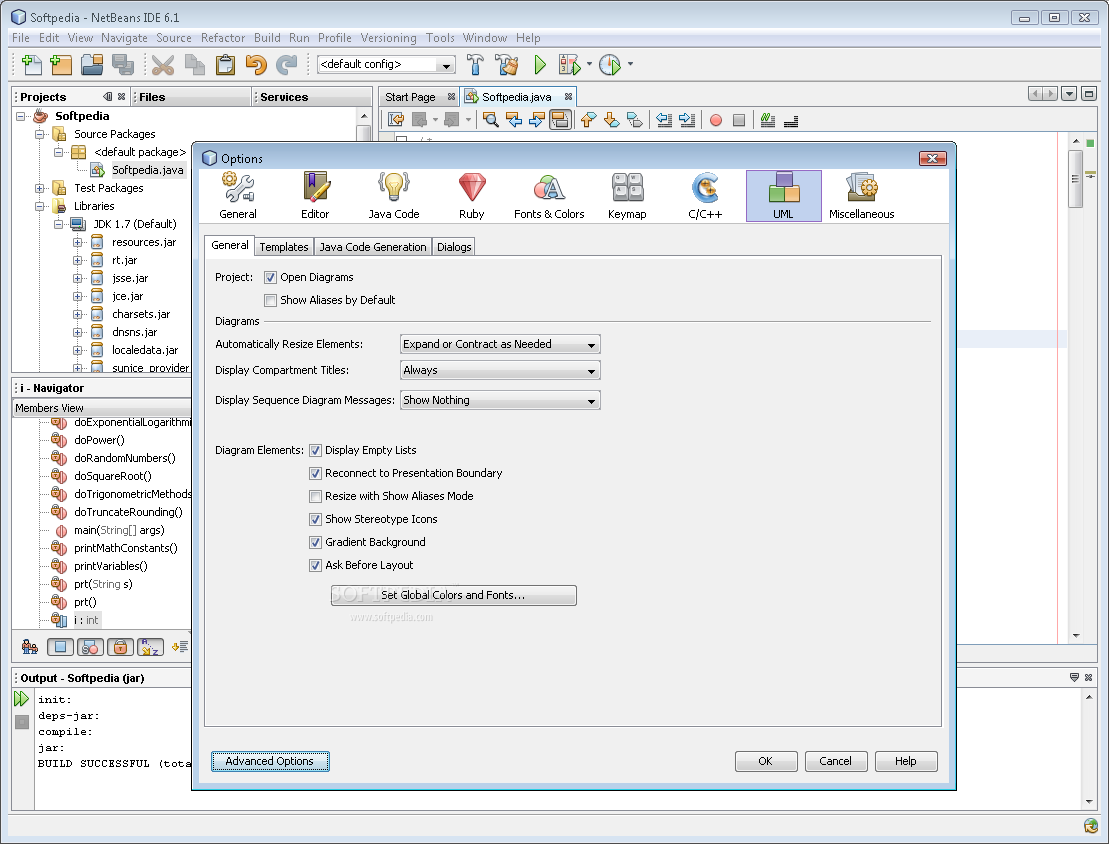
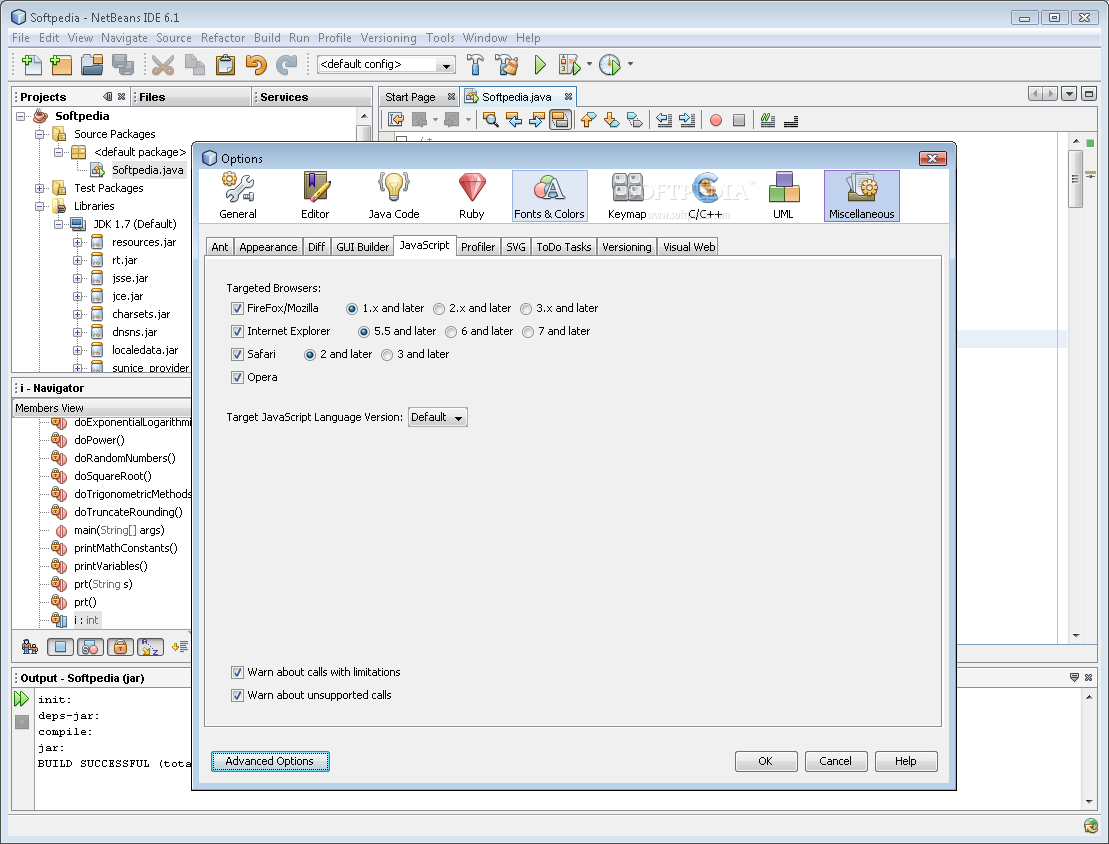
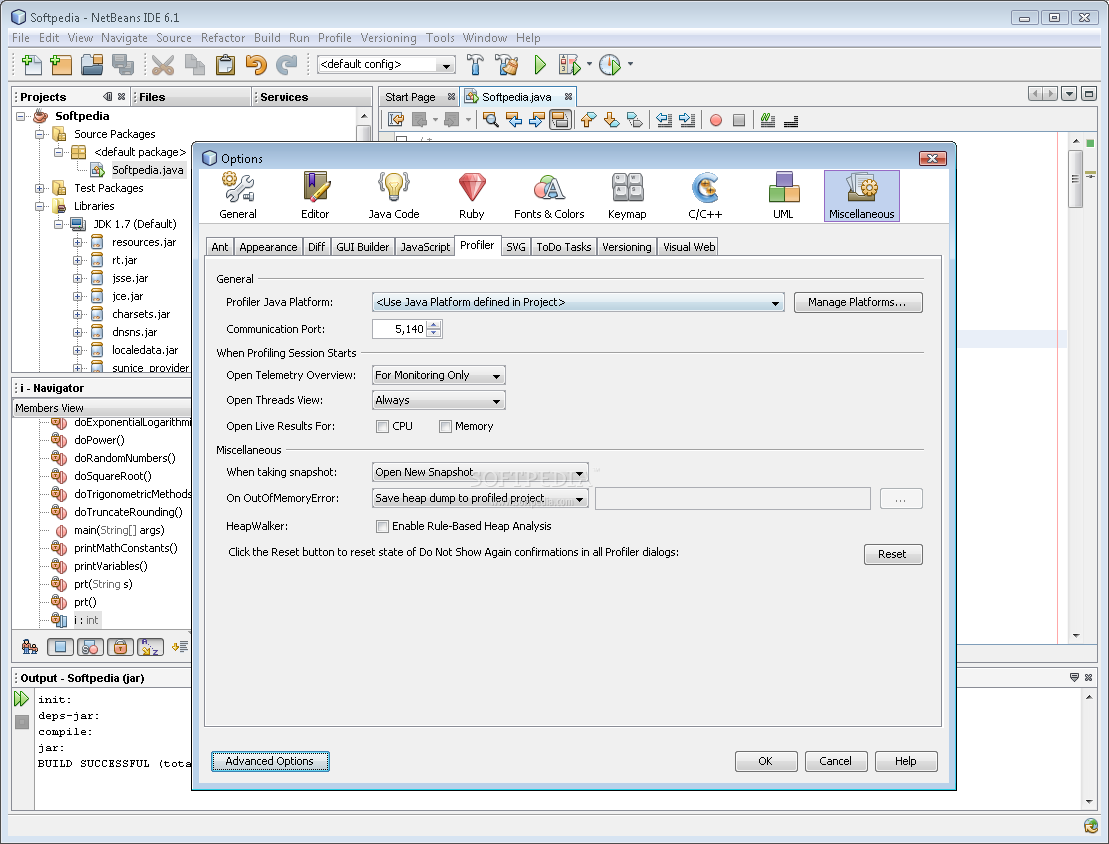
Here are some snapshots of the application in action:
The Good
The Bad
The Truth