14 DAY TRIAL //
 As you might have imagined from the name of the application, this tool will change your desktop's wallpaper. You can also customize the supplied images, so you always get a nice looking desktop.
You all know that the desktop wallpaper can influence your mood throughout the day. So, it surely isn't a good idea to see the same image continuously, especially if it represents an abstract or impersonal scenery.
Surprising or not, a vacation photo or the portrait of the loved one is able to bring back the joy and cheerfulness needed to get you through a rough day. Since you probably don't have the time to search and select the perfect wallpaper for your desktop, a tool that would do it for you would come in handy. This is where Walyk Wallpaper Changer comes to lend a hand.
The developer recommends 1GB RAM, minimum 512 in order to use this tool. So, it is fair to say that an average computer will do just fine when running this application.
To begin with, if you are a user that works with a lot of applications at a time, you will appreciate that this software sits quietly in your system tray without taking space from your taskbar. I certainly enjoy an application that gets the job done without adding a new icon to the taskbar.
Next, you will surely value the intuitive interface and the ease-of-use, that will enable any user to choose the location of their images, adjust the change frequency, and customize the application.
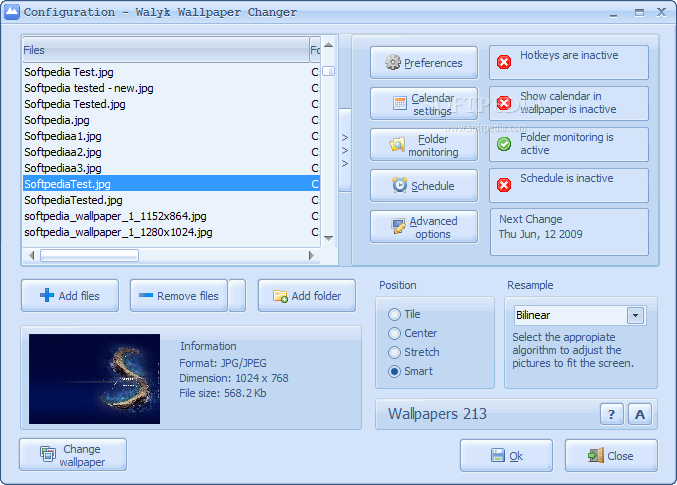
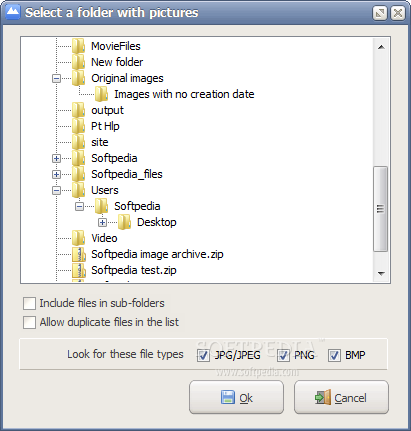
First and foremost, you will probably want to select the images to be used as wallpapers. Whether you want to load an entire folder, or select one photo at a time, Walyk Wallpaper Changer enables you to do both. It does not, however, offer support for the drag and drop function, which is a drawback. When adding a folder, the Allow duplicates files in the list option permits you to add two files with the same filename.
You will probably observe that this application only supports the JPG/JPEG, PNG, BMP formats, the most common image formats out there. There might be some advanced users that would appreciate more file formats, like TIFF or GIF, but the average user will be satisfied with these.
After you've completed the list it's time to make some adjustments. You can change the position of your wallpaper to tile, center, stretch or smart. An interesting feature is that you can select a certain algorithm to be used to adjust your images to fit the screen. This algorithm can be used when you've selected the Stretch or Smart positions.
The Smart option is remarkable considering that it automatically detects the dimensions of the image and decides the right position and resizes as necessary, maintaining the aspect ratio. A thing that is worth keeping in mind is that some algorithms take a little longer to process images, so you should be patient in order to get a nice looking picture.
Like every self-respecting graphic application, Walyk Wallpaper Changer offers a preview window, to help you make sure that no inappropriate pictures have slipped in your list.
A thing that is not supported and might have been wanted, especially by the advanced users, is multi-monitor support.
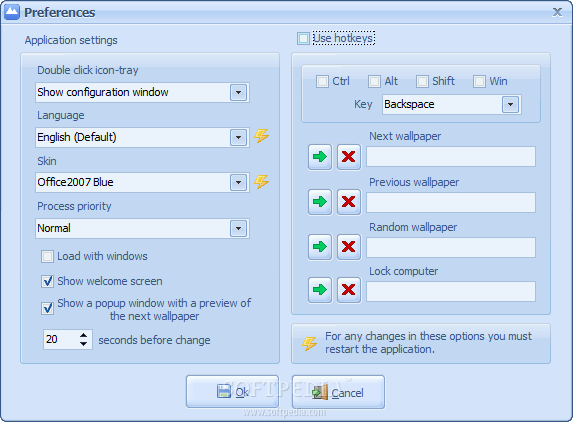
The interesting features can be found starting with the Preferences window. You can customize the application's actions, looks and even process priority. This last item will help you make sure that this tool does not interfere with other important applications.
If you want your applications up and running once Windows starts, you will appreciate the Load with windows option. Just to be sure that you like the wallpaper that is up to be displayed, you can enable the Show a popup window with a preview of the next wallpaper option, and set the timing for this action.
Also, in this section you can choose the desired language. By default the application comes with two standard languages, English and Spanish, but the developer provides some other language packs. To add a new language just download the language files from here and copy it into the folder languages from the installation path of the app.
The Skin option is also worth mentioning as it enables you to change the GUI's color. For the ones that value that sort of feature, it's a plus when choosing a wallpaper changing tool.
You can set a hotkey combination for each of the following actions: go to the next wallpaper, previous wallpaper, go to a random wallpaper or just to lock your computer. The last one might come in handy if you are taking a break, but don't want your work to be available for everyone to see.
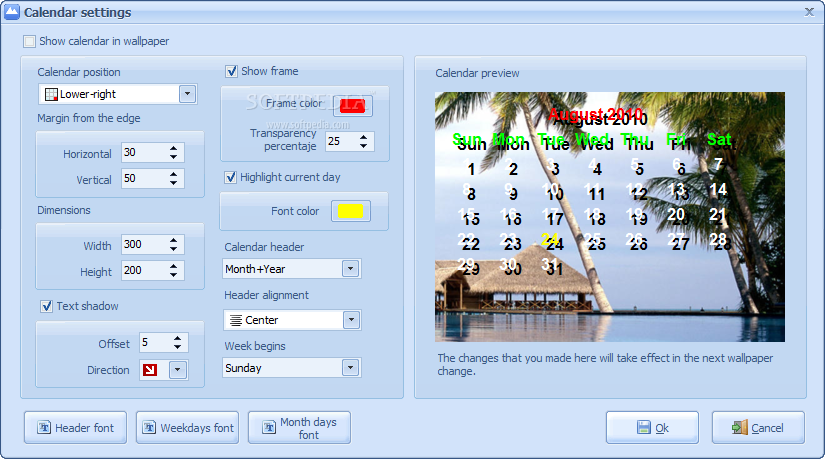
A really great feature of this tool is the Calendar option. This is an interesting feature that allows you to place a personalized calendar on your desktop with just a few clicks. It enables you to customize the position, margins or dimensions. A frame can also be added, with its own color and even transparency level.
If dates are important, the current date can be highlighted in a color at your own choice. A header can be added, also adjustable: you can opt for the month or month and year to be displayed.
Next, select the header alignment, the week's starting day and you are good to go. For an even higher level of customization, you can select the header, weekdays or month days font.
Last, but not least, comes the text shadow option. If you want to add a plus to your calendar you can select the offset value and the direction so it fits your needs. You can check out all the changes you make in the Preview section.
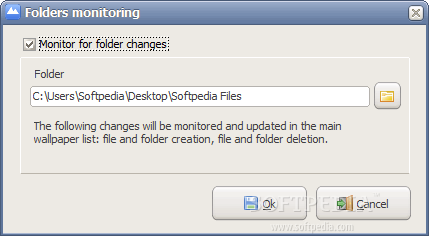
When you are done it's worth stopping at the Folder monitoring function. Basically, you select the folder to be monitored and the program, using a pop-up window, will let you know if you have made any changes to that folder, like adding ot deleting some folders.
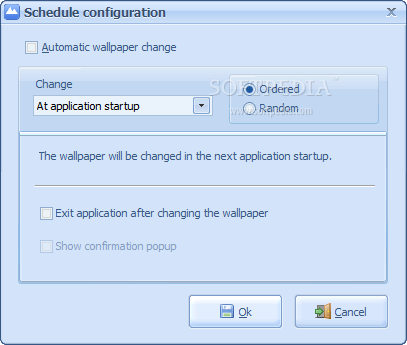
By default, Walyk Wallpaper Changer doesn't change the wallpaper automatically. To get that you will have to access the Schedule window. The area of options offered is quite satisfactory. You can set for the wallpaper to change at the application startup. If you want to change the desktop's image at a predefined time period you will select the At a specific time interval feature. The time can be set in hours and minutes, so, most probably, any user's needs will be appeased.
The Daily and Weekly options are also available. These two are intended for users interested in a little desktop diversity, but still want a period of time to enjoy the new wallpaper.
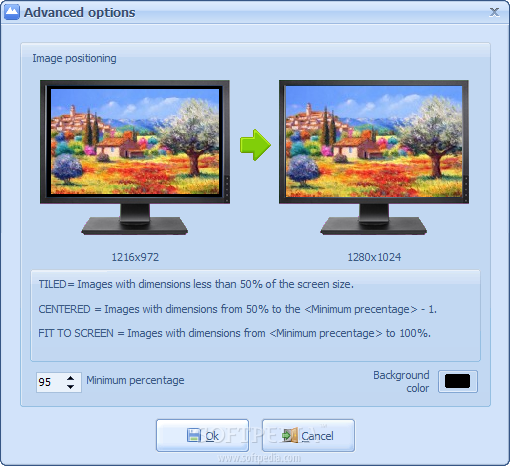
Finally, the Advanced options allows you to configure the resample process, considering the image's size. This customization is needed only if you chose the Stretch or Smart positions in the main configuration window.
You can set the minimum percentage of the image considering the screen size. So, the images with dimensions less than 50% of the screen are tiled automatically, for images with 50% or more, the wallpaper is centered, but if the image has the same aspect ratio like your screen and the image reaches at least the percentage below, the image is resized to fit the screen.
A thing that it's worth keeping in mind, is that you have to restart the application after you've made changes in any of the customization sections.
In a nutshell, this application will allow you to change your wallpaper automatically, bringing a color spot on your desktop. The calendar is also a good way of personalizing your desktop to match your taste.
The multi-language support and the lock function are also important pluses. You don't have to worry about updating your image list thanks to the Folder monitoring feature, which will make you appreciate this tool even more. Here are some snapshots of the application in action:
The Good
The Bad
The Truth