14 DAY TRIAL //
 We all know that Windows Explorer has the widest spread among computer users. It comes integrated in Windows OS and offers the basic functions for manipulating stored files. Unfortunately, its functionality is reduced to the max and when it comes to effecting more complicated actions each operation turns into a tedious, time-consuming job.
As tabs have become the standard in almost anything, the same happened to most file managers on the market. However, Windows Explorer refused to incorporate this feature and viewing multiple folders requires opening new instances of the application or viewing them one at a time. And this is quite annoying if you asked me, but still, I am not judging as there are plenty of third party applications on the market and given the fine paid to EU for including Windows Media Player in the operating system, I frankly understand Windows Explorer's anemic feature list.
XYplorer on the other hand comes as a strong, feature-rich file manager that can be carried around on a memory stick for a comfortable management of files on any system you plug it in. the multi-tab, portable file manager comes at a price of $24.95 for a license valid for one major version cycle of the software (v. 6.60 to v. 7.60) or $49.95 for a lifetime license. But before you buy it, test it for a period of 30 days with no restrictions imposed.
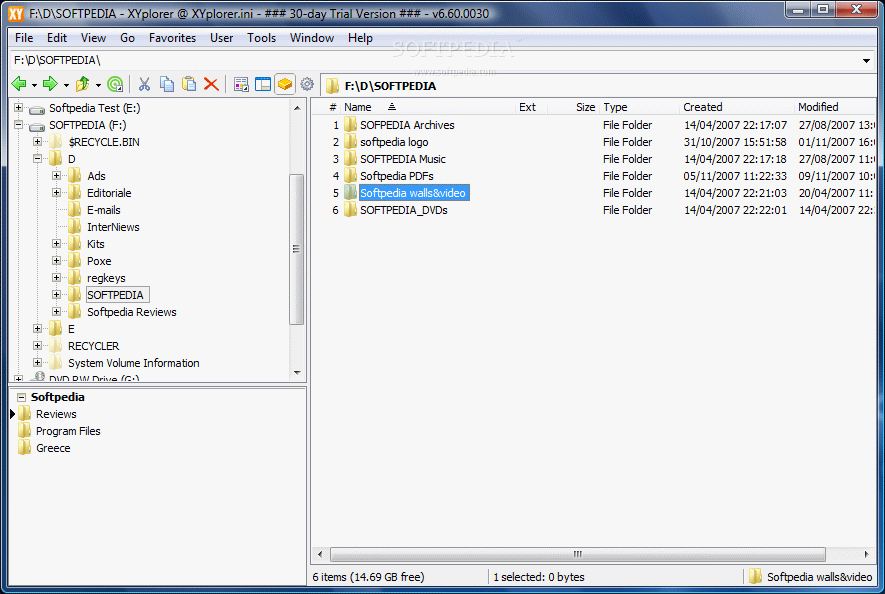
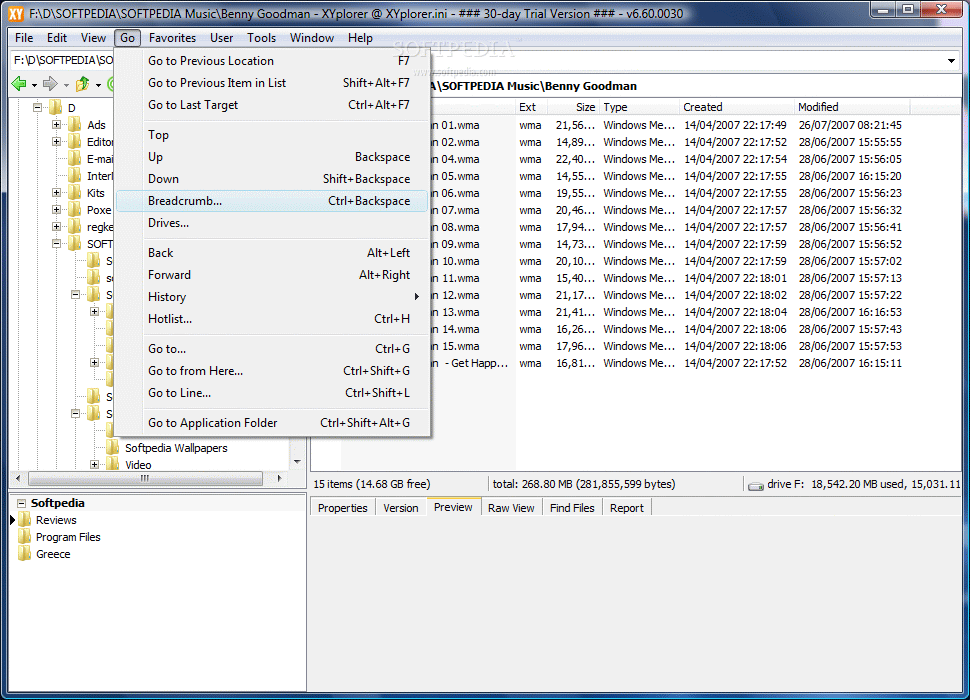
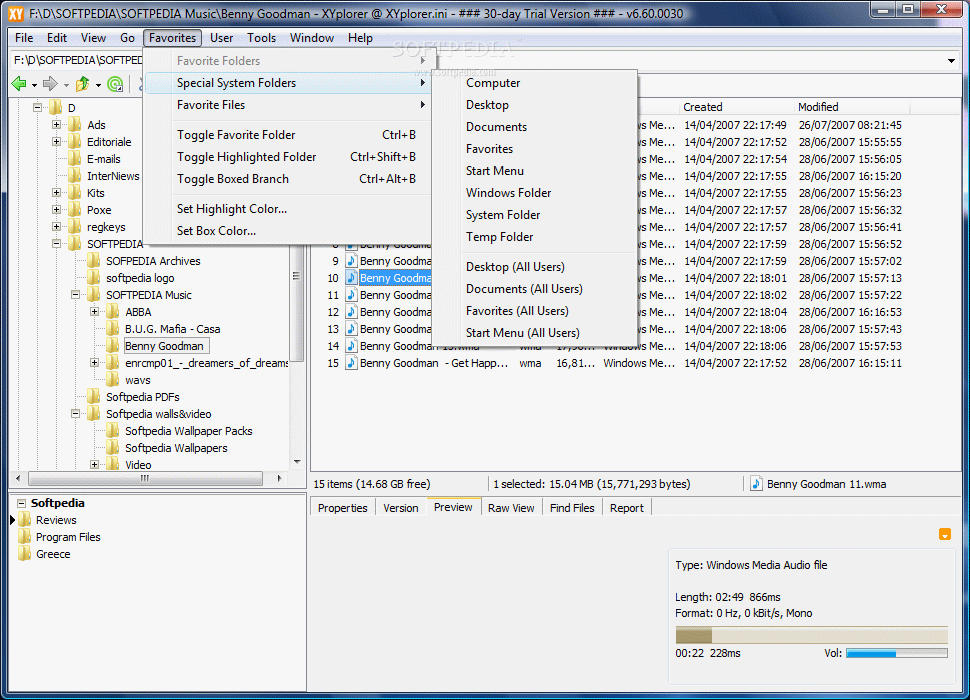
The application is an uber Windows Explorer, preserving the basic lines of Windows' file manager but adding almost all the options and features you need and want from a proper file managing software. A tree-view of all locations on your computer is displayed to the left of the screen, permitting easy navigation from one folder to another.
For those accustomed to dual paned file managers, unfortunately XYplorer does not support such a feature. Most users are not addicted to this kind of file management but viewing the files and folders in two windows at the same time definitely eases the work. A simple advantage of this function is the mere drag and drop of the files from one folder to another for a simple copy operation.
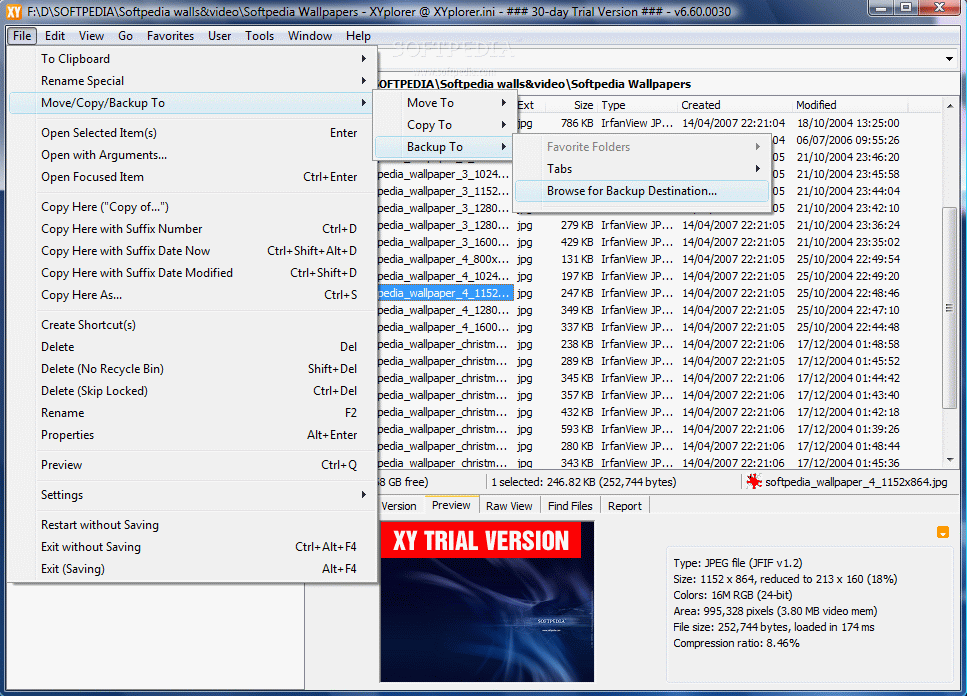
However, copying files from one folder to another is not too much of an effort either. Copy/paste option is quite at hand and works like a charm. You also have Move/Copy/Backup To option at a right click of a mouse. Or you could use keyboard shortcuts and a new panel allowing you to browse to the destination will pop up in an instant. Power users and Windows Explorer fans can make use of the address bar in order to navigate to the exact location needed.
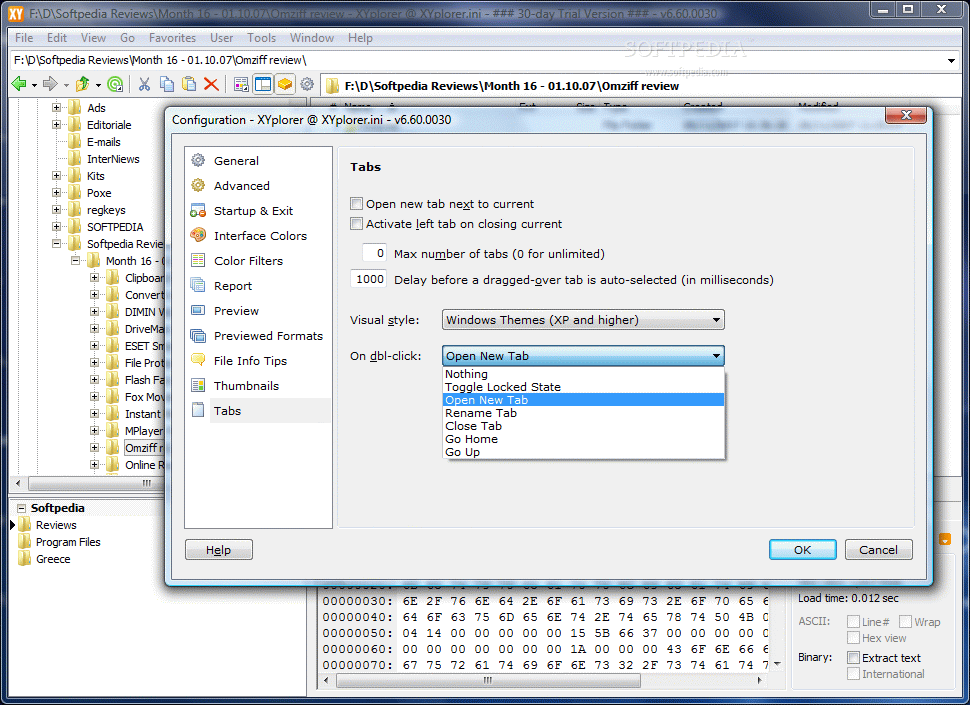
Users can open as many tabs as needed with a simple double click on the active one. Closing them is equally easy and a mouse-wheel click will suffice.
Two very handy features that have drawn my attention right from the beginning are Catalog and Info Panel. The first one is a very cool alternative to the treeview on the left in the sense that Catalog lets you create your own folder tree by adding the elements yourself. Each element is an item and corresponds to a location on your computer. Its importance resides in the fact that you can access different areas of your computer quicker and with less effort.
For instance you can place in the Catalog deep buried folders which are frequently accessed. Each item bears a name of its own and I suggest you make it as descriptive as possible. The best part is that you can move them up and down by simply holding Ctrl+Up/Down arrow keys on the keyboard and you can add as many categories sheltering items as you want.
If you find that typing in the path to the desired folder is annoying, then don't do it. Dragging and dropping the folder directly on one of the categories is an easier way to add it.
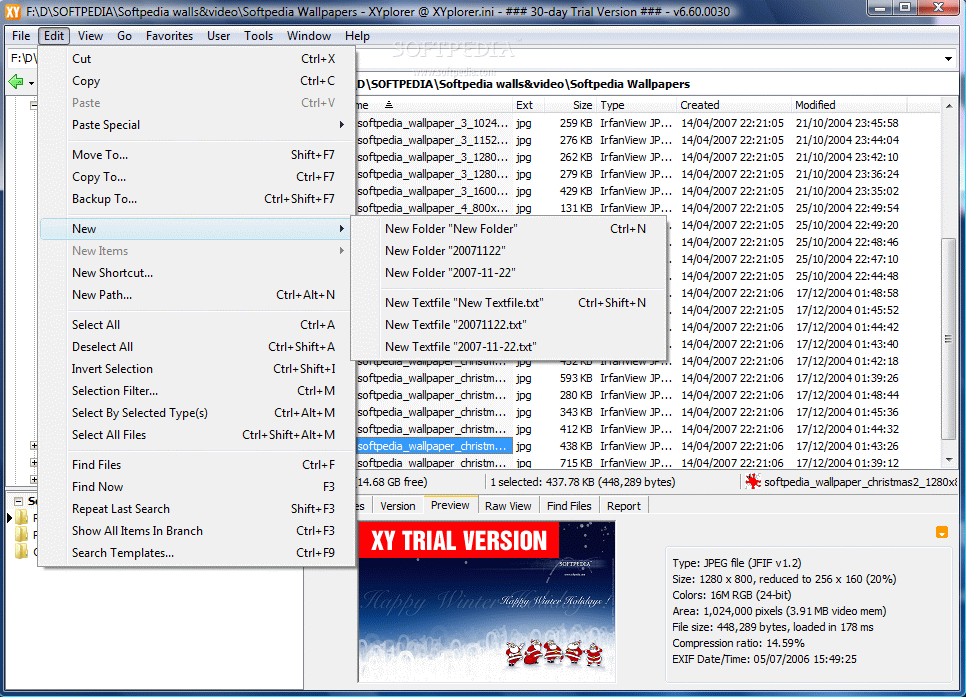
Info Pane comes with a series of tabs that will prove extremely useful in time. It can show you the properties of the selected file/folder within a single click, offer a preview in the case of images together with information on original size, number of colors available (here's a tip: click the image to enlarge the preview and take a better look or select the file and click F11 for a full-screen preview). More experienced computer users can also have a RAW view of the selected file, extract the text from binary.
Info Pane is also the place you can start the search for a particular file or folder. The downside in this case is that you will have to wait until the process completes in order to view all found files (vertical scroll did not work until the search finished and all the items were displayed). This way if the result you are looking for is not displayed in the visible part of the window you cannot abort the search (there is no pause option either).
Luckily there are plenty of criteria to filter the results out and provide you only with the most accurate findings. For each search you can specify the location of the item, filter results out based on their size, date, attributes, excluded folders. The function can even look inside documents and you can provide a snipped of the contained text for accuracy of the results. Used properly the function is extremely helpful and it is thorough.
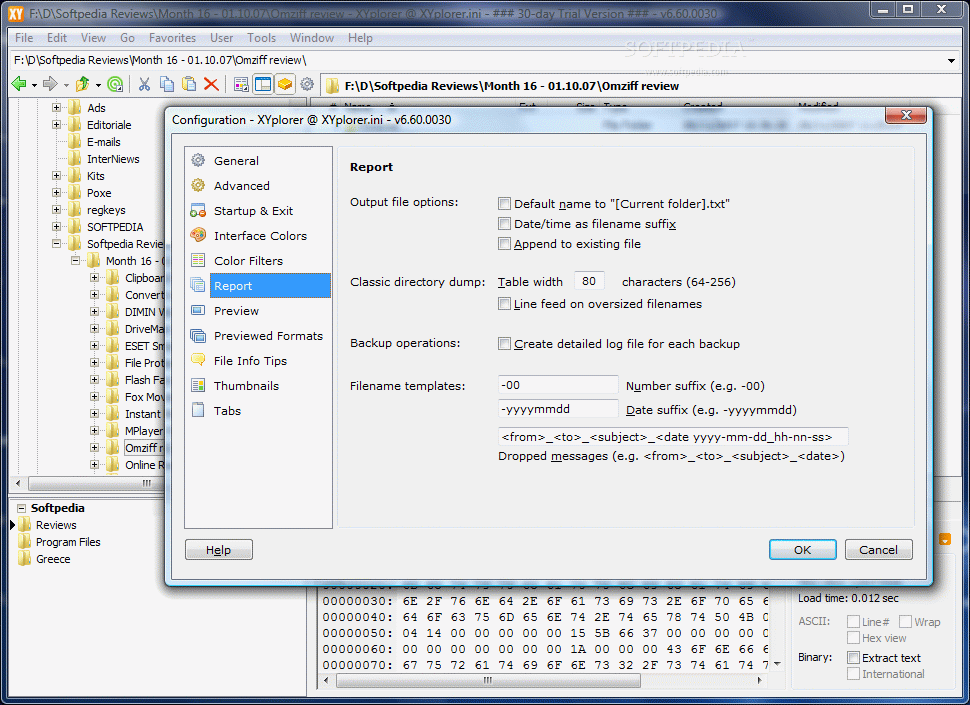
Report tab in Info Pane lets you make a list of the directories available in the active pane or just the selected items. The result can be stored to clipboard (and pasted in any document you want), sent to a TXT file or directly to the printer.
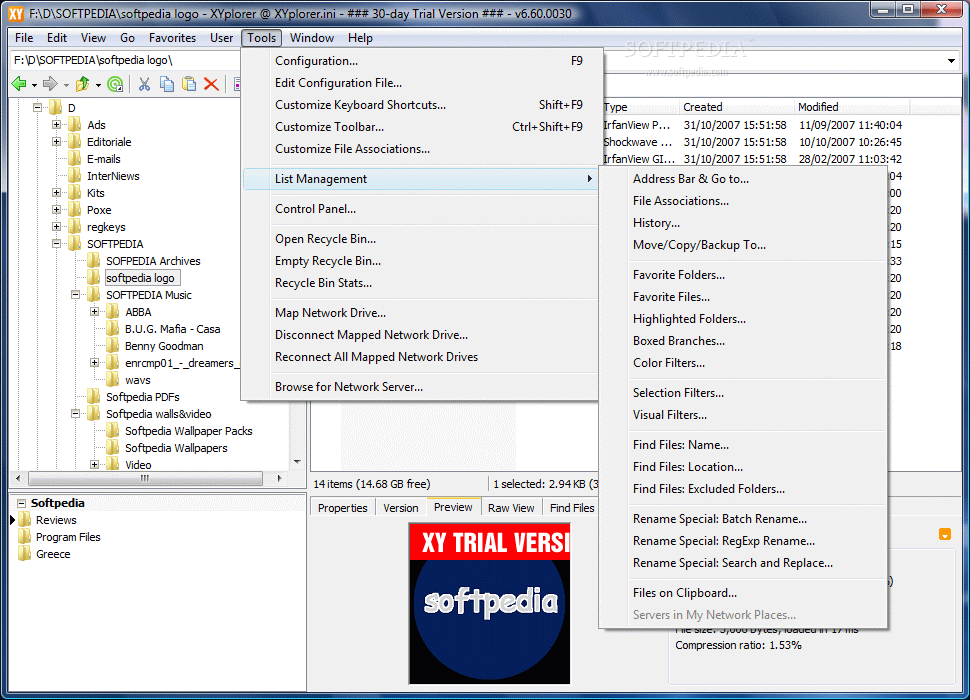
Tools menu is quite interesting as it gives you instant access to Control Panel or Recycle Bin (you can empty it from here as well). As all respectable file managers, XYplorer also offers the possibility of mapping network drives painlessly.
Customizing the toolbar is an easy task even for a beginner and you can place within easy any function available in the software. Customization window will display the current button in the right and the ones that can be added to the left. Simple clicks can separate the items and finish the toolbar tuning process in seconds.
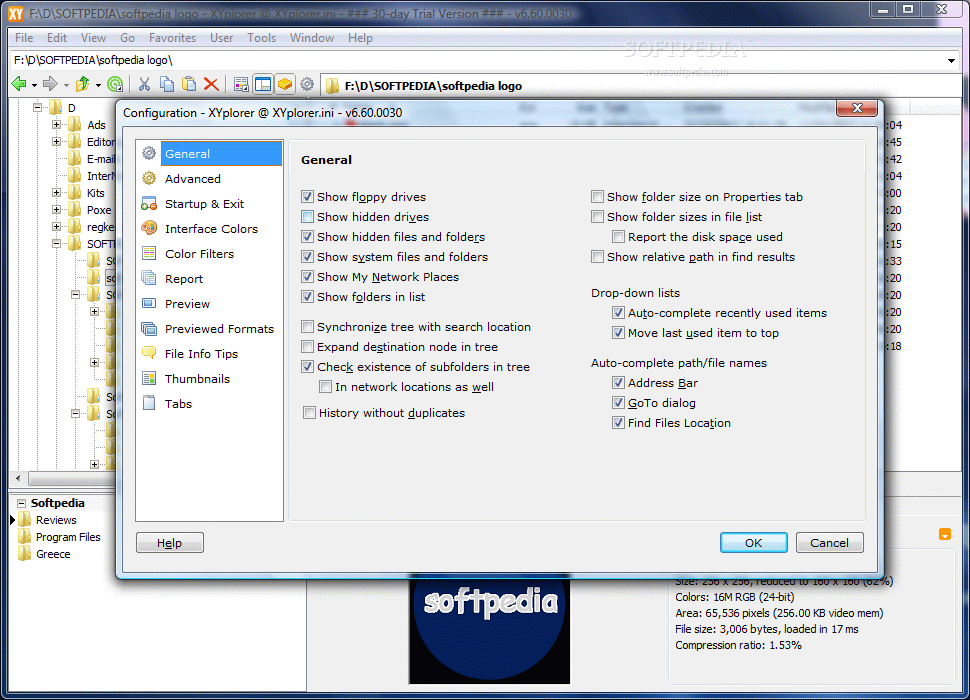
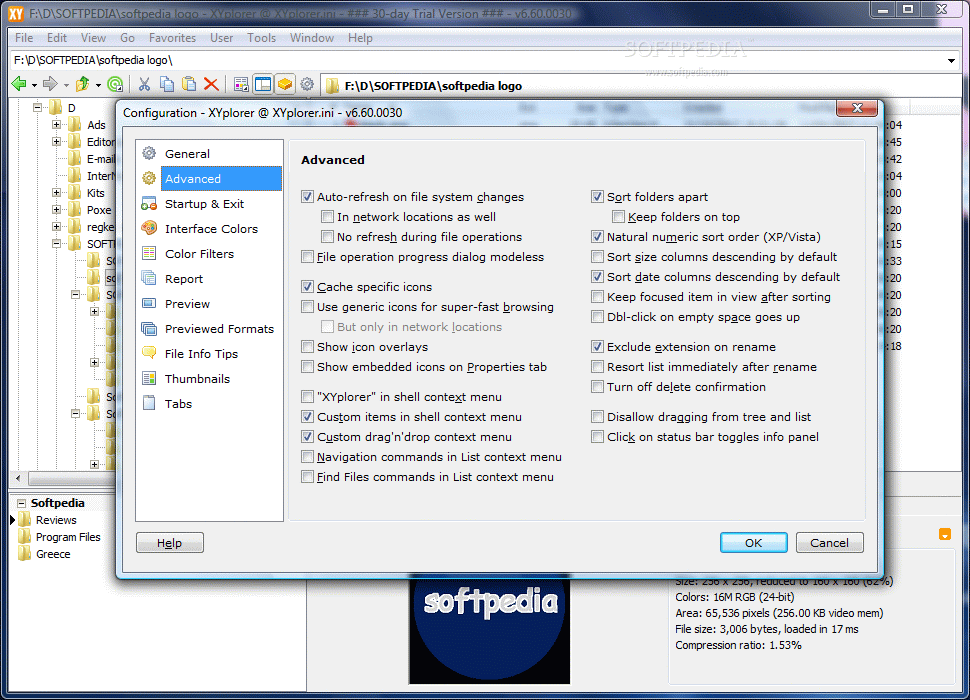
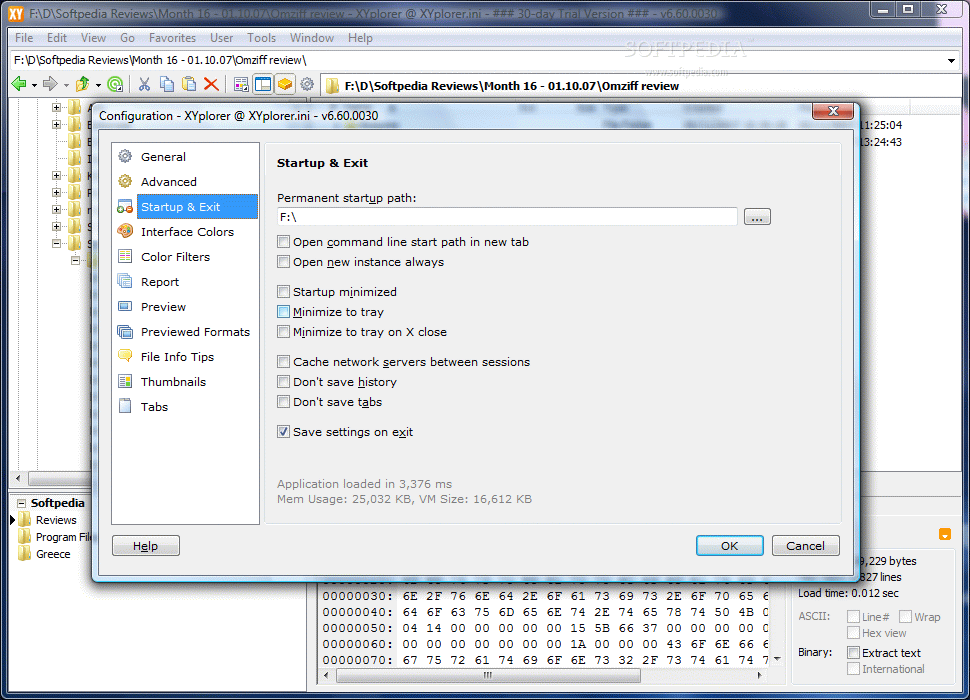
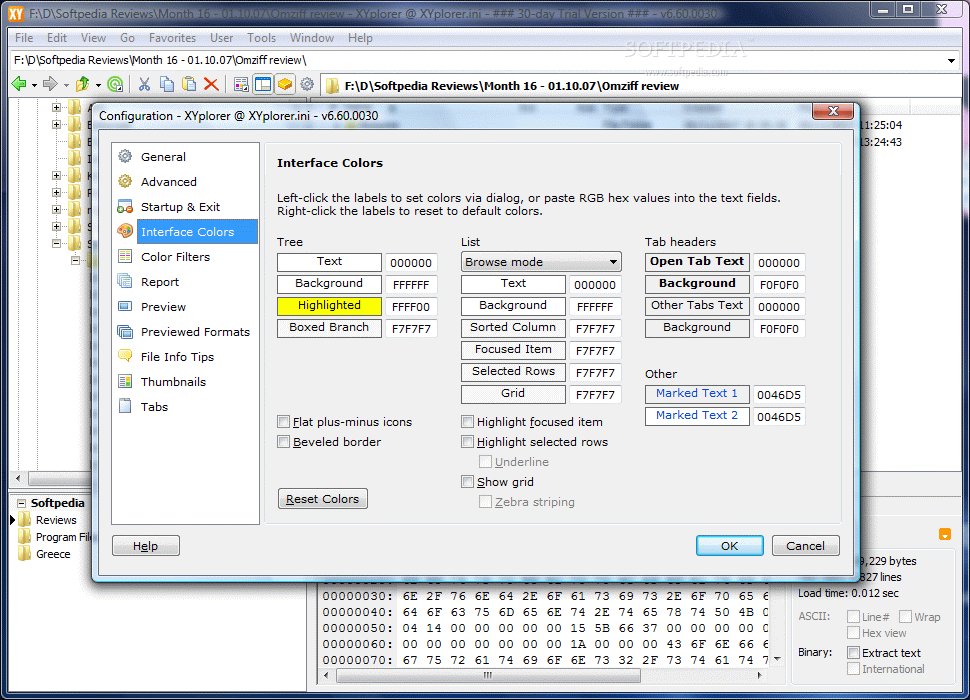
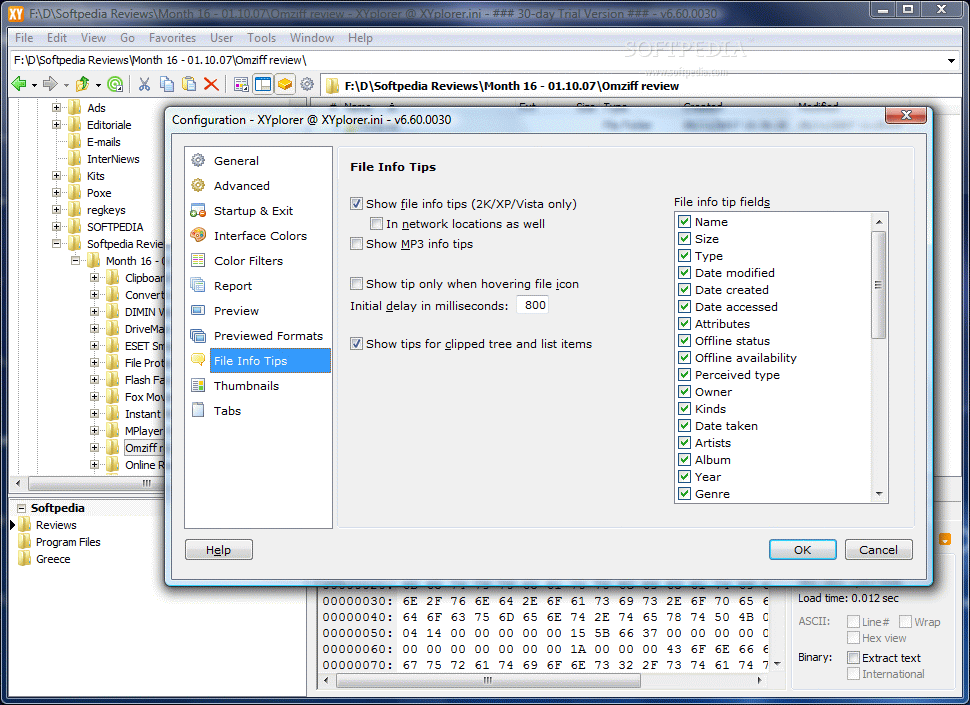
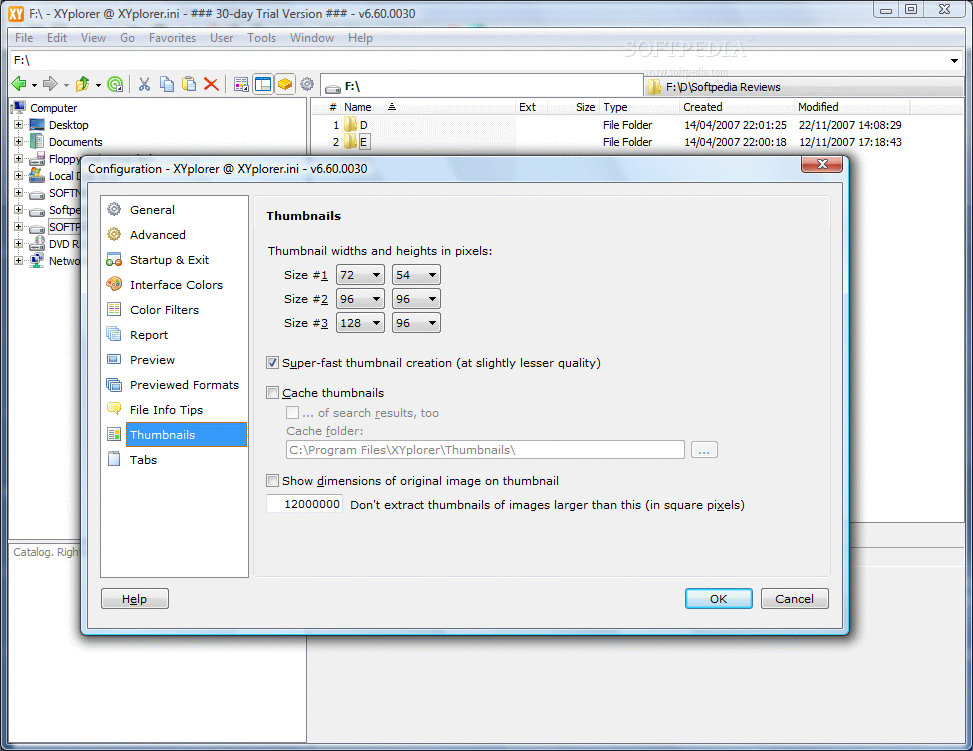
Configuring the entire application is a cinch for any user, regardless of the skill level. All the options are easy to understand and will not pose any problems. You can enable the showing of hidden drives, files and folders, customize Properties tab by showing folder size, enforce auto-refresh on file system changes, adjust the looks by modifying the colors of both folder tree, as well as the different lists available (lists will not modify the colors by simply choosing a hue from the palette the first time you try; but if you manually input a color code (any value) and then try the palette again it will work ? the same is available for Tab headers). In my case resetting colors did not work.
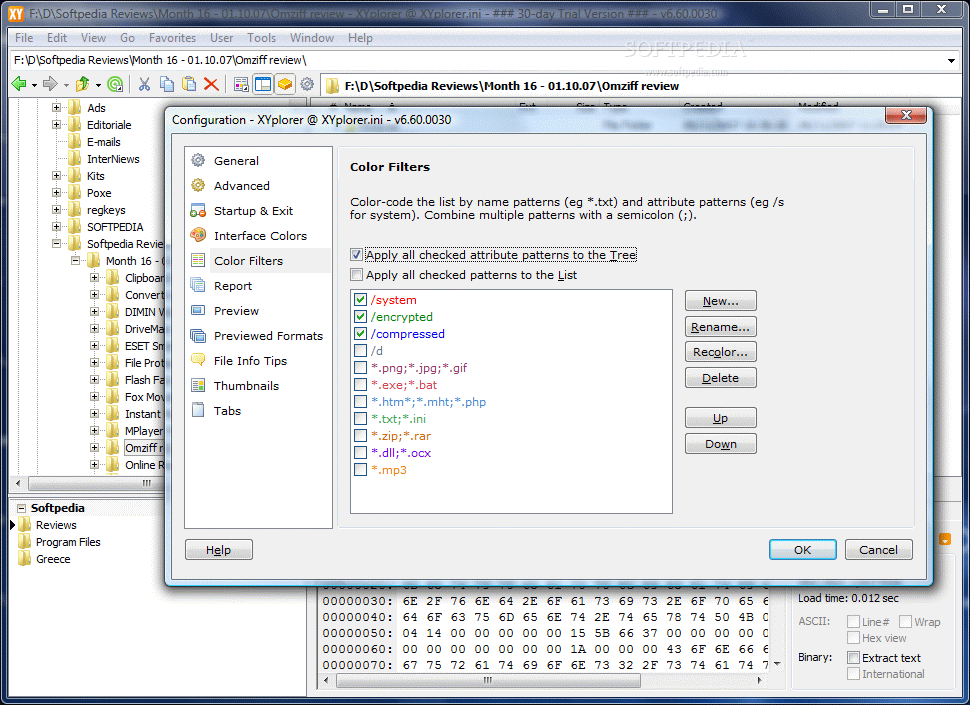
Each file stored on your computer can be colored differently according to its type. This can be achieved from configuration menu under Color Filters. Also, users can add as many extensions as they want and recolor the existing ones. Although I do not see this as of too much importance the feature can prove to be quite useful for if you decide to color the most important file types just to make them more evident in the pane.
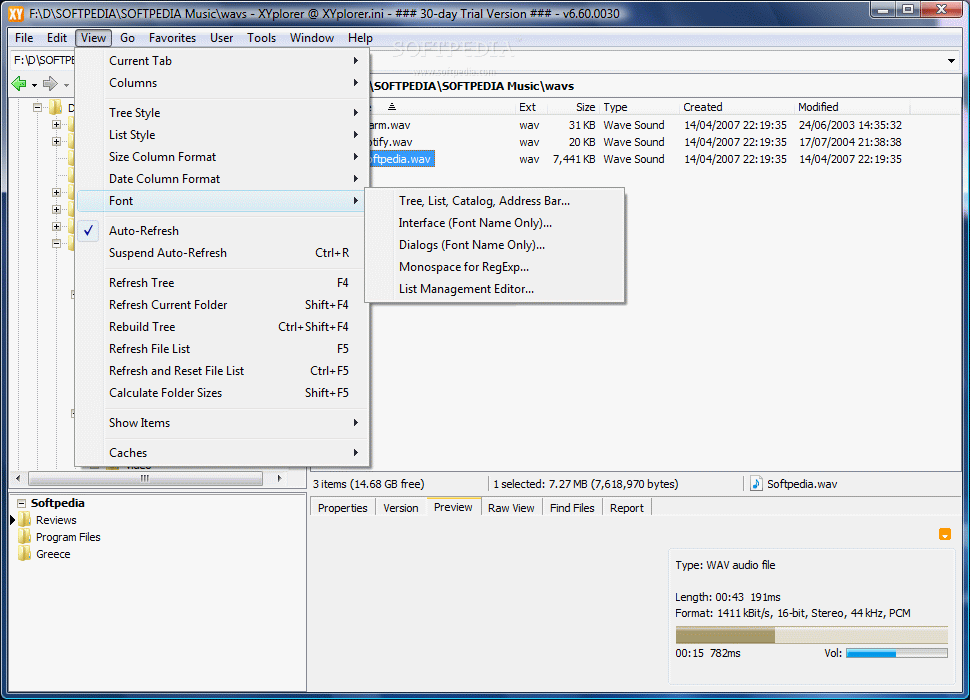
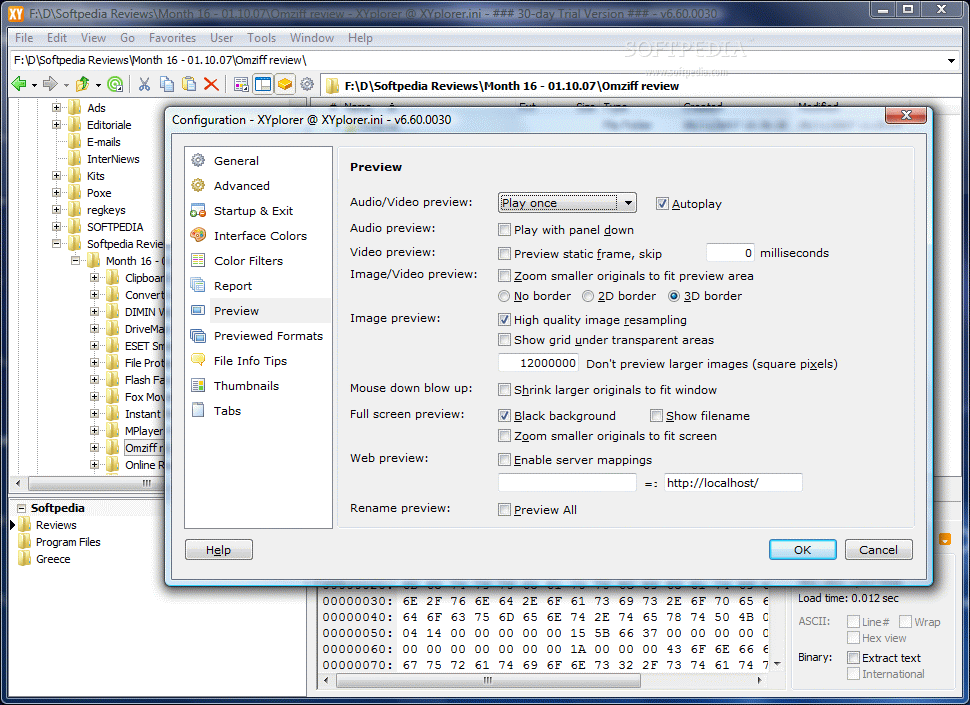
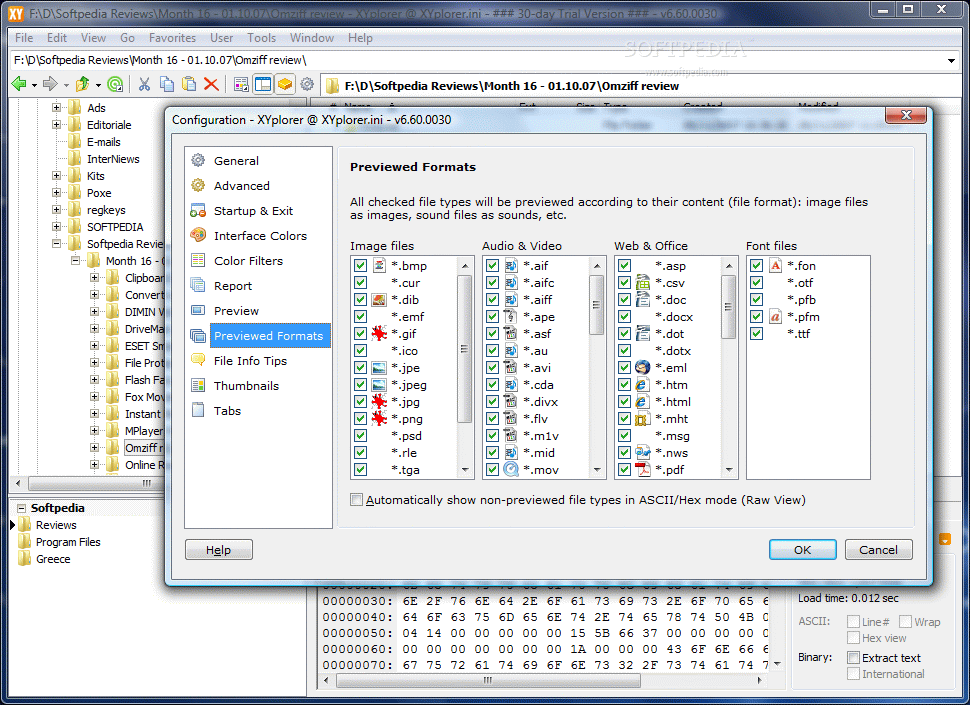
One feature I am sure most users will appreciate though is preview. XYplorer can preview both video files and images. Image preview is not extraordinary and users are already accustomed with this, but XYplorer can also play video and audio files. Of course, it'll not play all file formats, but we tried DivX, AVI, FLV, MPG, WMV, WAV, OGG, MP3 and WMA and they all worked. Note that these are played with no help from third party codecs. Just with XYplorer installed.
Sure the player is equipped only with basic functionality but you can adjust the volume, learn the duration of the file, format, etc.; in the case of video files you are also given the framerate and size of the window. The feature is specially important as it helps you find a particular file faster if you don't know its name.
On the downside the application does not include an internal file packer, file splitter or FTP function. I feel these were left out and yet they make the list of features of a file manager more complete, together with a dual pane view. Hopefully these functions will be included in the next major release of the application.
All in all XYplorer makes for a fine and very fast file manager. It lacks a few options but it is still easy to maneuver for an average user. It brings neat options like Catalog and Info Pane or audio and video preview but it still needs a few adjustments.
The Good
XYplorer is a heck of an alternative to Windows Explorer. It comes with numerous functions and options which are easy to get to and fine tune to work to your liking.
Audio and video preview are extraordinary. You need no external player for this and supports all popular file formats.
Search function does a great job in getting accurate results and properly configured it'll raise to your standards, no matter which these are vis-a-vis file searching.
Catalog and Info Pane are my favorites as they expand the functionality of the application and can replace the lack of a dual paned view.
The Bad
There are some options that cannot be found in XYplorer and some users can't do without. FTP, internal file packer and file splitting are just three of them. Some consider them bloat but these come in pretty handy, especially when the file manager is portable (you never know what you will find on the computers you plug your USB stick into). Also, there is no folder comparison function or synchronization.
The price of a lifetime license is quite steep (almost $50) if you think of the alternatives on the market. I could think of at least three file managers that beat Xyplorer's feature list by far and yet come at a cheaper price.
The Truth
XYplorer fully deserves its success as it is fast, offers great flexibility and many options. It is easy to handle and configure and I think it is the very best alternative to Windows Explorer (there are similarities in the interface and WE fans will be glad to have found it).
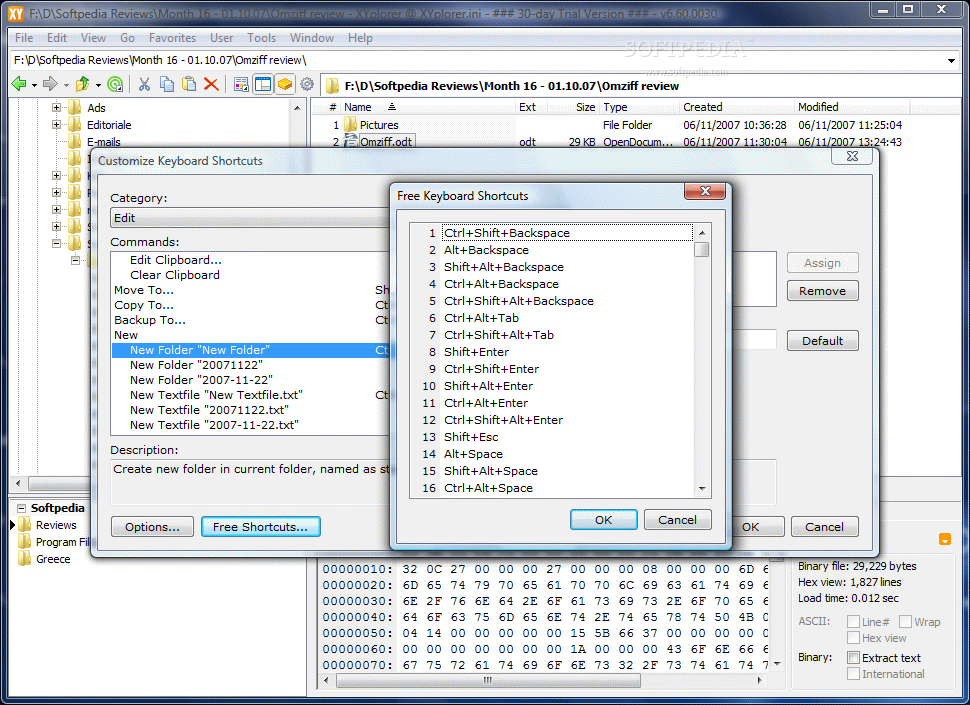
If you are keyboard dependent and rarely use your mouse than you've found in XYplorer a great partner. Every action can be assigned a hotkey.
It is a very good file manager and deserves a chance. You only need a day out of the thirty provided for the trial version to make yourself an idea on how well it fits you. What can I say? It grows on you.
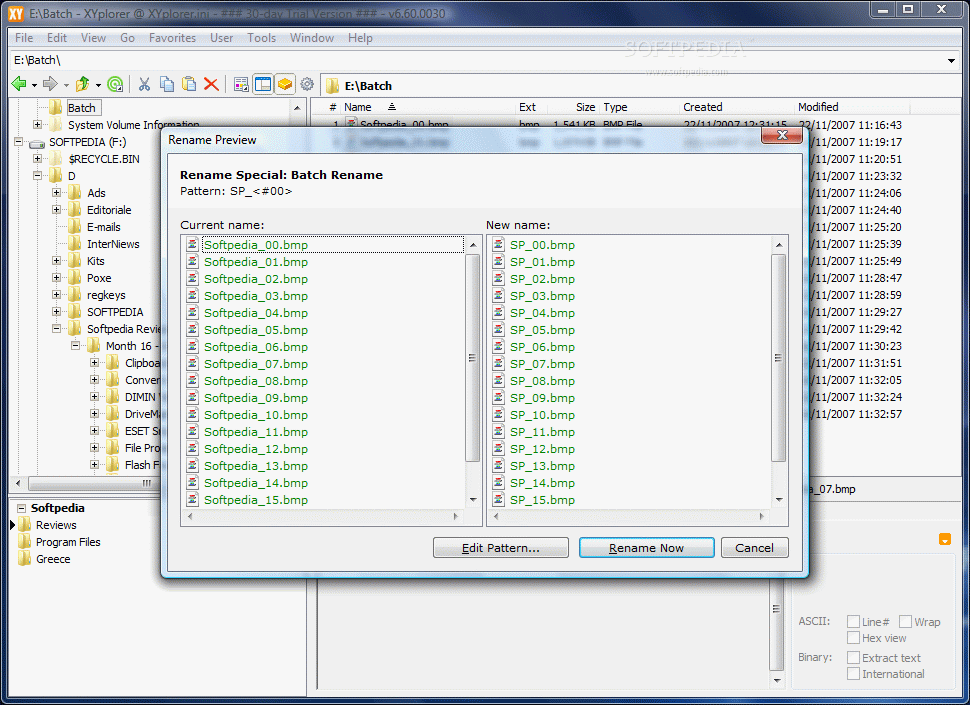
NOTE: User-Defined Commands section of the application permits easy navigation to a specific location on the computer or on the Web, opening of user-defined files, backing up data, moving it to a particular location or batch renaming files using a single user-defined hotkey. The feature gives the user navigation freedom all over the computer and Web by simply defining a set of commands pecific to the action you desire.
Dragging and dropping the files to a tab header uses windows default actions ("move" within the same drive and "copy" between different drives). However, here's a little tip from the developer: drag your files with right click of your mouse down in order to take advantage of a generous menu of options that allow selecting the best choice for you.
Here are some snapshots of the application in action: