14 DAY TRIAL //
 With YouTube as host platform, video has gained a top front spot in today’s Internet life. Programs to video capture your movement on the desktop are plenty, but Bandicam stands out through ease of use and simplicity of the options.
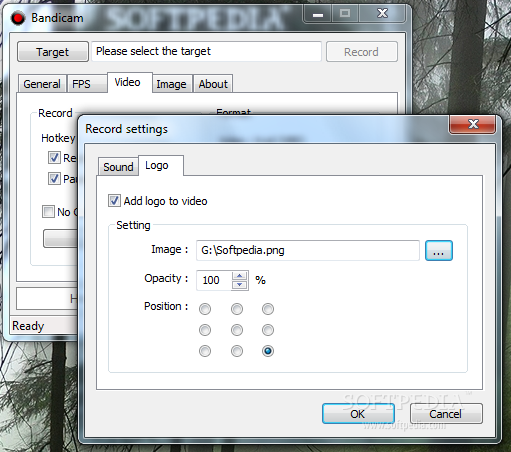
The instrument comes at a $39 price, but before shelling out the money you can take it for a test drive to evaluate its abilities. The 10-minute capture restriction and the watermark superimposed on the resulting video are in no way hindering the evaluation of the application.
Bandicam installs quickly and when launched you’re going to see an incredibly simple interface. The small screen is built around the basic functionality an average and even novice user need to get started with screen capturing.
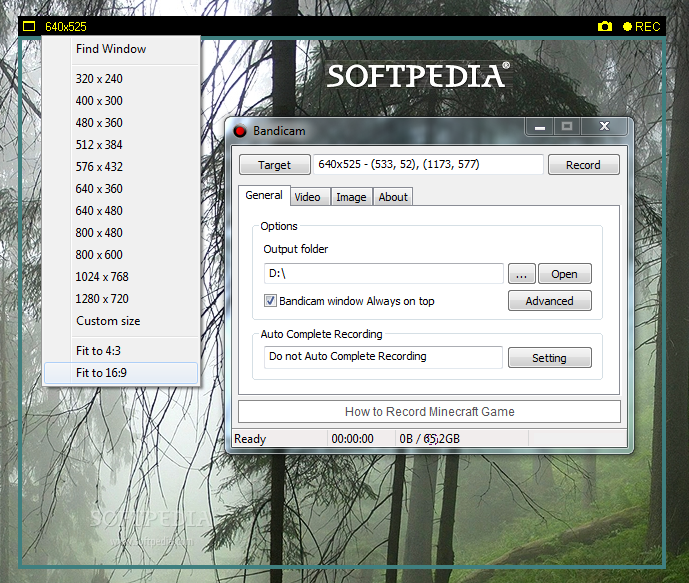
In the upper part, under “Target”, you get to pick how the target area should be detected. The two options available let you select a full screen window (DirectX/OpenGL), which is automatically detected by the program or a custom area of your choice.
In the case of the latter a rectangle will appear on the desktop and you can resize it to fit the exact area you want to capture. The rectangle itself comes with several preset sizes to make things easier on you and in the upper right hand corner there is the REC button. If you need to simple snap a screenshot of the area Bandicam puts at your disposal this option as well. The result can be a BMP, PNG or JPG picture.
Apart from the target area Bandicam’s interface is all about configuration settings. The default setup already fits the needs of most users, but in case you want a different behavior from the software or a different set of shortcuts, the app allows you to make the changes.
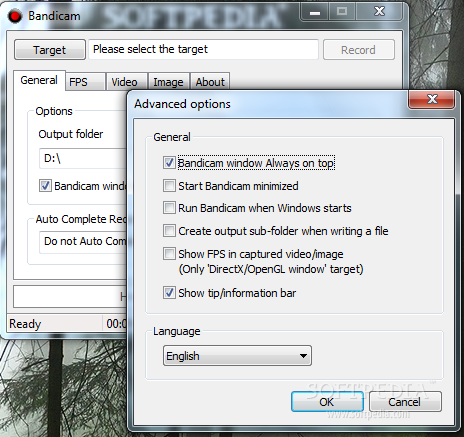
You’ll be able to define a storage location for the resulting video, as well as configure Bandicam to start with Windows in minimized mode or enable the display of FPS in the video capture window, when we’re talking about DirectX or OpenGL elements.
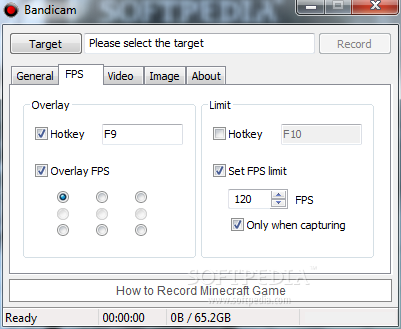
Further customization includes turning on FPS overlay at the touch of a key or set its position on the screen. Additionally, you can set the FPS limit (default is locked at 60).
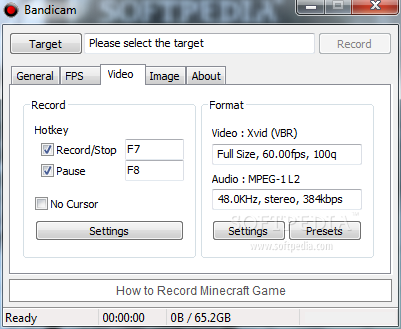
“Video” tab in the interface is one of the most important sections of the entire program as this is where you get to calibrate the sound recording, video and audio settings; change the hotkey for starting, stopping and pausing the video recording process or enable mouse cursor display.
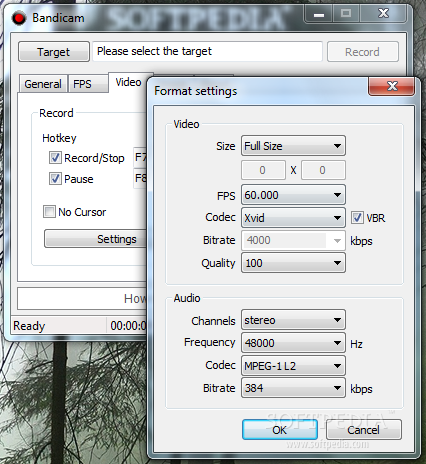
Video and audio configuration lets you select the number of frames per second, codec you want to be used in the process as well as quality of the capture (higher means a bigger output) or frequency and bitrate.
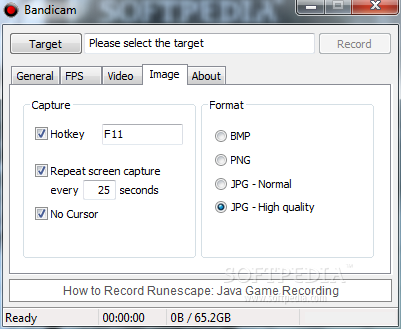
Taking snapshots of the target area is equally simple. Just define the hotkey to trigger the snap and select the output format. Also, you can enable Bandicam to automatically repeat the screen capture with a specific frequency.
Working with the software is not a big deal. All you have to do is basically define the area you want to record and use the hotkey to trigger the capture process. For games things are pretty much the same, but it is recommended to star Bandicam first and then the game, for best results. Failing to do so can produce nasty results, like lack of sound or a messed up capture.
During our tests we used Bandicam to capture gameplay in Anno 1404 and a casual game, Royal Envoy. The two games were played on two different machines, the latter being installed on a less powerful computer sporting GeForce 6150 LE graphics and a 2GHz Dual Core CPU. For Anno gameplay we used a machine equipped with ATI HD 4750 graphics and a 2.2GHz CPU. As you can see from the videos below the quality of the recording is outstanding.
One aspect to Bandicam’s advantage is that the video is saves is already to be uploaded to YouTube without further compression. In our case, a 3 minute gameplay at 60FPS and a resolution of 1024x768 came out 52.4MB in size; we used XviD codec and the top quality setting.
Anno 1404 gameplay has different specifications, with 30FPS and a higher resolution (1360x768); the result is also heftier in size, too, weighing 827MB for a 10 minute video. MPEG-1 was the codec used for this one, and the quality set to 80.
Overall, Bandicam is an awesome instrument for creating tutorial videos for various desktop applications as well as PC games.
Check out our gameplay footage we made with Bandicam:
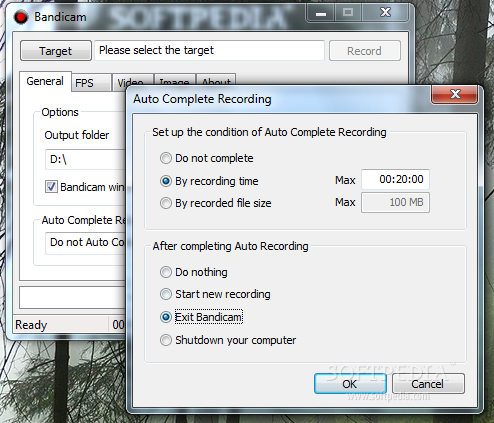
Auto complete recording allows you to set a limit (time or size of the result) to the video capture process. Also, you get to select the codec you want for the job and the configuration that attains the best quality for you. If you modify the size of the rectangle that defines the recording area the resulting video will preserve the initial frame size. Gameplay was affected on the low specced test machine when recording would start, but that was an expected downfall as more power is needed for such tasks. On the upside, you won’t have any trouble immortalizing parts of the desktop. We used it successfully even for recording video windows, such as those in YouTube or VLC player.
The Good
The Bad
The Truth